

Windows 11 can send mouse-wheel input to the window under the pointer even when that window is not active. The setting is called Scroll inactive windows when hovering over them. It is useful when you work with two windows side by side and want to read one while keeping the keyboard focus in the other.
The supported control is under Settings > Bluetooth & devices > Mouse. This guide shows the exact switch, explains what On and Off mean, and includes a safe rollback. The reproduced session changed only this per-user preference, then restored its original On state and verified the stored value and type.
What does scrolling an inactive window mean?
An active window currently has input focus. Its title bar usually looks selected, and keyboard input goes there. An inactive window can still be visible behind or beside it, but it does not have focus. With this switch on, you can place the pointer over that visible inactive window and rotate the wheel without clicking the window first.
Microsoft's Change mouse settings guide explicitly says to switch this option on when you want to scroll a window that is not active merely by hovering over it. The feature changes where wheel input is routed; it does not activate links, type text, move files, or change which window receives keyboard input.
Table of contents
Before you change the switch
Note whether the switch currently says On or Off. There is no Apply button, so the change takes effect as soon as you use the control. If you are only testing, returning it to that recorded state is the complete rollback.
Leave the nearby wheel mode, lines-per-scroll slider, scrolling direction, pointer speed, primary button, and Enhance pointer precision controls untouched. They affect different mouse behavior and can make a simple hover-scrolling test difficult to interpret.
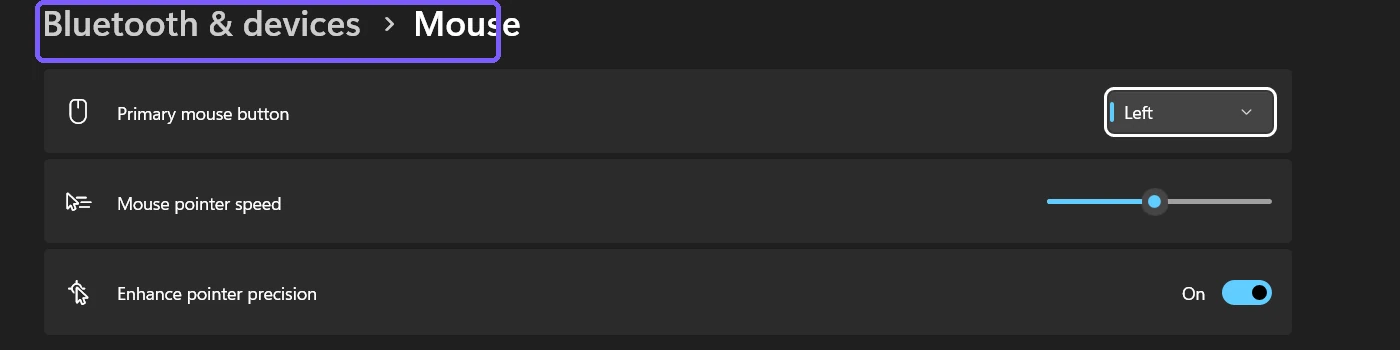
How do you turn inactive-window scrolling on or off?
Press Windows + I to open Settings.
Select Bluetooth & devices in the left navigation, then select Mouse.
Under Scrolling, find Scroll inactive windows when hovering over them.
Turn the switch On to let the wheel scroll the window under the pointer without first clicking it. Turn it Off if you want wheel input to stay with the active window until another window receives focus.
Microsoft's input accessibility guide also documents Windows + I, Bluetooth & devices > Mouse, and the Scrolling section as the Windows 11 route for mouse scrolling options.
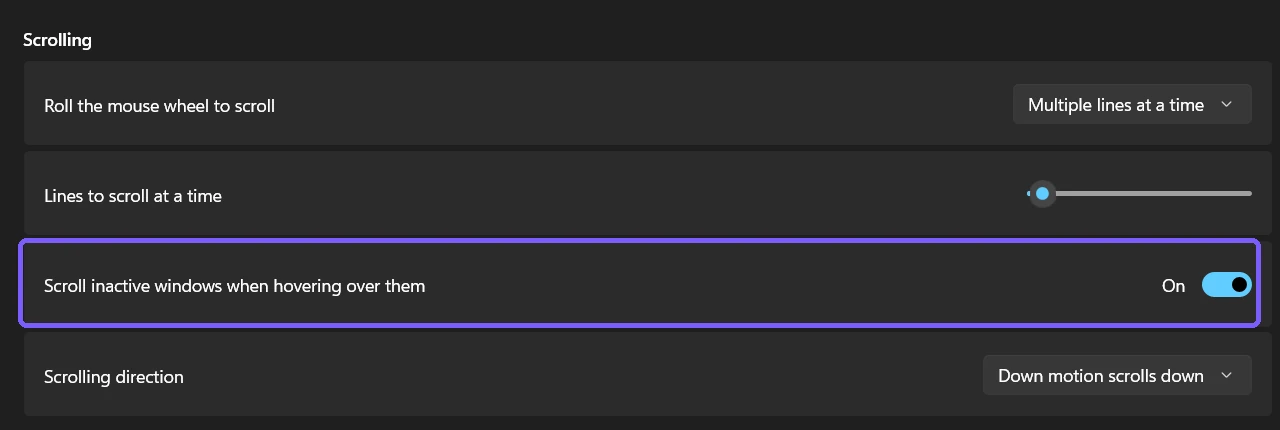
How can you test the behavior safely?
Open two harmless, scrollable windows and arrange them side by side. A long Settings page and a browser page that contains no form are suitable. Click the first window once so it is clearly active. Move the pointer over the second window without clicking, then rotate the wheel gently.
When the switch is On, the visible content under the pointer should scroll even though keyboard focus remains in the first window. When the switch is Off, the inactive window should not receive that hover wheel input. App-specific behavior can vary, so repeat the test with a built-in Windows window before assuming the mouse hardware is faulty.
Do not test over a page with a focused drop-down, number input, zoom control, map, timeline, or other element that treats the wheel specially. A small wheel movement over such a control can change its value instead of simply moving the page.
What did the reproduced Off state look like?
The evidence session started with the switch On. I changed only this switch to Off and observed the corresponding per-user value change from 2 to 0. The wheel mode remained Multiple lines at a time, and the nearby slider and scrolling direction were not touched.
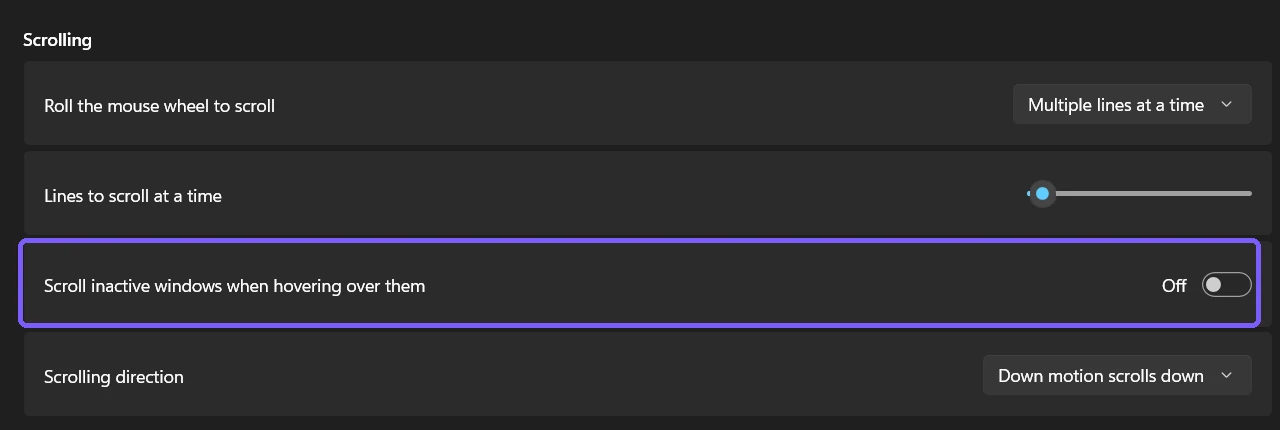
The stored value was used only as verification and rollback evidence. You do not need Registry Editor, a command, administrator rights, sign-out, or a restart for the supported Settings method. Direct Registry instructions are deliberately excluded because the visible switch is clearer and safer.
How do you restore the original state?
Return to Settings > Bluetooth & devices > Mouse and set the switch back to the state you recorded before the test. In this session, that meant returning it to On. I then closed Settings and checked that the original DWORD value 2 and its value type matched the narrow pre-test backup exactly.
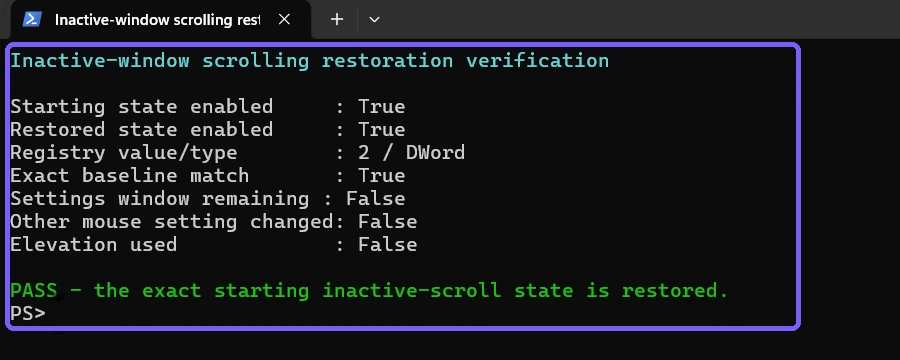
This switch does not change pointer appearance
Hover scrolling decides which window receives wheel input. It does not change the pointer's color, shape, or size. Use the separate steps to customize the mouse pointer style and size when visibility is the problem.
It also does not make the pointer travel faster across the screen. If movement feels too slow or too quick, use the guide to adjust the mouse pointer speed. Change one behavior at a time so you can tell which control solved the problem.
How do the nearby scrolling options interact?
Roll the mouse wheel to scroll
This menu decides whether a wheel movement scrolls multiple lines or one screen at a time. It changes the amount of movement, while inactive-window scrolling changes the target window. You can use either wheel mode with hover scrolling.
Lines to scroll at a time
This slider applies when the wheel mode uses multiple lines. If the inactive window scrolls but moves too far or too little, inspect this slider after confirming that the hover switch works. Do not change both controls during the same diagnostic step.
Scrolling direction
On supported devices, this controls which content direction follows a wheel or touch motion. It does not decide whether an inactive window can receive that input.
Why is an inactive window still not scrolling?
Is the switch still on?
Reopen the Mouse page and read the current label. A restored preference, another user, or a management policy may have returned it to Off. Do not assume the current state from memory.
Does the window contain scrollable content?
The pointer must be over an area that can actually move. A short page, fixed dialog, toolbar, empty pane, or disabled control will not show a useful result. Test over a long built-in Settings page before troubleshooting the mouse.
Is an app intercepting the wheel?
Some apps implement custom canvases, remote sessions, games, zoom surfaces, or embedded web content. They may handle the wheel differently from a standard Windows list. If hover scrolling works in Settings or File Explorer but not in one app, check that app's own input settings.
Are you testing a touchpad gesture?
The switch is on the Mouse page and controls inactive-window wheel routing. A touchpad gesture can be governed by separate touchpad settings or device software. Verify with a physical wheel when you need to isolate this exact feature.
Does this setting require administrator rights?
No. The reproduced Settings method worked for the current user without an elevation prompt. The preference is per-user, so another Windows account can have a different choice. If the control is disabled by organizational policy, do not bypass that restriction with an elevated script.
Frequently Asked Questions
What is an inactive window in Windows 11?
It is a visible window that does not currently have input focus. Another window receives keyboard input, but the pointer can still hover over the inactive window.
Where is the inactive-window scrolling switch?
Open Settings, select Bluetooth & devices, select Mouse, and find Scroll inactive windows when hovering over them under Scrolling.
Does turning it on activate the window?
No. It routes wheel scrolling to the window under the pointer without requiring a click first; keyboard focus can remain in the active window.
Can you turn it off if scrolling happens accidentally?
Yes. Turn the switch Off so an inactive window does not receive hover wheel input. You can turn it On again later without administrator rights.
Conclusion
Use Settings > Bluetooth & devices > Mouse and change only Scroll inactive windows when hovering over them. On lets the wheel scroll the window under the pointer without first clicking it; Off keeps that hover behavior disabled. Record the starting state, test over harmless scrollable content, and restore the original state if you were only diagnosing the feature.
For more interesting articles, stay tuned to WinSides.com!









Community
Comments (0)