

Windows 11 includes a typing preference called Autocorrect misspelled words. When it is On, supported Windows typing surfaces can replace a recognized misspelling while you type. When it is Off, Windows leaves the typed word unchanged, although an app may still provide its own spelling or AutoCorrect feature.
The supported switch is under Settings > Time & language > Typing. This guide shows the exact control, explains how it differs from spell highlighting and text suggestions, and documents a safe rollback. The reproduced session changed only the Autocorrect switch from its original On state to Off, then restored On and verified the per-user value.
What does the Windows autocorrect switch do?
The setting controls whether supported Windows input experiences automatically correct recognized spelling errors in typed text. Microsoft describes the option in its Globalization policy documentation as deciding whether errors in typed text are automatically corrected. Microsoft also notes that availability and behavior depend on having a supported language enabled.
This is a Windows typing preference, not a universal promise for every editor. Microsoft Word, a browser extension, a messaging app, or another program can have an independent spelling engine. Turning the Windows switch Off does not automatically disable those separate app-level features.
Table of contents
Before you turn autocorrect on or off
Read the current label beside the switch and record whether it says On or Off. There is no Apply button; the change takes effect as soon as you select the control. If you are testing, returning to the recorded state is the complete rollback.
Leave Highlight misspelled words, Show text suggestions when typing on the physical keyboard, and Multilingual text suggestions unchanged. Those controls do different jobs. Changing several at once makes it difficult to know which preference affected the result.
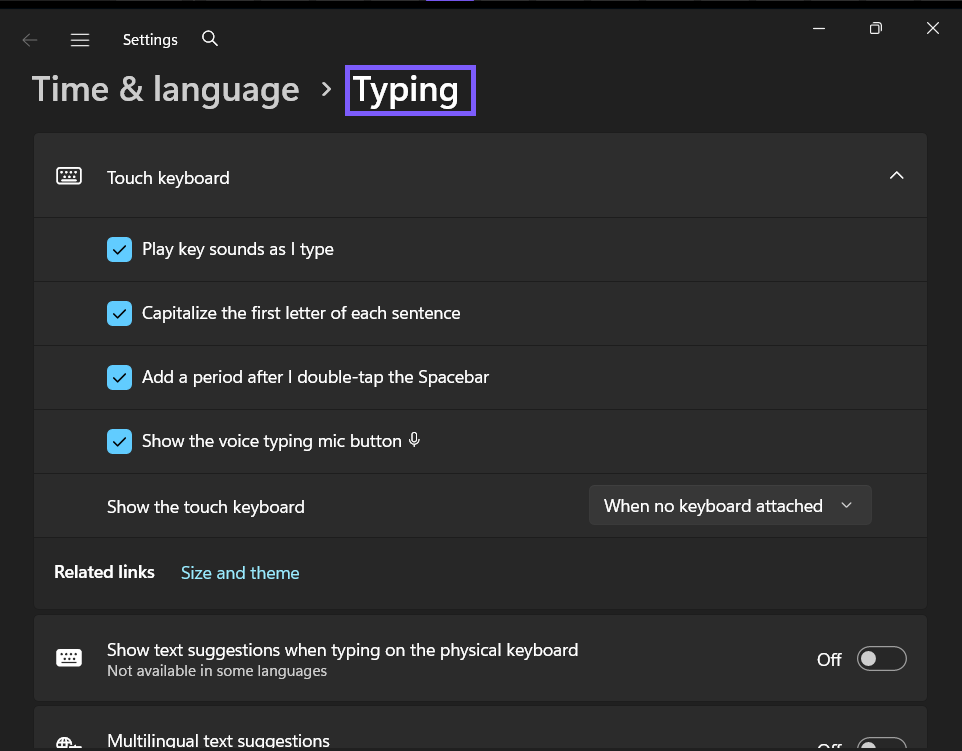
How do you turn Autocorrect misspelled words on or off?
Press Windows + I to open Settings. You can also open Start and select Settings.
Select Time & language.
Select Typing.
If the Touch keyboard section is expanded, select its heading once to collapse it. This brings the general typing controls into view without changing any option.
Find Autocorrect misspelled words. Turn it On to allow supported Windows typing experiences to correct recognized misspellings automatically. Turn it Off when you want Windows to leave those words as entered.
Microsoft's Windows Settings overview identifies Time & language as the area for typing preferences, including autocorrect, text suggestions, and multilingual input. The exact wording can vary slightly across Windows builds, but the reproduced Windows 11 25H2 page used the label shown here.
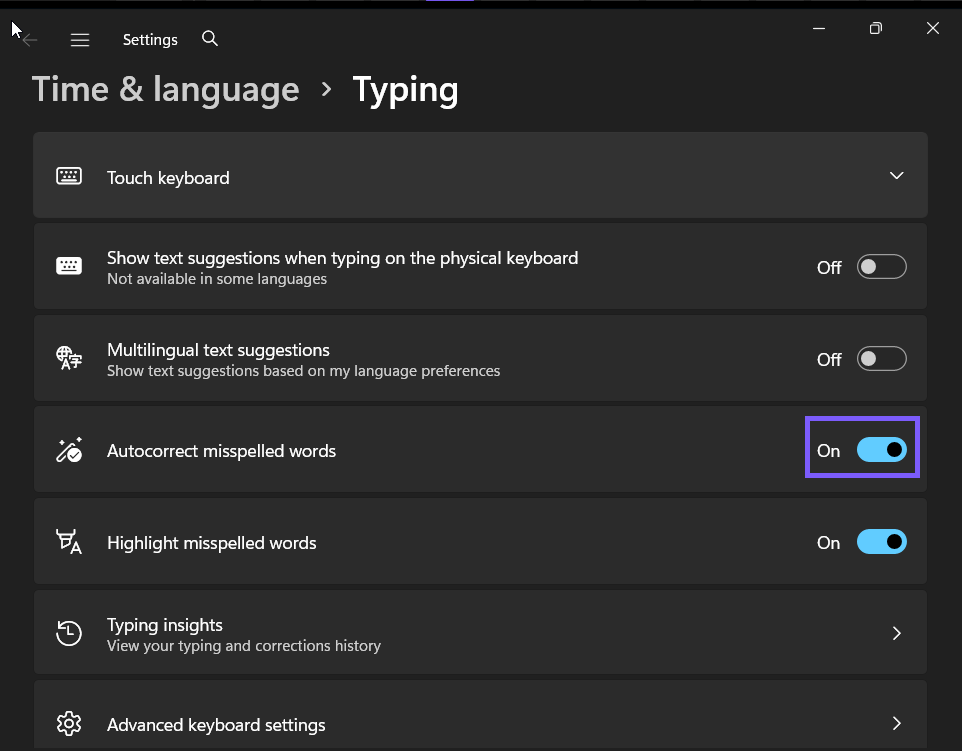
How can you test the change safely?
Open a disposable local note or an unsent draft that contains no private information. Type a simple misspelling in a language installed on the PC, add a space, and observe what happens. Use harmless sample text because autocorrection may replace a word immediately.
Testing inside one app is not enough to prove that the Windows preference is broken. Some programs use their own language tools, while others rely more heavily on the Windows input service. If the result is unclear, repeat the test in a second ordinary text field and confirm that the correct keyboard language is active.
Do not test in a password box, payment form, live support chat, social post, or message that could be sent accidentally. The setting does not need sensitive text to demonstrate its behavior.
What did the reproduced Off state look like?
The evidence session began with Autocorrect On. I selected only that switch, confirmed it changed to Off, and verified that the physical-keyboard suggestions, multilingual suggestions, and misspelling-highlighting controls did not change. No administrator prompt, sign-out, or restart was required.
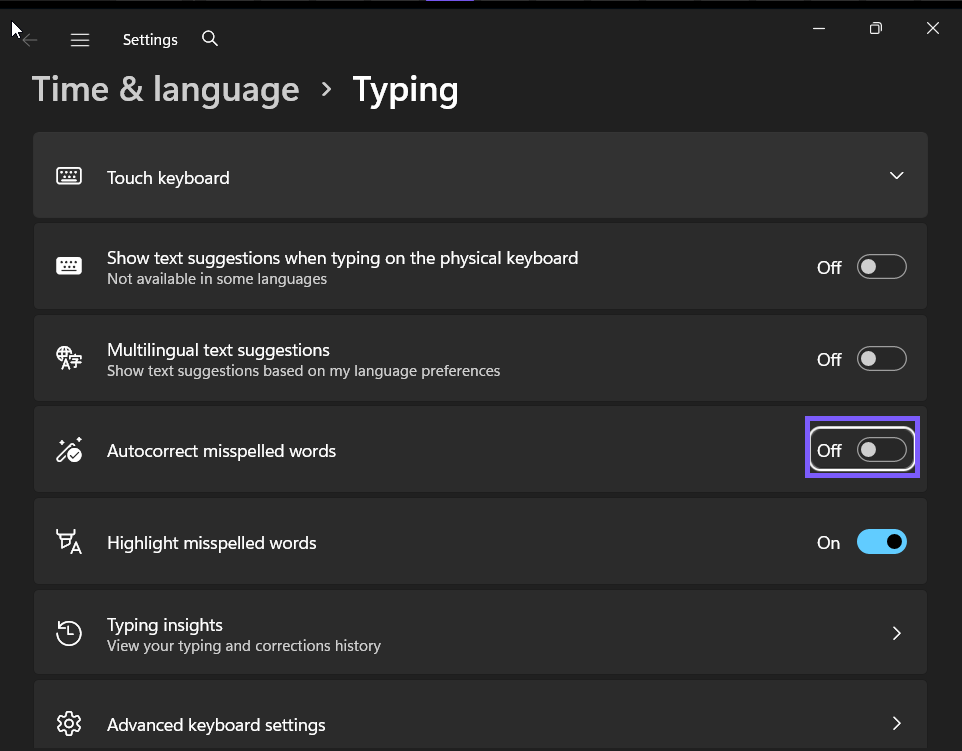
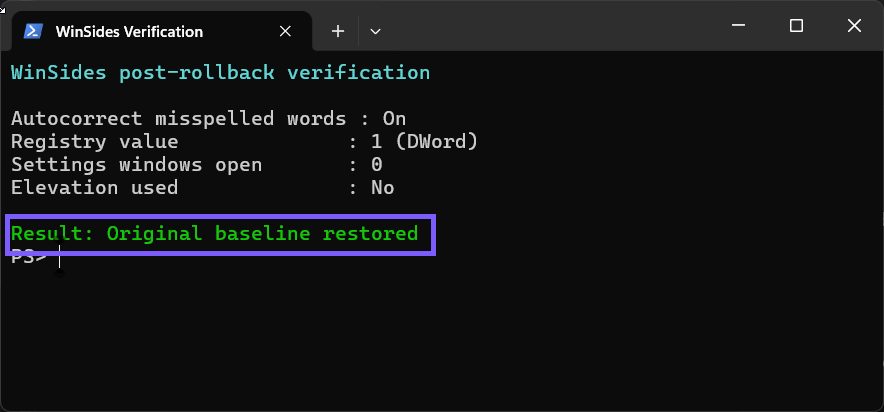
The stored per-user value was observed only as narrow verification evidence. Readers do not need Registry Editor or a command to change this preference. The visible Settings switch is clearer, reversible, and less likely to affect an unrelated typing value.
How do you restore the original autocorrect state?
Return to Settings > Time & language > Typing and set Autocorrect misspelled words back to the state you recorded. In the reproduced session, the original state was On. I restored On, closed Settings, and confirmed that the corresponding value was 1 with the DWORD type.
Autocorrect is different from highlighting misspelled words
Autocorrect misspelled words can replace a recognized error. Highlight misspelled words marks a possible spelling problem so you can review it yourself. Microsoft documents them as separate options and provides a distinct policy for each one.
You can therefore keep highlighting On while turning automatic correction Off. That combination is useful when you want a visible warning but prefer to choose every replacement yourself. It is also why the neighboring Highlight switch should not be changed during an autocorrect test.
Autocorrect is different from text suggestions
Text suggestions display candidate words while you type and let you choose one. They do not require Windows to replace a completed misspelling automatically. Microsoft's text suggestions guide uses the same Time & language > Typing page but directs readers to the separate physical-keyboard and multilingual suggestion switches.
If you want suggested completions rather than automatic replacements, change the suggestion control instead. Keyboard navigation can help when choosing a suggestion; see the live Windows 11 keyboard shortcuts list for a broader reference. Change one typing behavior at a time.
Why is Windows not autocorrecting a misspelled word?
Is a supported typing language active?
Autocorrect depends on language support. Check the input-language indicator on the taskbar and make sure the keyboard layout matches the language you are typing. A word that is wrong in one language may be valid in another.
Does the app use its own correction engine?
Word processors, browsers, extensions, and communication apps can implement their own proofing. If an app keeps correcting text after the Windows switch is Off, inspect that app's spelling or AutoCorrect settings. For Microsoft Word, the relevant option is separate under Word's proofing settings.
Is the word a name, technical term, or accent variation?
A dictionary may not recognize names or specialist vocabulary. Do not repeatedly enter private names merely to test the feature. When speech recognition rather than typed spelling is the issue, the separate live guide to recognizing non-native accents for a language covers a different Windows language behavior.
Is the switch managed or unavailable?
On a work or school PC, an organization can apply a user policy that locks autocorrect off. Microsoft documents that managed policy for supported Windows editions. If the control is unavailable, contact the administrator instead of trying to bypass the restriction with an elevated script.
Does this change require administrator rights?
No. The reproduced Settings method changed the current user's preference without elevation. Another Windows account can have a different choice. A restart was not needed, although an app that was already open may need a new text field or a restart before it reflects the updated input behavior.
Frequently Asked Questions
Where is Autocorrect misspelled words in Windows 11?
Open Settings, select Time & language, select Typing, and find Autocorrect misspelled words below the text-suggestion controls.
Does turning Windows autocorrect off disable Word AutoCorrect?
Not necessarily. Microsoft Word and other apps can have their own correction settings, so check the app if it continues replacing text.
Can Windows highlight spelling errors without correcting them?
Yes. Keep Highlight misspelled words On and turn Autocorrect misspelled words Off. The two controls are independent.
Do you need to restart Windows after changing autocorrect?
No restart was required in the reproduced Windows 11 session. If one app does not react, close and reopen that app before troubleshooting Windows.
Conclusion
Use Settings > Time & language > Typing and change only Autocorrect misspelled words. On allows supported Windows typing experiences to correct recognized errors automatically; Off leaves those words as entered. Record the starting state, test with disposable text, and restore the original choice if you were only diagnosing the feature.
For more interesting articles, stay tuned to WinSides.com!









Community
Comments (0)