

Windows 11 can place two named time-zone clocks above the calendar that opens from the taskbar. The feature is useful when you regularly coordinate with people in another region, but it is easy to confuse with the separate World clock inside the Clock app.
I reproduced the complete add, remove, and rollback sequence on Windows 11 Home Single Language version 25H2, build 26220.7872. The test started with two additional clocks: Home for India Standard Time and Work for Abu Dhabi and Muscat. I removed the second clock, applied the change, restored it with the same zone and name, and then confirmed both clocks in the taskbar calendar. The primary system time and time zone were never changed.
What are additional clocks in Windows 11?
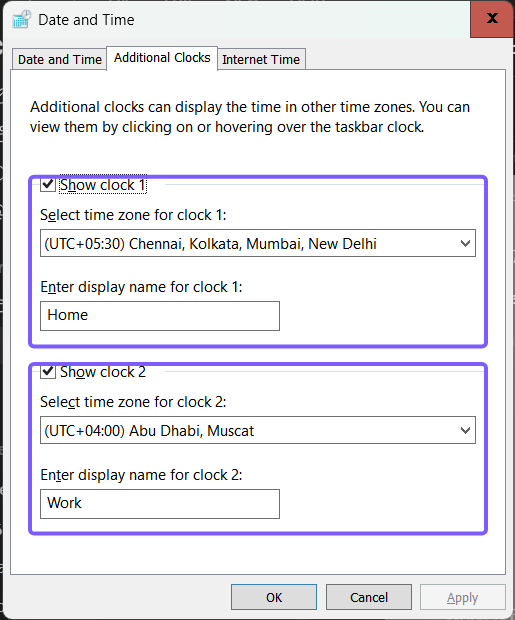
Additional clocks are two optional secondary time-zone displays attached to the Windows taskbar clock. Each slot has three controls: a Show clock checkbox, a time-zone list, and a display-name field. The display name is what appears in the taskbar calendar, so a short label such as Office, London, or Family is usually easier to scan than a full city list.
These clocks do not change the computer's primary time zone. They also do not add alarms or timers. Microsoft documents a separate World clock in the Clock app, which is designed for a larger city collection. Use the Additional Clocks tab when you specifically want one or two secondary times next to the taskbar calendar.
Table of contents
What should you record before changing additional clocks?
Open the dialog and write down the current state before you edit anything. For each clock, record whether Show clock is selected, the exact time zone, and the display name. A screenshot is also useful because several time-zone labels share the same UTC offset.
- Changing an additional clock does not require administrator approval.
- Removing a clock only hides that secondary display; it does not alter the primary Windows clock.
- A work or school policy can restrict date and time controls. Do not try to bypass a managed setting.
- The modern Settings page can change between Windows builds. The classic Date and Time dialog remains the reproduced route on this PC.
If the goal is to change the primary time zone instead, use Microsoft's current Windows date, time, and time-zone guidance. Additional clocks are only secondary displays.
How do you open the Additional Clocks tab?
- Press Windows + R to open Run.
- Enter
timedate.cpland select OK. - In Date and Time, select the Additional Clocks tab.
This command opens the same classic Date and Time dialog available through Control Panel. It does not require elevation and does not change a clock by itself. Current Microsoft Learn Q&A guidance also identifies timedate.cpl as a route when a direct Additional Clocks link is missing from Settings.
How do you add an additional clock?
- In the first unused group, select Show clock 1 or Show clock 2.
- Open Select time zone and choose the zone you need. Read the full city label rather than relying only on the UTC offset.
- In Enter display name, type a short, meaningful label. The field is for the label shown in the taskbar calendar; it does not rename the time zone.
- Select Apply.
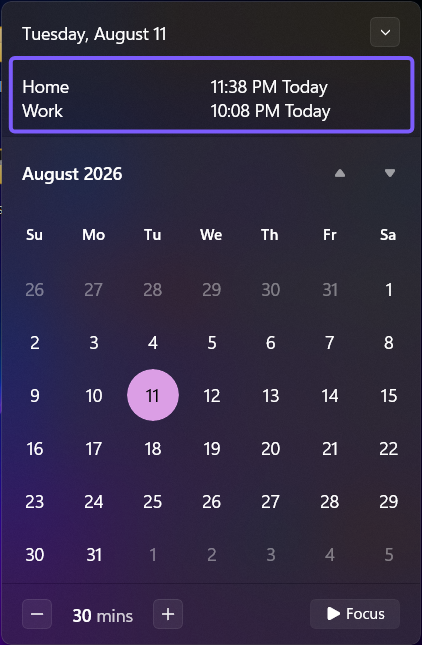
- Click the taskbar clock and verify the new label and time above the calendar.
- Select OK to close Date and Time after the result is correct.
You can enable both groups, giving you two additional clocks alongside the primary system clock. If both groups are already in use, decide which existing secondary clock you no longer need before replacing it. Windows does not provide a supported third checkbox in this dialog.
How do you remove an additional clock?
- Open Date and Time > Additional Clocks again.
- Clear Show clock 1 or Show clock 2 for the clock you want to hide.
- Select Apply.
- Open the taskbar calendar and confirm that the unwanted secondary clock no longer appears.
- Select OK to close the dialog.
On the reproduced PC, clearing Show clock 2 and selecting Apply disabled the Work clock. Its stored time-zone and name values remained visible in the dialog, which made the rollback straightforward. Do not assume those values will always be remembered forever; keep your own record before making the change.
Where do additional clocks appear?
After applying the setting, select the time and date at the right end of the taskbar. Windows 11 displays the named additional clocks between the calendar heading and the month view. On the reproduced build, Home and Work appeared as separate rows with their corresponding current times.
If the main taskbar time or date itself is missing, that is a different setting. Use the separate guide to show the time and date in the Windows 11 system tray before troubleshooting secondary clocks.
How do you restore the previous clock settings?
Return to the Additional Clocks tab and restore the exact state you recorded before testing. Reapply the original checkbox, time-zone selection, and display name for each slot, then select Apply. Open the taskbar calendar once more and verify the expected labels and times.
The reproduced rollback restored both original values exactly:
- Clock 1: enabled, (UTC+05:30) Chennai, Kolkata, Mumbai, New Delhi, display name Home.
- Clock 2: enabled, (UTC+04:00) Abu Dhabi, Muscat, display name Work.
UI Automation confirmed both checkboxes, both zones, and both names after the second Apply action. The taskbar calendar then showed Home and Work. Date and Time was closed, and the primary Windows time-zone setting remained untouched.
Frequently Asked Questions
How many additional taskbar clocks can Windows 11 show?
The Additional Clocks tab provides two secondary clock slots. Those appear alongside the primary system clock. Use the Clock app World clock when you need a broader city list.
Does removing an additional clock change the Windows time zone?
No. Clearing Show clock 1 or Show clock 2 hides only that secondary display. The primary date, time, and time zone remain separate settings.
Why is the Additional Clocks link missing from Settings?
The modern Settings layout varies by Windows build. Press Windows + R, run timedate.cpl, and open the Additional Clocks tab in Date and Time. That route was reproduced on the current test laptop.
Is an additional clock the same as a Clock app World clock?
No. Additional clocks are limited to two named time zones shown with the taskbar calendar. World clock is a separate city-based feature inside the Clock app.
Manage taskbar time zones without changing system time
Run timedate.cpl, open Additional Clocks, and use the two Show clock groups to add or remove named secondary time zones. Record the original checkboxes, zones, and names first; select Apply after each change; and verify the result from the taskbar calendar. The feature changes only the secondary displays, not the primary Windows clock.
For more Windows 11 tutorials grounded in reproduced steps, stay tuned to WinSides.com.









Community
Comments (0)