

Windows 11 includes a communication-audio setting that can automatically lower music, videos, games, and other non-call sounds when the operating system detects a communication session. Microsoft calls this behavior stream attenuation or ducking.
I reproduced the complete Settings route and rollback on Windows 11 Home Single Language version 25H2, build 26220.7872. The PC started with Reduce the volume of other sounds by 80% selected. I changed the Communications choice to Do nothing, applied it, verified the new radio state, restored the original 80% choice, and verified the final state again. I did not change the master volume, microphone, output device, per-app mixer levels, audio driver, services, or Registry.
What does the Communications sound setting control?
The Communications tab controls Windows' default response when an application opens an audio stream identified for communication. During that session, Windows can attenuate other audio streams so the call is easier to hear. When the communication stream closes, the default experience allows the other audio to return to its previous level.
This setting does not set the call volume itself. It also does not control microphone gain, the master speaker slider, notification volume, spatial sound, or each application's saved mixer value. It chooses how Windows treats other audio while a communication stream is active.
Microsoft's default ducking documentation describes the same four Communications choices shown on the current PC.
Table of contents
What do the four communication sound options mean?
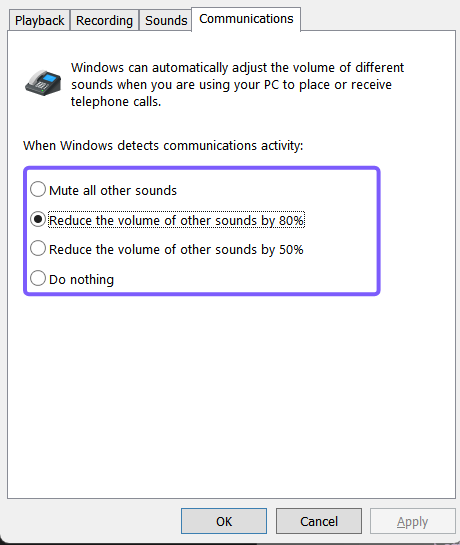
- Mute all other sounds asks Windows to silence non-communication streams during the detected communication session.
- Reduce the volume of other sounds by 80% applies the strongest partial reduction. This was the original selection on the reproduced PC.
- Reduce the volume of other sounds by 50% applies a milder partial reduction.
- Do nothing disables the default Windows attenuation response. It does not disable audio behavior implemented inside a call application, headset utility, or driver.
The percentages describe attenuation of other audio, not a visible target value in Volume mixer. Selecting 80% does not mean every other app slider will be rewritten to 20, and selecting 50% does not permanently halve saved application volumes.
How do you open the Communications tab?
- Press Windows + I to open Settings.
- Select System.
- Select Sound.
- Scroll to Advanced.
- Select More sound settings.
- In the classic Sound dialog, select the Communications tab.
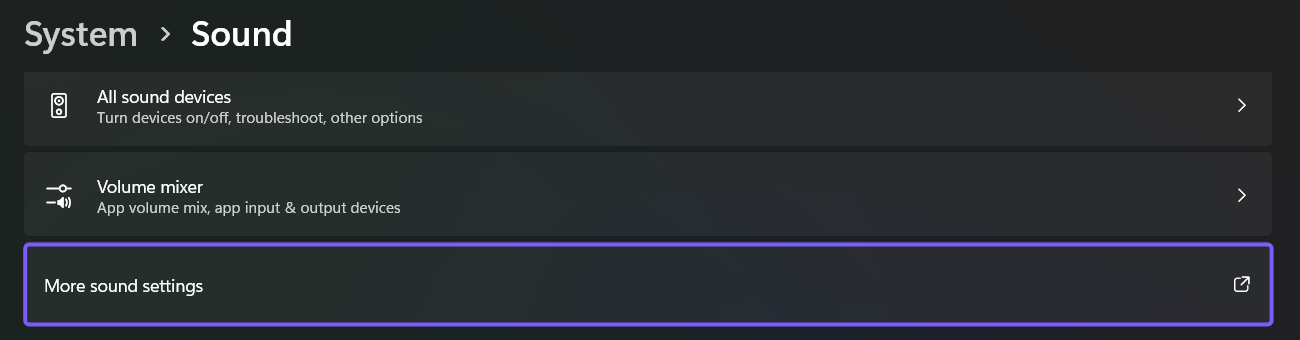
Microsoft Support's current Windows audio troubleshooting route also places More sound settings under Settings > System > Sound.
How do you change the sound level during calls?
- Before changing anything, record which Communications option is selected.
- Select the behavior you want: mute, reduce by 80%, reduce by 50%, or do nothing.
- Select Apply.
- Use a non-critical test call in the application you normally use while other audio is playing at a safe level.
- If the behavior is correct, select OK to close Sound.
Make one change at a time. That makes it easier to tell whether Windows default ducking, the call application, a headset companion app, or an audio driver is responsible for what you hear.
How do you stop Windows from lowering other audio?
Select Do nothing on the Communications tab and choose Apply. This disables the default Windows stream-attenuation response for communication activity.
On the reproduced PC, the four radio states changed from [mute=0, reduce80=1, reduce50=0, doNothing=0] to [0,0,0,1] after Apply. That verified the Windows setting itself changed. The original 80% choice was restored immediately afterward.
If other audio still drops during a call, do not jump to an unsupported Registry edit. First check the call application's own audio or attenuation preferences and any headset or sound-card utility supplied with the PC. A vendor utility can apply behavior that the Windows Communications choice does not control.
Why might a call app ignore the Windows choice?
Microsoft Learn explains that an application can respond to Windows ducking events or replace the default ducking experience with custom behavior. An application can also manage its own mix without relying on the Windows communication-stream role.
That means Do nothing is precise but limited: it tells Windows not to perform its default attenuation. It does not promise that every version of Teams, Discord, a browser meeting app, a game-chat client, or a headset utility will leave other audio unchanged.
If the Windows choice appears ineffective, compare one application at a time. Confirm the app's attenuation setting, choose the correct playback and communication devices, and test without changing unrelated enhancements or drivers. For a real no-sound fault, use Microsoft's audio troubleshooting guidance rather than treating the Communications radio button as a universal repair.
How do you restore the previous communication sound behavior?
Return to Settings > System > Sound > More sound settings > Communications, reselect the option you recorded before testing, and choose Apply. Verify that it is the only selected radio button, then close Sound and Settings.
The reproduced rollback reselected Reduce the volume of other sounds by 80%. UI Automation confirmed the final radio states were [0,1,0,0], exactly matching the starting state. Sound and Settings were closed afterward, and no other audio control was changed.
Frequently Asked Questions
Does Do nothing keep every app at the same volume during a call?
It disables Windows' default attenuation, but an application, headset utility, or audio driver can still apply its own behavior. Check the call app if other audio continues to change.
Does the 80% option set other app sliders to 20?
No. It describes temporary attenuation during detected communication activity. It does not permanently rewrite every saved Volume mixer slider.
Does the Communications setting change microphone volume?
No. The four options control how Windows treats non-communication playback streams. Microphone level and input-device settings are separate.
Why is More sound settings still a classic dialog?
Windows 11 links to the classic Sound control panel for advanced playback, recording, sounds, and communications choices. The reproduced route starts in the current Settings app.
Choose Windows ducking without changing unrelated audio controls
Open Settings > System > Sound > More sound settings > Communications, record the current choice, select the attenuation behavior you want, and choose Apply. Use Do nothing to disable default Windows ducking, but remember that a call app or audio utility can implement its own behavior. Restore the recorded option if the test does not help.
For more Windows 11 tutorials grounded in reproduced steps, stay tuned to WinSides.com.








Community
Comments (0)