

To turn Writing tools on or off in Notepad on Windows 11, open Notepad > Settings, scroll to Advanced Features, and use the Writing tools switch. Choose Off when you do not want Notepad's writing feature available, or On when you want the app preference enabled.
The complete procedure below was reproduced in Notepad 11.2606.15.0 on Windows 11 25H2. The switch started On, was changed to Off, read back from the same control, and restored to On. An isolated blank window was used, no writing command was opened, and no text was submitted to a connected feature.
What does the Writing tools switch control?
Writing tools is a Notepad app preference. It determines whether that feature is enabled inside Notepad; it is not a master switch for every AI-related feature in Windows. Turning it off here does not uninstall Notepad, remove ordinary editing commands, or change the text already stored in a document.
The name matters because older descriptions may refer to a generic Copilot icon. Microsoft now uses the Writing Tools label in Notepad, and the current app exposes the same label under Advanced Features. Follow the visible current wording rather than an older icon position.
The switch is also separate from Formatting, Spell check, and Autocorrect. Those controls appear elsewhere on the same Settings page and should be left as they are for this procedure. Changing only Writing tools gives you a clean result and an equally simple rollback.
Table of contents
What should you check before changing Writing tools?
Open a blank Notepad window or save any text you care about before entering Settings. The switch itself does not edit the current document, but using a blank window keeps private file names, restored tabs, and personal text out of a verification session. Do not close an unsaved private tab merely to make the screen look tidy.
Record whether Writing tools currently says On or Off. There is no universal value that everyone must use. The right final state is the one you intended, and recording it lets you restore the exact pre-test value rather than guessing afterward.
You do not need administrator rights for this app preference. If the switch is absent, first confirm that you are using the current Microsoft Store version of Notepad; do not substitute an unsupported Registry edit.
How do you find Writing tools in Notepad Settings?
Open Notepad. Use a blank, untitled window if another session contains private material.
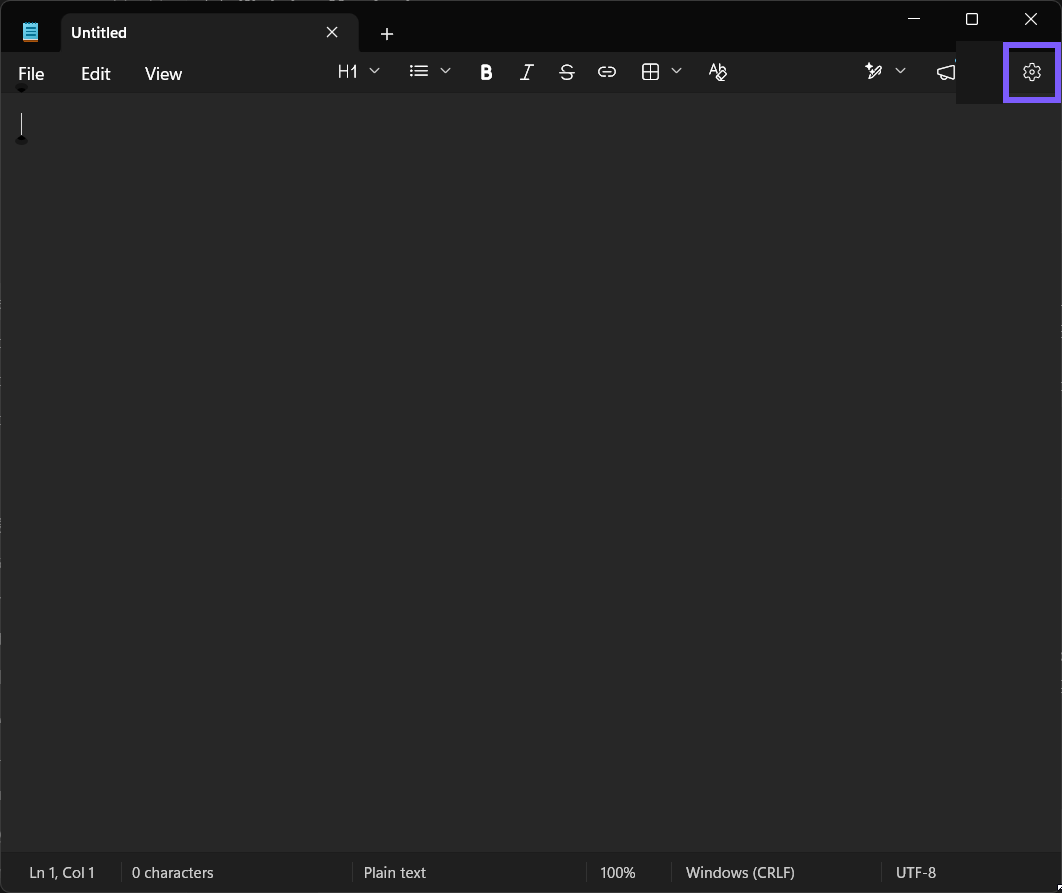
Select the Settings gear in the upper-right corner. You should arrive at Notepad's own Settings page, not the Windows Settings app.
Scroll down past Opening Notepad and Spelling until you see Advanced Features.
Find the row labeled Writing tools. Read the word beside the switch before touching it. In the reproduced session, that word was On.
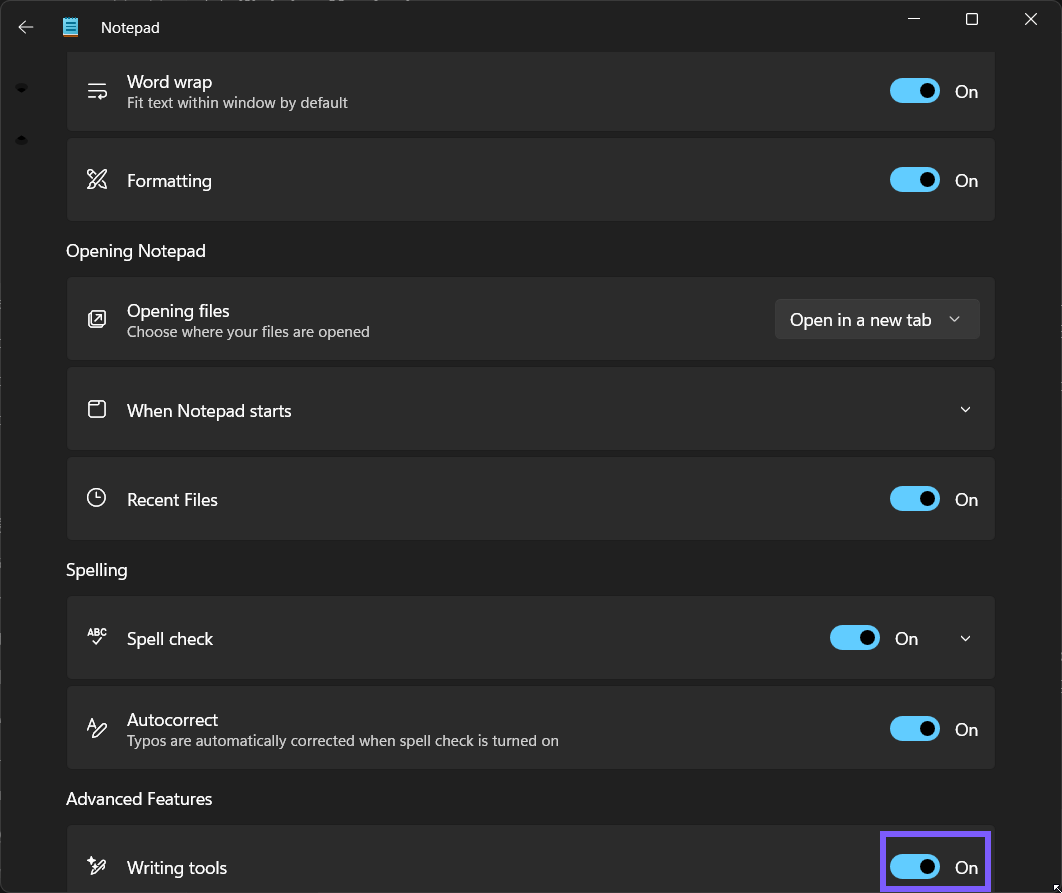
The label and the state word are the reliable evidence. Avoid judging the setting only from switch color, because contrast and theme can change while the text remains clear.
How do you turn Writing tools off in Notepad?
Select the Writing tools switch once.
Wait for the state word to change from On to Off.
Read the row again before leaving Settings. The label should still be Writing tools, and its switch should now say Off.
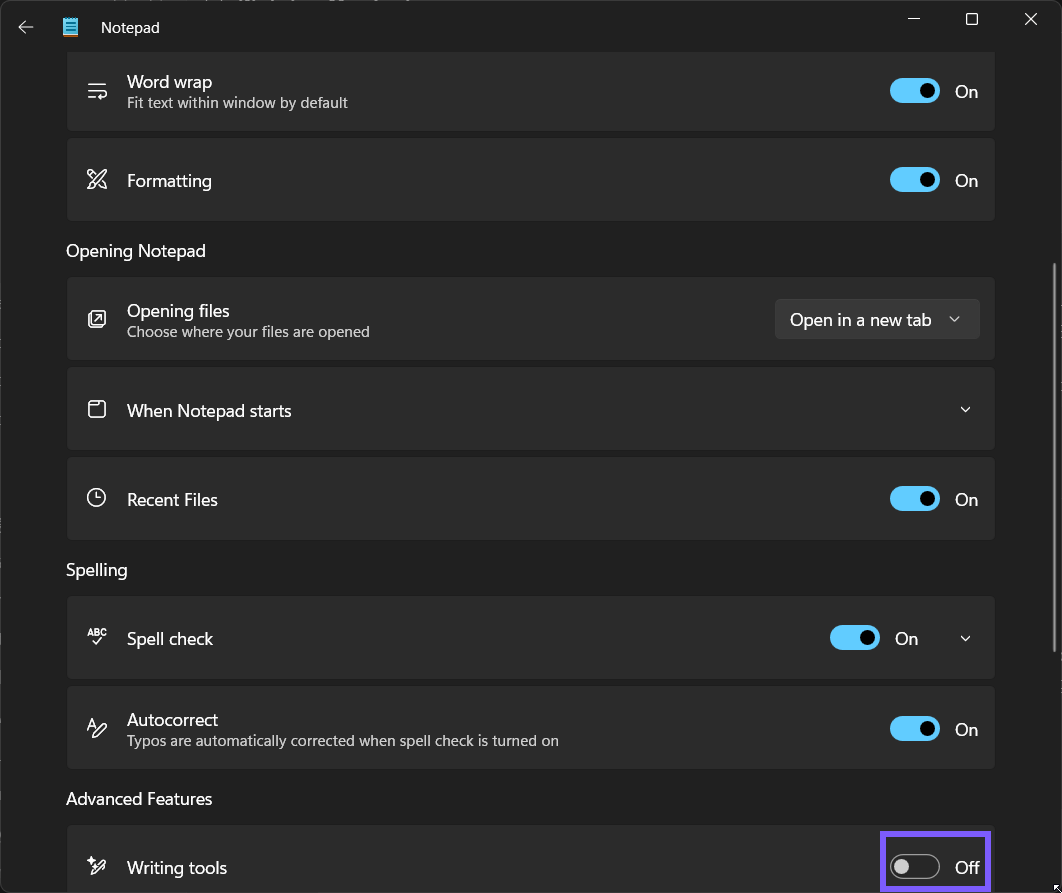
Notepad saves this preference without a separate Save button. A successful test therefore ends with the same control visibly reading Off. The local reproduction did not open a writing command or enter sample prose because changing the preference can be verified without sending content anywhere.
Turning this Notepad switch off is narrower than changing Windows privacy, account, or network settings. If your goal is simply to disable the feature in Notepad, stop at this app control. Do not broaden the procedure to unrelated system settings.
How do you turn Writing tools back on?
Return to Notepad > Settings if you closed the page.
Scroll to Advanced Features.
Select the Writing tools switch so the state changes to On.
Read the final value from the same row. If you were only testing the control and began with On, this is the required restoration.
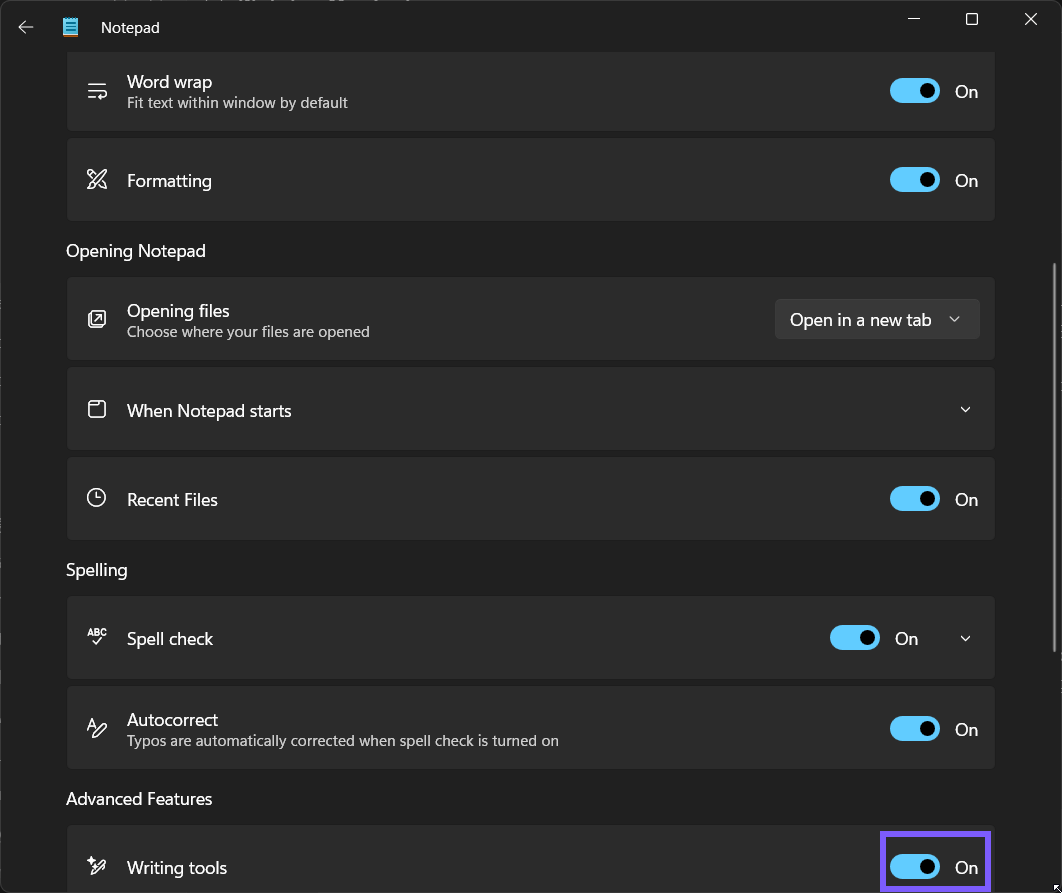
The final reproduced frame was captured after the rollback, not reused from the starting state. That distinction matters: it proves the switch returned to On after the Off test. Notepad was then closed, leaving the Writing tools preference at its original value.
Which Writing tools state should you choose?
Use Off when you want Notepad to remain focused on ordinary text editing and you do not plan to use its Writing tools feature. This is also the simpler choice for a shared or controlled workflow where that feature is intentionally not part of the task.
Use On when you deliberately want the Notepad feature enabled. Enabling the app preference does not mean you must use it in every document. It only returns the switch to the enabled state; any later command should still be reviewed before you use it with sensitive or confidential text.
For a temporary comparison, restore the value you recorded before the test. For a deliberate preference change, leave the switch at your chosen state and reopen Settings once if you want an extra read-back. Repeatedly toggling it adds no useful proof.
Why might Writing tools be missing or not behave as expected?
Notepad is older. Open Microsoft Store, check the Library for updates, and then reopen Notepad. Layout and feature names can differ across app versions, so an older screenshot may not match the current page.
You opened Windows Settings. Close that window and use the gear inside Notepad. The reproduced route is Notepad Settings, under Advanced Features.
You changed the wrong switch. Writing tools sits below controls for word wrap, formatting, recent files, spelling, and autocorrect. Re-read the exact row label before changing anything else, then return any accidental change to its recorded value.
The app or a file has a separate permission problem. This switch does not grant access to protected folders or files. For an ordinary preference change, stay in a standard-user session; run Notepad as administrator only when a protected file itself requires elevated access.
The switch moved after an update. Search the current Settings page visually for Advanced Features and Writing tools rather than relying on a fixed pixel location. If the label is absent after an app update and restart, avoid forcing a hidden Registry value that the current build does not expose.
Frequently Asked Questions
Where is Writing tools in Windows 11 Notepad?
Open Notepad, select the Settings gear, scroll to Advanced Features, and find the Writing tools switch. In Notepad 11.2606.15.0, the switch displays an explicit On or Off state.
Does turning Writing tools off delete my Notepad files?
No. The setting controls the Notepad feature, not the contents or location of saved text files. Save important work normally, and verify the switch from a blank window when privacy matters.
Do I need administrator rights to change Writing tools?
No. The reproduced switch changed in standard-user Notepad Settings. Administrator access is unrelated unless a separate protected file operation genuinely requires it.
How do I undo the Writing tools change?
Return to Notepad Settings, scroll to Advanced Features, and set Writing tools to the state you recorded before the test. Read the final On or Off word from the same row to confirm the rollback.
Conclusion
Use Notepad's Settings gear, scroll to Advanced Features, and select the Writing tools switch once. Confirm the exact On or Off word, leave unrelated controls unchanged, and restore the recorded starting value when the change was only a test. The setting can be verified safely from a blank window without entering or submitting document text.
For more interesting articles, stay tuned to WinSides.com!









Community
Comments (0)