

To turn Word Wrap on or off in Windows 11 Notepad, open View and select Word wrap. A checkmark beside the menu item means wrapping is on. Turning it on fits long text within the current window; turning it off keeps each logical line on one visual row, so the unseen part continues beyond the right edge.
You can also open Notepad Settings and use the Word wrap switch labeled “Fit text within window by default.” Neither route requires administrator rights. This guide was reproduced in Notepad 11.2606.15.0 on Windows 11 build 26220.7872 with a disposable plain-text sample. The original setting was restored after the captures.
What does Word Wrap change?
Word Wrap changes the way a long logical line is displayed. With wrapping on, Notepad creates soft visual breaks at the window edge so you can read across several screen rows. With wrapping off, Notepad keeps the logical line on one visual row. Those soft breaks are not the same as pressing Enter, and resizing the window can move them without changing the words.
This distinction matters for logs, configuration files, copied command output, and other text in which one stored line has meaning. Wrapping usually makes prose easier to read, while the unwrapped view makes unusually long lines and column-like text easier to recognize. It does not convert the document into a different format or grant permission to save in a protected location.
Microsoft explains that Windows 11 Notepad uses a RichEdit editing engine and recognizes CR, LF, and CRLF line endings. Its Windows 11 Notepad engineering note also describes behavior when Word Wrap is off. The practical rule is simple: use Word Wrap for the view you want, and use actual Enter characters only when you intend to create new logical lines.
Table of contents
Method 1: Change Word Wrap from the View menu
The View menu is the clearest route when you want to change the current editing view and immediately compare the result. Save important work first, then use a non-sensitive long line for verification so an accidental edit cannot expose or damage a real file.
- Open Notepad and load or type a line that is wider than the editor window.
- Select View on the menu bar.
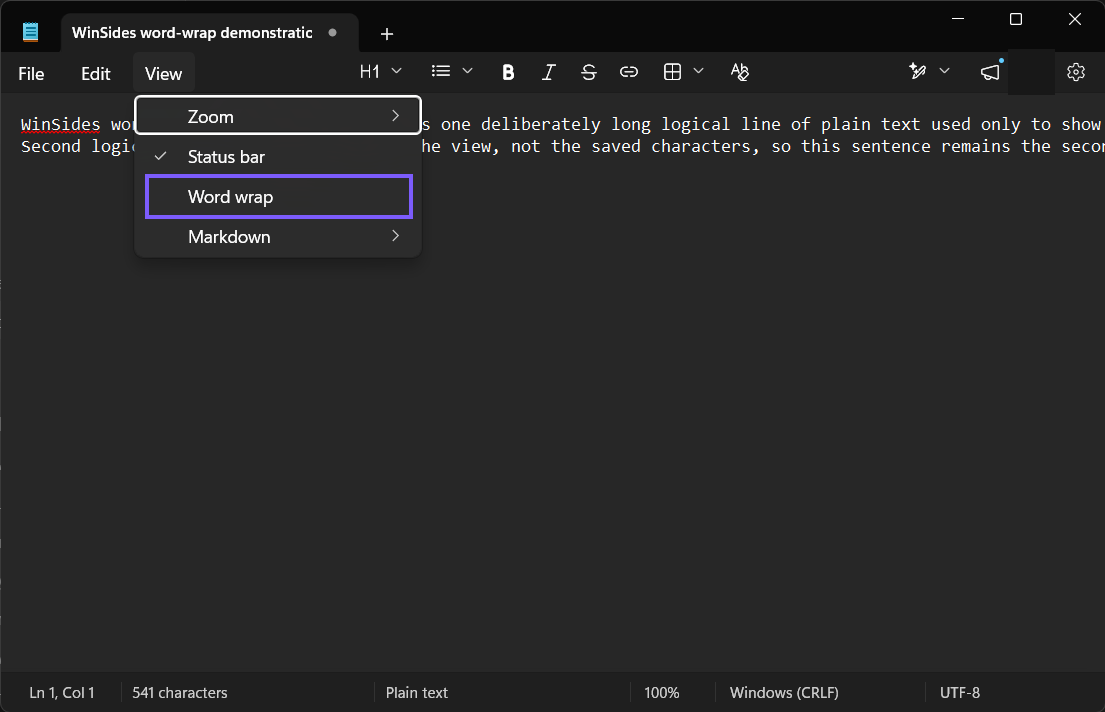
- Select Word wrap. If a checkmark was present, selecting the item turns wrapping off; if no checkmark was present, selecting it turns wrapping on.
- Resize the Notepad window slightly and observe the same long line. A wrapped line changes its visual break points with the window width, while an unwrapped logical line continues beyond the right edge.
What does Word Wrap Off look like?
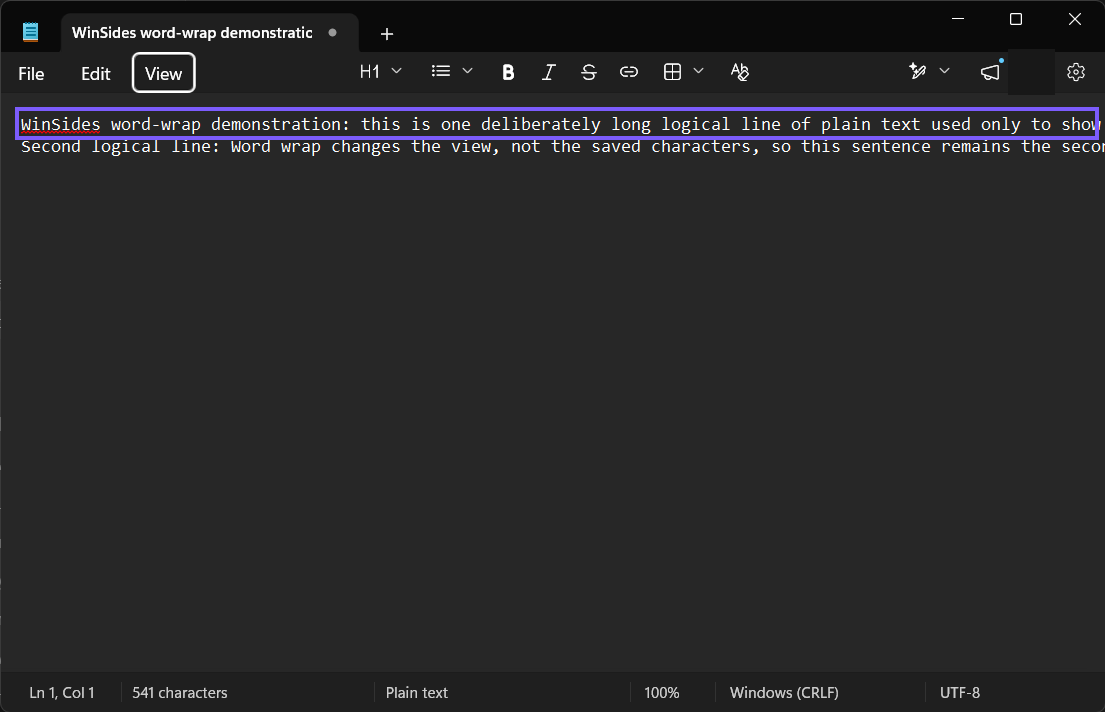
When Word Wrap is off, each logical line stays on one visual row. In the reproduced frame below, the highlighted first line continues beyond the right side of the window, while the second logical line remains a separate row. No horizontal scrollbar was required to prove the state on this Notepad build; the clipped continuation itself is the visible result.
Reopen View to verify the exact control state. In this version of Notepad, the absence of a checkmark beside Word wrap confirms that it is off.
What does Word Wrap On look like?
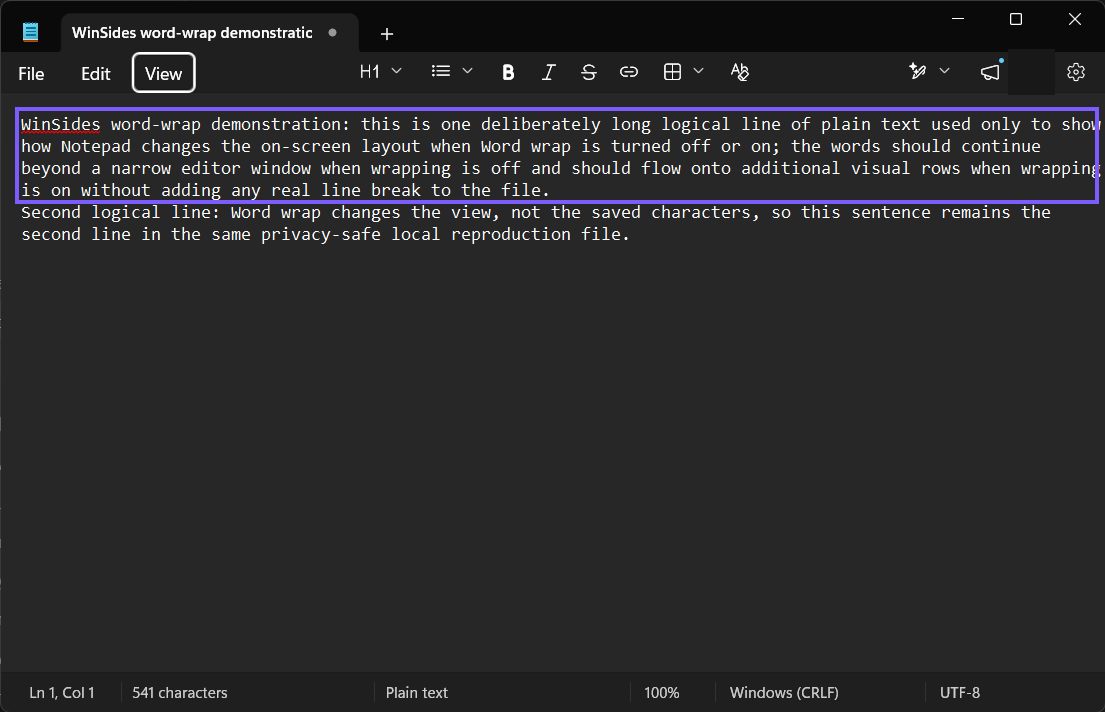
Select View > Word wrap again to turn it on. The same first logical line now flows across several visual rows. Notice that the second logical line still begins separately. This is the useful visual difference between a soft wrap and a real line ending.
To roll back, repeat the same View-menu step until the checkmark matches the state you recorded before starting. The test laptop began with Word Wrap on, was changed to off for comparison, and was returned to on at the end.
Method 2: Set the Word Wrap default in Notepad Settings
Current Notepad builds also expose a default control. The tested Settings page describes it as “Fit text within window by default.” Use this route when you want to review Notepad’s default rather than only inspect the View menu.
- Select the Settings gear in Notepad.
- Under Text Formatting, find Word wrap.
- Turn the switch On to fit long text within the window by default, or Off to keep long logical lines unwrapped by default.
- Return to the editor, create a new disposable tab, and verify the layout with a long line. Notepad features can change between app versions, so test the behavior you actually see instead of assuming every version stores the preference identically.
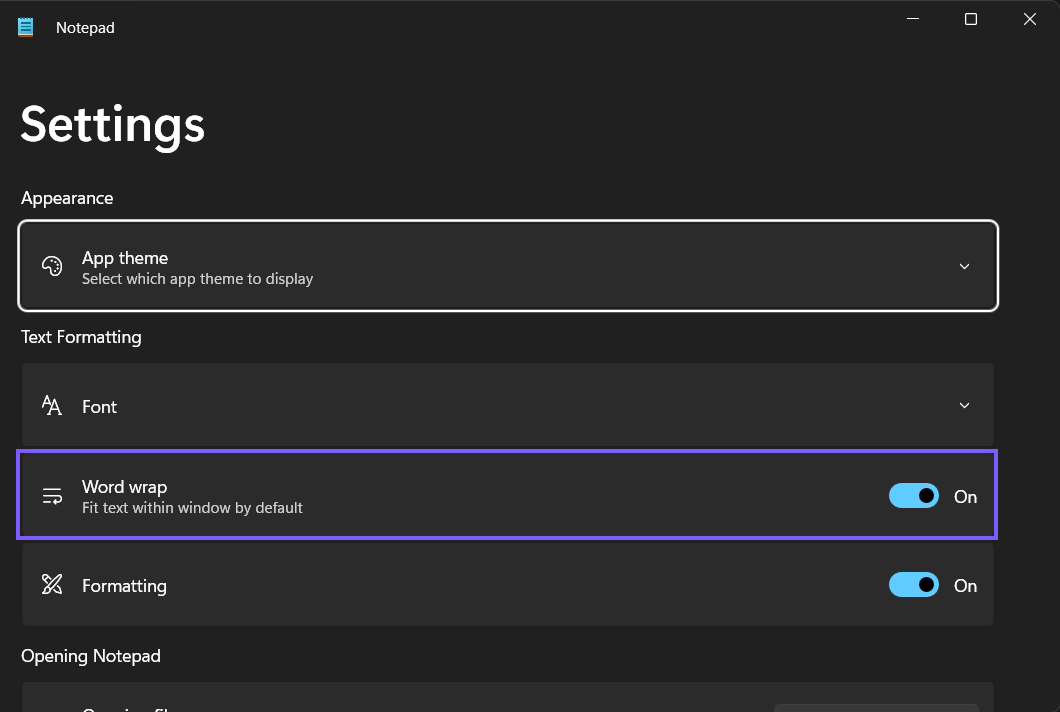
If you are only checking the setting, record its starting value and return it afterward. The local reproduction changed the Settings switch once in each direction and confirmed that it finished at the original On value. It did not claim that older Notepad releases, managed devices, or future app versions persist the preference in exactly the same scope.
How can you verify that wrapping is only visual?
Use a disposable plain-text sample containing one long logical line and a second known line. Turn Word Wrap off, note that the first line stays on one visual row, then turn it on and watch the same text fit across several screen rows. Move the window edge: soft wrap points should move with the available width, but the second logical line should still begin at the same actual line boundary.
For the article reproduction, the privacy-safe source sample was 541 bytes with LF line endings. Its SHA-256 hash was 9DC3465E…747494 before and after the isolated session. Notepad internally represented the line break as CR in the automation interface, which matches Microsoft’s published RichEdit explanation, but the source file on disk was never overwritten. The important safety result is that the procedure changed the view and setting, then restored the setting without changing the sample bytes.
Do not use screenshots alone to count stored lines. A single logical line can occupy several visual rows when wrapping is on. If exact file structure matters, inspect the file in a suitable editor or tool that shows line endings; do not insert or delete breaks merely to make the screen layout resemble an example.
When should you leave Word Wrap on or off?
- Leave it on for ordinary reading. Prose, notes, and long messages stay within the window, so you do not have to chase text beyond the right edge.
- Turn it off to inspect line structure. Logs, exported records, and one-line data become easier to recognize as genuinely long logical lines.
- Do not treat soft rows as separate lines. Line-oriented tools process stored line endings, not the number of rows that happen to fit on your screen.
- Remember that zoom and window width are separate. Larger text or a narrower window creates more visual wraps even though the Word Wrap setting has not changed.
Microsoft added line and column information while Word Wrap is enabled years ago, as documented in the Notepad improvements for Windows build 17713. Therefore, advice claiming that the status bar must be disabled whenever wrapping is on is obsolete for current Notepad.
Troubleshooting Word Wrap in Notepad
The text looks the same in both states
Use a longer line or make the window narrower. If the entire logical line already fits, there is no edge at which Notepad needs to wrap it. Keep the words identical while comparing the two views.
The setting seems to change after opening another tab
Check both View > Word wrap and the Settings default switch. Record which control you changed, then verify with a new disposable tab. Do not edit application data or reset Notepad to force a preference; reset and repair actions can affect saved session state.
The View menu has Markdown options too
Modern Notepad can include formatting and Markdown-related views. Microsoft announced those controls for newer app versions in its Notepad text-formatting update. This tutorial was tested with plain text only. Do not assume that formatted Markdown presentation and a normal .txt tab have identical layout behavior.
Notepad cannot save the file
Word Wrap does not change file permissions. Save to a location your account can write to, or ask the device administrator about an intentional restriction. Do not run Notepad with higher privileges merely to change the wrapping view.
Privacy and safety notes
A Notepad window can expose filenames, restored tabs, account images, copied commands, tokens, or private text. Use a neutral disposable tab for screenshots and close unrelated notifications. The article capture created a separate Untitled window so the restored user session was never photographed or modified. The small account avatar visible in three untouched ShareX frames was removed with an opaque public-image redaction.
Word Wrap is a reversible setting, but accidental text edits are a different risk. Save important work before testing, use Undo for an unintended edit, and close a disposable sample without saving if necessary. No administrator access, registry edit, app reset, installation, or file deletion is needed for either method in this guide.
Frequently Asked Questions
Does Word Wrap add line breaks to a Notepad file?
No. It changes how long logical lines fit within the editor window. Pressing Enter creates a real line break; a soft visual wrap does not.
How can I tell whether Word Wrap is on?
Open View. A checkmark beside Word wrap means it is on. You can also inspect the Word wrap switch in Notepad Settings and verify the result with a long disposable line.
Is there a dedicated Notepad Word Wrap keyboard shortcut?
The current first-party shortcut material reviewed for this guide does not establish a dedicated Word Wrap chord. Use View > Word wrap rather than borrowing shortcuts from another editor.
Can the status bar show line and column numbers while wrapping is on?
Yes on modern Notepad builds. Microsoft documented line and column information with Word Wrap enabled, so older advice saying the two features cannot work together no longer applies generally.
Do I need administrator rights to change Word Wrap?
No. Both the View menu item and the Settings switch are standard-user controls. File permissions are separate from the wrapping preference.
Conclusion
Use View > Word wrap for an immediate change and Notepad Settings > Word wrap to review the default. Verify the result with one long privacy-safe line, remember that soft screen rows are not stored line breaks, and restore the starting preference after a temporary comparison.
For more interesting articles, stay tuned to WinSides.com!




Community
Comments (0)