

To find the installed Microsoft Copilot app version in Windows 11 without opening the app, query the current user's Microsoft.Copilot Appx package. Then use winget list with Copilot's exact Microsoft Store product ID as an independent installed-package cross-check.
I reproduced both standard-user reads on Windows 11 version 25H2, build 26220.7872. The Appx inventory reported Microsoft.Copilot version 152.0.4191.27 with Neutral architecture. WinGet reported Copilot, Store ID 9NHT9RB2F4HD, at the same version. Copilot remained closed and unchanged.
Which Copilot version does this article check?
This procedure identifies the locally installed Windows app package. It does not identify a server-side AI model, account entitlement, feature flight, conversation schema, Edge integration, Microsoft 365 Copilot component, or web-app build.
The package version is useful when support asks whether the Windows app matches a known build. Preserve the package Name or Store ID with the number so it cannot be mistaken for a Windows, WebView, Edge, or Microsoft 365 version.
Cloud-delivered features can change without the local package number changing. Conversely, a package update does not guarantee that every account receives the same service feature immediately.
Table of contents
How do you find the Copilot version with Get-AppxPackage?
- Close Copilot if it is open.
- Open Windows Terminal with a normal PowerShell tab.
- Run:
Get-AppxPackage -Name Microsoft.Copilot | Select-Object Name,Version,Architecture,PackageFamilyName
Press Enter, then read the Version value beside the exact Microsoft.Copilot package.
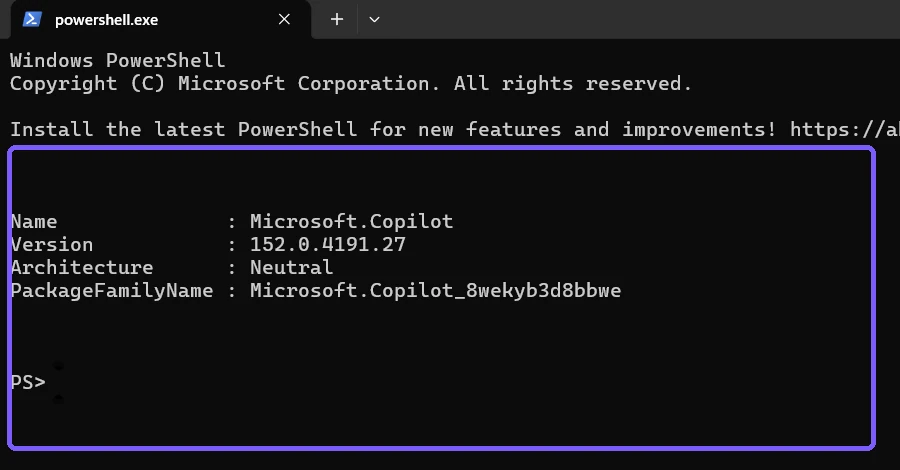
Microsoft's Get-AppxPackage documentation explains that the cmdlet lists Appx or MSIX packages installed in a user profile. Without -AllUsers or another user scope, the reproduced check stays in the current-user context and does not require administrator rights.
What do the Appx fields mean?
- Name: Microsoft.Copilot is the package identity targeted by the query.
- Version: 152.0.4191.27 is the installed package version on the reproduced PC.
- Architecture: Neutral indicates this package identity is not limited to one displayed processor architecture value.
- PackageFamilyName: the stable Windows package family used to distinguish the signed package from similarly named apps.
Do not publish PackageFullName, installation paths, user data paths, or broad Appx inventories unless they are necessary. This article selects only fields needed to identify the package and version.
How do you verify the Copilot version with WinGet?
Use Copilot's exact Microsoft Store product ID and restrict the list to the Store source:
winget list --id 9NHT9RB2F4HD --source msstore --exact --disable-interactivity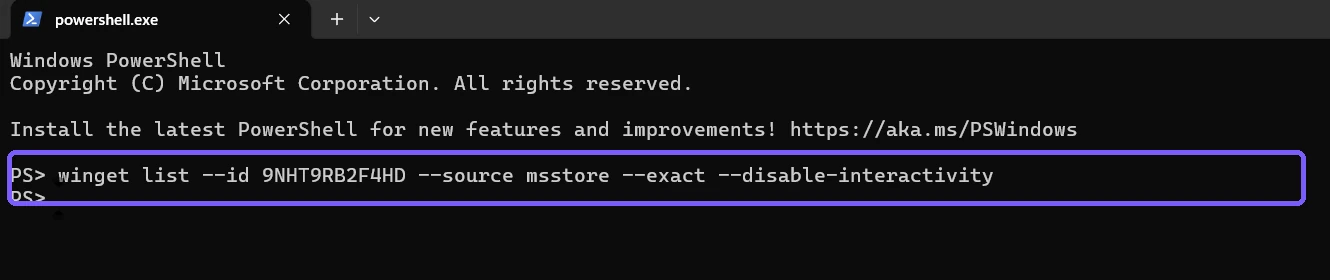
Microsoft's winget list documentation states that the command displays applications installed on the computer and supports --id, --source, and --exact filters.
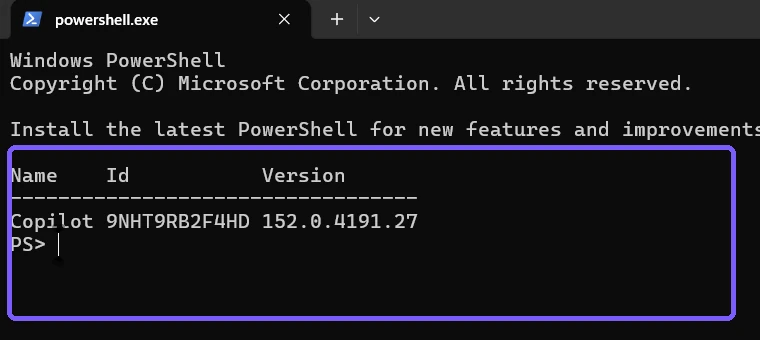
winget list is an inventory command. This reproduced query does not use upgrade, install, uninstall, or repair. The noninteractive flag prevents an unexpected interactive workflow; it does not modify Copilot.
Why might the two methods differ?
WinGet correlates installed packages with source metadata, while Get-AppxPackage reads the current-user Windows package inventory directly. A package can appear in Appx while WinGet lacks a matching source correlation, or WinGet may show another installation scope.
Confirm the exact Appx Name and Store ID before comparing. Do not compare Copilot with Microsoft 365 Copilot, a web shortcut, an Edge feature, or another account's package. If the values differ, record both with the collection time instead of immediately repairing or reinstalling.
On the reproduced PC, the values match exactly, so no corrective action was needed.
What if Get-AppxPackage returns no result?
An empty targeted result means the current-user inventory did not return Microsoft.Copilot at that moment. It does not prove that another user lacks the app, that a web experience is unavailable, or that Windows is damaged.
Run the exact command again, confirm the package name, and use the exact WinGet Store-ID query. Do not broaden to -AllUsers or elevation unless another account's package is explicitly in scope and authorized.
Installing Copilot is a separate decision that can change apps, source agreements, account state, and network use. It is outside this read-only inventory.
Does this tell you whether an update is available?
No. This article records the installed version. WinGet may sometimes show an available update column, but availability can depend on source metadata, region, rollout, pinning, policy, and account context.
Do not run winget upgrade, open the Store update page, reset the app, or reinstall solely to match the screenshot. Check release requirements and organizational policy before changing Copilot.
What should you record for support?
- Microsoft.Copilot package Name.
- Installed Version.
- Architecture and PackageFamilyName when requested.
- WinGet Store ID 9NHT9RB2F4HD and matching version.
- Windows edition, version, and OS build.
- Collection time and current-user scope.
Avoid attaching conversations, prompts, account identifiers, tokens, package data files, or broad software inventories to a simple version case.
Is Copilot version output safe to share?
The selected fields are application metadata, but a normal Terminal screenshot can expose a user prompt, personal path, command history, notification, or unrelated app. Broad WinGet lists can reveal installed software, so use the exact ID filter.
The retained screenshots use an anonymous PS> prompt and show only the targeted package identity, version, architecture, family, Store product ID, and exact commands. They contain no account, conversation, prompt, personal path, credential, notification, or unrelated application. Exact Terminal and ShareX hashes were restored.
Frequently Asked Questions
What is the installed Copilot version on the reproduced PC?
Both Appx and WinGet reported Microsoft Copilot version 152.0.4191.27.
What is Copilot's Microsoft Store ID?
The exact Store product ID used for the reproduced WinGet check is 9NHT9RB2F4HD.
Does Get-AppxPackage open Copilot?
No. Copilot remained closed while the current-user package metadata was read.
Does winget list update Copilot?
No. The list command inventories the installed application. No upgrade or install command ran.
Verify the local Copilot package from two inventories
Use the targeted Get-AppxPackage query as the direct current-user package read, then verify the same version with Copilot's exact Store ID through winget list. Preserve the identifiers with the number, and keep launch, account, conversation, installation, update, repair, reset, and removal as separate tasks.
For more interesting articles, stay tuned to WinSides.com!



Community
Comments (0)