

To find the file system of a drive in Windows 11 without changing the volume, open Windows Terminal with a PowerShell tab and run Get-Volume -DriveLetter C | Select-Object DriveLetter,FileSystem,FileSystemLabel,HealthStatus. Replace C with the drive letter you need to inspect, but do not include the colon. The value under FileSystem is the answer.
I reproduced this standard-user, read-only procedure on Windows 11 version 25H2, build 26220.7872. The query reported NTFS for drive C, with the label OS and a Healthy status. A second CIM query independently returned NTFS for the same drive. No formatting, conversion, repair, write operation, administrator prompt, or warning appeared.
What does a drive's file system identify?
A file system is the structure Windows uses to name, store, find, and organize files on a volume. Common values you may see on Windows include NTFS, exFAT, and FAT32. The command reports the current value; it does not recommend a format or tell you to change it.
Do not confuse the file system with the partition style. NTFS or exFAT describes how files are organized on a volume, while GPT or MBR describes how partitions are arranged on a disk. A drive type, capacity, BitLocker state, and health status are also separate properties. Keeping those terms separate avoids following a destructive formatting or conversion guide when you only need inventory information.
Microsoft's Get-Volume documentation explains that the cmdlet returns volume objects and can target a specific drive letter. Selecting only the four properties used here produces compact, readable evidence instead of a wide table of unrelated values.
Table of contents
What should you check before running the command?
Confirm the drive letter in File Explorer first. For the Windows system volume, that is commonly C, but removable storage and secondary volumes may use another letter. The examples target C only because that mounted volume was available for safe reproduction. Substitute the letter you actually intend to inspect.
Open a normal, non-administrator PowerShell session. This query does not require elevation. Close unrelated tabs and protect any private file paths before sharing a screenshot. The retained evidence for this guide used a disposable maximized Terminal session with an anonymous prompt, so it exposed no account name, profile path, personal file, notification, or credential.
Avoid similarly named commands such as Format-Volume, Convert, DiskPart formatting commands, or repair operations. They are outside this read-only task and can change data or availability. The standard-user fsutil fsinfo volumeinfo route was also excluded because it returned Access denied on the reproduced PC; elevation is unnecessary when Get-Volume and CIM already provide the needed property.
How do you find the file system with Get-Volume?
- Open Windows Terminal.
- Make sure the active tab is PowerShell.
- Type the following command, replacing
Cif you need a different mounted drive:
Get-Volume -DriveLetter C | Select-Object DriveLetter,FileSystem,FileSystemLabel,HealthStatus
- Press Enter.
- Find the requested letter under DriveLetter.
- Read the value under FileSystem.
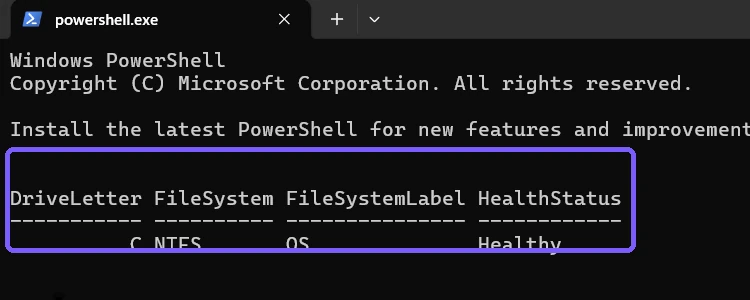
The FileSystem column is the property this guide is checking. FileSystemLabel is the human-readable volume label, and HealthStatus is a separate storage status. A Healthy result is useful context, but it is not a complete disk diagnostic and does not replace a targeted troubleshooting process when Windows reports errors.
How do you cross-check the result with CIM?
PowerShell can also read the mounted logical-disk record exposed by Windows Management Instrumentation. Use this as an alternate read-only method when you want an independent result:
Get-CimInstance Win32_LogicalDisk -Filter "DeviceID='C:'" | Select-Object DeviceID,FileSystem,VolumeName,Status
Press Enter, then read FileSystem in the returned object.
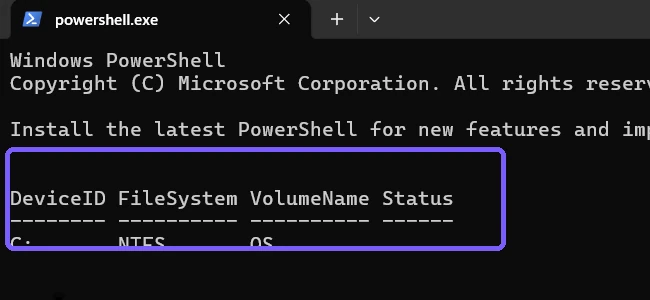
Microsoft's Win32_LogicalDisk reference documents properties including DeviceID, FileSystem, VolumeName, Status, Size, and FreeSpace. The command deliberately selects only the identity, file system, label, and status needed for this cross-check.
In the reproduced session, both methods reported NTFS and the OS volume label. Agreement between the two read-only sources makes a transcription error less likely. If they do not agree, verify that both commands use the same drive letter and that the target volume remained mounted throughout the check.
How should you interpret common file-system values?
- NTFS: the common Windows system and internal-drive file system, with Windows security and reliability features.
- exFAT: often used for removable media that needs broad compatibility and support for large files.
- FAT32: an older, widely compatible file system with important size limitations.
- ReFS: a resilient file system available only in supported Windows editions and scenarios.
- Blank or no result: the letter may be wrong, the volume may be offline or unmounted, or the selected inventory provider may not expose it as expected.
These descriptions help identify what the output means; they are not conversion advice. Changing a file system can require formatting or another state-changing workflow. Backups, compatibility, edition support, and data-loss risk would need separate evaluation.
Why might the file-system query fail?
If Get-Volume reports that no matching object was found, recheck the drive letter and make sure the drive is connected and visible. Enter only the letter after -DriveLetter, such as D, not D:. In the CIM filter, however, DeviceID includes the colon, such as 'D:'.
If PowerShell says Get-Volume is not recognized, ensure you are using Windows PowerShell or a compatible PowerShell environment with the Windows Storage module available. The CIM method is a useful alternate route. Do not install an unverified utility just to read this property.
If several volumes appear when you omit the drive-letter filter, match the correct row carefully. Some system partitions do not have ordinary drive letters, and removable devices can be reassigned. A targeted query reduces that ambiguity and produces a cleaner record.
Frequently Asked Questions
Does Get-Volume change or scan the drive?
No. The command shown here reads selected volume properties. It does not format, convert, repair, or scan the drive.
Do I need administrator rights to see the file system?
No. Both reproduced commands ran successfully from a standard-user PowerShell session without elevation.
Is NTFS the same thing as GPT?
No. NTFS is a file system for a volume, while GPT is a partition style for a disk. They describe different layers.
Can I use the commands for a USB drive?
Yes, if the USB volume is mounted with a drive letter. Replace C with that letter in Get-Volume and use the same letter plus a colon in the CIM filter.
Read the property without changing the volume
Use the targeted Get-Volume command for the clearest answer, then use Win32_LogicalDisk when you want a second local check. In both cases, the FileSystem property reports the current type without formatting or otherwise changing the drive.
For more interesting articles, stay tuned to WinSides.com!







Community
Comments (0)