

To check the Windows Terminal version without changing or updating anything, open Windows Terminal and run winget list --id Microsoft.WindowsTerminal --exact --disable-interactivity --accept-source-agreements. Read the number in the Version column. For a local package cross-check, run Get-AppxPackage Microsoft.WindowsTerminal | Select-Object Name,Version,Architecture in PowerShell.
I reproduced both read-only methods on Windows 11 version 25H2, build 26220.7872. WinGet and the current-user Appx registration both reported Windows Terminal version 1.24.11911.0. No install, upgrade, uninstall, settings edit, administrator prompt, or confirmation appeared. Terminal settings and both ShareX configuration files were restored to their exact starting hashes after capture.
What does the Windows Terminal version number identify?
The version number identifies the installed Windows Terminal application build. It is not the Windows version, PowerShell version, Command Prompt version, or WinGet client version. Those tools can run inside Terminal, but they have separate release numbers.
Microsoft's Windows Terminal overview describes Terminal as the host for command-line shells such as Command Prompt and PowerShell. That distinction matters when troubleshooting: a shell problem can occur even when the Terminal host is current, and a Terminal behavior can differ while the shell version remains unchanged.
The number can help you compare behavior with documentation, release notes, or another PC. It does not by itself prove that the app is the newest available release. Preview, stable, Store, and organization-managed installations may follow different channels or policies, so this guide reports the installed build only.
Table of contents
What should you know before checking the version?
Both procedures are inventory queries. They read installed-package information and do not require administrator rights. Use a normal Terminal window and a standard user account. Close or protect unrelated command sessions before capturing or sharing a screenshot because prompts can reveal account names and working folders.
The WinGet command includes --id Microsoft.WindowsTerminal and --exact so a similarly named package is not mistaken for Terminal. --disable-interactivity keeps the inventory check noninteractive, while --accept-source-agreements prevents a source agreement prompt from interrupting the read-only lookup. WinGet may consult configured source metadata, but this command does not install or upgrade a package.
The Appx command queries the package registered for the current user. It is a useful local cross-check when WinGet is unavailable or when you want to see architecture. It also does not change the package.
How do you check Windows Terminal's version with WinGet?
- Open Windows Terminal.
- Open a PowerShell tab.
- Enter the command below exactly:
winget list --id Microsoft.WindowsTerminal --exact --disable-interactivity --accept-source-agreements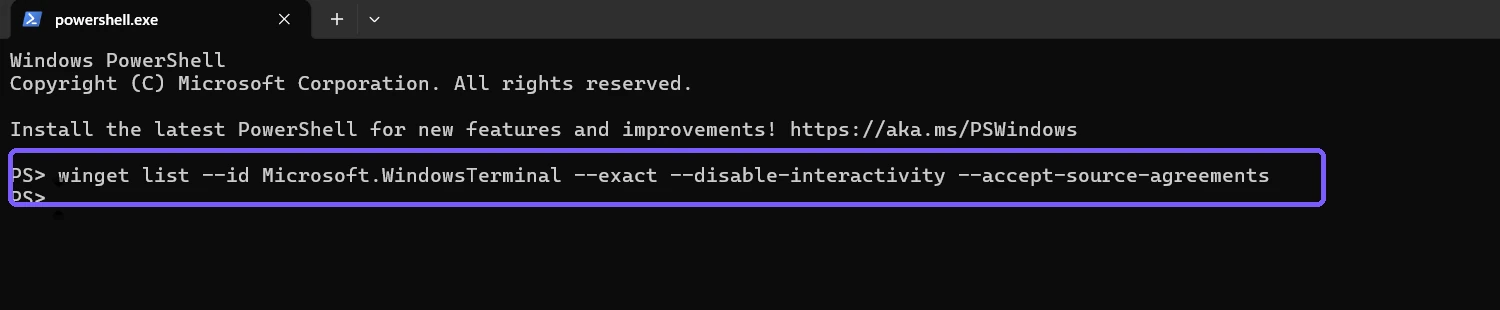
--exact filter keep the WinGet inventory query focused on Windows Terminal.- Press Enter.
- Find Windows Terminal in the Name column.
- Read the number in the Version column.
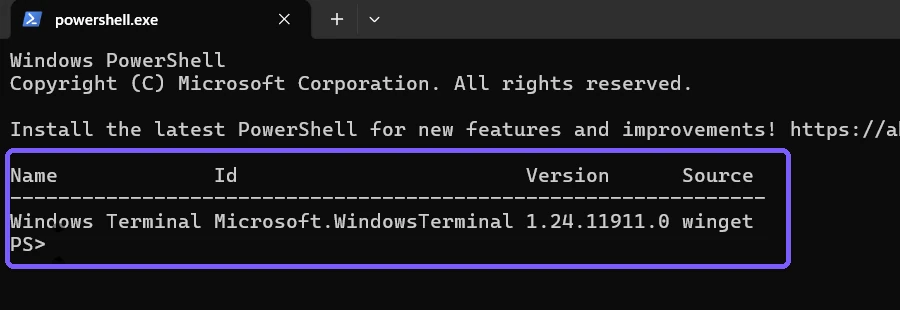
Microsoft's winget list reference documents that the command displays installed applications and supports filtering with options such as package ID and exact matching. The reproduced output also displayed the package ID Microsoft.WindowsTerminal and source winget, which helps verify that the correct row was read.
How do you cross-check the version with Get-AppxPackage?
Use this PowerShell method when you want a second local result or need the registered package architecture:
Get-AppxPackage Microsoft.WindowsTerminal | Select-Object Name,Version,Architecture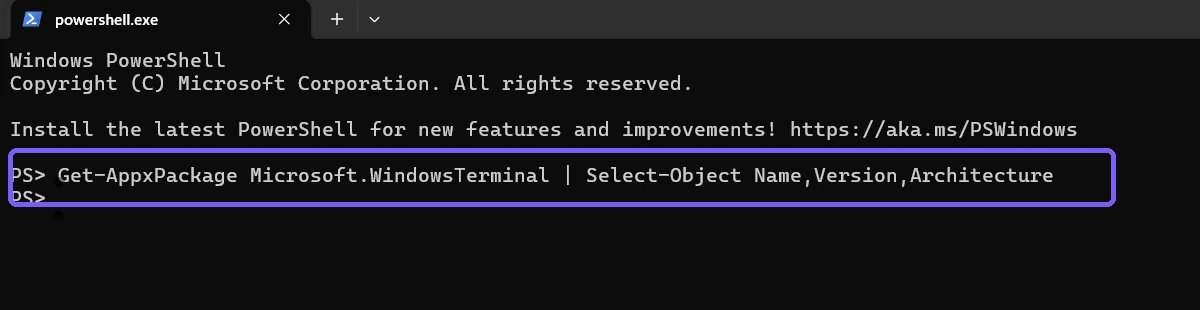
Press Enter. Read the Version field, then compare it with the WinGet result.
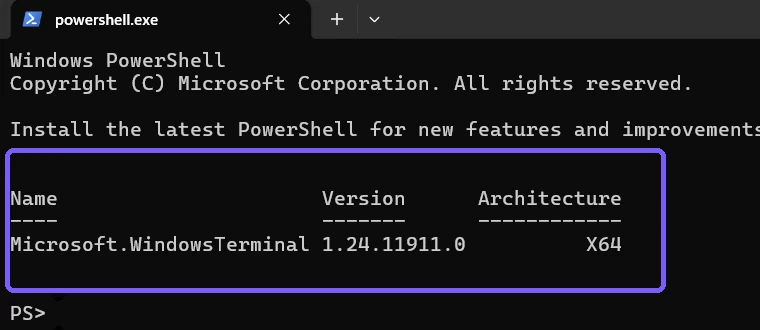
The two reproduced results agree exactly. If yours differ, first confirm that both commands target Microsoft.WindowsTerminal, not Terminal Preview or another package. Also run them from the same Windows user account because Appx registration is user-scoped.
How should you interpret the result?
- Both commands show the same version: the inventory sources agree on the installed stable Terminal package.
- WinGet shows no exact match: the app may be installed from another channel, not registered in the active WinGet sources, or absent for that user.
- Get-AppxPackage shows no output: the stable package may not be registered for the current user. Check whether Terminal Preview or an unpackaged build is being used.
- More than one Terminal-like package appears: compare exact package names and channels before assuming which window you opened.
Do not run winget upgrade, reinstall the app, or edit settings.json merely to identify the current version. Those are separate actions with different risks. Record the installed number first, then decide whether an update is actually needed and permitted.
Why might the version check fail?
If winget is not recognized, App Installer or the WinGet client may be unavailable in that session. Use the Appx method instead of downloading an unverified tool. If WinGet pauses at source agreements, keep the documented agreement switch shown above or review the configured source interactively before repeating the inventory query.
If PowerShell reports that Get-AppxPackage is unknown, make sure the tab is Windows PowerShell or a PowerShell environment that can access Windows Appx cmdlets. Command Prompt does not understand that cmdlet directly.
If the output is too wide, maximize Terminal or copy only the version number into a private note. Avoid posting full-screen captures that reveal desktop filenames, notifications, account paths, or unrelated tabs. The retained evidence for this guide used disposable maximized sessions and anonymous prompts.
Frequently Asked Questions
Does checking the Terminal version update the app?
No. The two commands shown here only read installed-package information. They do not install, upgrade, repair, or uninstall Windows Terminal.
Is the Windows Terminal version the same as the PowerShell version?
No. Terminal is the host window, while PowerShell is one shell that can run inside it. Each component has its own version.
Do I need administrator rights to check the version?
No. Both reproduced queries ran in a standard-user PowerShell session without elevation or a confirmation prompt.
Which result should I trust if the commands disagree?
Verify the exact package name, channel, and current user first. The Appx result identifies the registered package, while WinGet reports its installed-package inventory.
Record the installed build before considering an update
Use the exact WinGet inventory query for a quick version column, then use Get-AppxPackage when you want an independent local check with architecture. When both identify the same stable package and number, you have a reliable record of the installed Windows Terminal build without changing the PC.
For more interesting articles, stay tuned to WinSides.com!



Community
Comments (0)