

To rename a tab in Windows Terminal, right-click the tab, select Rename tab, type a clear label, and press Enter. The new text identifies that one tab for the current session. To return to the title supplied by the shell, open Rename tab again, delete all custom text, and press Enter.
I reproduced the complete rename-and-restore path on Windows 11 version 25H2, build 26220.7872, with Windows Terminal 1.24.11911.0. The test used one disposable Command Prompt tab, changed cmd.exe to WinSides Demo, verified the result, cleared the field, and captured a fresh restored cmd.exe title. No administrator prompt appeared, no command ran, and the Windows Terminal settings file remained byte-for-byte unchanged.
What does renaming a Windows Terminal tab change?
A custom tab title is a visual label for one open tab. It helps distinguish two tabs that otherwise show similar shell or folder names. It does not rename the shell program, profile, Terminal window, user account, current folder, or any file. It also does not alter the command that is running inside the tab.
Microsoft's Windows Terminal tips reference documents the tab-context-menu method and describes the rename as applying to the current Terminal session. Closing that tab ends the session-specific label. A newly opened tab can again use the title provided by its profile, shell, or foreground application.
This boundary matters because Terminal has other title mechanisms. A profile can define a persistent starting title, and a command-line application can report its own title while it runs. Those are useful for different workflows, but they are not required when you only want a temporary, reversible name for an open tab.
Table of contents
What should you check before renaming a tab?
Use a tab you can identify confidently. Renaming does not stop a process or erase its output, but a custom label can hide the familiar shell-provided title that helped you recognize the tab. If several tabs contain important work, choose the target first and avoid closing anything from the context menu.
Choose a label that does not expose private information in screenshots, screen shares, or task switching. A customer name, internal server, ticket number, or confidential folder may be memorable but can become visible outside Terminal. A neutral purpose label such as Build, Logs, or WinSides Demo is safer for a shared display.
No elevation, Registry editing, Settings change, download, or restart is needed. The context menu also contains actions such as Duplicate tab, Split tab, and Close tab. Read the selected row before clicking so that a rename attempt does not accidentally create or close a workspace.
How do you open Rename tab?
- Open Windows Terminal and select the tab you want to label.
- Right-click that tab in the tab row.
- Locate Rename tab in the context menu.
- Select it once. Do not choose Close tab or another neighboring action.
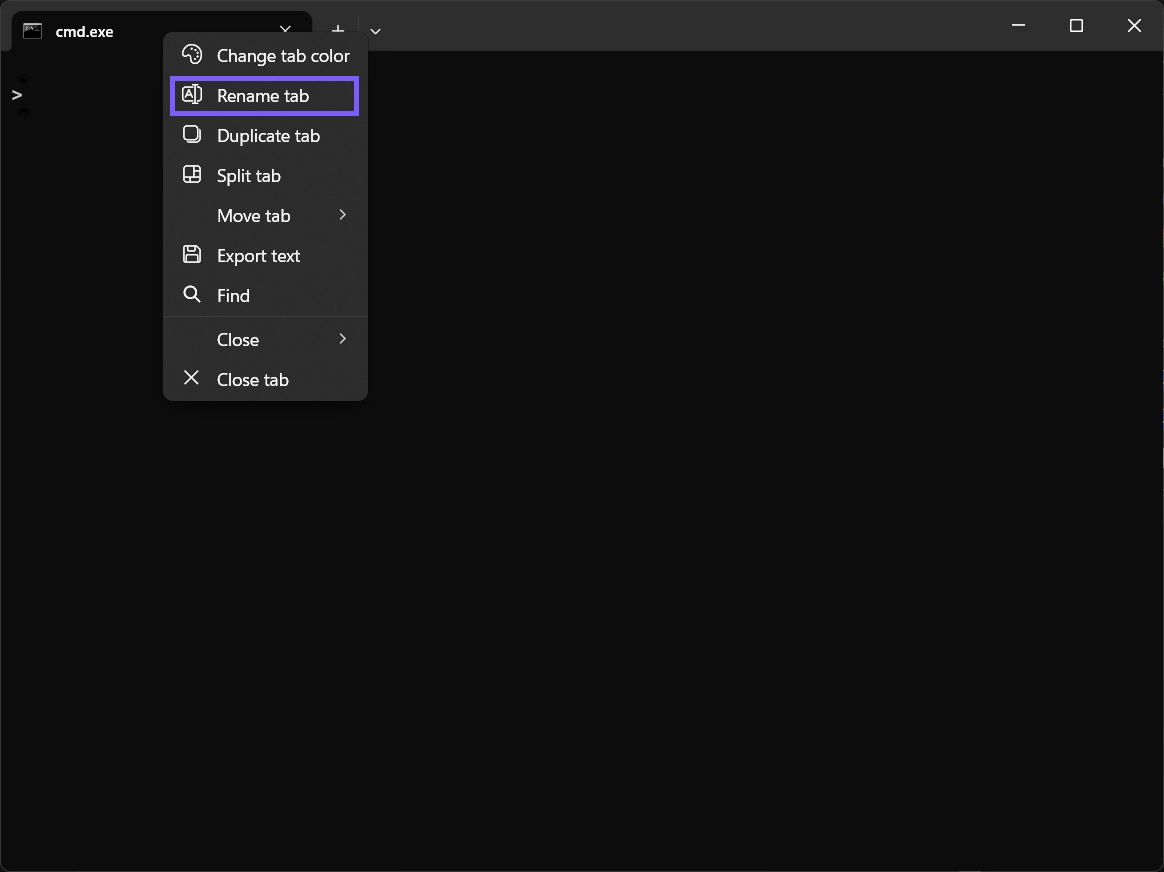
The reproduced interface spells the item Rename tab. Capitalization can differ in documentation or another Terminal version, but the command should appear in the tab's own context menu. Right-clicking the terminal text area opens a different menu and will not expose the tab action.
How do you enter and confirm a custom title?
- When the in-place editor appears, select the existing text if it is not already selected.
- Type a short title that describes the tab's purpose.
- Review the label for private names or accidental pasted text.
- Press Enter to confirm it.

Keep the label concise. A long title consumes tab-row space and may be truncated when several tabs are open. The text is only an identifier; it does not need to repeat the full executable name or working path. If you open the editor by mistake, press Esc to leave the existing title unchanged.
How do you verify that the tab was renamed?
After pressing Enter, read the tab label itself. It should show the custom text while the prompt, shell, and tab contents continue normally. The evidence run confirmed WinSides Demo on the same tab without writing a command or changing Terminal Settings.

Do not use only the Windows taskbar thumbnail as proof. The window preview can combine or abbreviate titles, while the tab row shows the exact label attached to the active tab. If the text did not change, reopen Rename tab and confirm that the intended tab—not a neighboring one—is being edited.
How do you restore the shell-provided tab title?
- Right-click the renamed tab and select Rename tab again.
- Delete every character in the edit field so it is completely empty.
- Press Enter.
- Read the tab label and confirm the default shell or application title has returned.

Microsoft's Windows Terminal actions reference describes the renameTab action and states that clearing the title field resets the tab to its default title for the current shell instance. That is safer than guessing and typing cmd.exe manually: an empty custom title lets Terminal resume the title source that actually applies.
The reproduction verified rollback in two ways. A fresh post-rollback frame showed cmd.exe, and the Terminal settings file retained the same SHA-256 before and after the procedure. Closing the disposable window then removed the temporary session without leaving a custom setting behind.
When should you use a session title instead of a persistent title?
- Use Rename tab for a temporary task label on one existing tab, especially when arranging a short-lived workspace.
- Use a profile title only when every new tab for a particular profile should begin with the same persistent label.
- Let the shell or app supply the title when changing folders or running tools should update the label automatically.
- Use a tab color when visual grouping matters more than readable text; that is a separate session-level action.
A manual rename can be helpful for side-by-side administrative shells, build and test tabs, or two prompts in similar folders. Restore automatic titles when the custom label becomes stale. A tab called Production can be misleading after its session has moved elsewhere, even though the rename itself changes no connection or environment.
Why is Rename tab missing or the title not behaving as expected?
- The wrong surface was clicked. Right-click the tab label in the tab row, not the terminal text area.
- The text editor is still open. Press Enter to confirm the new title or Esc to cancel.
- The label is truncated. Shorten it or provide more tab-row space; the stored text can be longer than the visible portion.
- The default title did not return. Reopen Rename tab, clear the entire field, and press Enter. Do not type a guessed default.
- A new tab has the old automatic title. That is expected because the manual rename applies to the current tab session, not every future tab.
- A different Terminal build looks different. Update or identify the installed Windows Terminal version before following version-specific interface labels.
Avoid resetting or reinstalling Windows Terminal for a tab-label problem. Those actions can affect much more configuration than a temporary rename. The supported rollback is simply clearing the custom title or closing the disposable tab after saving any real work.
Frequently Asked Questions
Does renaming a tab rename the Windows Terminal profile?
No. It changes one current tab label. The profile name and settings remain unchanged.
Will the custom tab title return after the tab is closed?
No. The documented context-menu rename applies to the current Terminal session. A new tab can use its normal shell, application, or profile title.
How do you remove a custom Windows Terminal tab title?
Open Rename tab, delete all text from the field, and press Enter. Terminal then resumes the default title for that shell instance.
Do you need administrator rights to rename a Terminal tab?
No administrator prompt was required during reproduction. The change affected only one disposable current-user tab label.
Use temporary tab names as clear, reversible labels
Rename a tab when a short, neutral label makes an active Terminal workspace easier to scan. Confirm the correct tab, avoid private wording, and remember that the label does not change the underlying shell or task. When the name is no longer useful, clear the field so Terminal can restore its automatic title source.
For more interesting articles, stay tuned to WinSides.com!





Community
Comments (0)