

To change a tab color in Windows Terminal, right-click the tab, select Change tab color, and choose a preset or custom color. The picker applies the color to that one active tab at runtime. To restore its automatic profile-and-theme color, open the picker again and select Reset.
I reproduced the complete change-and-reset path on Windows 11 version 25H2, build 26220.7872, with Windows Terminal 1.24.11911.0. The test used one disposable Command Prompt tab, selected the installed BlueViolet preset, verified the purple tab, used Reset, and captured a fresh restored state. No command ran, no administrator prompt appeared, and the Terminal settings file remained byte-for-byte unchanged.
What does a runtime tab color change?
A runtime tab color changes the visual surface of one open tab. It can help separate a build tab from a log tab or make one temporary workspace easier to spot. It does not change the terminal text, shell profile name, color scheme, window theme, title, command history, current folder, or program running inside the tab.
Microsoft's Windows Terminal actions reference documents openTabColorPicker as a way to set an active tab's color at runtime. The same reference documents a null or omitted setTabColor value as a return to the original color. The installed interface exposes that rollback directly as Reset.
The scope is intentionally temporary. Closing the tab ends its current runtime state. A future tab starts from the color derived from its profile and Terminal theme unless a separate persistent setting says otherwise.
Table of contents
How is this different from a profile tab color or color scheme?
Microsoft's Windows Terminal profile-appearance reference documents the optional tabColor profile setting and notes that the picker overrides it. A profile color is useful when every new tab for that profile should start with the same marker. The context-menu picker is better for a temporary label on one tab that already exists.
A color scheme is different again: it controls terminal foreground, background, cursor, and palette colors. The application theme controls the surrounding window and tab-row styling. Changing one tab through this picker does not turn a dark terminal background purple and does not alter other tabs.
Use the smallest-scope control that matches your goal. A one-tab runtime color is easier to reverse and less likely to surprise future sessions than editing profile JSON or creating a custom theme for a temporary workspace.
What should you check before choosing a tab color?
Select a disposable or clearly identified tab first. The same context menu contains Duplicate tab, Split tab, and Close tab, so read the highlighted action before clicking. The color change is harmless to terminal contents, but choosing the wrong tab can make your visual organization misleading.
Consider contrast and meaning. A bright tab can draw attention, but color alone should not communicate a critical state because people perceive colors differently and themes can alter surrounding contrast. Pair color with a short tab title when identification must remain clear during a screen share.
Avoid assigning colors that imply a production, warning, or success state unless the tab actually has that purpose. The picker does not know which server, folder, or task is active; it only paints the selected tab. You remain responsible for keeping the label accurate.
How do you open the tab color picker?
- Open Windows Terminal and select the tab you want to mark.
- Right-click that tab in the tab row.
- Select Change tab color.
- Wait for the preset grid and Reset button to appear.
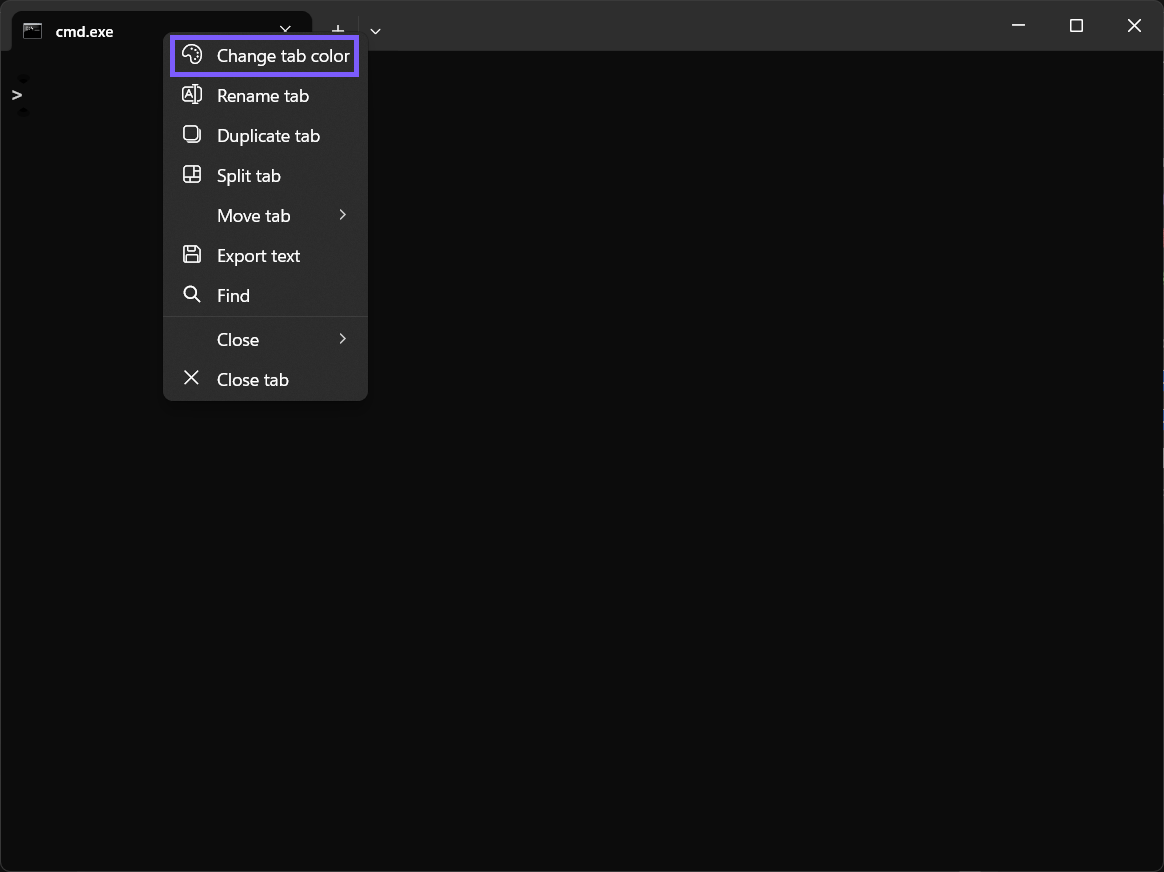
Right-click the tab label itself. Right-clicking the terminal text area opens a different context menu and will not show this tab-management command. If the action is absent, confirm that the installed app is Windows Terminal rather than a classic console window.
How do you choose a preset color?
- Review the preset grid without clicking immediately.
- Move over a swatch to read its accessible name when available.
- Select a color that remains distinct against the current theme.
- Verify the same active tab changes after the picker closes.
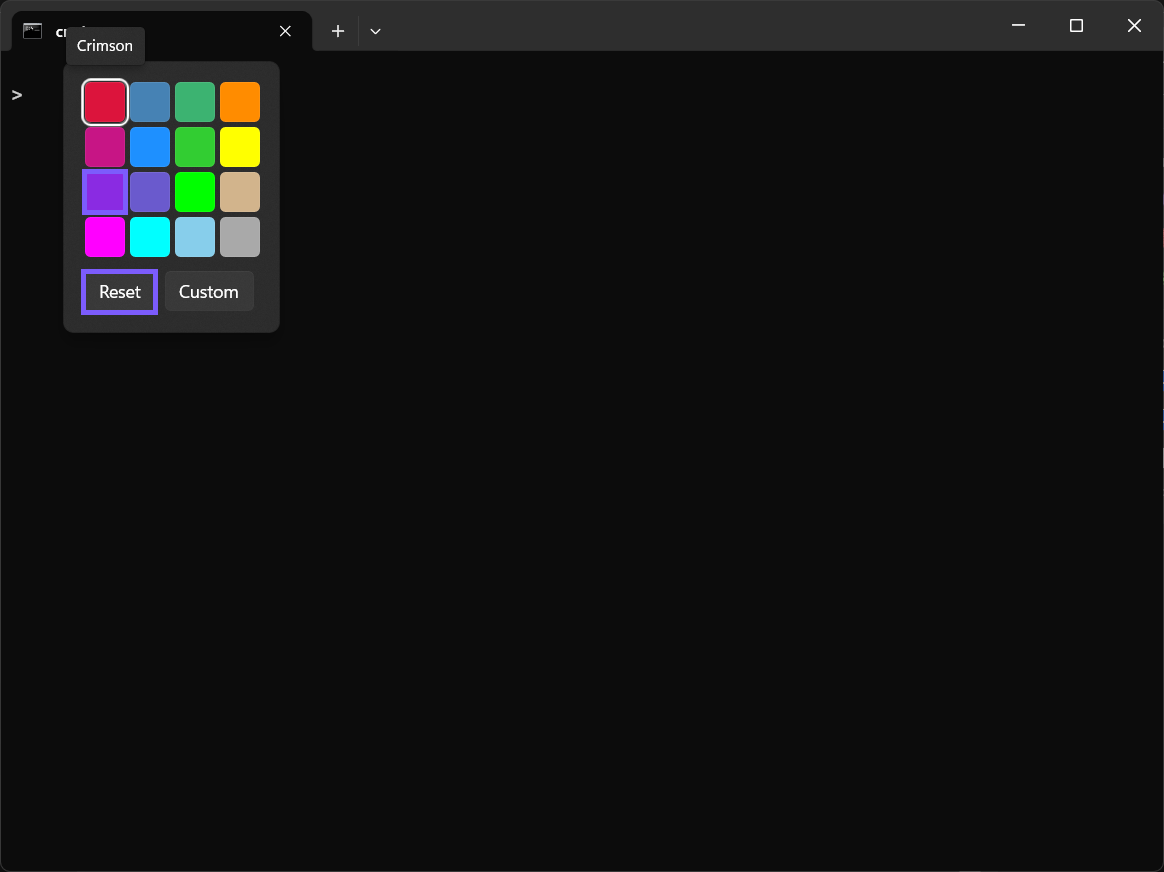
The reproduced picker named the chosen preset BlueViolet. Preset names and arrangement can vary with a future Terminal build, so use the visible swatch and accessible tooltip rather than assuming a fixed row or column. Custom opens a more detailed color control, but a preset is faster and avoids an unnecessarily precise value for a temporary marker.
How do you verify the new tab color?
Read the tab row after selecting the swatch. The active tab should show the chosen color while the shell title and terminal contents remain intact. In the evidence run, the cmd.exe title stayed the same and only the tab surface changed to purple.
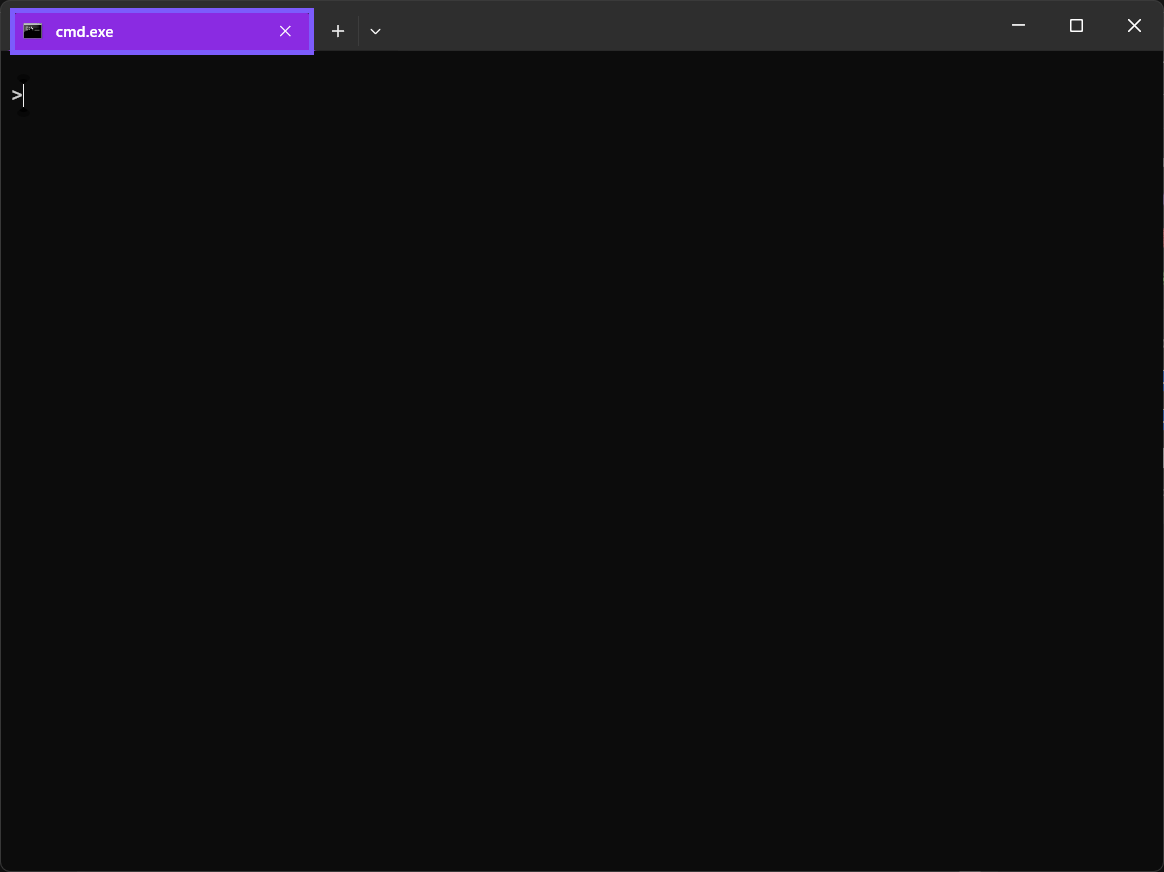
Switch to another tab if you need to compare states. The runtime color belongs to the selected tab, not the whole window. Do not treat a colored tab as proof that a particular command, environment, or connection is active; verify the prompt and task independently before running anything important.
How do you reset the tab to its original color?
- Right-click the colored tab.
- Select Change tab color.
- Select Reset.
- Confirm the tab returns to the automatic color supplied by its profile and Terminal theme.
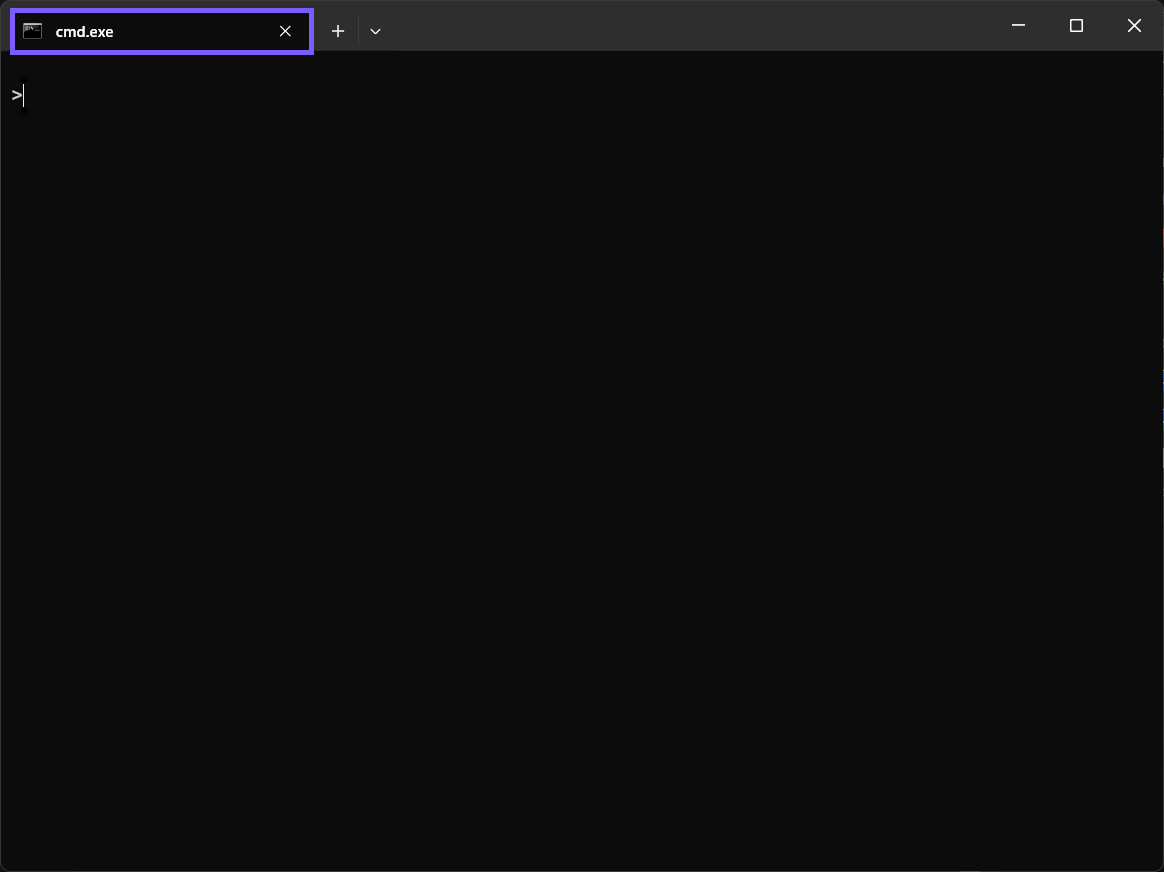
Reset is more accurate than manually choosing a swatch that merely looks like the previous color. The original may come from a profile, a color scheme, or theme behavior. Reset removes the runtime override and lets that real source take control again.
The reproduction confirmed the rollback with a new frame and an unchanged settings-file SHA-256. The disposable Terminal and ShareX processes were then closed, leaving no persistent tab-color or capture state.
How can you use tab colors without creating confusion?
- Keep a small convention. Use a few memorable purposes instead of assigning every tab a different shade.
- Combine text and color. A short temporary title preserves meaning when color is hard to distinguish.
- Reset stale markers. Remove a color when the tab's task changes.
- Avoid safety claims. A red or green tab is not proof of danger, success, privilege, or environment.
- Prefer runtime scope for temporary work. Save persistent profile colors for stable, repeatable workflows.
Good visual organization reduces hunting without replacing verification. Before running a destructive command or connecting to a sensitive system, check the prompt, host, directory, and command itself. A tab color is a cue, not an authorization boundary.
Why is Change tab color missing or the result unexpected?
- The wrong surface was clicked. Right-click the tab label, not the terminal text area.
- The classic console is open. The picker belongs to Windows Terminal.
- The active theme changes contrast. Try a more distinct preset or return to Reset.
- The color disappeared in a new tab. The picker is a runtime override for the current tab, not a persistent profile edit.
- Reset looks different than expected. The automatic color may be derived from the current profile, color scheme, and Terminal theme.
- Only the tab changed. That is expected; this action does not change the terminal background or text palette.
Do not reset or reinstall Windows Terminal for a temporary color issue. Reset the tab override, close a disposable tab if appropriate, or inspect the separate profile and theme settings only when the automatic baseline itself is wrong.
Frequently Asked Questions
Does changing a tab color change the terminal background?
No. The runtime picker colors the tab surface. Terminal text and background colors are controlled by separate profile or color-scheme settings.
Will a runtime tab color apply to new tabs?
No. It applies to the current tab. A persistent profile tabColor is a separate configuration.
How do you remove a custom Windows Terminal tab color?
Open Change tab color for that tab and select Reset. This restores the automatic original color source.
Do you need administrator rights to change a tab color?
No administrator prompt was required during reproduction. The change affected one disposable current-user tab at runtime.
Use runtime tab colors as reversible visual cues
A temporary tab color can make a busy Terminal window easier to scan without changing commands, profiles, or saved settings. Choose the correct tab, use a distinct accessible color, and verify the prompt independently. When the cue is no longer accurate, select Reset so the tab returns to its real automatic color.
For more interesting articles, stay tuned to WinSides.com!




Community
Comments (0)