

To resize panes in Windows Terminal, click inside the pane you want to change, then hold Alt + Shift and press an arrow key. For a vertical split, the Left or Right arrow moves the divider; for a horizontal split, Up or Down moves it. Repeat the shortcut in small steps until the focused pane has the space you need.
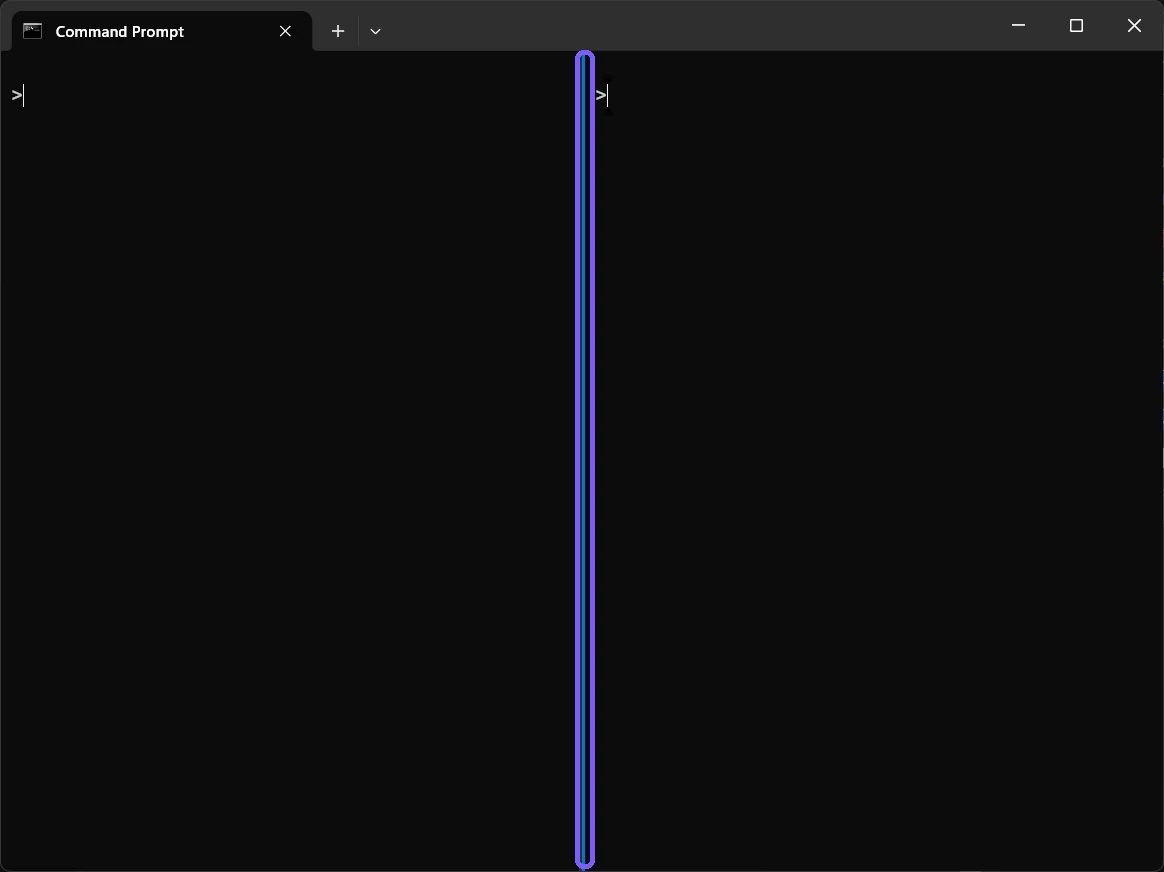
I reproduced the complete resize and rollback on Windows 11 version 25H2, build 26220.7872, with Windows Terminal 1.24.11911.0. Two disposable Command Prompt panes began at equal width. Seven rightward resize actions moved the divider, seven inverse leftward actions returned it to the centered position, and a fresh frame verified restoration. Both prompts were blank and anonymous, no administrator rights were used, and Terminal settings remained byte-for-byte unchanged.
What changes when you resize a Terminal pane?
Resizing changes the share of the current tab's content area assigned to existing panes. It does not create a tab, launch another shell, move a pane to another tab, or alter the split orientation. The pane count remains the same while the divider shifts.
A pane is the command surface inside a Terminal tab. The focused pane is the one that receives keyboard input, normally indicated by its cursor and an accent-colored edge. The resize action uses that focus to determine which pane is being adjusted, so click the intended prompt before pressing any shortcut.
Microsoft's Windows Terminal panes guide documents Alt+Shift with the arrow keys for resizing. The guide treats resizing separately from splitting, moving, zooming, and changing orientation. Keeping those operations separate helps you predict whether a command changes dimensions, focus, or structure.
Table of contents
What should you check before moving the divider?
First confirm that the tab contains at least two panes. A single pane has no internal divider to move. Next, click inside the pane you intend to enlarge or reduce and verify its cursor or focus edge. If an interactive program captures the same key combination, stop it or use Command Palette instead.
Resizing itself does not terminate commands or edit files, but a very narrow pane can reflow text, wrap command output, or make an interface difficult to read. Do not mistake that visual reflow for lost output. Increase the pane again if the display becomes cramped.
The reproduction used two blank disposable prompts so no running task, connection, editor, or personal path could be affected or exposed. The equal starting position was recorded before any resize action.
How do you resize the focused pane with the keyboard?
- Open a Terminal tab that already contains two or more panes.
- Click inside the pane you want to adjust.
- Hold Alt + Shift.
- Press Left, Right, Up, or Down once and watch the divider.
- Repeat the same arrow in small steps until the layout is comfortable.
Use Left or Right when the divider is vertical, and Up or Down when it is horizontal. The useful direction depends on the focused pane and the divider next to it. If the first press makes the pane smaller instead of larger, use the opposite arrow; do not change focus repeatedly while trying to correct the layout.
Microsoft's Terminal actions reference defines the resizePane action with the directions left, right, up, and down. It also lists the default Alt+Shift+Arrow bindings. A customized Terminal installation can replace those bindings, which is why Command Palette is the best visible check.
How do you find the exact resize action in Command Palette?
- Keep the intended pane focused.
- Press Ctrl + Shift + P.
- Type Resize pane.
- Select the direction that matches the divider movement you need.
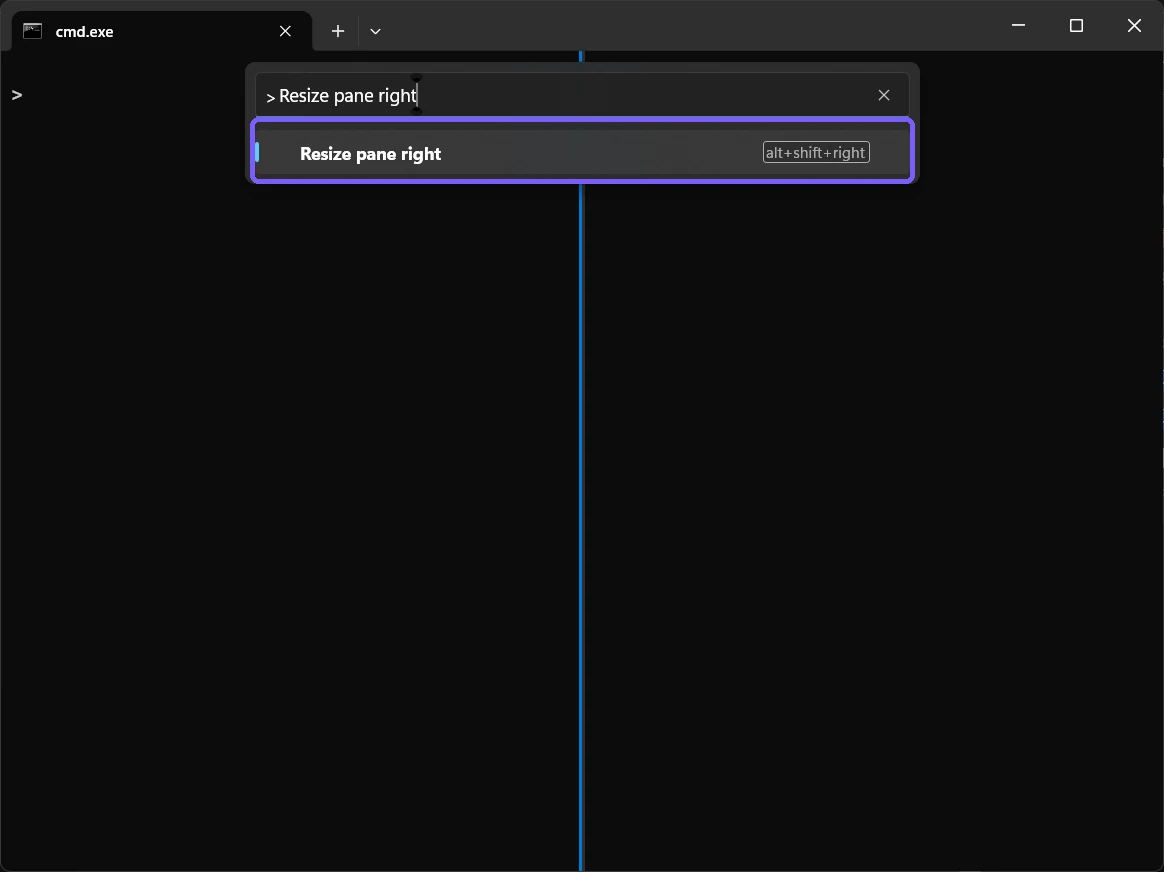
Command Palette provides four labeled resize directions and shows the currently bound shortcut beside each result. This avoids assuming that a remembered default still applies. Search for the exact action; a similarly named focus or move command changes a different aspect of the pane layout.
How do you verify that the resize worked?
Look at the internal divider, not the outer window edge. It should move one increment after each action while the same tab and the same number of panes remain visible. Text may rewrap inside both panes because their available columns changed.
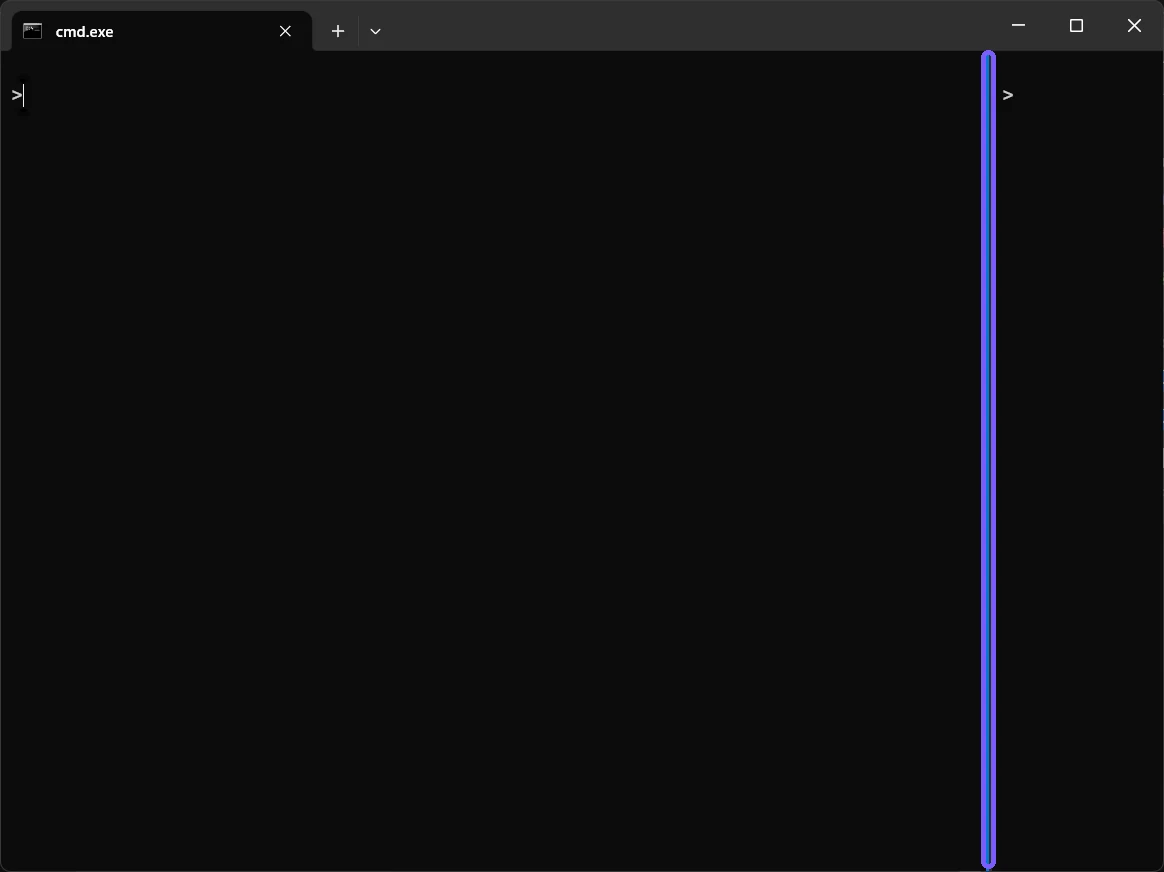
In the reproduced vertical split, the focused left pane became much wider and the right pane became narrower. Both blank prompts remained open. That visible combination—moved divider, unchanged pane count, unchanged tab—confirms a resize rather than a close, split, or move operation.
How do you restore the original pane sizes?
While the same pane remains focused, repeat the opposite resize action the same number of times. If you pressed Alt+Shift+Right seven times, press Alt+Shift+Left seven times. Work slowly and compare the divider with its recorded starting position.
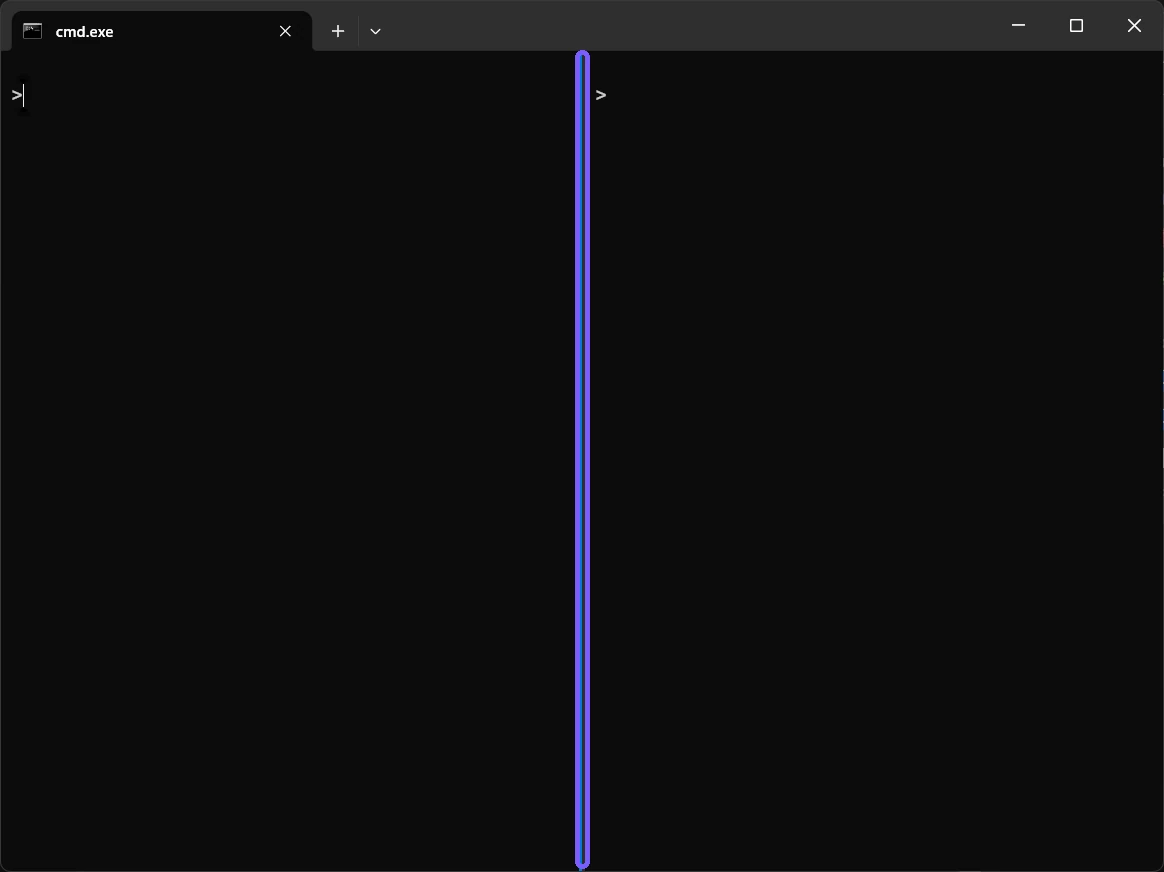
The fresh rollback frame shows the divider centered again. The disposable window was then closed, ShareX configuration was restored, and the original Terminal settings hash was verified. Pane size in this procedure was session-only, so no JSON, Registry, or Settings change had to be undone.
Why might a pane refuse to resize?
- No adjacent divider exists. A single pane cannot be resized within the tab.
- The wrong pane has focus. Click the target prompt and verify its cursor before retrying.
- The pane reached its minimum size. Terminal will not move a divider past the space needed to render a pane.
- A key binding was customized. Open Command Palette and read the shortcut displayed beside the action.
- An application captured the keys. Use the visible palette action rather than the shortcut.
- The window is too small. Enlarge the Terminal window first so both panes have room to change.
A resize direction is not an absolute request to put a divider at a coordinate. It is a small relative adjustment within the current pane tree. Nested splits can therefore make a direction affect only the divider adjacent to the focused pane.
Frequently Asked Questions
What is the shortcut to resize a Windows Terminal pane?
The documented defaults are Alt+Shift plus an arrow key. Command Palette shows the binding currently installed on your PC.
Does resizing a pane change Terminal settings?
No persistent settings changed in this reproduction. The divider movement applied only to the disposable tab's current session.
Can you resize a pane with the mouse?
On supported builds you can drag a visible divider, but the documented keyboard actions give repeatable increments and expose exact directions.
Why does text wrap after resizing?
The pane has a different number of available columns, so Terminal reflows visible text. That does not by itself mean output was deleted.
Resize the focused pane in small, reversible steps
Confirm focus, use Alt+Shift with the appropriate arrow, and watch the internal divider after each press. Command Palette provides the exact action labels when bindings are uncertain. If you need to undo the layout change, keep focus steady and apply the opposite action the same number of times.
For more interesting articles, stay tuned to WinSides.com!


Community
Comments (0)