

To change Windows Terminal to Light or Dark mode, open Settings, select Appearance, open Application Theme, choose Light, Dark, or Use Windows theme, and select Save. This changes Terminal's application chrome and Settings pages; it does not replace the color scheme used inside a command-line profile.
I reproduced the supported Settings method on Windows 11 version 25H2, build 26220.7872, with Windows Terminal 1.24.11911.0. The bounded test changed the installed visible baseline from Dark to Light, saved it, returned to Dark, and finally restored the exact original settings bytes. It required no elevation, warning, download, restart, or destructive action.
What does the Windows Terminal app theme change?
Application Theme controls the surrounding Windows Terminal interface: the title bar, tab row, menus, Settings navigation, cards, buttons, and other app chrome. Light produces a pale interface, Dark produces a dark interface, and Use Windows theme lets Terminal follow the relevant Windows appearance. The profile content area can still use its own independent color scheme.
Microsoft's Windows Terminal appearance reference documents the root theme property and accepts system, dark, light, or a custom theme name. Microsoft lists system as the default. On the reproduced Terminal 1.24 installation, however, the visible control read Dark while the root property was absent. Because visible installed state and documentation can differ across an upgraded or migrated configuration, record what your own control shows before changing it.
This distinction also prevents the most common mistake: Application Theme is not the same as a profile color scheme. If PowerShell or Command Prompt text, cursor, selection, or background colors are the problem, change that profile's color scheme instead. If only Settings and the tab bar are too bright or too dark, Application Theme is the right control.
Table of contents
What should you check before changing the theme?
No administrator rights are needed for this current-user preference. You do not need to edit the Registry, reset Terminal, reinstall the app, or type JSON. Save any important shell work before closing Terminal for a rollback check, because the appearance preference is harmless but closing a terminal window can still stop commands running inside it.
Write down the exact current selection: Dark, Light, Use Windows theme, or a named custom theme. A visible value can be meaningful even when the optional property is not present in the file. Returning to the same-looking choice through the interface can write an explicit value, so an exact test rollback may require the original file backup; ordinary readers generally need only select their previous visible choice and save it.
How do you open Application Theme?
- Open Windows Terminal.
- Press Ctrl + ,, or open the arrow menu beside the new-tab button and choose Settings.
- Select Appearance in the left navigation pane.
- At the top of the page, read the current Application Theme selection.
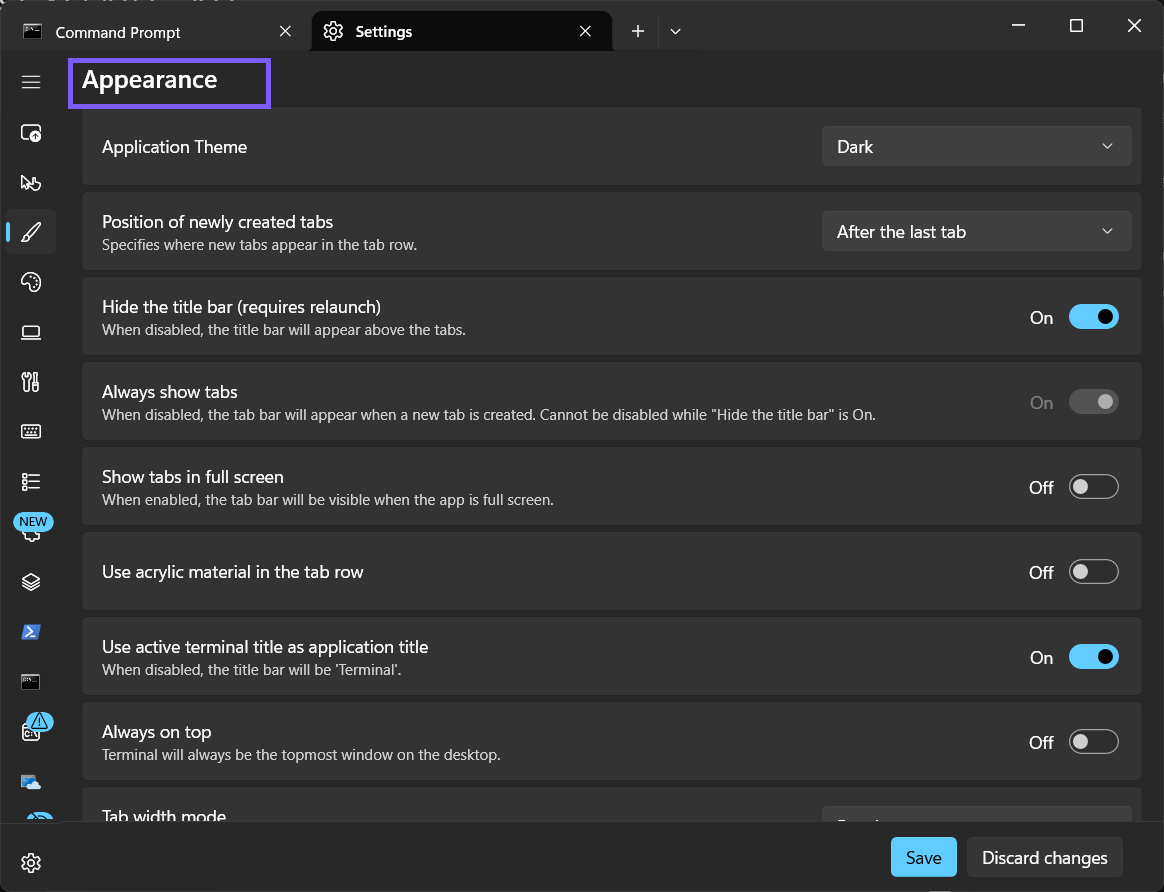
Verify that the page heading says Appearance. Nearby options control the title bar, tabs, acrylic material, fullscreen behavior, animations, and notification-area icon. None of those must change for a light-or-dark switch.
Which Application Theme choice should you use?
- Open the Application Theme list.
- Choose Light, Dark, or Use Windows theme.
- Avoid the legacy entries unless you have a specific compatibility reason and understand their older rendering behavior.
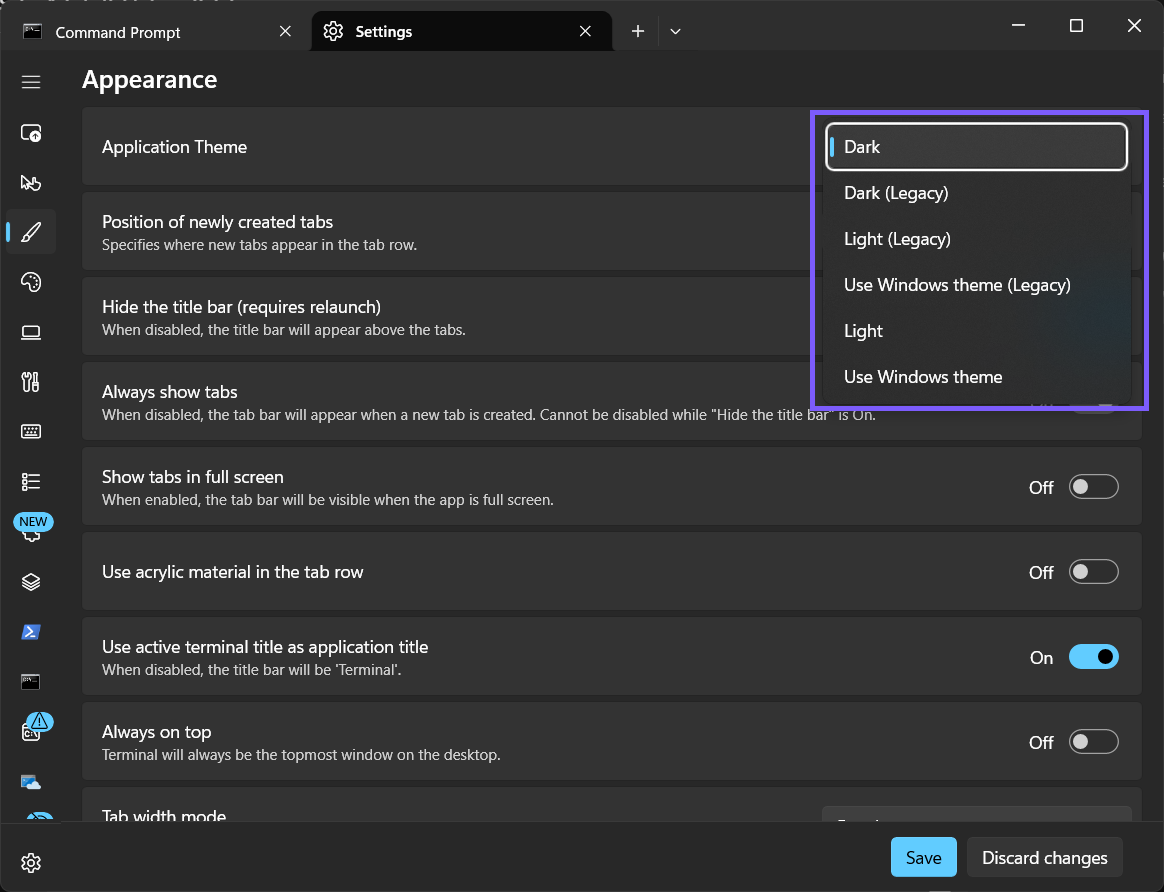
Choose Light when a bright app frame is easier to read in your environment. Choose Dark when a darker frame reduces glare or better matches the rest of your workspace. Choose Use Windows theme when you want Terminal to follow the applicable Windows appearance rather than maintain an independent choice.
The installed menu also displayed Dark (Legacy), Light (Legacy), and Use Windows theme (Legacy). They are real options, but adding a second method around them would not improve this tutorial. The current non-legacy choices are the direct path, and the evidence run did not select a legacy option merely to create more screenshots.
How do you apply Light mode?
- Select Light.
- Select Save at the bottom of Settings.
- Confirm that the Settings interface becomes light.
- Leave Appearance, return to it, and verify that Application Theme still reads Light.
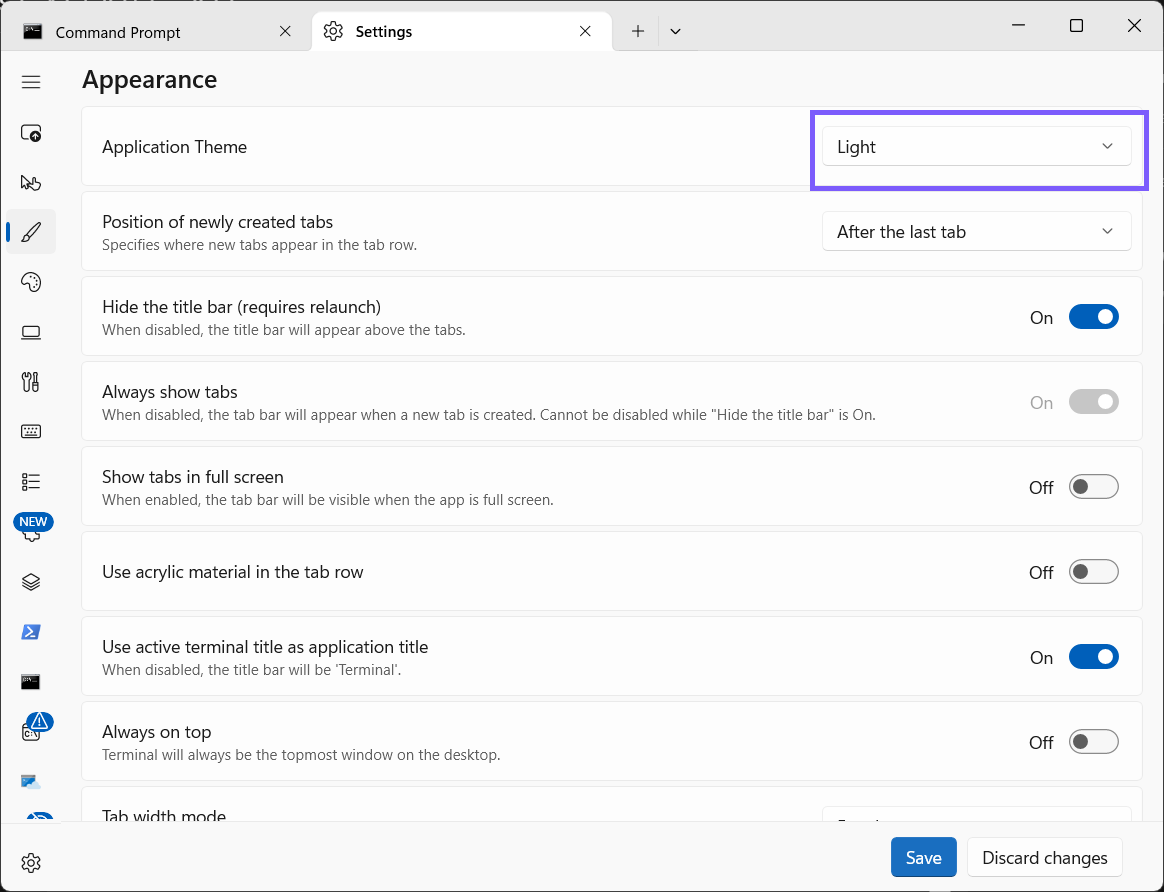
The evidence run observed the intended theme value persist as light. That file observation confirms the visible Save action changed the correct app preference. Manual JSON editing is not recommended as another routine method because the supported interface already offers the choice and avoids malformed JSON or accidental edits to unrelated settings.
How do you restore Dark mode?
- Return to Windows Terminal Settings > Appearance.
- Open Application Theme and select Dark.
- Select Save.
- Close Terminal, open a fresh Settings instance, and confirm that Application Theme still reads Dark.
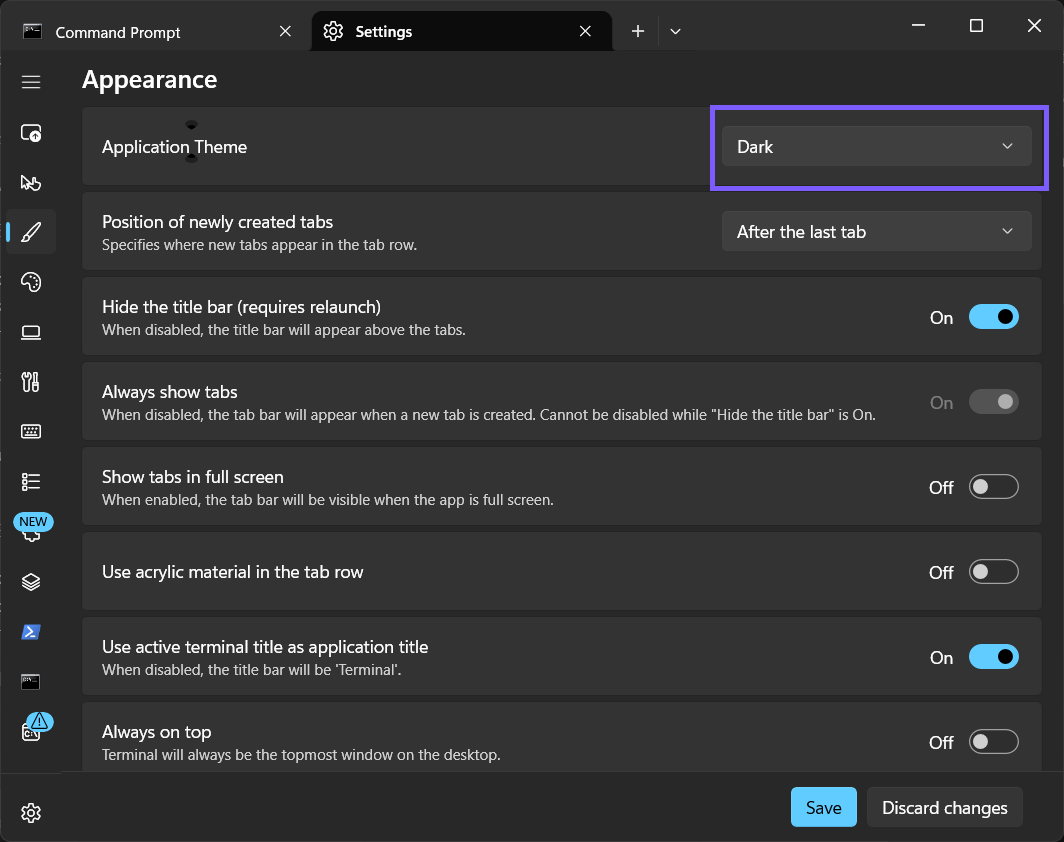
In the reproduced transition, selecting Dark wrote an explicit dark value. The test then restored the byte-identical original file, where the root property had been absent, and a fresh Settings instance still displayed Dark. The final SHA-256 matched the starting file. This deeper verification is evidence that the procedure left no hidden drift; readers can normally restore the previously recorded visible selection through the same menu.
Why does Terminal still look wrong after changing the theme?
- The choice was not saved. Reopen Appearance and read the retained Application Theme value.
- The profile area did not change. Application Theme controls app chrome; the active profile's color scheme controls terminal content.
- Use Windows theme appears unchanged. Check the current Windows appearance, then close and reopen Terminal if you need to verify a fresh instance.
- A different Terminal installation is open. Stable, Preview, and unpackaged builds can keep separate settings.
- A custom theme was previously selected. Record its exact name before replacing it, and restore that named choice if you want the custom design back.
- Only one surface changed. Some profile backgrounds and color schemes deliberately contrast with the application frame.
Do not reset Windows Terminal solely because colors do not match your expectation. First confirm the saved app theme, identify whether the unwanted colors belong to app chrome or profile content, and verify that you are editing the intended Terminal installation. Resetting can affect much more configuration than this single preference.
Frequently Asked Questions
Does Terminal Light mode change PowerShell colors?
Not necessarily. Application Theme changes Terminal's app chrome and Settings interface. A profile color scheme separately controls the shell content area.
What does Use Windows theme do?
Microsoft documents the system value as using the same theme as Windows, so Terminal can follow the applicable Windows appearance.
Should you choose a legacy Terminal theme?
Usually no. Use the current Light, Dark, or Use Windows theme choice unless you have a specific compatibility reason for the legacy rendering option.
Do you need administrator rights to change Application Theme?
No administrator prompt was required on the reproduced PC. It was a reversible current-user Terminal preference.
Choose the app frame that stays comfortable
Use Light for a bright Terminal interface, Dark for a darker app frame, or Use Windows theme when Terminal should follow Windows. Save the selection, confirm it on a fresh visit to Appearance, and remember that profile color schemes remain separate. If you change your mind, return through the same control and restore the value you recorded before the test.
For more interesting articles, stay tuned to WinSides.com!


Community
Comments (0)