

To change tab width mode in Windows Terminal, open Settings, select Appearance, open Tab width mode, choose Equal, Title length, or Compact, and select Save. Equal gives every tab the same width, Title length sizes tabs for their titles, and Compact reduces inactive tabs to their icons.
I reproduced the supported Settings method on Windows 11 version 25H2, build 26220.7872, with Windows Terminal 1.24.11911.0. The tested transition was Equal to Title length and back to Equal. It ran as a standard user, displayed no warning, changed only the current user's Terminal settings file, and ended with the exact original bytes and SHA-256 restored. Compact was visible in the real installed menu and is documented by Microsoft, but it was not selected merely to add another method or screenshot.
What does Tab width mode change?
Tab width mode is an app-wide Windows Terminal appearance preference. It controls how space in the tab row is divided; it does not change the text inside a terminal session, the font size of a profile, the title assigned to a tab, or the width of the Terminal window itself. The choice is useful when a row contains several shells or long task names and you want either consistent tab sizes or more title context.
Microsoft's current Windows Terminal appearance reference names the underlying optional property tabWidthMode. It accepts equal, titleLength, or compact, and its documented default is equal. The reproduced PC matched that default: the property was absent, while the visible Settings control read Equal.
This preference applies to the Terminal application interface, not to an individual shell profile. If one tab has an unexpected name, correct the title source separately. If the entire window is too narrow, resize the window. Tab width mode only decides how the available tab-row space is allocated.
Table of contents
What should you check before changing tab width?
No administrator rights, reboot, sign-out, Registry edit, download, or Terminal reset is required. Save or finish any important command-line work before using disposable tabs for a visual comparison, because closing a test tab can still stop whatever is running inside it. The setting itself does not clear history, credentials, profiles, color schemes, or files.
Record the current selection first. A visible Equal selection can represent the documented default even when the optional JSON property is absent. That distinction matters for exact rollback: saving Equal may write an explicit value that behaves the same but is not byte-for-byte identical to an originally absent property.
How do you find Tab width mode?
- Open Windows Terminal.
- Press Ctrl + ,, or open the arrow menu beside the new-tab button and select Settings.
- Select Appearance in the left navigation pane.
- Scroll to Tab width mode and note its current value.
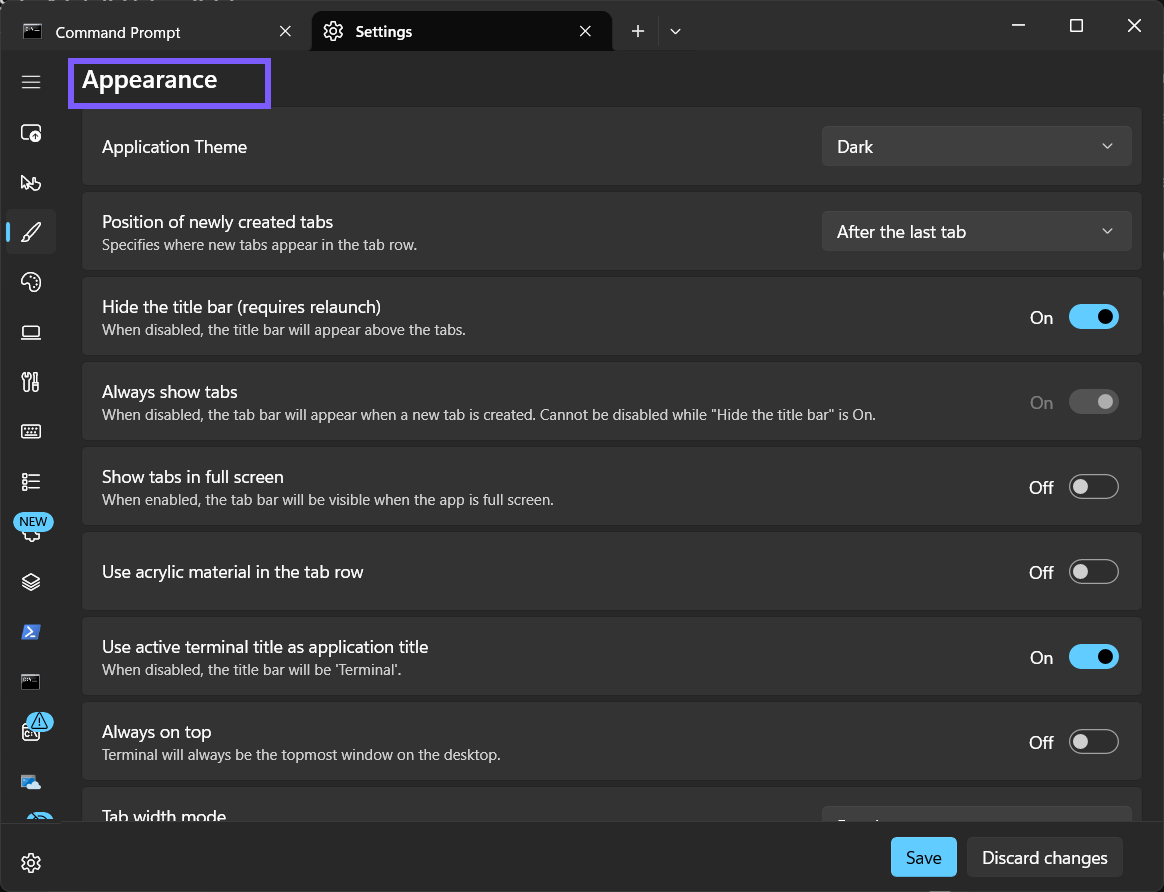
Confirm the Appearance page heading before changing anything. Nearby controls affect the title bar, acrylic material, fullscreen tabs, pane animations, and notification-area behavior. Those are different preferences and do not need to move for this procedure.
Which tab width mode should you choose?
- Open the Tab width mode list.
- Read all three installed choices.
- Choose the policy that matches how you identify and switch between tabs.
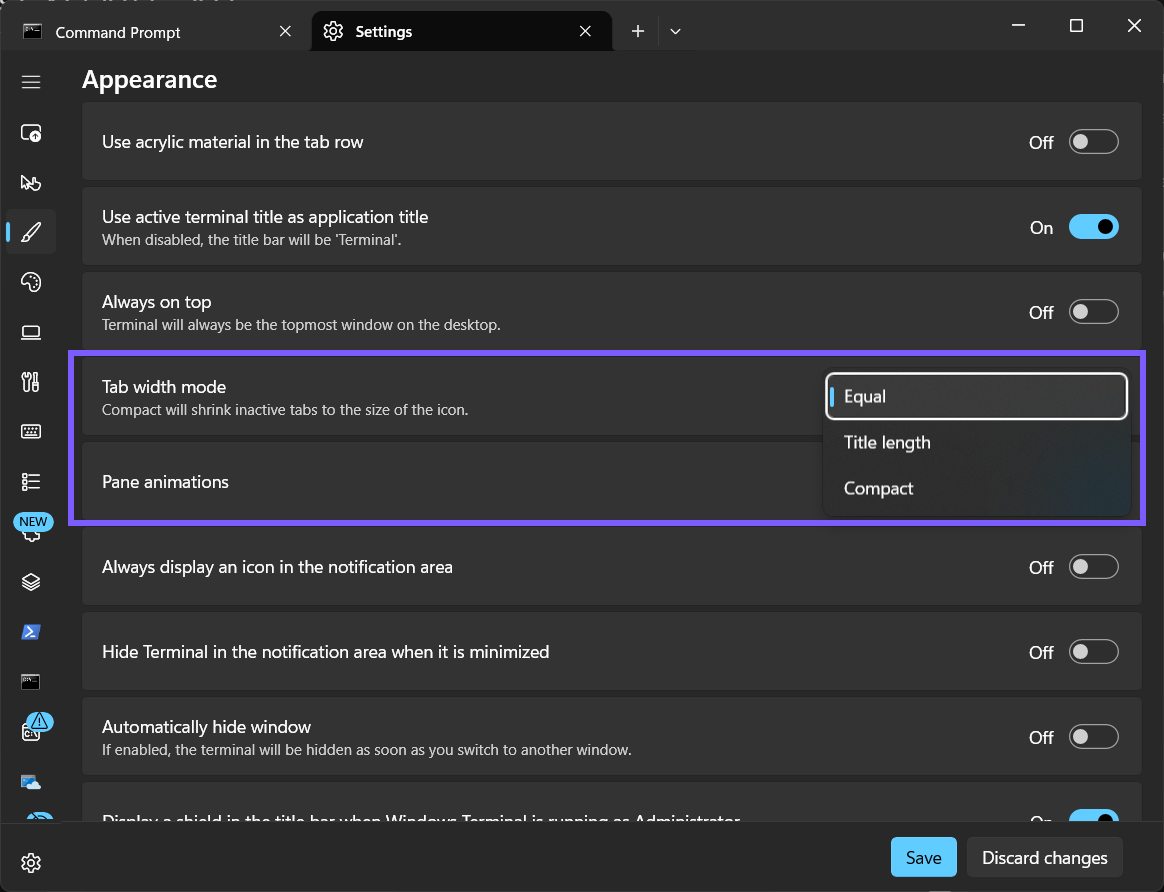
Equal gives every tab the same width. It makes the row visually regular and keeps every tab target consistent, but a long title can be shortened when many tabs compete for space.
Title length sizes tabs according to their titles. It is a practical choice when different shells, directories, or tasks have meaningfully different names and you want that variation reflected in the row. A very long title can consume more room, so the best choice depends on the number and usefulness of your tab names.
Compact is documented to shrink inactive tabs to their icon width while leaving more room for the active tab's full title. It can fit more tabs, but inactive titles are less visible until you activate them. The reproduced menu proved the option was available; this article did not select it because Equal-to-Title-length already provided the bounded reversible comparison needed for the reader's task.
How do you use Title length?
- Select Title length in the list.
- Select Save at the bottom of Settings.
- Leave Appearance, return to it, and verify that Title length remains selected.
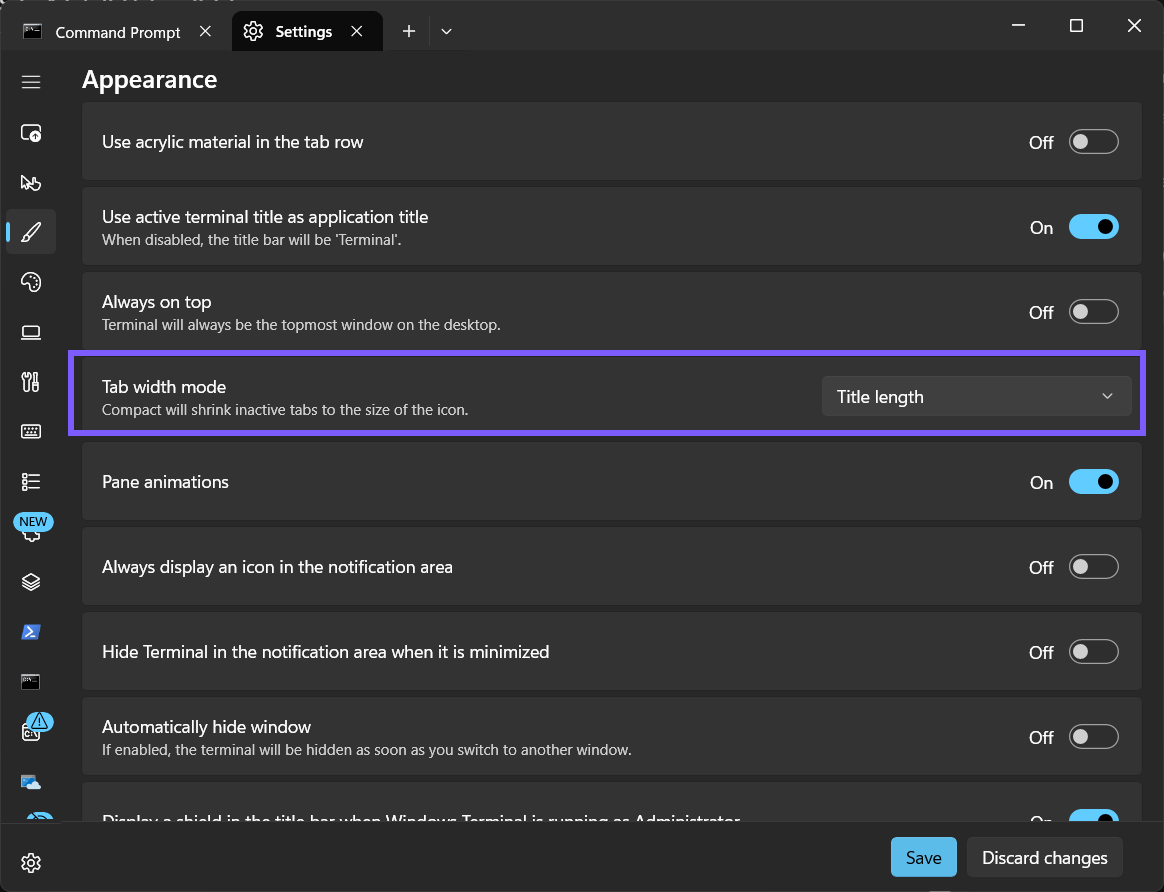
The evidence run independently observed tabWidthMode persisted as titleLength. That observation confirms the visible Save action changed the intended preference. Manual JSON editing is not presented as another method because the supported interface already exposes the choice and avoids syntax mistakes.
For a harmless visual check, open a few disposable tabs with ordinary profile titles and compare the row. Do not use tabs that contain an installation, a remote session, unsaved input, or an administrative task. Close only the disposable tabs after the comparison.
How do you restore Equal tab widths?
- Return to Windows Terminal Settings > Appearance.
- Open Tab width mode.
- Select Equal, and then select Save.
- Close Terminal, open a fresh Settings instance, return to Appearance, and confirm that Equal is still selected.
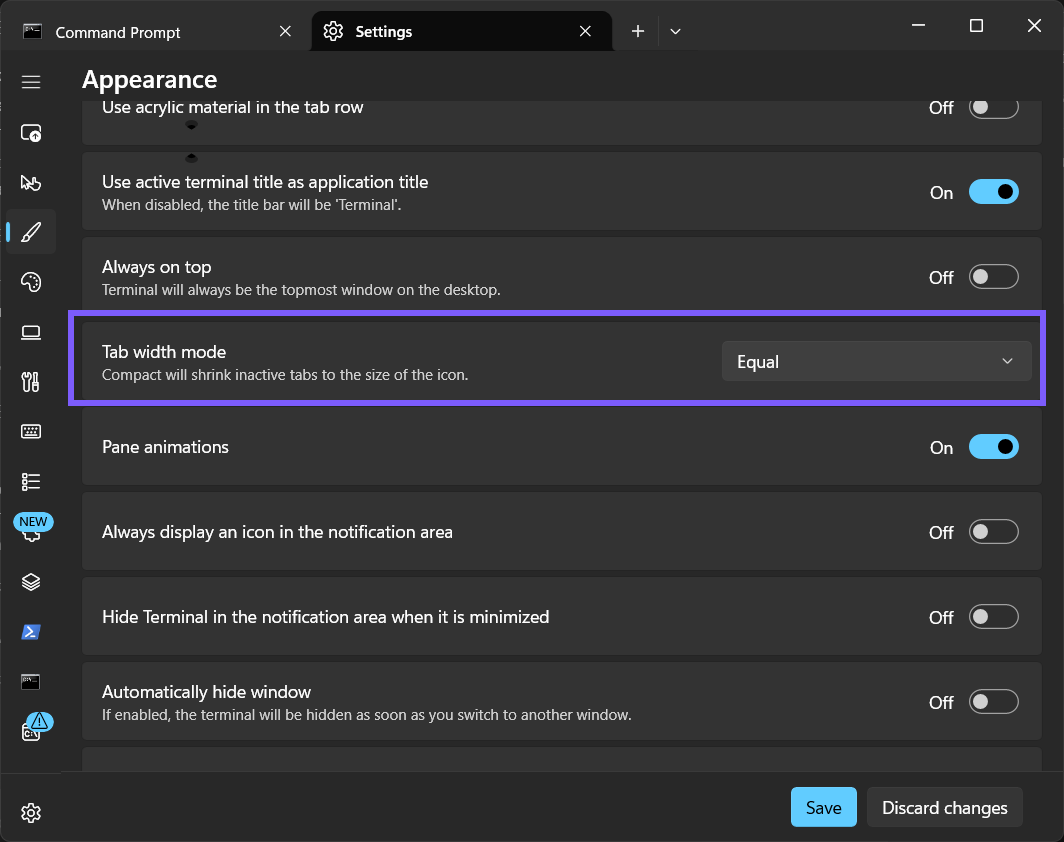
During reproduction, selecting Equal wrote an explicit equal property. I then closed Terminal and restored the exact pre-change file, where the optional property had been absent and therefore used the same documented default. The fresh control still read Equal, and the original SHA-256 matched exactly. Readers normally need only the visible steps; the file-level proof shows the test left no hidden preference drift.
Why do the tabs not look different?
- The change was not saved. Reopen Appearance and read the retained Tab width mode value before testing again.
- Only one tab is open. Width differences are easier to evaluate with several harmless disposable tabs.
- The tab titles are similar. Title length can look close to Equal when the visible names have comparable lengths.
- The window has abundant space. All modes are less visually dramatic when few tabs share a wide window.
- You changed a profile appearance setting. Profile font, padding, colors, and background do not control app-wide tab width.
- A different Terminal installation is open. Stable, Preview, or unpackaged builds can maintain separate settings.
Do not reset or reinstall Windows Terminal merely because the visual difference is subtle. Confirm the saved selection, use clean disposable tabs, and compare within the same Terminal installation. Resetting the app can affect far more configuration than this single appearance choice.
Frequently Asked Questions
Does Tab width mode change the Terminal window size?
No. It divides the available tab-row space. Resize the window separately when the whole application needs different dimensions.
Does Title length rename any tab?
No. It uses the titles that tabs already have. Tab naming comes from the profile, shell, current task, or a separate rename action.
What does Compact do to inactive tabs?
Microsoft documents that Compact shrinks inactive tabs to their icons while giving the active tab more room for its full title.
Do you need administrator rights to change Tab width mode?
No administrator prompt was required on the reproduced PC. The current-user preference was saved and then restored exactly.
Choose the tab row that stays readable
Use Equal for consistent tab targets, Title length when the names themselves help you navigate, or Compact when fitting many tabs matters more than seeing every inactive title. Save the choice, verify the retained setting with harmless tabs, and restore Equal through the same Appearance control whenever uniform widths suit the workflow better.
For more interesting articles, stay tuned to WinSides.com!

Community
Comments (0)