

To change new instance behavior in Windows Terminal, open Windows Terminal Settings, select Startup, open New instance behavior, choose where later Terminal invocations should open, and select Save. You can always create a separate window, attach to the most recently used Terminal window, or limit that attachment to the current virtual desktop.
I reproduced the complete Create a new window to Attach to the most recently used window on this desktop transition on Windows 11 version 25H2, build 26220.7872. The visible Settings method ran as a standard user and displayed no warning or administrator prompt. After verifying the saved preference, I returned the control to Create a new window, restored the exact original settings bytes, reopened a fresh Settings instance, and confirmed the original SHA-256. No Registry edit, elevation, cross-desktop screenshot, or fabricated window state was used.
What does New instance behavior control?
New instance behavior decides what Windows Terminal does when another ordinary Terminal invocation arrives. An invocation can come from the Start menu, a shortcut, a Run command, or another app that launches Terminal. The preference does not decide which shell profile opens; it decides whether the requested session receives a separate Terminal window or joins a window that already exists.
Microsoft's current Windows Terminal startup-settings reference identifies the setting as windowingBehavior. It accepts useNew, useExisting, or useAnyExisting, and the documented default is useNew. The tested PC matched that default: the optional property was absent, while the visible control read Create a new window.
This is an app-wide current-user preference. It does not merge windows that are already open, move an existing Terminal window to another virtual desktop, combine unrelated applications, select the default profile, or change the saved layout used when Terminal starts. It only influences how a later eligible invocation is routed.
Table of contents
How do you find New instance behavior?
- Open Windows Terminal.
- Press Ctrl + ,, or open the arrow menu beside the new-tab button and select Settings.
- Select Startup in the left navigation pane.
- Scroll to New instance behavior and record its current selection before changing it.
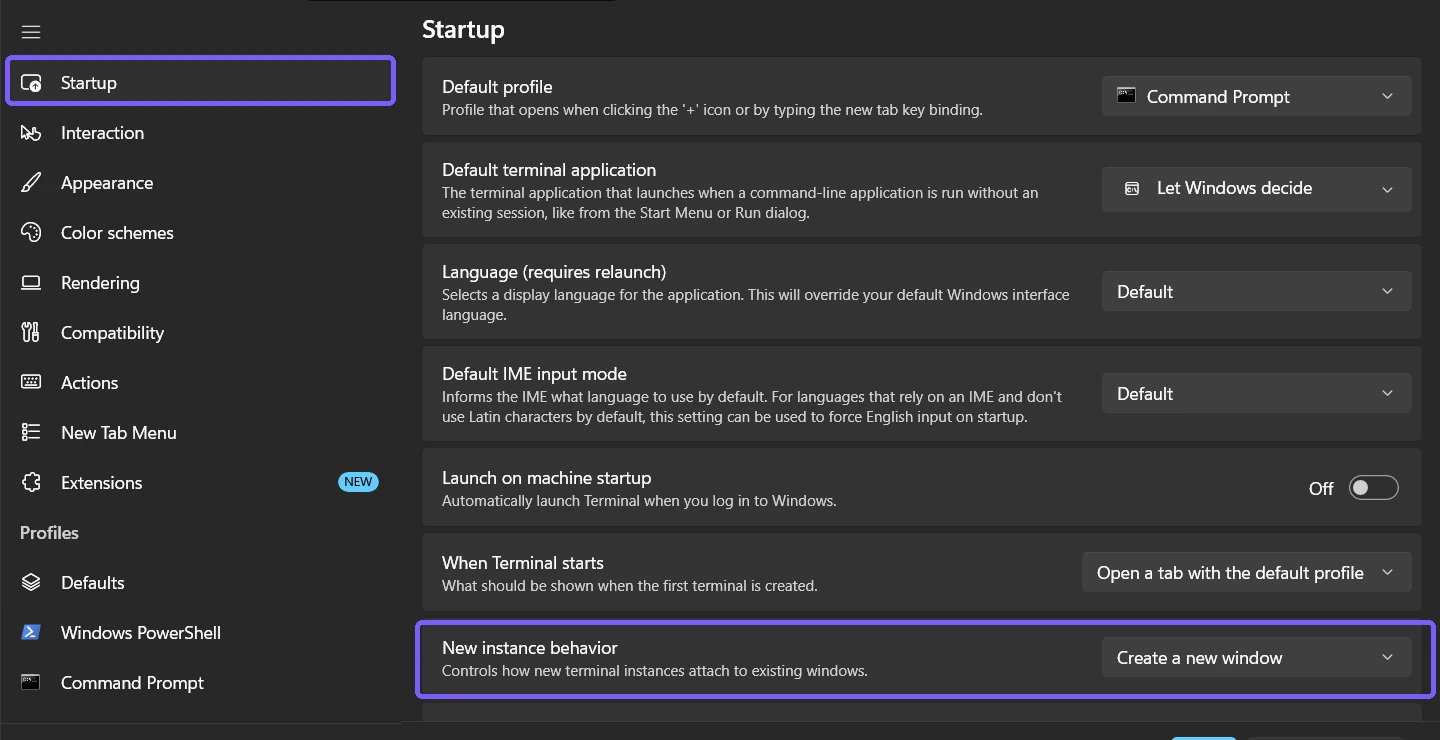
Verify the complete label because several neighboring Startup controls affect different things. When Terminal starts chooses the initial session or saved layout. Launch size affects initial dimensions. Neither is a substitute for New instance behavior, and neither needs to change for this procedure.
Which New instance behavior should you choose?
- Open the New instance behavior list.
- Read all three choices before selecting one.
- Choose the behavior that matches how you organize Terminal windows and virtual desktops.
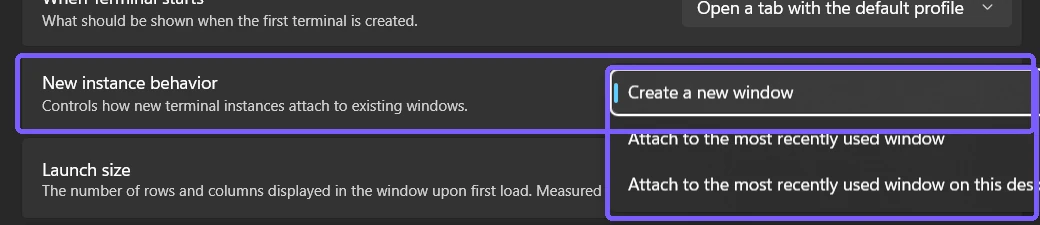
Create a new window is the predictable isolation choice. Each eligible invocation creates another Terminal window instead of adding a tab to one already in use. It is useful when separate tasks need separate window placement or when a shortcut should never disturb an existing Terminal workspace.
Attach to the most recently used window reuses the latest Terminal window even if that window belongs to another virtual desktop. This can reduce window clutter, but it can also place the new tab somewhere that is not visible on the current desktop. Choose it only when a single Terminal workspace across virtual desktops is intentional.
Attach to the most recently used window on this desktop reuses a Terminal window on the current virtual desktop. If no Terminal window exists there, Microsoft documents that Terminal creates a new window. This provides per-desktop grouping: new sessions can join the local workspace without being redirected to a different desktop.
How do you attach new instances on the current desktop?
- Select Attach to the most recently used window on this desktop.
- Select Save at the bottom of Settings.
- Leave Startup, return to it, and confirm that the same text remains selected.
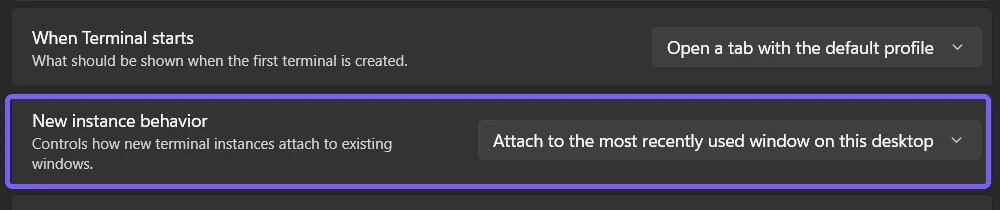
The evidence run also confirmed the stored value changed to useExisting. That storage observation proves persistence, but the visible Settings control remains the recommended routine method. Editing the JSON file manually adds syntax risk and offers no user benefit for a choice already exposed by the current interface.
How can you verify the routing behavior safely?
The lowest-risk check is to reopen Startup settings and read the saved selection. For a functional check, use only disposable Terminal windows and tabs. Keep one harmless Terminal window open on the current desktop, invoke Windows Terminal once from Start, and observe whether a new tab joins that window. Close the disposable tab after the check.
Do not test with a tab that has unsaved console input, a running installation, a remote session, or an elevated administrative task. A routing preference should not be verified at the expense of active work. If several Terminal windows are already open, the phrase “most recently used” matters: focus the intended harmless window immediately before the test.
The article does not use a cross-desktop screenshot. Virtual desktops can contain private applications or notifications, and the current-desktop value was already verified through the visible control and stored setting. Readers who choose the cross-desktop option should test with clean disposable windows on their own machine rather than trying to reproduce a particular desktop arrangement.
How do you restore Create a new window?
- Return to Windows Terminal Settings > Startup.
- Open New instance behavior.
- Select Create a new window.
- Select Save.
- Close Terminal, open a fresh Settings instance, and confirm that Create a new window is still selected.
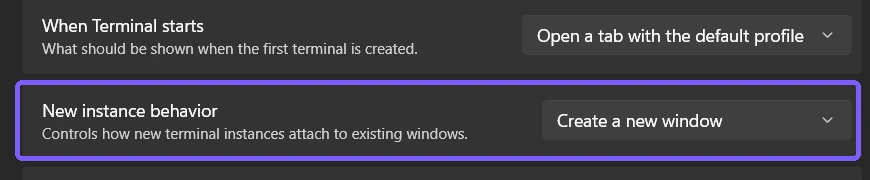
Saving Create a new window wrote an explicit useNew value during reproduction. I then closed Terminal and restored the original file, where the optional property was absent and therefore used the same documented default. The fresh UI still read Create a new window, and the original file hash matched exactly. Routine readers need only the visible rollback steps; the file-level check proves that the test left no hidden preference drift.
Why might Terminal ignore the saved preference?
Microsoft states that windowingBehavior is used only when the command line does not provide the --window or -w argument. An explicit window target takes priority because the launch command is asking for a specific routing decision. This is expected behavior, not evidence that Save failed.
Shortcuts, scripts, developer tools, and file-manager integrations can supply arguments without displaying them in the normal launch experience. If Start respects the saved preference but one custom shortcut does not, inspect that shortcut or integration. Repeatedly toggling the preference will not override a command that deliberately specifies a window.
Why does a new window or tab open unexpectedly?
- The change was not saved. Reopen Startup and read the retained value before testing another invocation.
- No eligible existing window was available. Current-desktop attachment creates a new window when that desktop has no Terminal window.
- A different window was most recently used. Focus the intended harmless Terminal window immediately before a functional check.
- An explicit window argument was supplied. The documented
--windowor-woption overrides this preference. - Another Terminal installation is open. Stable, Preview, or unpackaged builds can use different settings and windows.
- You changed a neighboring Startup control. When Terminal starts, Launch mode, and Launch size do not set instance attachment.
Restarting Windows, reinstalling Terminal, editing the Registry, or opening an elevated shell is not a sensible first response. Confirm the saved selection, close any disposable test windows, and retry a plain Start-menu invocation without custom arguments.
Frequently Asked Questions
Does New instance behavior change the default shell profile?
No. It routes a later Terminal invocation to a new or existing window. Default profile separately chooses which shell an ordinary new tab uses.
What happens if the current desktop has no Terminal window?
With the current-desktop attachment choice, Terminal creates a new window when no existing Terminal window is available on that virtual desktop.
Does the setting move an existing window between virtual desktops?
No. It controls where a new invocation is attached. It does not relocate an existing Terminal window or merge windows that are already open.
Do you need administrator rights to change New instance behavior?
No administrator prompt was required on the reproduced Windows 11 PC. The current-user Terminal preference was saved and then restored exactly.
Choose window isolation or reuse deliberately
Use Create a new window for predictable separation, the most recently used window for one cross-desktop workspace, or the current-desktop option for per-desktop grouping. Save the selection, verify it with harmless disposable windows, remember that explicit window arguments take priority, and restore Create a new window through the same control whenever separate windows suit the workflow better.



Community
Comments (0)