

To change the default profile in Windows Terminal, open Windows Terminal Settings, select Startup, open Default profile, choose an installed profile, and select Save. The chosen profile is then used by the ordinary new-tab action and by a new Terminal window when no more specific profile or command-line instruction overrides it.
I reproduced the complete change from Command Prompt to Windows PowerShell on Windows 11 version 25H2, build 26220.7872. The change was made through the current Settings interface as a standard user. After verifying the saved choice, I selected Command Prompt again, restored the exact original settings file, opened a fresh Settings instance, and confirmed the pre-test SHA-256. No administrator prompt, Registry edit, profile deletion, or synthetic profile was involved.
What does Default profile mean in Windows Terminal?
A Windows Terminal profile is a named configuration that launches a particular command-line environment with its associated starting command and profile-specific options. Command Prompt, Windows PowerShell, PowerShell 7, and installed WSL distributions can appear as separate choices. The list depends on what Terminal can discover or what the user has configured, so two PCs do not necessarily show the same profiles.
The Default profile setting identifies which of those profiles Terminal should use for its normal new-tab action. Microsoft documents defaultProfile as a required global setting and says its value can identify a profile by GUID or name. The Settings interface is the safer routine method because it displays the current installed choices and writes the correct identifier for the selected profile.
This setting is not the same as the Default terminal application. The default terminal application decides which terminal host Windows uses for compatible command-line programs. The default profile decides what Windows Terminal itself opens when you ask it for an ordinary new tab. Changing one does not automatically change the other.
Table of contents
How do you open the Default profile setting?
- Open Windows Terminal.
- Press Ctrl + ,, or open the arrow menu beside the new-tab button and choose Settings.
- Select Startup in the left navigation pane.
- Find Default profile near the top of the page.
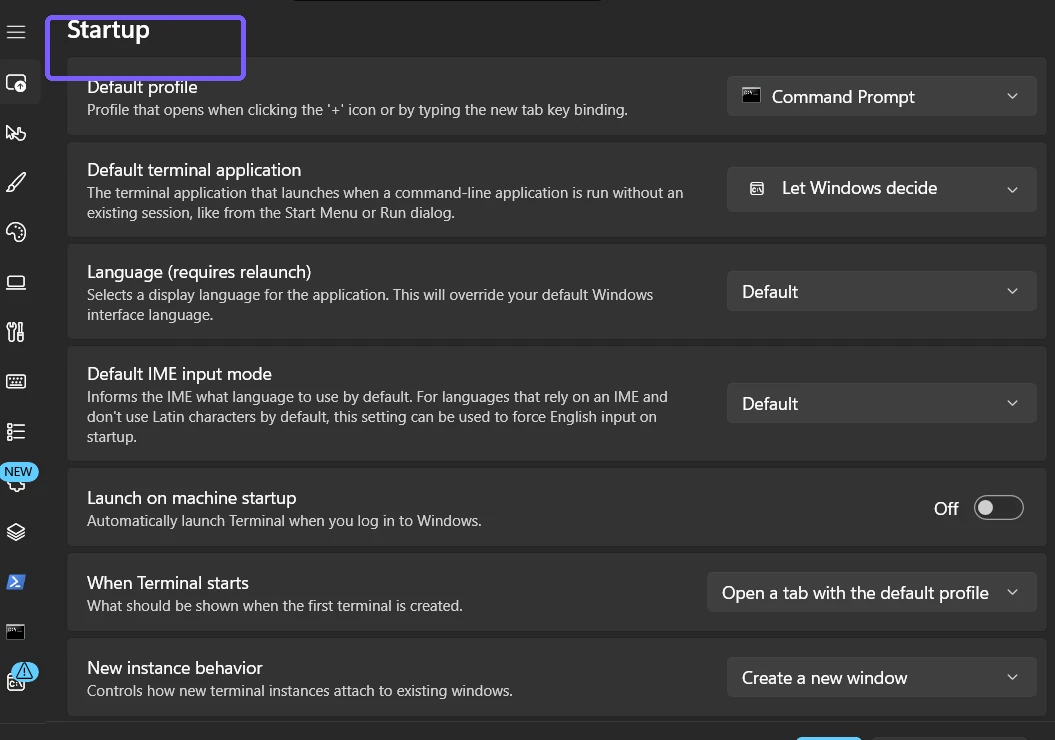
The reproduced build opened Settings without elevation and showed Command Prompt as the current default. If Startup is already selected, read the value before changing it. Recording the initial choice makes an intentional rollback straightforward and helps distinguish a saved change from a profile that was already the default.
How do you choose another default profile?
- Open the Default profile list.
- Select the profile you want Terminal to use for ordinary new tabs. In the reproduced test, I selected Windows PowerShell.
- Select Save at the bottom of Settings.
- Reopen Startup settings and confirm that the selected name was retained.
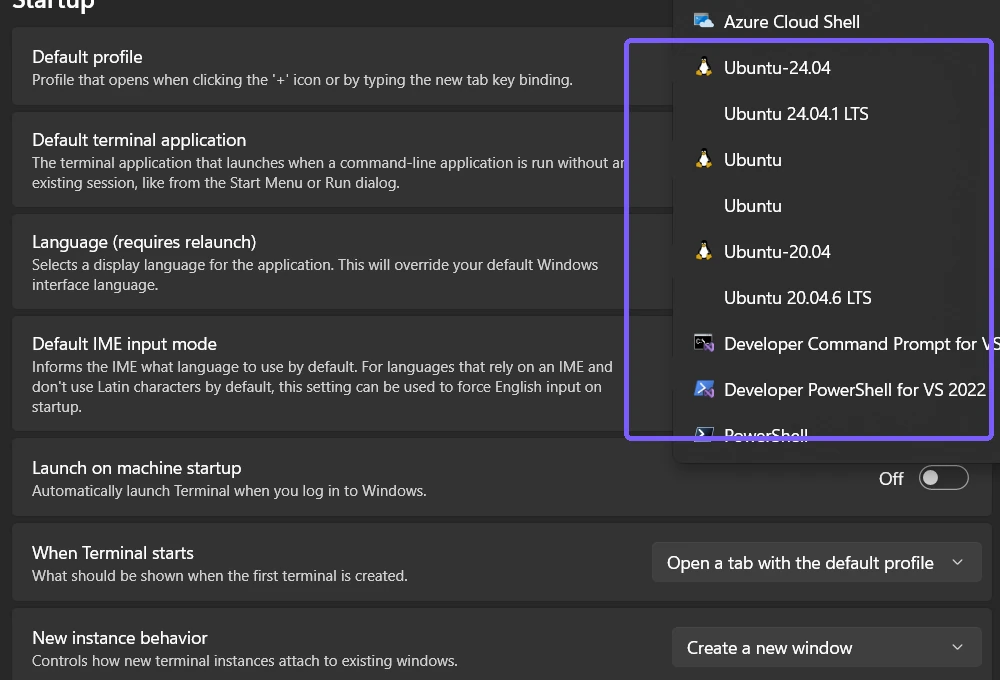
Select only a profile you recognize. The dropdown can include shells installed by Windows, optional packages, development tools, or Linux distributions. Merely seeing a profile name does not mean you should remove, repair, or reconfigure that software. The default choice is reversible and does not delete the other profiles.
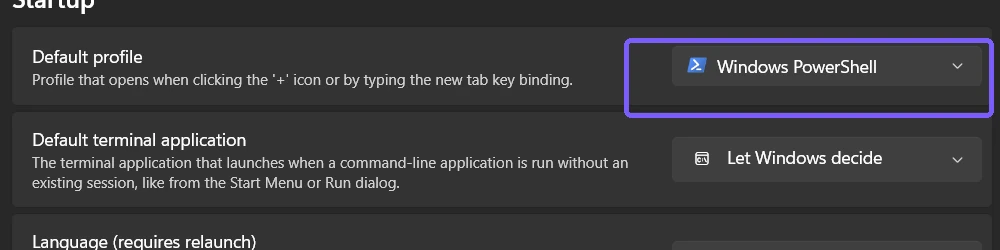
Saving the setting does not transform existing tabs. A Command Prompt tab that is already open remains Command Prompt, and a PowerShell tab remains PowerShell. The new default is used when Terminal creates a later ordinary tab or window without an explicit profile choice.
How can you verify the new default safely?
First, reopen Settings > Startup and check the selected name. This is the lowest-risk verification because it does not run a new shell. If you also want a functional check, open one disposable new tab with the plus button and confirm the shell matches your choice. Do not use a tab that contains unsaved work or an active remote session as a test target.
A profile can customize its title, icon, starting directory, and command line, so the tab label alone may not always be decisive. When necessary, use a harmless shell-specific identification command in the disposable tab. Avoid copying commands from an unrelated article just to identify the process; the selected profile name in Settings is already authoritative for the saved preference.
The reproduced change was also confirmed in the current-user Terminal settings data: the required defaultProfile identifier changed from the installed Command Prompt GUID to the installed Windows PowerShell GUID. This storage observation supports the test but is not a reason to edit JSON manually.
How do you restore the previous default profile?
- Return to Windows Terminal Settings > Startup.
- Open Default profile.
- Select the profile you recorded before the change. The reproduced baseline was Command Prompt.
- Select Save.
- Close Terminal, open a fresh Settings instance, and confirm the original selection.
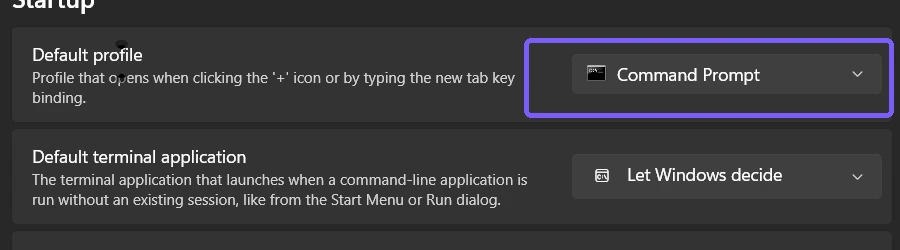
For the evidence run, selecting Command Prompt recreated the exact original settings bytes even before the safety backup was restored. I then performed the planned exact-file rollback and checked the original hash again. A routine reader normally needs only the visible Settings steps; the file-level proof demonstrates that the test left no hidden configuration drift.
What can override the default profile?
The default is a fallback, not a command that forces every tab to use one shell. Choosing a named profile from the arrow menu opens that profile directly. A shortcut, command-line argument, saved window layout, or application integration can also request a particular profile or command. Those explicit choices can produce a different shell even while Startup still shows the expected default.
That distinction explains many apparent failures. If the plus button opens the selected default but a pinned shortcut does something else, inspect the shortcut or launch command rather than repeatedly changing Default profile. Likewise, a restored window can contain the tabs saved in that layout instead of creating a fresh default tab.
Why might a profile be missing from the list?
- The shell is not installed. Terminal cannot offer a profile for software that is absent unless a valid custom profile was created.
- The profile was hidden. A configured profile can be suppressed from the menu and Settings choices.
- Discovery has not refreshed. Close and reopen Terminal after installing a shell or distribution.
- The profile configuration is invalid. A malformed custom entry may be ignored by the installed version.
- A managed configuration applies. Organizational policy or a packaged configuration can limit available choices.
Do not delete or reinstall a working shell merely because its name is absent. First confirm whether the app is installed and whether Terminal can open it through another supported route. The WinSides guide to check whether an account is an administrator or standard user can clarify account context, although changing this current-user Terminal preference did not require administrator rights.
Why does Terminal still open the old shell?
- The setting was not saved. Select Save, leave Startup, return, and read the retained value.
- An existing tab was inspected. The preference affects later ordinary tabs; it does not replace a running shell.
- A specific profile was requested. Menu choices, shortcuts, or command-line options can bypass the default.
- A saved layout was restored. Restored tabs can retain their original profiles.
- Another Terminal installation is open. Preview, Stable, and unpackaged builds can keep separate settings.
Restarting Windows or opening Terminal as administrator is not a sensible first troubleshooting step. Recheck the saved selection and how the new window or tab was launched. The general Windows 11 keyboard shortcuts list can help when a custom launch workflow depends on shortcuts, while Ctrl + , remains the direct Settings shortcut reproduced here.
Frequently Asked Questions
Does changing the default profile delete other profiles?
No. It selects the fallback profile for ordinary new tabs. Other installed profiles remain available unless they are separately removed or hidden.
Does the change affect tabs that are already open?
No. Existing tabs keep their running shell and current state. Verify the change with Settings or a new disposable tab.
Is Default profile the same as Default terminal application?
No. Default profile chooses what Windows Terminal opens for a normal new tab. Default terminal application chooses the terminal host Windows uses for compatible console programs.
Do you need administrator rights to change the default profile?
No administrator prompt was required on the reproduced Windows 11 PC. The preference was saved for the current user and then restored exactly.
Choose the shell you want for ordinary new tabs
Open Windows Terminal Settings, select Startup, choose an installed Default profile, and select Save. Verify the retained name before relying on it, remember that explicit profile requests and saved layouts can override the fallback, and restore the previous selection through the same control whenever your workflow changes.
For more reproduced Windows 11 guides, stay tuned to WinSides.com!




Community
Comments (0)