

To enable or disable the close-all-tabs warning in Windows Terminal, open Windows Terminal Settings, select Interaction, and change Warn when closing more than one tab. Leave it On if you want a confirmation before a window containing multiple tabs closes, or turn it Off if you want that window to close without this Terminal confirmation. Select Save after changing the switch.
I reproduced the complete On-to-Off-to-On sequence on Windows Terminal in Windows 11 version 25H2, build 26220.7872. The visible setting changed one current-user Terminal preference, required no administrator prompt, and displayed no warning during the setting change itself. I did not close active shells merely to manufacture a dialog screenshot. After the test, I restored the exact original settings file, reopened Settings, confirmed On, closed Terminal, and verified the original SHA-256.
What does the close-all-tabs warning control?
The setting applies when one Windows Terminal window contains more than one tab and you close that window. With the warning On, Terminal asks for confirmation before closing those tabs. With it Off, Terminal does not show this particular multi-tab confirmation. Microsoft documents the behavior under Show close all tabs popup and explains that the closeWindow action—including the default Alt + F4 binding—uses the preference.
The setting is narrower than its wording can sound. It does not add a prompt to every command, prevent a shell from exiting itself, preserve unsaved work in programs running inside a shell, or guarantee that a closed tab can be recovered. A command-line program can have its own exit or save prompt, and that separate program behavior remains unchanged.
On is the safer default for people who keep several shells, remote sessions, or long-running commands in one window. Off removes an interruption, but it also makes an accidental window close easier. Choose based on the real cost of closing all tabs in the current window, not merely on whether the prompt feels inconvenient once.
Table of contents
How do you find the warning setting?
- Open Windows Terminal.
- Press Ctrl + ,, or open the arrow menu beside the new-tab button and select Settings.
- Select Interaction in the left navigation pane.
- Scroll to the Warnings section.
- Find Warn when closing more than one tab.
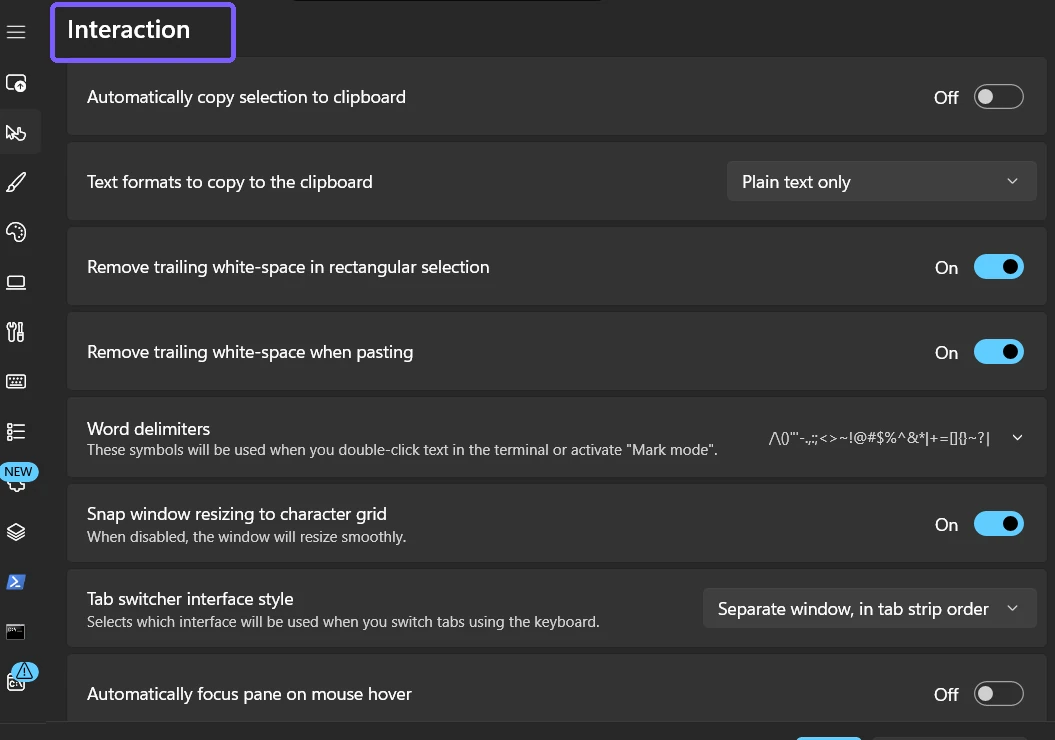
The installed interface label differs from the older queue wording “Do you want to close all tabs.” Microsoft’s current documentation also groups the underlying option on its Appearance reference page, while the reproduced app displayed the switch under Interaction. Follow the label visible in the installed app and avoid editing settings data for this routine change.
How do you disable the close-all-tabs warning?
- Record the current switch state so you can restore it later.
- Select Warn when closing more than one tab so it reads Off.
- Select Save at the bottom of Settings.
- Reopen the Interaction page and confirm that the switch retained Off.
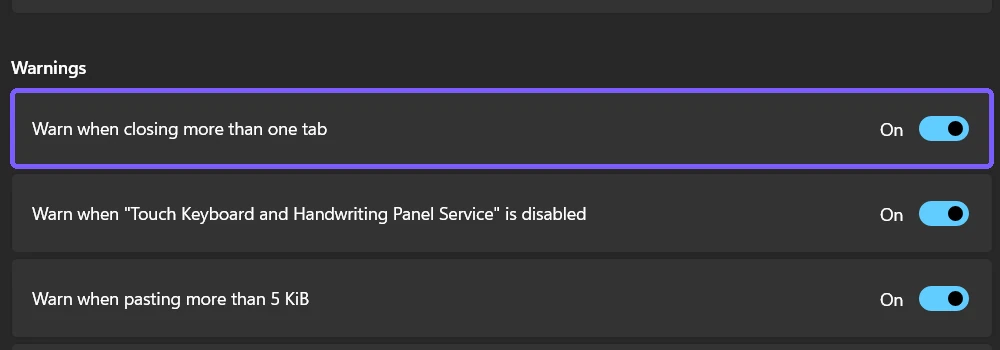
On the reproduced release, moving the switch made a pending change; the current-user settings file changed only after Save. The accepted capture verified the visible Off state and the Boolean false value stored by that installed build. No elevated process, Registry edit, service restart, sign-out, or Windows restart was involved.
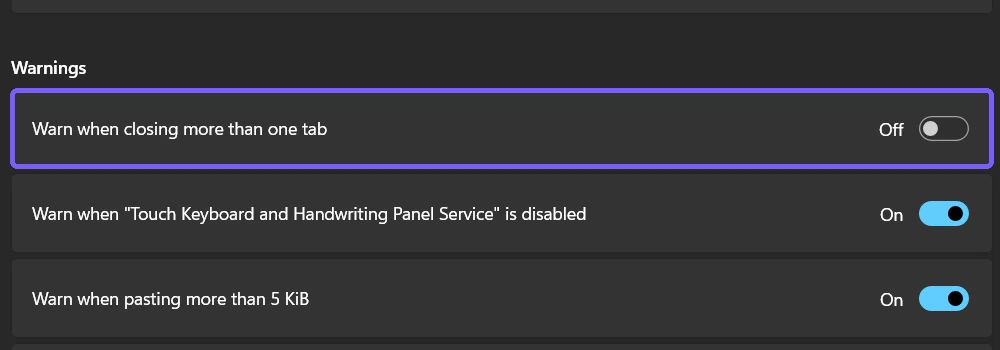
Disabling the warning affects future window-close actions; it does not close anything at the moment you save. Still, do not test it against tabs that contain unsaved editor buffers, remote administration sessions, package operations, or long-running scripts. The setting can be verified by reopening Settings without risking useful work.
How do you enable the confirmation again?
- Return to Windows Terminal Settings > Interaction.
- Scroll to Warnings.
- Turn Warn when closing more than one tab On.
- Select Save.
- Open a fresh Settings instance and confirm that On persisted.
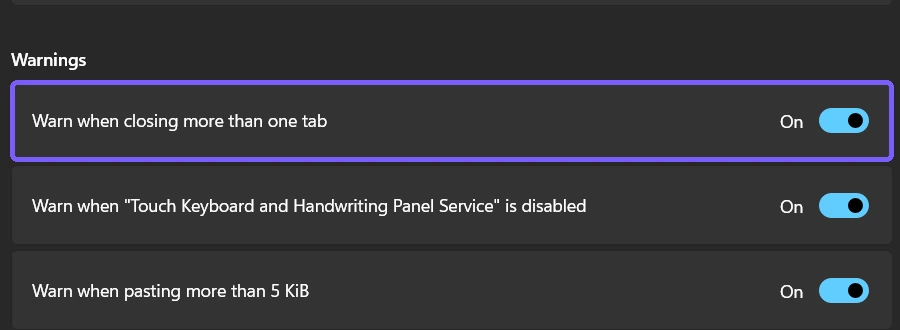
The reproduction first saved On explicitly, then closed Terminal and restored the byte-for-byte original settings file. In that original file the optional property was absent, so the app used the documented true default and showed On. The final hash matched the pre-test file exactly.
Why can the documented property name differ from the installed file?
Microsoft’s current public reference names confirmCloseAllTabs. During reproduction, the installed Terminal build persisted a root preference named warning.confirmCloseAllTabs. That local observation is recorded as version-specific evidence; it is not a recommendation to edit either key manually.
The visible Settings switch is the supported reader method because it lets the app choose the storage form appropriate to its version. Copying a property name from an older article can create a duplicate or ignored setting after a schema change. If troubleshooting requires settings data, compare the current official reference with the schema used by the installed release and keep an exact backup first.
What does the warning not protect?
- Unsaved work inside a program: Terminal cannot know whether a text editor or interactive tool has private unsaved state.
- Remote sessions: Closing a tab can disconnect a session even when the remote task keeps running.
- One-tab windows: The setting is specifically about closing more than one tab.
- Every Terminal window at once: Microsoft documents a separate
quitaction for closing all windows. - Shell-specific prompts: PowerShell, Command Prompt, WSL tools, and other applications can implement separate exit behavior.
Treat the confirmation as a last-second guard against closing a multi-tab window, not as a backup or session-management system. Save important work, use application-specific persistence, and stop critical commands cleanly before closing their host tab.
How can you test the behavior safely?
If you need a functional test beyond reopening Settings, create a disposable Terminal window with two idle tabs that contain no unsaved work and no remote connection. Close only that disposable window. With the warning On, the multi-tab confirmation should appear; cancel it if you want to keep the tabs. With the warning Off, the window can close immediately, so the tabs must be deliberately disposable.
The published screenshot set does not include a manufactured close dialog because creating it would require opening and then closing a test window solely for an extra visual. The four retained images already prove navigation, the exact On control, the saved Off result, and the restored On state without risking shell content.
Why might the setting seem not to work?
- The change was not saved. Select Save, reopen Interaction, and check the retained state.
- Only one tab is open. The setting concerns closing more than one tab in a window.
- A different prompt appeared. A shell or application can display its own confirmation.
- You used Quit instead of Close window. Microsoft documents Quit as a separate all-windows action.
- A managed build differs. Version or organizational policy can change the available interface and behavior.
Restarting Windows, reinstalling Terminal, editing the Registry, or opening an administrator session is not a sensible first response to a missed Save. The reproduced setting worked as a standard user. If you are unsure what account type you have, use the WinSides guide to check whether a Windows 11 account is an administrator or standard user; this preference itself did not require elevation.
Which shortcuts are relevant?
Ctrl + , opens Terminal Settings. Microsoft lists Alt + F4 as the default binding for the close-window action. Keyboard mappings can be customized, so use the action’s meaning rather than assuming every installation kept its default binding. The broader Windows 11 keyboard shortcuts list provides general shortcut context outside Terminal.
Do not press Alt + F4 as a casual test when the active window contains valuable tabs. Confirm which window has focus and whether the tabs are disposable before exercising any close shortcut.
Frequently Asked Questions
Does turning the warning Off close the current tabs?
No. Saving Off changes future close-window confirmation behavior. It does not close the current window or its tabs at that moment.
Does the warning protect a window with one tab?
The setting is labeled for closing more than one tab. Do not rely on it as an unsaved-work prompt for a single tab or for programs running inside that tab.
Do you need administrator rights to change the warning?
No administrator prompt was required on the reproduced Windows 11 PC. The setting was saved in the current user’s Windows Terminal configuration.
Will the setting stop a remote session from disconnecting?
No. It can ask before closing a multi-tab Terminal window, but it does not preserve or reconnect a remote session. Use the remote tool’s own session-management features.
Keep the warning On when accidental tab loss would matter
Open Windows Terminal Settings, choose Interaction, change Warn when closing more than one tab, and select Save. On adds a useful confirmation before closing a multi-tab window; Off removes that specific prompt. Verify the retained switch without risking important shells, and remember that the warning is not a substitute for saving work, managing remote sessions, or understanding the separate Quit action.
For more reproduced Windows 11 guides, stay tuned to WinSides.com!







Community
Comments (0)