

To check your current account type in Windows 11, open Settings > Accounts > Your info and read the label below your account details. If it says Administrator, the account belongs to the local Administrators group. If that label is absent or the page is unclear, confirm the result in Control Panel > User Accounts.
Both checks are read-only. They do not change permissions, require elevation, sign you out, or alter any files. I reproduced both routes on Windows 11 Home Single Language version 25H2, build 26220.7872. Settings and Control Panel showed the same Administrator result, and an independent local-group check agreed.
Administrator and standard accounts explained
An administrator account can approve system-wide changes, install software for all users, manage other accounts, and access protected parts of the PC. A standard account is intended for everyday work and has fewer rights by default. Microsoft recommends limiting the number of administrators because broad permissions increase the impact of unwanted changes or malware.
Account type is separate from whether the sign-in uses a Microsoft account or a local account. Either identity can be configured as Administrator or Standard. It is also separate from whether a particular app is currently elevated; User Account Control can still ask an administrator to approve a sensitive action.
Microsoft's current Windows account-management guidance describes administrators as having complete control over the system and recommends standard accounts for normal daily use.
Table of contents
Check the current account in Settings
- Press Windows + I to open Settings.
- Select Accounts in the left sidebar.
- Select Your info.
- Look below the account name and sign-in address. The word Administrator confirms that the current account has administrator membership.
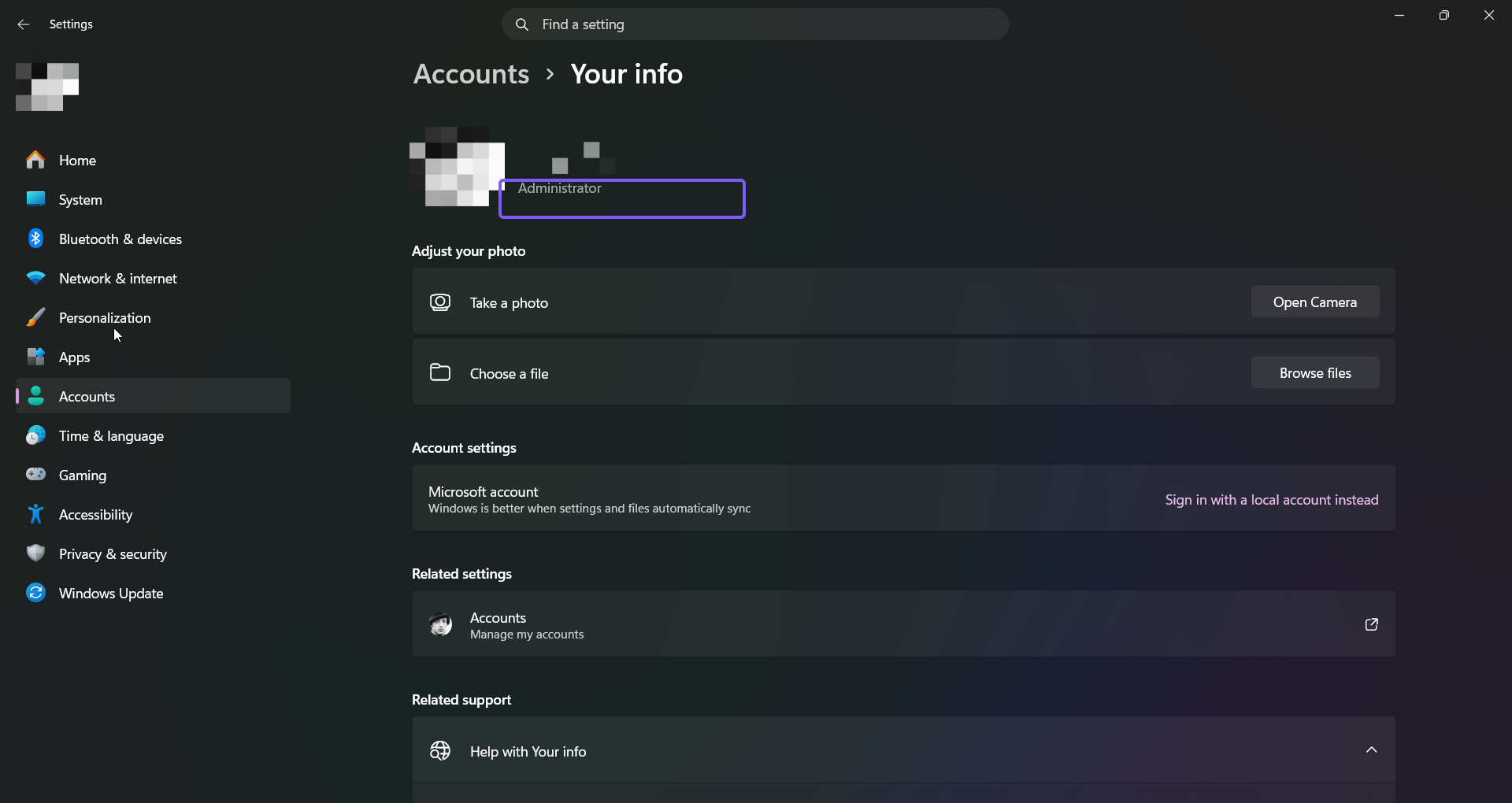
Microsoft documents this exact path in its current Windows activation guidance: under the account name, Windows displays Administrator when the signed-in account is an administrator.
Do not use the email address as the test. An address tells you that the sign-in is connected to a Microsoft account; it does not determine the local permission level. Read the Administrator label itself, or use the Control Panel confirmation below.
Confirm the account type in Control Panel
Control Panel provides a second read-only view and is useful when the Your info page does not make the result obvious.
- Open Start, type Control Panel, and open the matching result.
- Select User Accounts. If Control Panel is showing categories, select User Accounts once more.
- Read the type shown beside the current account picture. The tested PC displayed Administrator.
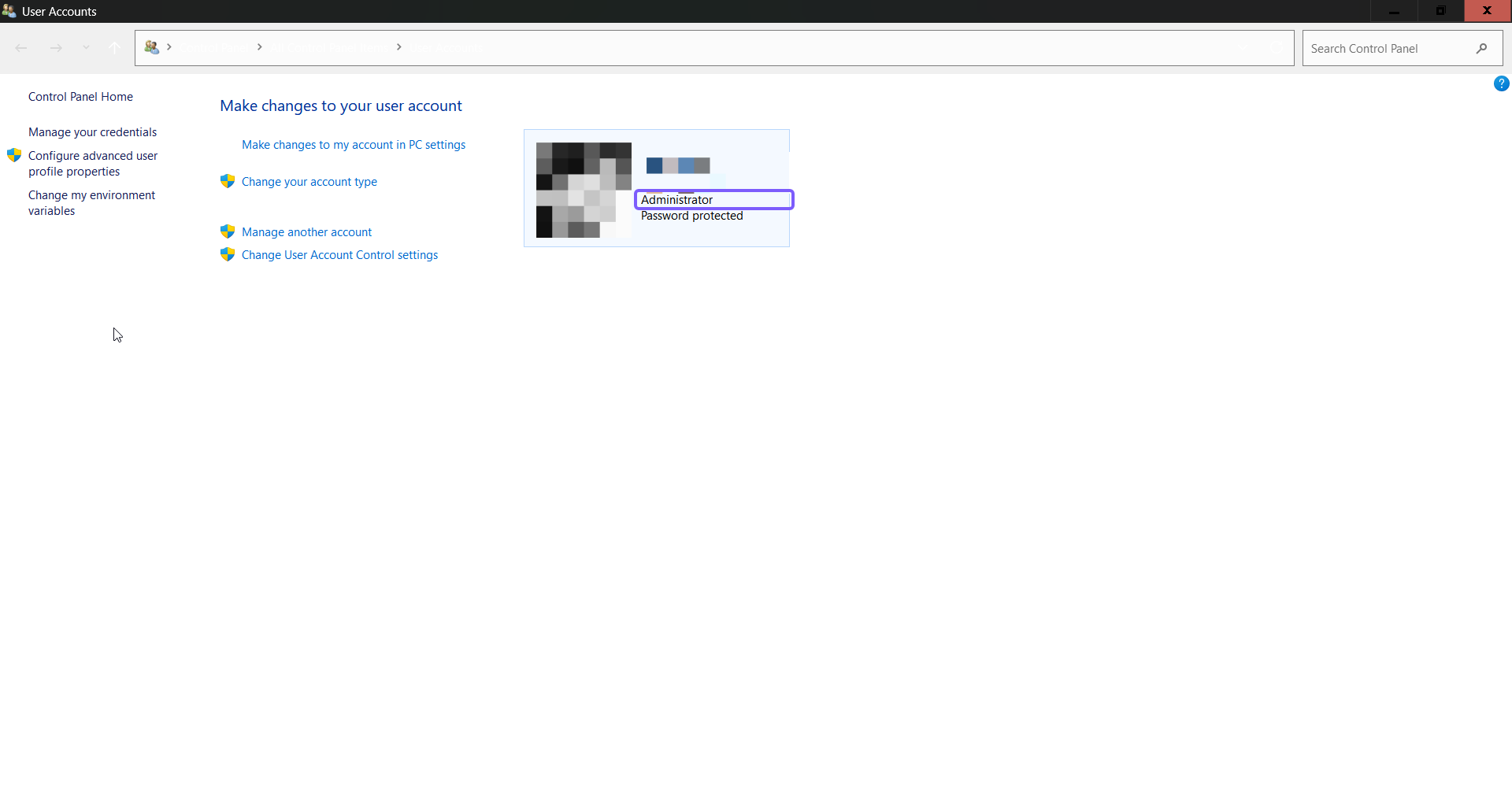
Microsoft's current local administrator check uses the same Control Panel area. You do not need to select Change your account type merely to read the label on the overview page.
Administrator membership is not the same as app elevation
An administrator account normally starts desktop apps with a standard user token. When an action needs broader rights, User Account Control asks for consent before Windows supplies an elevated token. That is why an administrator can still see a prompt, and why a terminal window can report an access error until it is opened with elevated rights.
If a task specifically needs an elevated shell, use a deliberate Run as administrator action for Command Prompt. Do not treat the account-type label as proof that every open app already has unrestricted access.
A standard user can continue doing normal work. For a protected change, Windows may request credentials from an administrator. Ask the owner or IT administrator instead of changing account membership simply to bypass a prompt.
Troubleshoot a missing or unexpected account type
- Confirm which account is signed in. The Your info page describes the current Windows session, not another profile saved on the PC.
- Use both views. If Settings omits a clear label, open Control Panel > User Accounts and compare the result.
- Separate identity from permission. Microsoft account, local account, Administrator, and Standard describe different properties.
- Consider device management. A work or school administrator can control group membership and may present different account-management options.
- Do not change anything for this check. Links such as Change your account type are unnecessary when you only need to identify the current role.
There is no rollback step because neither method changes Windows. Close Settings and Control Panel when you finish.
Frequently Asked Questions
Does Administrator mean every app is always elevated?
No. User Account Control normally starts apps with standard permissions and asks for consent when an action requires an elevated administrator token.
Does a Microsoft account automatically become an administrator?
No. Microsoft account and local account describe how you sign in, while Administrator and Standard describe the account's permission level on that device.
Why does Windows ask for permission on an administrator account?
The prompt is part of User Account Control. It creates a deliberate approval boundary before an app receives elevated rights for a system-wide change.
Should you use a standard account for everyday work?
A standard account reduces exposure to unwanted system-wide changes. Microsoft recommends limiting administrator accounts and using standard permissions for routine activity when practical.
Identify the role without changing it
Settings > Accounts > Your info is the quickest check for the signed-in account, while Control Panel > User Accounts provides an independent confirmation. Read the Administrator or Standard result, remember that UAC elevation is a separate state, and leave account membership unchanged unless there is a genuine administrative need.
For more interesting articles, stay tuned to WinSides.com!








Community
Comments (0)