

Windows 11 provides a read-only summary of the account you are using on Settings > Accounts > Your info. On the tested PC, this page showed the profile picture, display name, Microsoft-account email identifier, Administrator label, photo controls, account type, alternative sign-in link, and a related account shortcut.
The page is useful when you need to confirm what Windows associates with the current desktop session. It does not reveal the password, full online Microsoft profile, payment information, subscriptions, or another user's credentials.
I reproduced the steps on Windows 11 Home Single Language version 25H2, build 26220.7872. The check required no elevation and changed nothing. I did not open the account-conversion link, change the photo, edit the profile, or sign out.
What the Your info page reveals
The top of Your info describes the signed-in Windows identity. A personal Microsoft-connected account commonly shows a profile picture, display name, email-form sign-in identifier, and the local permission label. The exact set can differ for local, Standard, work, school, domain, and organization-managed accounts.
Further down, Adjust your photo offers camera and file choices. Account settings states the current account connection and presents the opposite sign-in route. For example, the tested Microsoft-connected sign-in offered Sign in with a local account instead. Selecting that link would begin a conversion workflow, so it is unnecessary when the goal is only to view details.
Microsoft documents the same Accounts > Your info path for current Windows 11 and explains that the alternative link changes with the active identity type.
Table of contents
View the account details in Settings
- Press Windows + I to open Settings.
- Select Accounts in the left sidebar.
- Select Your info.
- Read the signed-in summary near the top, then review Adjust your photo and Account settings.
- Close Settings when you finish. Do not select a photo, sign-in, or account-management control unless you intend to change it.
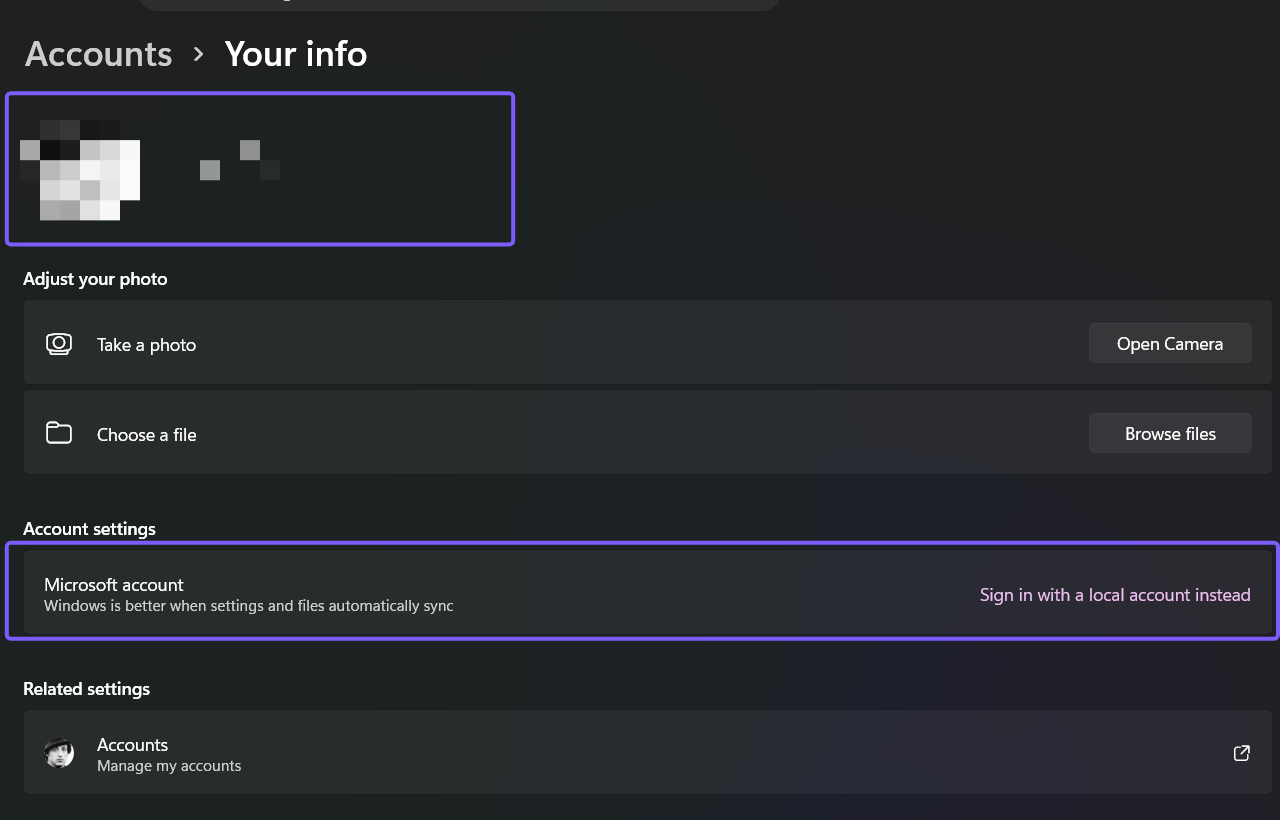
This route is observational. Opening the page does not test a password, contact Microsoft, convert the account, or change local permissions. The screenshot uses irreversible pixelation because the raw capture contained private identity information.
Read each field correctly
- Profile picture: the image Windows associates with the current user. Microsoft-connected pictures can also appear in apps and services that use the same identity.
- Display name: the friendly name shown for the session. It is not necessarily the local profile-folder name.
- Email-form identifier: a strong signal that the Windows sign-in is connected to a Microsoft account. A local account can omit this line.
- Administrator or Standard: the local permission level. This is separate from whether the identity is local or Microsoft-connected.
- Adjust your photo: camera and file controls for the account picture. Reading the section does not alter the existing picture.
- Account settings: the current account connection and an optional route to the other sign-in type.
- Related settings: links to additional account management. They are not part of the read-only summary itself.
These labels answer different questions. The email or account card describes the identity connection, while Administrator or Standard describes what the account may change on this computer. Windows Hello methods such as a PIN or fingerprint are sign-in methods and do not replace either label.
Separate the Windows summary from online account data
Your info is not the complete Microsoft account record. Microsoft describes the online Microsoft account dashboard as the place for personal information, security settings, subscriptions, order history, payment, and billing options. Those categories are intentionally outside the Windows summary.
Microsoft's current account-data guidance also separates Windows controls from broader saved-account information. It places Windows profile-picture choices under Settings > Accounts > Your info, while directing broader personal and privacy data to Microsoft account surfaces.
This distinction matters for privacy and troubleshooting. If Your info shows the wrong display name or picture, first identify whether the Windows sign-in is local, personal Microsoft, or organization-managed. Then use the matching supported management surface. Do not assume that changing one Windows label will rewrite every online profile or local folder name.
Allow for local and managed-account differences
A local account can show a local display name and permission label without a Microsoft-account email. Its account card offers Sign in with a Microsoft account instead. A Microsoft-connected account offers the local-account alternative. That inverse wording identifies the option Windows can switch to, not the type currently in use.
Work, school, domain, and device-management policies can add organization details, hide controls, or prevent changes. A work or school address listed elsewhere under Accounts also does not automatically prove that the Windows desktop signs in with that identity. Read the current-session summary on Your info and respect any management notice.
Microsoft Learn lists Your info as a current Windows Settings page. The normal Settings navigation remains the clearest method for readers because it shows the page in context and avoids publishing a command for a task that does not need one.
Frequently Asked Questions
Does Your info show the Windows password?
No. The page displays an account summary and related controls, not the password, PIN, recovery key, or other secret. Windows does not expose those values as readable account details.
Why is there no email address on Your info?
The Windows sign-in may be a local account, or a managed configuration may present identity information differently. Check the account card and its alternative sign-in link instead of relying on the email line alone.
Does Administrator mean the sign-in is a Microsoft account?
No. Administrator is a local permission level. Local and Microsoft-connected identities can each be configured as Administrator or Standard users.
Can Your info reveal another user's complete account details?
No. Your info summarizes the current signed-in session. Other account-management pages can list accounts or roles, but Windows does not reveal another user's password or complete private profile there.
Use the summary without changing it
Open Settings > Accounts > Your info when you need a quick, current summary of the signed-in Windows 11 account. Read the identity, permission, photo, and account-type fields as separate signals, and remember that online profile, security, subscription, and billing data live outside this page.
For more Windows 11 tutorials grounded in reproduced steps, stay tuned to WinSides.com.

Community
Comments (0)