

To check whether your current Windows 11 sign-in uses a local account or a Microsoft account, open Settings > Accounts > Your info. The account card and the alternative sign-in link identify the current account without changing it.
A Microsoft-connected sign-in shows Microsoft account and the link Sign in with a local account instead. A local sign-in shows Sign in with a Microsoft account instead. Microsoft also documents a simpler visual signal: an email address under the account name indicates a Microsoft account, while its absence indicates a local account.
I reproduced this read-only check on Windows 11 Home Single Language version 25H2, build 26220.7872. The tested PC showed the Microsoft-account card and the local-account alternative. I did not select the link, convert the account, sign out, or change any permission.
Local and Microsoft accounts explained
A local account is created and stored on one Windows device. It can sign in without an Internet connection, and its local profile, permissions, and settings belong to that PC. A Microsoft account is associated with an email address and can also be used with services such as Outlook, OneDrive, Microsoft 365, Xbox, and the Microsoft Store.
Microsoft's current local and Microsoft account guidance describes the local account as device-specific and the Microsoft account as an identity that works across Microsoft services and can synchronize supported settings and files between devices.
Neither choice tells you whether the Windows account is an Administrator or Standard user. Identity type answers where the sign-in identity is connected; permission type answers what the account can change on this PC. A local account or Microsoft account can have either permission level.
Table of contents
Check the current sign-in in Settings
- Press Windows + I to open Settings.
- Select Accounts in the left sidebar.
- Select Your info.
- Read the account card under Account settings and the alternative sign-in link on its right.
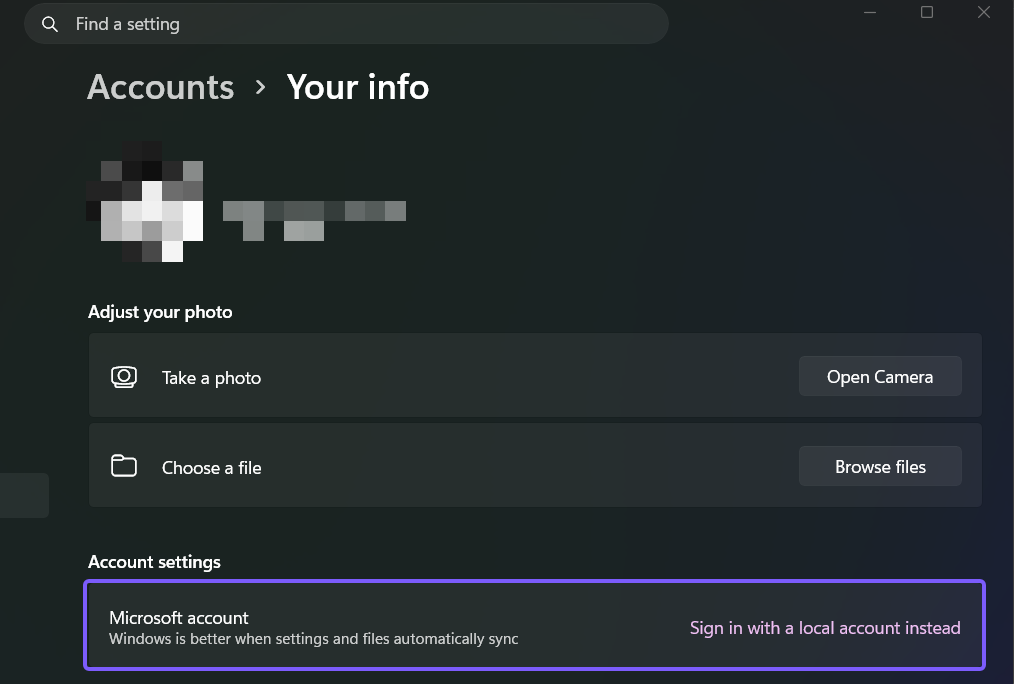
This method is intentionally observational. Do not select an alternative sign-in link merely to confirm the current type. Selecting it starts an account-conversion workflow that can require credentials, sign-out, and a new sign-in. Close Settings after you read the result.
Interpret the account card and sign-in link
- Microsoft account: Your info shows an email-form sign-in identifier, a Microsoft account card, or Sign in with a local account instead.
- Local account: Your info does not show a Microsoft-account email for the Windows sign-in and offers Sign in with a Microsoft account instead.
- Work or school connection: A separate organization account under other Accounts pages does not necessarily mean that the Windows desktop itself uses that identity.
The wording is an inverse clue: Windows offers the account type you are not currently using. The local-account alternative therefore confirms a Microsoft-connected sign-in, and the Microsoft-account alternative confirms a local sign-in.
Microsoft's current Windows activation guidance uses the same Your info page and states that an email address displayed with the account indicates a Microsoft account. This agrees with the conditional-link test and makes the result easier to recognize when card wording changes slightly.
Identity type and permissions are separate
Local versus Microsoft and Administrator versus Standard are separate properties. Connecting a local sign-in to Microsoft does not by itself prove that the account has administrator rights. Likewise, a local account can be an administrator, and a Microsoft account can be configured as a standard user.
The Your info page may display an Administrator label near the account identity, but that label answers a different question. Read the Microsoft-account card or alternative sign-in link for identity type. Read the Administrator or Standard result only when you need the local permission level.
Windows Hello also does not change the answer. A PIN, fingerprint, or face sign-in is a device-specific way to verify the user; it can protect either a local or Microsoft-connected Windows account.
Allow for managed-device differences
A PC joined to a workplace, school, or domain can expose additional identity controls. Windows may display an organization address, management notices, or options controlled by policy. In that situation, use the labels on Your info for the current Windows session and avoid treating every account listed under Email & accounts or Access work or school as the desktop sign-in identity.
Microsoft Learn explains that local accounts are security principals defined on the device. Organization identities can introduce domain or cloud-directory behavior beyond the personal-account comparison in this guide. If a managed PC hides or locks an option, contact the device administrator instead of trying to bypass policy.
Frequently Asked Questions
Does an email address always mean the Windows sign-in is a Microsoft account?
On the current Your info page, an email address shown with the signed-in Windows identity is Microsoft's documented Microsoft-account signal. An address listed only under Email & accounts or Access work or school can belong to an app or organization connection instead.
Can a local account be an administrator?
Yes. Local-versus-Microsoft identity is independent of Administrator-versus-Standard permissions. Either identity type can be assigned either local permission level.
Does using a Windows Hello PIN make the account local?
No. Windows Hello is a device-specific sign-in method. A PIN, fingerprint, or face sign-in can verify a local account or a Microsoft-connected account.
Do you need to switch accounts to check the current type?
No. Read the account card and alternative link on Settings > Accounts > Your info. Selecting the link begins a conversion workflow and is unnecessary for this check.
Identify the sign-in without changing it
Settings > Accounts > Your info provides the safest answer. Microsoft account, an email-form sign-in identifier, or Sign in with a local account instead confirms a Microsoft-connected Windows sign-in. Sign in with a Microsoft account instead confirms a local sign-in. Read the current label, keep identity type separate from permission level, and close Settings without starting an account conversion.
For more Windows 11 tutorials grounded in reproduced steps, stay tuned to WinSides.com.


Community
Comments (0)