

Windows 11 offers several account views, but they answer different questions. Settings > Accounts > Other users is a management page for additional people, while net user and Get-LocalUser enumerate local account objects, including built-in entries that Settings can hide.
I reproduced all three read-only methods on Windows 11 Home Single Language version 25H2, build 26220.7872. None required elevation. No account was created, enabled, disabled, renamed, removed, signed in, or signed out.
The screenshots deliberately pixelate every computer and account name. Account inventories can reveal personal identifiers and local administrative details even when they do not contain a password.
What counts as a user account in these lists
A Windows account can be the current personal sign-in, another person's interactive account, a local account connected to a Microsoft identity, or a built-in account used by Windows. A profile folder is related to an account but is not the same thing: deleted accounts can leave profile folders behind, and built-in accounts may never create an ordinary user profile.
The Settings page focuses on accounts a person can manage from the modern interface. The command-line tools query the local account database, so they can return disabled or system-managed entries that do not appear as cards in Settings. Neither command proves that an account is currently signed in.
Table of contents
Use Settings to review other user accounts
- Press Windows + I to open Settings.
- Select Accounts.
- Select Other users.
- Review any account cards under Other users. Do not select Add account, expand an account, or choose Remove when you only need to view the page.
- Close Settings when you finish.
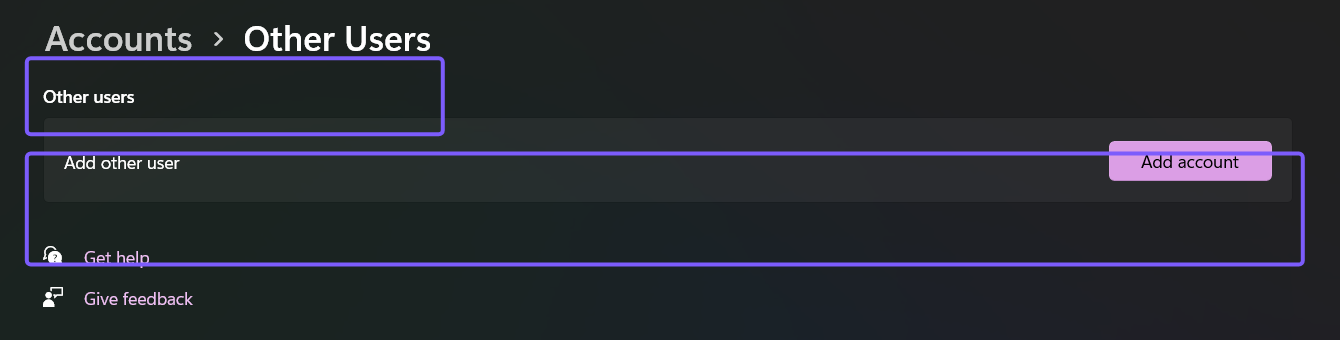
Microsoft's current user-account guidance uses Settings > Accounts > Other users for adding, changing, and removing additional accounts. Microsoft Learn also lists ms-settings:otherusers as the current page URI.
The reproduced PC showed the management card but no additional interactive account card. That does not mean the local account database contains only one object; the command methods below returned built-in and system-managed entries as well.
List local accounts with net user
Open Command Prompt, Windows Terminal, or Windows PowerShell without elevation, then run:
net userWith no account name, password, /add, /delete, or other modifying option, this form only displays the local computer's account names. Microsoft documents net user for Windows 11 and uses this exact no-argument command to list all user accounts for the local computer.
The command can include familiar personal accounts plus built-in or utility accounts. Do not delete or enable an unfamiliar entry merely because it does not appear in Settings. Close the terminal when you finish; there is nothing to roll back.
Inspect account status with Get-LocalUser
For a structured view, open 64-bit Windows PowerShell and run:
Get-LocalUser | Select-Object Name, Enabled, PrincipalSourceName is the local account name, Enabled states whether Windows permits the account to sign in, and PrincipalSource identifies the source Windows reports for the local object. The reproduced command returned seven rows and populated both status fields for every row.
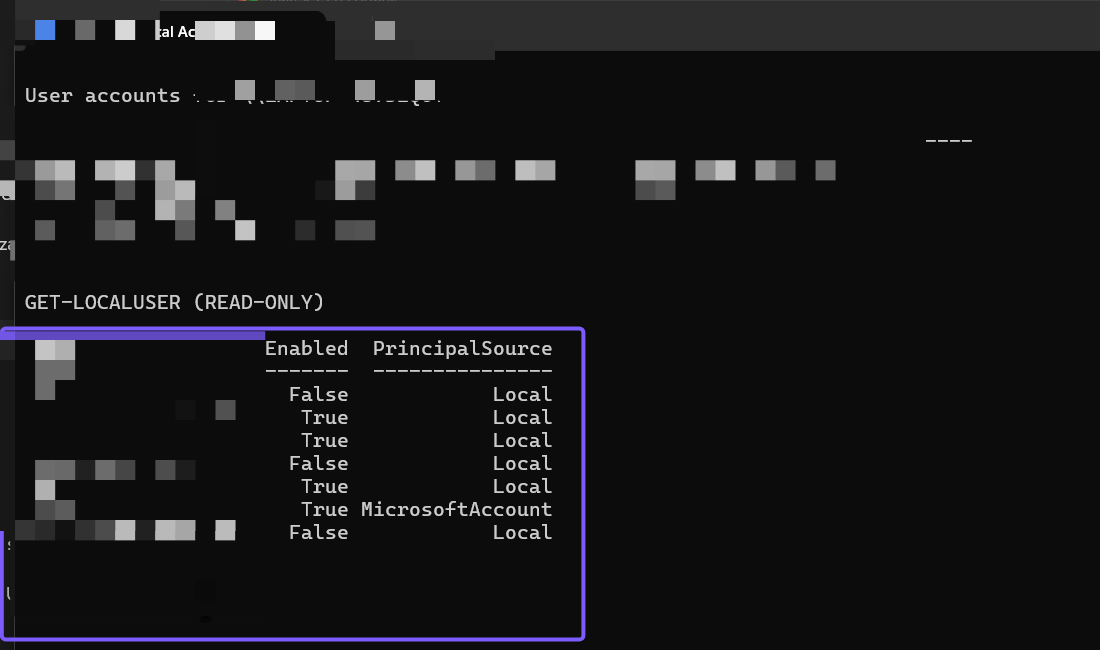
Microsoft documents Get-LocalUser as returning built-in local accounts, accounts you created, and local accounts connected to Microsoft identities. The LocalAccounts module is not available in 32-bit PowerShell on 64-bit Windows, so use the normal 64-bit Windows PowerShell shortcut if the cmdlet is not recognized.
Understand why the lists can differ
- Settings > Other users: a friendly management view for additional interactive users; it can omit the current account and hidden built-in objects.
net user: a compact list of local account names, including disabled or built-in objects.Get-LocalUser: local account objects with fields such as enabled state and principal source.C:\Users: profile folders, not an authoritative account list. Old folders can remain after an account changes or is removed.- Work, school, and domain identities: can be represented through organization management and may require domain or Entra administration tools beyond this local inventory.
If the goal is to find who is actively using the PC, use a session view rather than treating these account inventories as proof of a current sign-in. An account can exist while disabled, signed out, or never used interactively.
Frequently Asked Questions
Does Settings show every local Windows account?
No. Other users is a management surface for additional interactive accounts. Built-in, disabled, hidden, or system-managed local objects can appear in command output without a matching Settings card.
Does net user change any account?
The exact command net user with no additional argument is read-only and lists local account names. Other forms of the command can add, delete, or modify accounts, so do not append options when you only need an inventory.
Why does Get-LocalUser show disabled accounts?
The cmdlet queries local account objects, not only accounts available for a current sign-in. The Enabled field is useful precisely because disabled built-in or utility entries can still exist.
Is the C:\Users folder a complete account list?
No. It is a profile-folder location. A deleted account can leave a folder behind, and an account that never created a normal profile can be absent. Use the account tools for accounts and File Explorer only for folders.
Choose the account view that matches the question
Use Other users for the modern account-management view, net user for a quick local-name list, and Get-LocalUser when you also need enabled state and source. Read the results without changing unfamiliar accounts, and remember that account objects, profile folders, and active sessions are different inventories.
For more Windows 11 tutorials grounded in reproduced steps, stay tuned to WinSides.com.








Community
Comments (0)