

To change the font in Notepad on Windows 11, open Notepad > Settings, expand Font, and choose a Family, Style, and Size. Notepad applies the choices as an app preference, so you can compare the built-in preview and then return to the editor to confirm the result.
The complete method below was reproduced in Notepad 11.2606.15.0. The test began with Consolas, Regular, and size 11; changed all three values to Arial, Bold, and size 14; verified the same disposable text in the editor; and restored the exact original values. No private document was opened or saved.
What changes when you choose a Notepad font?
The Font panel changes how text is displayed in Notepad. Its three controls work together: Family chooses the typeface, Style chooses a face such as Regular or Bold, and Size controls how large the characters appear. The preview sentence below the controls gives you an immediate comparison before you leave Settings.
This app preference is different from document content. A plain-text file stores characters and line breaks, not a Notepad font choice. Changing the Font panel can make existing text look different in the editor, but it does not rewrite the words or embed Arial, Consolas, or a point size into an ordinary .txt file.
It is also separate from Notepad's newer lightweight text-formatting feature. Formatting can add Markdown-style structure or emphasis when that feature is enabled. The Font panel instead changes the editor's overall viewing font. Keeping those two ideas separate prevents a common mistake: choosing Bold in the Font panel when you intended to emphasize only one phrase.
Table of contents
What should you record before changing the font?
Write down all three current values, not just the font family. If you remember “Consolas” but forget whether the style was Regular or the size was 11, you cannot perform an exact rollback. A quick screenshot or note is enough.
Use a blank Notepad window or a fixed disposable sentence for the comparison. That keeps private filenames and document text out of screenshots while still giving you something consistent to inspect. The reproduced test used two short, nonprivate lines and cleared them before closing the app.
You do not need administrator rights. These are current-user Notepad preferences, and the app saves them without a separate Apply button. If a desired family is missing, do not force a Registry value; verify that the font is installed in Windows first.
How do you open the Font controls in Notepad?
Open Notepad. If a restored session contains personal text, create a new blank window instead of closing or exposing that session.
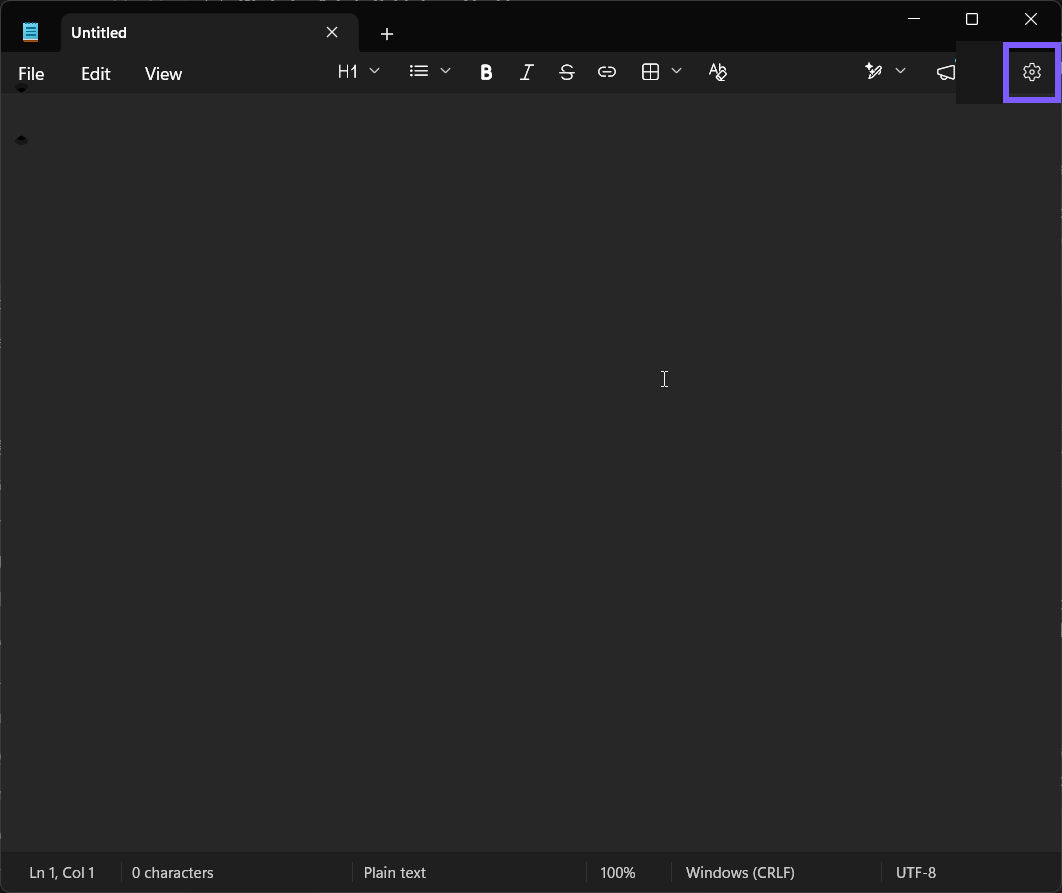
Select the Settings gear in the upper-right corner. You should see Notepad's own Settings page, not the Windows Settings app.
Scroll to Text Formatting, and select the Font row to expand it.
Read the values beside Family, Style, and Size. In the reproduced baseline, they were Consolas, Regular, and 11.
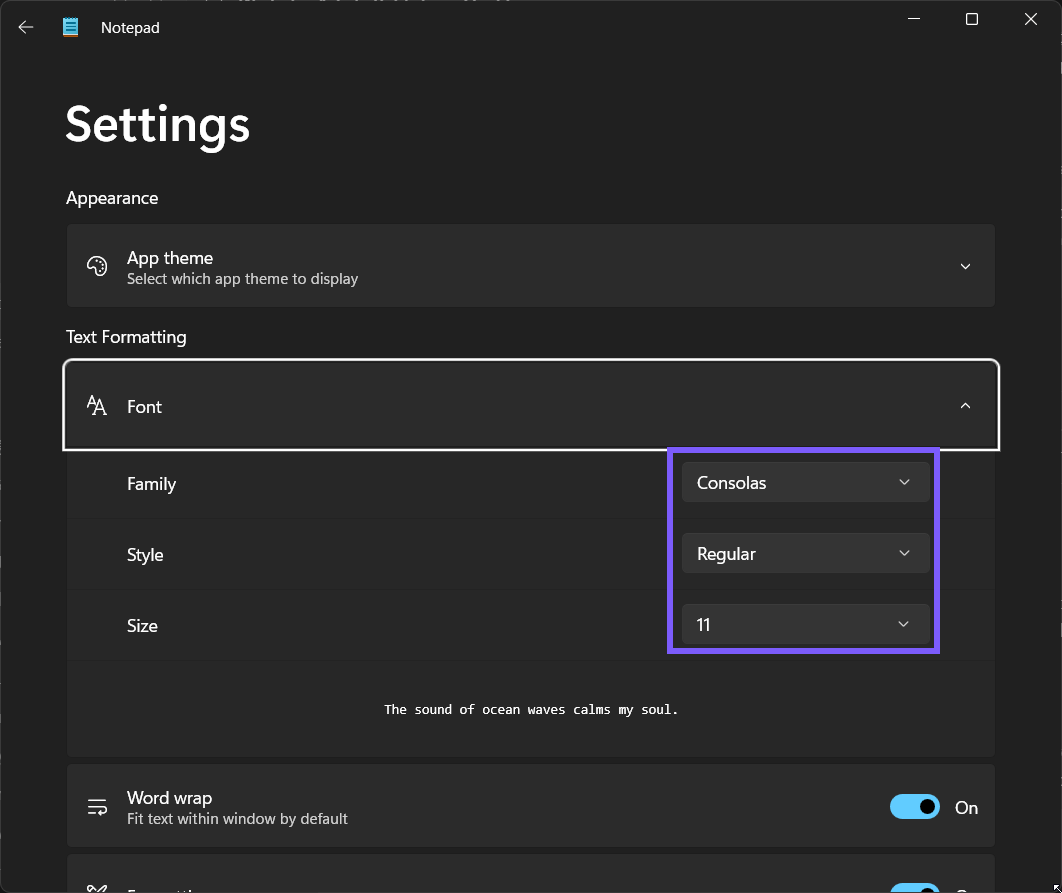
The sample sentence under Size should match the current choices. Treat that preview as a fast check, but keep your three recorded values because the preview alone cannot tell you the exact starting configuration later.
How do you change the font family, style, and size?
Open the Family list and choose an installed typeface. This example uses Arial. The list may be long because it reflects fonts available to Windows.
Open Style and choose the face you want. Available styles depend on the selected family. This example uses Bold.
Open Size and select a readable value. This example changes 11 to 14.
Read all three controls again. They should display your exact choices, and the preview sentence should update immediately.
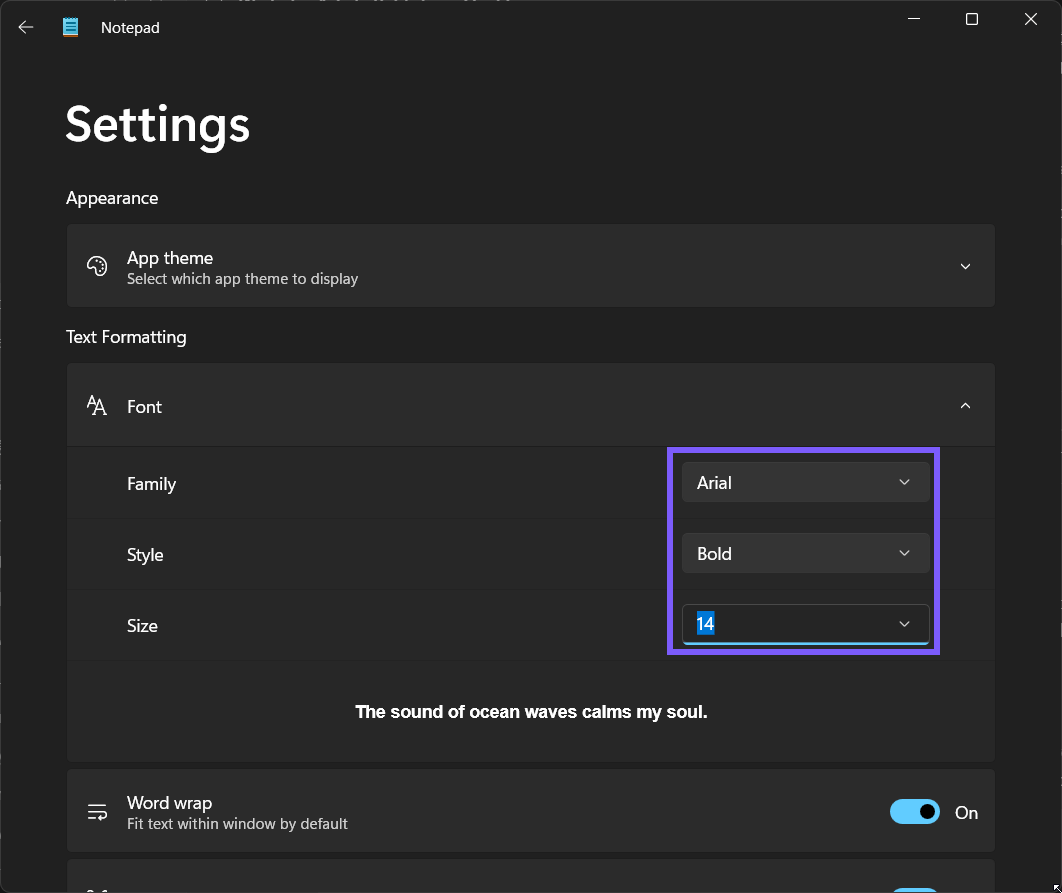
There is no Save button on this page. Once the controls display the new values, Notepad has accepted the preference. Avoid changing Word wrap, Formatting, or another nearby setting during the same test; a one-purpose change is easier to verify and undo.
How do you verify the new Notepad font?
Select the Back button to return to the editor. Type a short disposable sentence or inspect text you already know is safe to display. Look for all three expected differences: the shapes should match the selected family, the weight should match the style, and the character height should match the size.
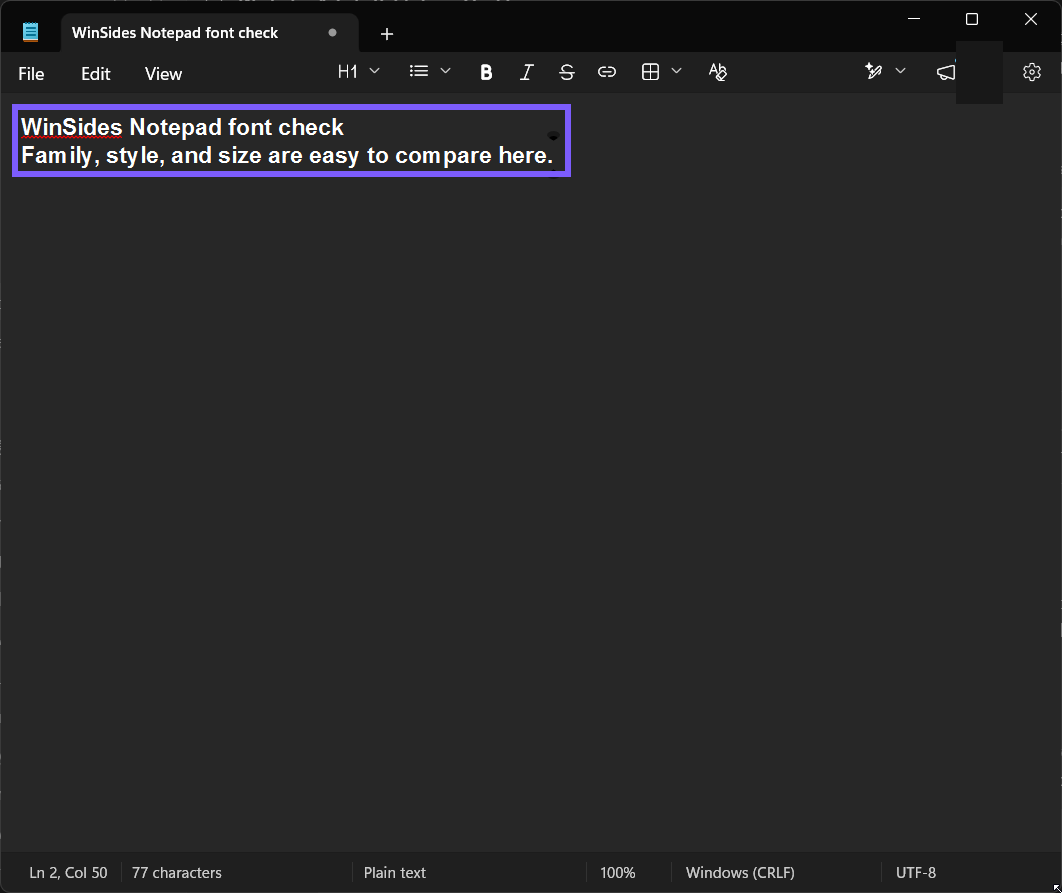
The reproduced result shows the same two lines after the controls were changed to Arial, Bold, and 14. This is more useful than relying only on the Settings preview because it proves how the editor itself renders ordinary text.
If the document looks unchanged, return to Settings and read the three values again. Make sure you changed the Font panel rather than Windows text size or Notepad's formatting toolbar. Closing and reopening Notepad is normally unnecessary, but it is a reasonable final read-back if an app update has just completed.
How do you restore the original Notepad font?
Return to Notepad > Settings > Font.
Set Family to the family you recorded before the test.
Restore the recorded Style. Recheck this value after changing the family because available faces can change with the typeface.
Restore the recorded Size.
Read all three final values from the same panel. The reproduced rollback returned to Consolas, Regular, and 11.
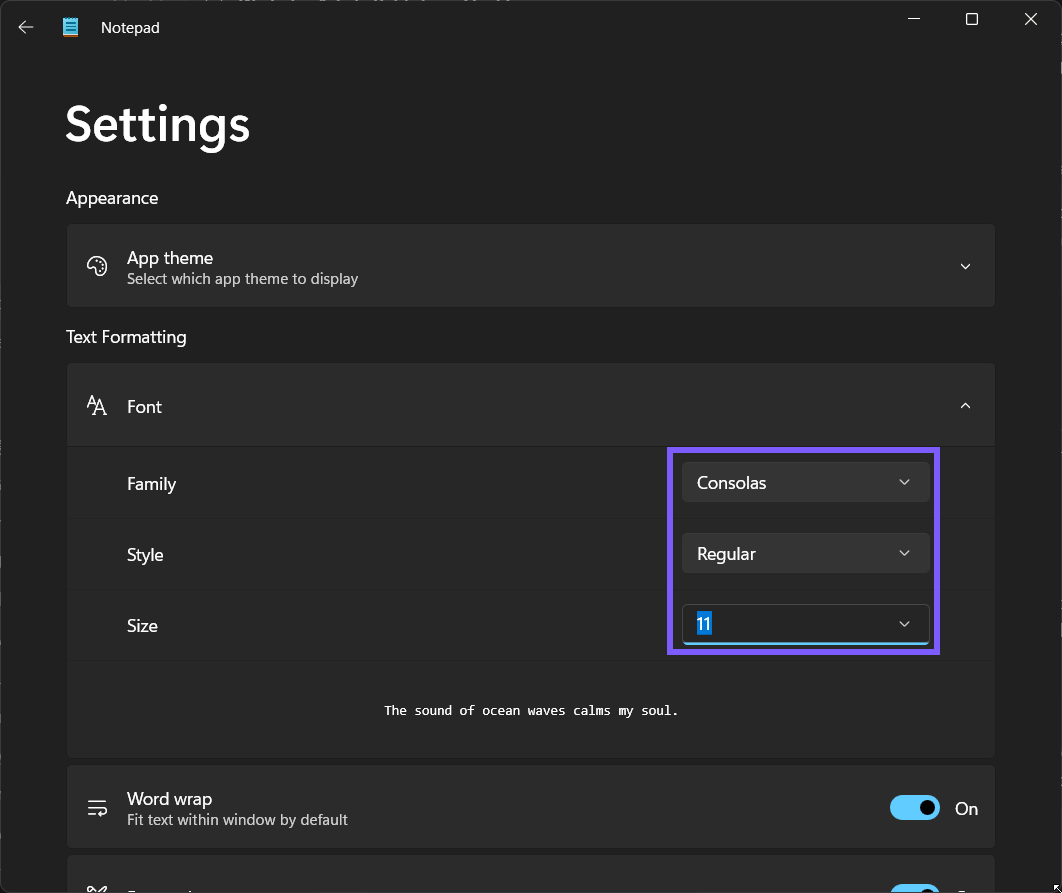
This final screenshot is a fresh post-rollback frame, not a copy of the baseline. After the read-back, the disposable text was cleared and the test window was closed. That completes both the preference restoration and the privacy cleanup.
How should you choose a family, style, and size?
Choose a family for legibility, not novelty. Monospaced fonts such as Consolas keep every character the same width, which is useful for logs, aligned text, and code-like content. Proportional fonts such as Arial can feel more familiar for ordinary prose, but columns made with spaces will no longer line up in the same way.
Use Bold when you deliberately want the whole editor view heavier. Remember that this Font style is app-wide display behavior; it is not selective emphasis stored in one sentence. Regular is usually the clearer baseline for long notes.
Increase Size when only Notepad text feels too small. If text and controls are too small throughout Windows, use the broader accessibility control to change the Windows text size instead. That distinction keeps a Notepad preference from becoming a workaround for a system-wide visibility need.
Why might the Font controls not work as expected?
The family is not listed. Notepad can select only fonts available to Windows. Install the font through a trusted Windows route, reopen Notepad, and check the Family list again. Do not download random font packages merely to follow an example.
The Style list changed. Each family exposes its own installed faces. Choose the family first, then select a supported style. A family that has no Bold face cannot provide the same Style choices as Arial.
Only one paragraph should look different. The Font panel is the wrong control for that goal. Use Notepad's formatting feature when appropriate, or use an editor designed for rich-text documents. The app-wide viewing font does not target one selection.
Every application is hard to read. Change Windows text size rather than enlarging Notepad alone. You can still keep a separate Notepad font preference afterward.
The Settings layout looks different. Update Notepad from Microsoft Store and follow the current labels. Avoid a Registry workaround when the installed app does not expose the expected control.
Frequently Asked Questions
Does changing the Notepad font change the text file?
No. The Font panel changes how Notepad displays text. An ordinary plain-text file does not store the selected Notepad family, style, or size.
Can different parts of one Notepad file use different fonts?
Not through the app-wide Font panel. That panel applies one viewing family, style, and size. Notepad's separate formatting feature handles supported document emphasis and structure.
Why is a font missing from Notepad's Family list?
The font may not be installed for Windows, or the selected package may not expose a usable family to Notepad. Install fonts only from a trusted source, then reopen the app.
How do I undo a Notepad font change?
Open Notepad Settings, expand Font, and restore the Family, Style, and Size you recorded before the change. Read all three final values to verify the rollback.
Conclusion
Use Notepad's Settings gear, expand Font, and choose the family, style, and size that make the editor comfortable to read. Verify the result with safe known text, keep the Font preference separate from stored formatting and Windows-wide text size, and restore all three recorded values when the change was only a test.
For more interesting articles, stay tuned to WinSides.com!


Community
Comments (0)