
To show or hide the notification bell icon in Windows 11, open Settings > System > Notifications, expand the main Notifications row, and check or clear Show notification bell icon. This setting changes the taskbar icon's visibility; it does not turn app notifications on or off or erase notification center.
I reproduced the complete change on Windows 11 25H2 build 26220.7872. The checkbox began selected, changed to cleared, and was restored to selected. A fresh Settings instance confirmed the final state. The main Notifications switch stayed On, no other checkbox changed, and no administrator permission, Registry edit, Explorer restart, sign-out, or reboot was used.
What does the notification bell icon do?
The notification bell sits beside the clock in the taskbar's system area. Microsoft explains in its current notifications and Do not disturb guidance that the bell lights when new notifications are available. Selecting the clock or bell opens notification center, and Windows + N opens the same area from the keyboard.
The Show notification bell icon checkbox controls whether Windows may display that bell in the taskbar. It is not a delivery switch. Hiding it does not stop banners, sounds, lock-screen alerts, or notifications retained in notification center. Showing it does not force a bell to look active when there is nothing new.
The clock remains a separate system-tray element. If you want to change that element, follow the dedicated guide to show the time and date in the system tray. Do not use the bell checkbox as a clock setting.
Table of contents
What should you record before changing the bell?
- Read the current checkbox state. Record selected or cleared so you can restore the exact starting preference.
- Check the main Notifications switch. Leave it unchanged; turning it Off is a broader action that affects senders and related choices.
- Note whether Do not disturb is active. It can change the bell's appearance independently of this checkbox.
- Keep the other expanded checkboxes unchanged. Sound and lock-screen delivery are unrelated to taskbar bell visibility.
- Use Settings as the proof. The taskbar can look different when there are no unread notifications, so verify the saved checkbox as well as the visible icon.
This is a reversible current-user preference. The supported Settings control applies immediately and is enough for ordinary customization.
How do you open the notification bell setting?
- Press Windows + I to open Settings.
- Select System.
- Select Notifications.
- Find the first Notifications row, which includes the main On/Off switch and the description Get notifications from apps and other senders.
- Select the arrow at the right side of that row to reveal its additional checkboxes. Avoid selecting the main switch itself.
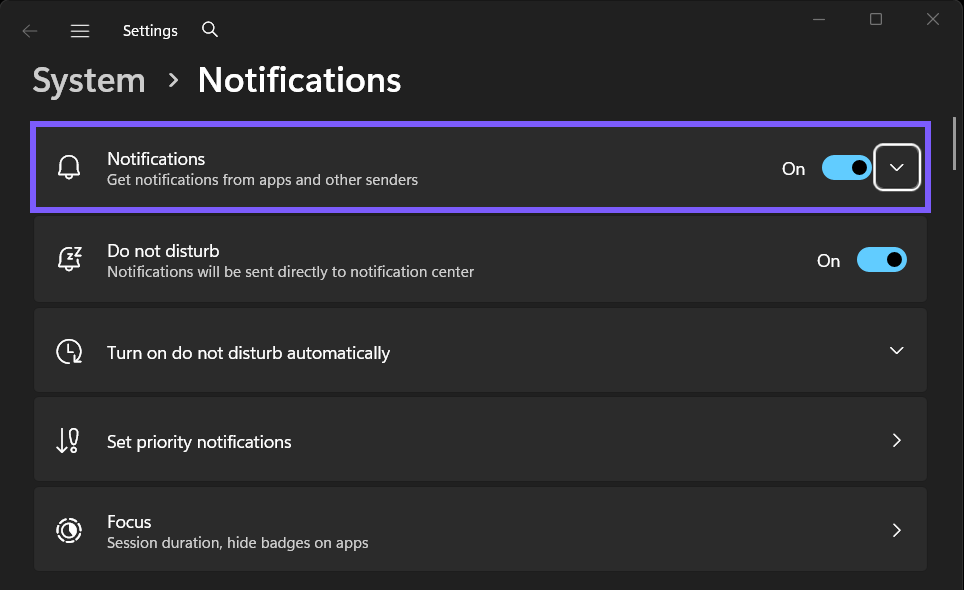
The expanded area contains Allow notifications to play sounds, two lock-screen choices, and Show notification bell icon. These controls have different effects even though Windows groups them under the same row.
How do you check the current bell preference?
- Expand the main Notifications row.
- Locate Show notification bell icon at the bottom of the expanded choices.
- Read the checkbox directly. A check mark means the icon is allowed to appear; an empty box means it is hidden.
- Record the state before selecting it. The reproduced baseline was checked.
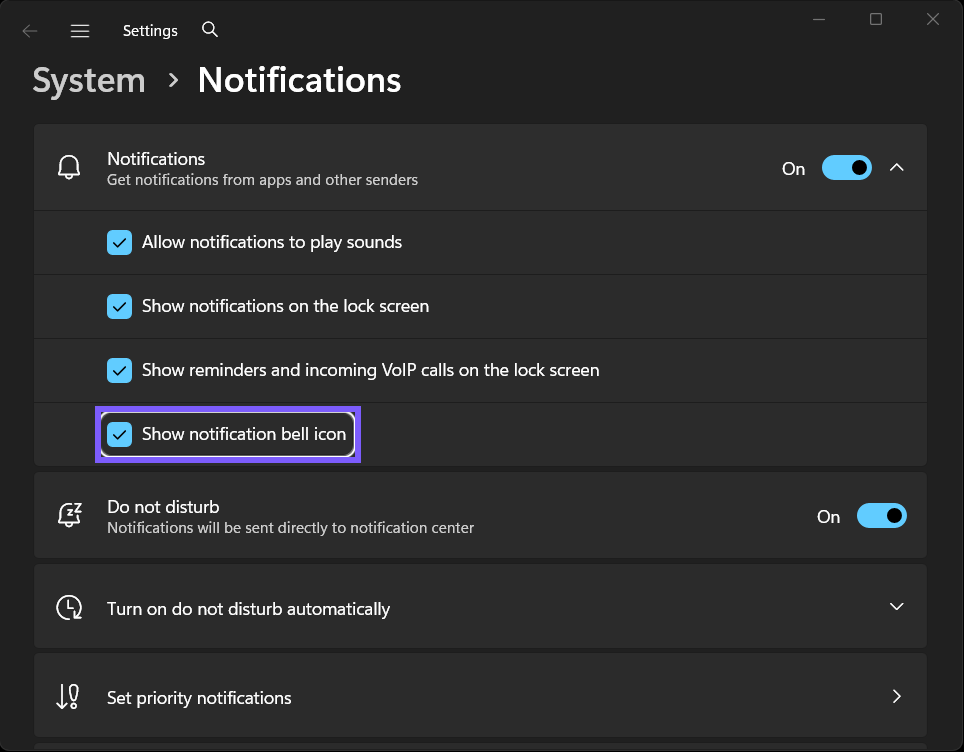
Microsoft's Windows 11 preview update notes that introduced this control document the exact System > Notifications expanded route. The same supported checkbox is present on the tested current build.
How do you hide the notification bell icon?
- Clear Show notification bell icon once.
- Verify that the check mark disappears.
- Leave the main Notifications switch, sound, lock-screen, Do not disturb, and priority settings unchanged.
- Look at the taskbar. The bell is hidden according to this preference, but the exact visible transition can also depend on the current notification and Do not disturb state.
- Press Windows + N or select the clock when you need notification center without the bell.
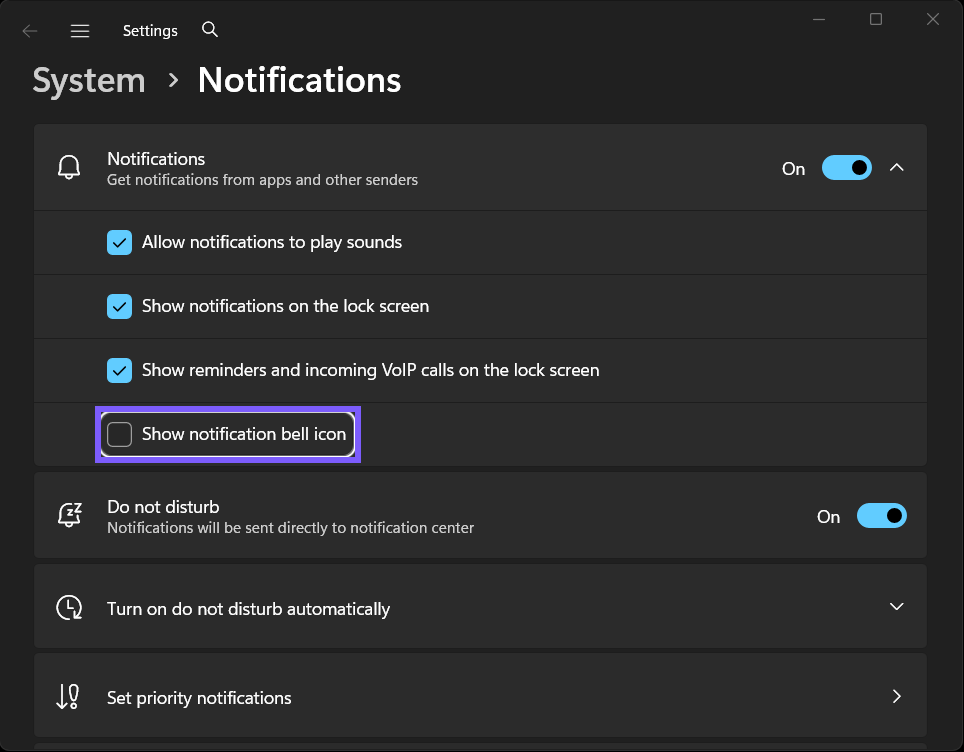
There is no Apply button. Hiding the bell is suitable when you want a less busy taskbar but still intend to review alerts later. If you actually want to stop incoming notifications, use the broader instructions to turn off Windows notifications instead.
How do you show the bell again and verify the rollback?
- Return to Settings > System > Notifications.
- Expand the main Notifications row.
- Select Show notification bell icon so its check mark returns.
- Close Settings completely.
- Open the same page in a fresh Settings instance, expand Notifications again, and verify that the checkbox is still selected.
- Close Settings after the saved state is confirmed.
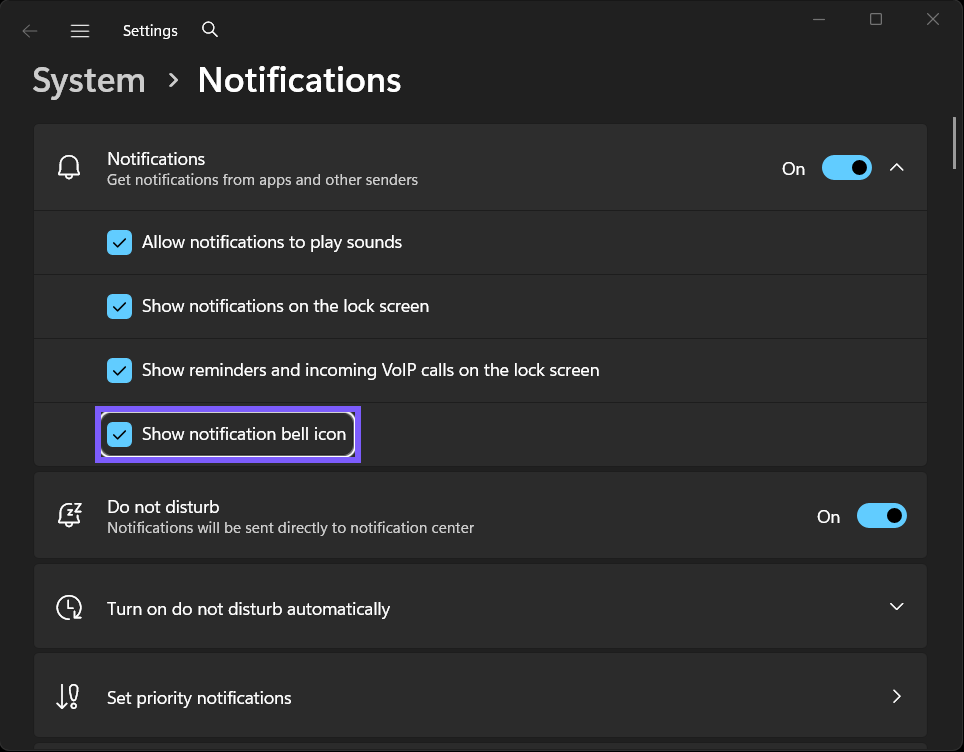
The reproduced preference persisted as checked without restarting Explorer or Windows. If the bell does not immediately look active, generate or wait for an ordinary notification and consider the current Do not disturb state before assuming the setting failed.
What still works when the bell is hidden?
Notification center remains available. Press Windows + N. Depending on the taskbar configuration, selecting the clock also opens the calendar and notification area.
App notifications keep their own rules. Banners, notification-center retention, sound, lock-screen display, and priority remain governed by their system-wide and per-app controls.
Do not disturb keeps working. Its manual and automatic rules are independent. You can turn on Do not disturb automatically without using the bell-visibility preference as a substitute.
The clock remains separate. This checkbox hides or shows the bell, not the time and date. Core network, volume, and battery controls are also unaffected.
Why might the bell still be missing when the checkbox is selected?
Do not disturb is On. Microsoft's release notes explain that the bell might not show while Do not disturb is active. Review that setting before repeatedly changing the checkbox.
There is no new notification state to indicate. The bell lights when new notifications exist. A selected preference permits the icon; it does not manufacture an alert.
Settings has not been reopened. Close Settings, open the page again, and verify the exact checkbox. This separates a saved-state problem from a taskbar presentation issue.
The taskbar has a temporary shell issue. Sign out only after ordinary checks fail. Do not clear notification history or import Registry files for a simple visibility preference.
The PC is managed. A work or school policy can make controls unavailable. Follow the management notice or contact the administrator instead of trying to bypass it.
How is hiding the bell different from Do not disturb?
Hiding the bell changes a taskbar element. Do not disturb changes how ordinary notifications interrupt you: Windows routes them directly to notification center, subject to priority exceptions. The two settings can be used together, but they solve different problems.
Choose the bell checkbox when taskbar appearance is your goal. Choose Do not disturb for a temporary quiet period. Change app or system notification switches only when delivery itself should stop. Keeping these layers separate prevents a cosmetic change from turning into missed alerts.
Frequently Asked Questions
Does hiding the notification bell turn off notifications?
No. It changes the taskbar icon's visibility. App delivery, banners, sounds, lock-screen alerts, and notification-center entries retain their separate settings.
How can I open notification center without the bell?
Press Windows + N. You can also select the clock when the current taskbar configuration exposes the combined calendar and notification area.
Why is the bell absent even though Show notification bell icon is checked?
Check Do not disturb and whether a new notification exists, then reopen Settings to confirm the saved checkbox before trying broader troubleshooting.
Do I need to restart Explorer after changing the bell preference?
No. The reproduced checkbox changed immediately and remained restored after reopening Settings, without an Explorer restart, sign-out, or reboot.
For more interesting articles, stay tuned to WinSides.com!
Community
Comments (0)