

Introduction to Turn On Do Not Disturb Automatically Windows 11
turn on do not disturb automatically Windows 11 is one of the most useful notification settings for people who want Windows to stay quiet during meetings, games, full-screen work, presentations, or a planned quiet period. Instead of manually muting notifications every time you need concentration, Windows 11 can switch Do not disturb on by itself when a rule matches the situation.
The feature lives under Settings > System > Notifications. Microsoft groups the main notification controls and Do not disturb behavior in its Windows notification guidance. Microsoft Support notification and Do not disturb guidance The automatic part is especially important because it solves a real everyday problem: users forget to enable quiet mode before screen sharing, gaming, studying, or deep work, then a toast notification appears at the worst possible moment.
Do not disturb does not delete notifications. It prevents most notification banners from interrupting you and sends them quietly into Notification Center, where you can review them later. Priority notifications can still break through if you allow them, and alarms usually remain separate because they are meant to be time-critical. That balance is what makes Do not disturb different from turning notifications off completely.
This guide explains what Do not disturb does, how to turn it on automatically, what each automatic rule means, how priority notifications work, how Focus sessions relate to the same quiet-notification system, and how to troubleshoot cases where notifications still appear or disappear unexpectedly.
Table of contents
Key Takeaways
- Turn on do not disturb automatically Windows 11 means Windows can silence most notification banners when a schedule or condition is active.
- The setting path is Settings > System > Notifications. Expand Turn on do not disturb automatically to configure the rules.
- Automatic rules can cover quiet hours, duplicate display mode, games, full-screen apps, and the first hour after a feature update. The exact list can vary slightly by Windows 11 build.
- Do not disturb does not erase notifications. Most alerts are collected in Notification Center so you can review them later.
- Priority notifications are the exception. Use priority settings carefully so only essential apps and contacts interrupt you.
- Focus sessions can turn on Do not disturb while you work. Microsofts Focus guidance explains the broader focus workflow in Windows. Microsoft Support Focus guidance
- Use Win + N to review missed notifications. Microsofts Windows keyboard shortcuts reference lists the notification center shortcut. Microsoft Windows keyboard shortcuts reference
- If notifications still interrupt you, check priority notifications, app-level notification settings, browser notifications, Teams or Outlook status, and full-screen detection.
What Do Not Disturb Does in Windows 11
Do not disturb is the Windows 11 setting that keeps notification banners from popping up while you are trying to focus. It is not the same as disabling the notification system. Apps can still send notifications, but Windows changes how those notifications are presented. Instead of appearing as banners with sound and visual interruption, most of them go quietly to Notification Center.
That distinction matters because many users are afraid they will miss something important. In normal use, Do not disturb is a temporary presentation mode, not a permanent block. You can open Notification Center later and see what arrived while the mode was active. On Windows 11, the quickest keyboard path to Notification Center is Win + N. Microsoft Windows keyboard shortcuts reference
The automatic rules make the setting much more valuable. Manually turning Do not disturb on is helpful, but people forget. A user may join a video call, start presenting, launch a game, open a full-screen video, or begin focused work and only remember notifications after one appears. Automatic rules reduce that friction by letting Windows apply quiet mode at predictable moments.
Do not disturb also works better than simply turning off every apps notification permission. If you disable notification permissions globally or app by app, you may stop receiving useful notices entirely. If you use Do not disturb, you can stay uninterrupted while preserving the ability to catch up later.
Think of it as a traffic controller for attention. Normal notifications are allowed to arrive, but they wait quietly. Priority notifications are allowed through only if you explicitly place them on the priority list. Alarms and time-sensitive experiences may behave separately, depending on the app and the Windows feature involved.
How to Turn On Do Not Disturb Automatically
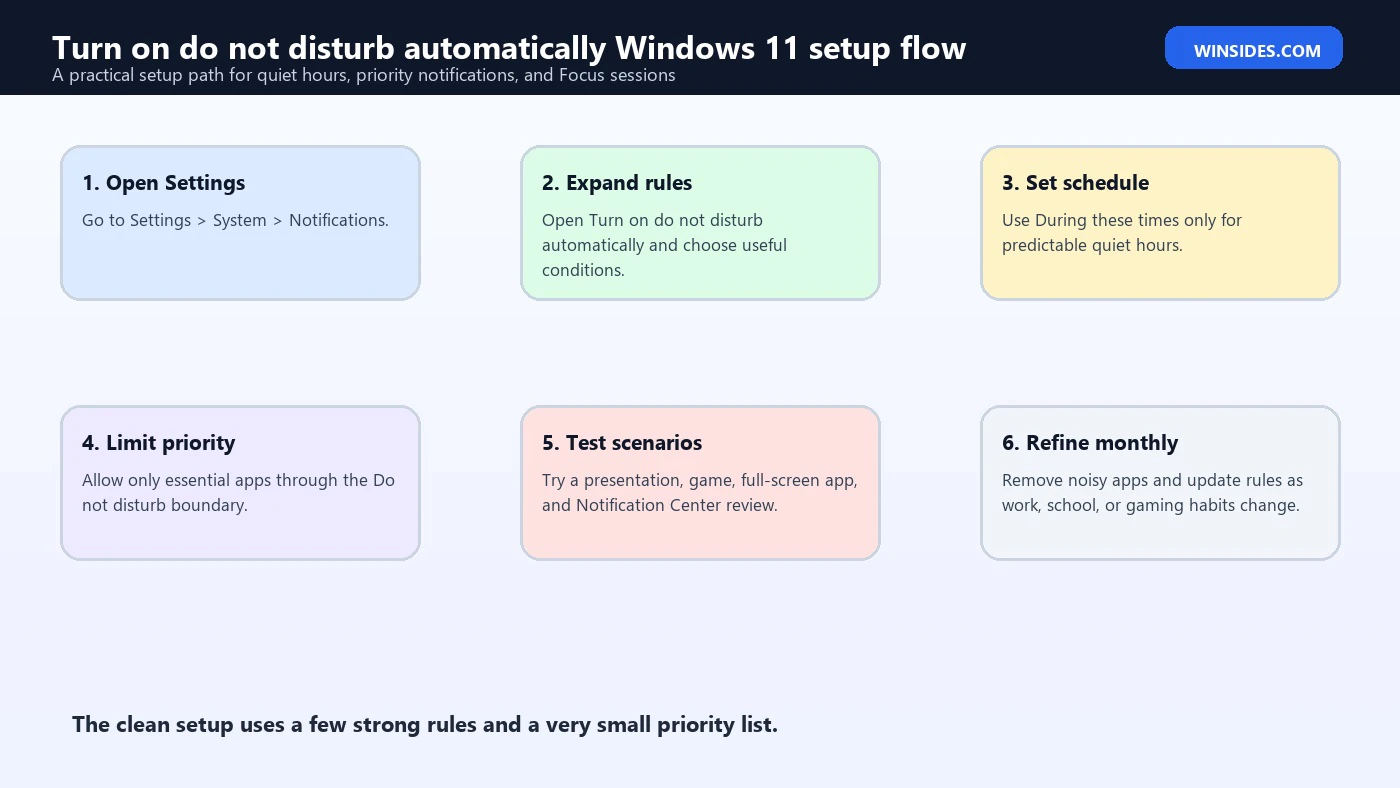
To configure the automatic rules, open Settings, choose System, and then choose Notifications. On that page, find Do not disturb and the section named Turn on do not disturb automatically. Expand it to see the available conditions.
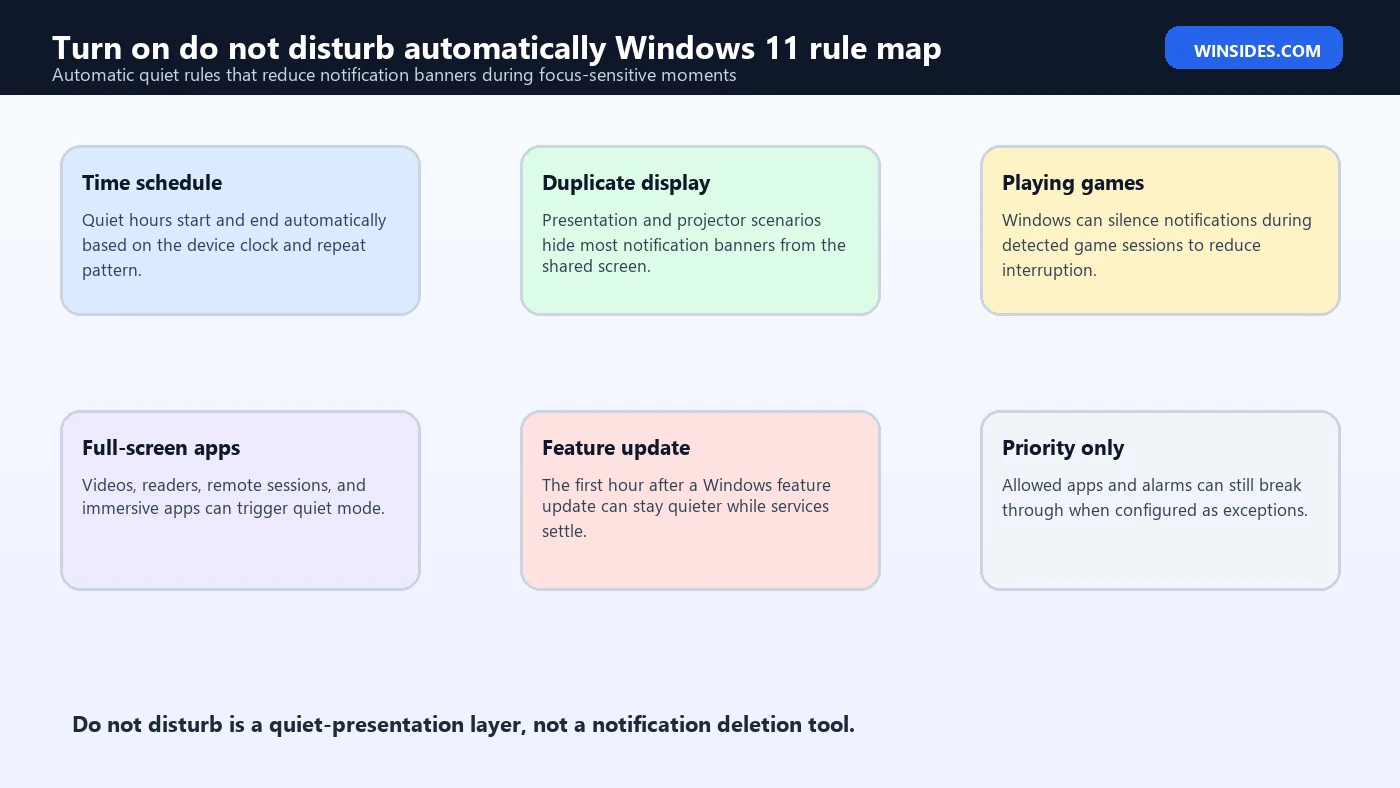
The exact wording can shift slightly across Windows 11 builds, but the normal automatic conditions include rules similar to these:
- During these times.
- When duplicating your display.
- When playing a game.
- When using an app in full-screen mode.
- For the first hour after a Windows feature update.
Turn on the rules that match your workflow. For example, if you present often, enable the rule for duplicating your display. If you play games, enable the game rule. If you watch videos, read PDFs, use design software, or work inside full-screen apps, the full-screen rule can reduce surprise alerts.
The schedule rule is the most personal. You can set quiet hours for a work block, school hours, night time, writing time, study time, or any regular period when you do not want banners. If your daily schedule changes often, a fixed schedule may be less useful than manually starting Focus sessions or using app-specific statuses.
After selecting your rules, use the system normally for a day and adjust. The goal is not to silence everything forever. The goal is to make Windows quiet during moments when interruptions are obviously unwelcome.
Understanding the During These Times Rule
The During these times rule is the simplest automatic rule because it follows a clock. You choose a start time, an end time, and how often the rule repeats. When the active period begins, Do not disturb turns on. When the period ends, Do not disturb turns off.
This is useful for routines. A student can silence banners during class hours. A writer can protect a morning writing block. A support technician can prevent distractions during a monitoring window. A gamer can set a nightly session. A remote worker can keep the system calm during standup calls, planning time, and deep work.
The most common mistake is using a schedule that is too broad. If you set Do not disturb to run all day, you may begin to ignore Notification Center and miss useful context. A better approach is to create a meaningful quiet period, then leave ordinary notifications visible outside that window.
Another mistake is forgetting about time zones or sleep schedules. If you travel or change working hours, a fixed Windows schedule may activate at the wrong time. In that case, review the rule after the schedule changes. Windows will follow the device clock, not your intent.
Use the schedule rule for predictable quiet time. Use the other rules for context-based quiet time. That separation keeps the feature clean.
When Duplicating Your Display
The duplicating display rule is one of the most important rules for work and teaching. It turns on Do not disturb automatically when Windows detects that you are duplicating your display, which usually means you are presenting the same screen on a projector, TV, conference room display, or shared monitor.
This rule protects privacy and professionalism. Notification banners can show names, message previews, calendar details, email subjects, security prompts, or snippets from chat apps. Even if the message is harmless, it can distract the audience and interrupt your flow.
If you often use PowerPoint, Teams, Zoom, classroom projectors, client demos, or screen sharing hardware, keep this rule enabled. It is the kind of rule that quietly prevents embarrassing moments.
However, this rule depends on the display mode. It applies to duplication, not every possible presentation workflow. If you extend the display instead of duplicating it, if you share a single app window in a meeting tool, or if you cast using an app-specific method, Windows may not treat the situation the same way. In those cases, manually enable Do not disturb before presenting or use your meeting apps presentation controls.
Before important presentations, do one quick check: press Win + N, clear old notifications, and confirm Do not disturb behavior before the meeting begins. This prevents old sensitive notifications from being visible if someone opens Notification Center during setup.
When Playing a Game
The game rule is designed for gaming sessions where banners, sounds, and overlays can interrupt play. When Windows recognizes that you are playing a game, Do not disturb can turn on automatically and keep most notifications quiet.
This is useful for full-screen games, competitive games, streaming, recording, or any scenario where a notification could affect concentration. It can also reduce accidental clicks on toast banners and keep chat previews from appearing over gameplay.
Game detection is not always perfect. Some older games, launchers, emulators, cloud gaming windows, and borderless apps may not be detected as games. If a notification appears while gaming, check whether the game rule is enabled, whether the game runs in a mode Windows recognizes, and whether the interrupting app is on the priority list.
Also remember that gaming platforms may have their own overlays and notification systems. Steam, Xbox Game Bar, Discord, graphics driver overlays, launchers, and capture tools can show their own notifications. Windows Do not disturb helps with Windows notifications, but it may not silence every in-app overlay. If you still see alerts, check the settings inside the app that produced them.
For most users, the game rule should remain enabled. It is low effort, low risk, and easy to reverse if you decide you want banners during games.
When Using an App in Full-Screen Mode
The full-screen rule turns on Do not disturb when an app is running in full-screen mode. This helps with videos, presentations, reading, drawing, design tools, remote desktops, full-screen browsers, training modules, and some games.
This rule is broader than the game rule. It is not trying to decide whether the app is a game. It is looking at the full-screen context. If an app occupies the display in a way that suggests immersive use, Windows can keep notifications quiet.
The rule is helpful, but it can feel confusing when apps use borderless windows, pseudo-full-screen modes, or custom presentation surfaces. Some media players and browsers blur the line between maximized and full-screen. A maximized window is not always the same as true full screen.
If the rule does not trigger, test the app with its full-screen shortcut. Many apps use F11 for full screen, video players often have a full-screen button, and games may have display-mode settings such as full-screen, borderless, or windowed. If you simply maximize the window, Windows may not treat it as full screen.
If the rule triggers too often, turn it off and rely on scheduled Do not disturb or Focus sessions. Some people use full-screen apps all day and still want certain notifications. The best setting depends on how much interruption you can tolerate.
After a Windows Feature Update
Windows can turn on Do not disturb for the first hour after a feature update. This rule is meant to reduce the wave of post-update messages that may appear after Windows completes a major update and the desktop is settling down.
After a feature update, Windows, security tools, Microsoft Store apps, drivers, and account services may all resume background work. Some users see multiple notices close together. Quieting that first period can make the post-update experience less noisy.
This rule is usually harmless. It does not stop the update from completing. It does not remove notifications. It simply reduces interruption as the system returns to normal. You can open Notification Center afterward if you want to review anything that arrived.
If you troubleshoot updates or manage devices for others, remember that this rule may hide banners that a user expected to see. It is not a problem, but it can explain why a notification did not appear immediately after a feature update.
Priority Notifications and Exceptions
Priority notifications are the key to using Do not disturb well. If everything is allowed through, Do not disturb becomes weak. If nothing is allowed through, you may miss things you truly care about. The priority list is the middle ground.
In Settings > System > Notifications, look for priority notification settings. You can decide which apps are allowed to notify you during Do not disturb. Keep this list short. Good candidates include security tools, authenticator apps, calendar reminders, urgent messaging apps, or communication apps that you rely on for time-sensitive work.
Avoid putting every chat app and every email app on the list. If Outlook, Teams, browser notifications, personal messaging apps, store apps, and social apps are all allowed through, Do not disturb will feel broken even though it is doing what you asked it to do.
Priority notifications are also why users sometimes report that Do not disturb is enabled but banners still appear. The most likely causes are:
- The app is on the priority list.
- The alert is generated inside the app rather than through Windows notifications.
- The notification is an alarm or time-sensitive system experience.
- The app has its own overlay or presentation system.
- The notification arrived outside the automatic rule window.
Review the priority list whenever Do not disturb seems inconsistent. It is usually the first place to look.
Focus Sessions and Do Not Disturb
Focus is related to Do not disturb, but it is not the same thing. A Focus session is a work mode that can start a timer, reduce interruptions, and help you concentrate for a selected duration. Microsofts Focus support page explains the broader workflow for using Focus to stay on task. Microsoft Support Focus guidance
In Windows 11, starting a Focus session can turn on Do not disturb while the session is active. That makes sense because a focus timer should not be accompanied by constant toast banners. When the session ends, Windows can return to normal behavior.
Use Focus sessions when you want an intentional work block. Use automatic Do not disturb rules when you want Windows to react to context. For example, you might use a Focus session for a 45-minute writing sprint and still keep the game rule enabled for gaming later.
The two features work best together when you understand their roles:
- Do not disturb controls notification interruption.
- Automatic rules decide when Do not disturb should start by itself.
- Focus sessions create intentional time blocks and can use Do not disturb as part of that experience.
If your goal is simply to stop banners during games, you do not need a Focus session. If your goal is to work for a defined period and track the session, Focus is the better tool.
How Do Not Disturb Differs from Turning Notifications Off
Turning notifications off disables notifications more directly. Do not disturb changes how notifications appear. This is the difference between blocking a pipe and redirecting the flow.
If you turn off notifications globally, apps may stop showing notifications entirely through Windows. If you turn off notifications for a single app, that app loses its normal Windows notification path until you enable it again. This can be useful for noisy apps, but it is not ideal as a daily quiet mode.
Do not disturb is temporary and reversible. It lets you stay uninterrupted while preserving a review queue. That is why automatic rules are safer than aggressive notification disabling for most people.
A practical setup looks like this:
- Turn off notifications completely for apps that never provide useful alerts.
- Keep normal notifications enabled for apps that are sometimes useful.
- Use Do not disturb automatic rules to suppress interruption during sensitive moments.
- Allow only a small set of priority notifications through.
This layered approach keeps Windows calm without making it blind.
Recommended Setup for Work, School, and Presentations
For work and school, the best setup is usually conservative. You want to avoid interruptions, but you also need to catch important reminders and messages.
Start with these choices. Enable the rule for duplicating your display. Enable the rule for full-screen apps if you present, teach, watch training material, or work in full-screen documents. Add a schedule only if you have predictable focus hours. Keep the priority list small and limited to truly time-sensitive apps.
For presentations, use a preflight routine. Before sharing your screen, press Win + N, review or clear visible notifications, confirm Do not disturb is active, and close private apps that do not need to be part of the session. If you are sharing a browser, close unrelated tabs. If you are sharing an entire display, remember that Notification Center still contains notification history.
For school, the schedule rule can be helpful during class periods. If classes change daily, a manual Focus session may be more reliable than a fixed schedule. Students using laptops should also consider battery impact from other focus or background features, but Do not disturb itself is not a heavy setting.
For remote workers, combine Windows Do not disturb with status settings inside Teams, Slack, Outlook, Zoom, or other communication apps. Windows can suppress banners, but the app may still show its own status, badges, or in-app alerts.
Recommended Setup for Gaming and Media
For gaming, enable the game rule and the full-screen rule. Most players do not benefit from Windows notification banners during gameplay. If you stream or record, also review notifications inside chat apps, game launchers, driver overlays, and capture tools.
If you play competitive games, keep the priority list very short. A calendar reminder or chat popup during a match can be distracting even if it seems useful during normal desktop work. If you need emergency alerts, choose only the app or contact path that truly matters.
For media, the full-screen rule is the key. It helps when watching movies, training videos, webinars, or full-screen browser content. If a video app still shows notifications, identify whether the alert is a Windows notification or an in-app message.
For creators, Do not disturb is helpful but not enough by itself. Recording software, streaming apps, browser source windows, and chat overlays may each have independent notification behavior. Before a live stream or recording session, do a test clip and verify no private banners, chat previews, or app alerts appear.
Troubleshooting: Notifications Still Appear
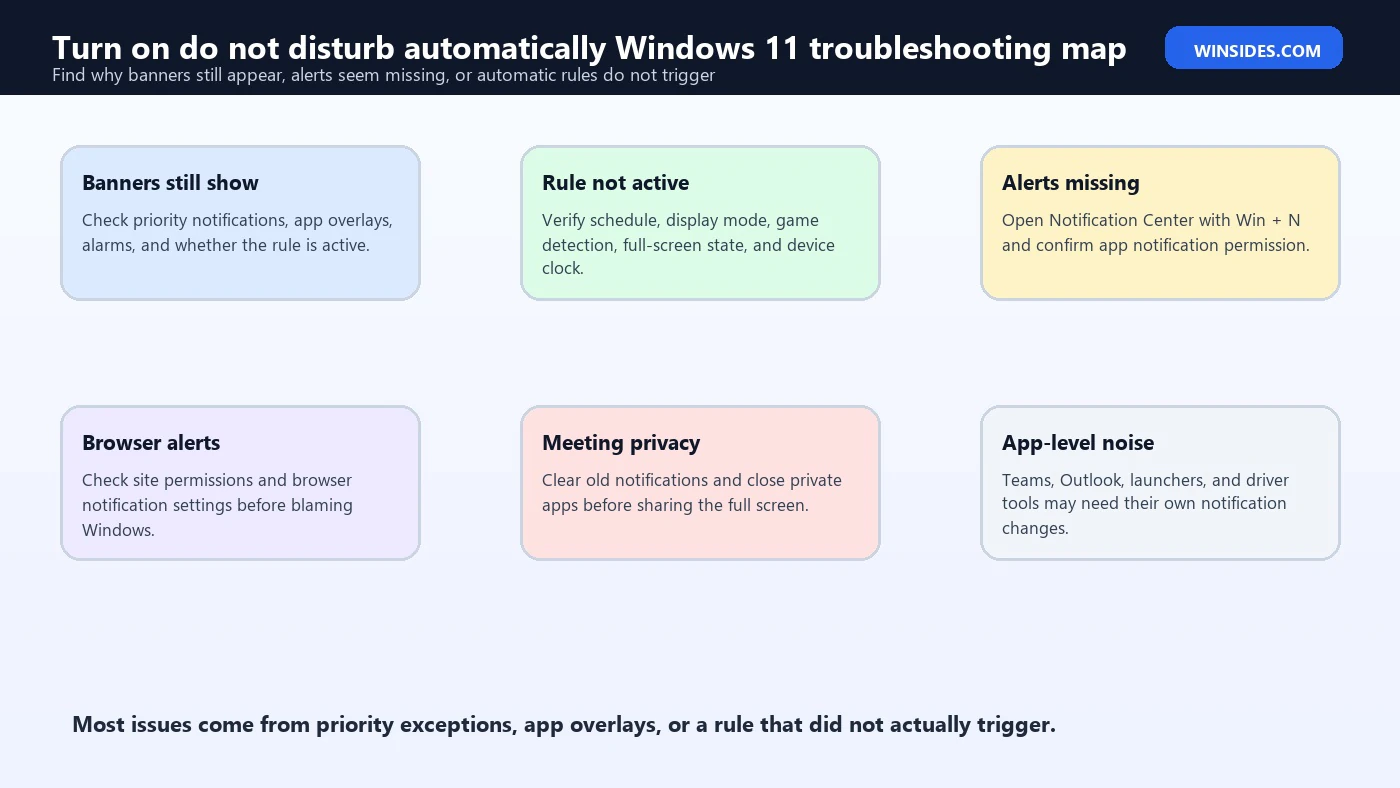
If notifications still appear after you enabled automatic Do not disturb, start with the priority list. Open Settings > System > Notifications and review the priority notifications section. If the app is allowed through, Windows is following your exception list.
Next, check whether Do not disturb actually turned on. Automatic rules only work when their condition is active. If you enabled full-screen quiet mode but the app is only maximized, the rule may not trigger. If you enabled the game rule but the app is not recognized as a game, the rule may not trigger. If you set a schedule, confirm the clock, AM/PM setting, repeat pattern, and time zone.
Then identify the notification source. Some alerts are not Windows notifications. Game launchers, browser tabs, web apps, chat overlays, graphics driver software, conferencing tools, and remote desktop clients can draw their own messages. Windows Do not disturb cannot control every overlay created inside another app.
Also check app-level notification settings. Apps such as Teams, Outlook, browsers, Discord, Steam, and antivirus suites often have their own notification controls. If the app generates sound or visual alerts internally, adjust the app directly.
Finally, update Windows and the app if behavior seems wrong. Notification behavior depends on app integration with Windows. Older apps, web wrappers, and custom overlays may behave differently from modern apps using the Windows notification platform.
Troubleshooting: Notifications Do Not Appear Later
If notifications do not appear later, first open Notification Center with Win + N. Do not disturb sends most alerts there, so the notification may simply be waiting quietly. Microsoft Windows keyboard shortcuts reference
If the alert is missing entirely, check whether notifications are enabled globally. Go to Settings > System > Notifications and confirm notifications are on. Then check the app-specific notification permission. If notifications are disabled for that app, Do not disturb is not the issue.
Some apps also expire notifications. A calendar reminder, temporary sync warning, or short-lived status alert may disappear after it is no longer relevant. Other apps replace older notifications with newer ones. This is normal app behavior, not necessarily a Windows setting problem.
If you expected email, chat, or browser alerts, confirm that the app was open, signed in, allowed to run in the background if needed, and allowed to send notifications. Browser-based notifications require browser permission and site permission. If either is blocked, Windows will not receive the toast notification.
If a focus or schedule rule stays active longer than expected, review the automatic rules. A schedule may cross midnight, repeat daily, or overlap with another rule. Turn off rules temporarily to test whether notifications return.
Privacy and Security Considerations
Do not disturb is also a privacy tool. Notifications often reveal more than users realize. A toast banner can show a contact name, message excerpt, one-time code prompt, meeting title, file name, account name, or security product status. In a meeting or screen share, that small banner can expose private context.
Automatic Do not disturb is especially valuable for presentation privacy because it does not rely on memory. You can enable the display duplication rule once and let Windows handle common presentation moments.
However, Do not disturb should not be treated as a complete privacy boundary. Notification Center can still contain previous notifications. Apps can still show in-app messages. Browser tabs can still show page titles. Meeting software can still reveal shared screens. Before sensitive sessions, close private apps and clear old notifications.
Security tools are another special case. You may want security alerts to break through Do not disturb, but you should be selective. Allowing a trusted security product through may be reasonable. Allowing every app through because you fear missing something defeats the purpose.
The best privacy setup is simple: enable automatic Do not disturb for presentations and full-screen use, limit priority notifications, clear Notification Center before sharing, and avoid sharing the whole screen when a single window will do.
Best Practices for a Clean Notification Setup
A good notification setup starts with app hygiene. Open Settings > System > Notifications and review the app list. Turn off notifications for apps that do not deserve attention. Keep notifications enabled for apps that provide useful information. Then use Do not disturb to control when useful notifications should stay quiet.
Use priority notifications sparingly. If you put too many apps on the priority list, you will think Do not disturb is unreliable. If you put none, you may miss urgent items. For most people, two to five priority sources are enough.
Use automatic rules that map to real situations. Enable display duplication if you present. Enable game mode if you game. Enable full-screen mode if you consume media, teach, record, or work in full-screen apps. Use schedules for routine quiet periods, not as a permanent mute switch.
Review the configuration monthly. App installs, work changes, school schedules, and communication habits evolve. A notification setup that was perfect six months ago may be noisy today.
Finally, use Notification Center intentionally. Press Win + N after a focus block, meeting, gaming session, or full-screen work period. Treat it like an inbox for interrupted attention: review, clear, and return to work.
Frequently Asked Questions
Does Do Not Disturb block all notifications?
No. It suppresses most notification banners and sends them quietly to Notification Center. Priority notifications and some special alert types may still appear, depending on your settings and the app.
Where is Turn on do not disturb automatically in Windows 11?
Open Settings > System > Notifications, then expand Turn on do not disturb automatically. This is where you configure schedule, display duplication, game, full-screen, and post-update rules when available.
Why do notifications still show while Do Not Disturb is on?
The app may be on your priority list, the alert may be coming from inside the app rather than through Windows notifications, the automatic rule may not be active, or the app may use its own overlay.
Will I miss notifications forever?
Usually no. Most notifications are stored in Notification Center while Do not disturb is active. Press Win + N to review them later. Some apps may expire or replace old notifications.
Is Focus the same as Do Not Disturb?
No. Focus is a work session feature. Do not disturb is the notification quieting feature. A Focus session can turn on Do not disturb while the session is running.
Should I enable every automatic rule?
Not necessarily. Enable the rules that match your life. For many users, display duplication, games, and full-screen apps are useful. A time schedule is best only when you have predictable quiet hours.
Conclusion: Let Windows 11 Handle Quiet Hours Automatically
Turn on do not disturb automatically Windows 11 is a small setting that can make the desktop feel much more controlled. It helps Windows stay quiet during predictable interruption-sensitive moments, including scheduled focus blocks, presentations, games, full-screen apps, and the post-update period.
The best setup is not to mute everything blindly. Keep useful notifications enabled, remove noisy apps from the notification list, allow only true priority notifications through, and let automatic rules handle the moments when banners are most likely to be unwanted.
If notifications still appear, check the priority list and app-level alert settings first. If notifications seem missing, open Notification Center with Win + N and review the automatic rules. Once tuned, Do not disturb becomes one of those Windows 11 features that quietly does its job in the background.
For more interesting articles, stay tuned to Winsides.com!









Community
Comments (0)