

Introduction to Record What Happened on Windows 11
record what happened windows 11 usually refers to the Xbox Game Bar capture setting that lets Windows save a short clip of recent gameplay or supported app activity after something has already happened. Instead of starting a recording before every moment, you leave background capture available, then press the shortcut when you want Windows to keep the last part of the session.
This is useful when something unexpected happens. Maybe you hit a rare bug, finish a difficult game section, notice a graphics issue, capture a tutorial moment, or want to save a short clip without recording for an hour. The feature is built around the idea that Windows can keep a temporary rolling buffer and only write a clip when you ask it to save the recent past.
The feature is closely tied to Xbox Game Bar. Microsofts Xbox Support page for Game Bar on Windows is the official hub for opening Game Bar and using its widgets while playing games or using supported apps. Microsoft Xbox Support Game Bar guide Windows also has other capture tools, including Snipping Tool for screenshots and screen recording, but Record what happened is specifically the background capture style associated with Game Bar.
This guide explains what Record what happened does, how to enable it, the keyboard shortcuts to know, where clips are saved, how audio and microphone settings work, why the option may be missing or disabled, what it can and cannot record, and when Snipping Tool or another recorder is a better choice.
Table of contents
Key Takeaways
- Record what happened is a background capture feature. It lets Windows save a recent clip after the moment has already occurred.
- It is part of the Xbox Game Bar capture workflow. Use
Win + Gto open Game Bar and capture widgets on Windows. Microsoft Xbox Support Game Bar guide - The most useful shortcut is
Win + Alt + G. This saves the recent clip when background recording is enabled. - Manual recording is different.
Win + Alt + Rstarts or stops a normal recording, while Record what happened saves the recent buffer. - It is best for games and supported apps. It may not record the desktop, File Explorer, protected content, or every app window.
- Background capture can affect performance and battery life. It continuously keeps recent video data available, so laptops and low-end PCs may feel the impact.
- Clips are usually saved in the Captures folder. The common location is Videos > Captures, though users can move or change related capture locations.
- Use Snipping Tool for general screen recording. Microsofts Snipping Tool support page is the better official reference for normal screenshot and screen capture workflows outside Game Bar. Microsoft Snipping Tool support guide
What Record What Happened Means
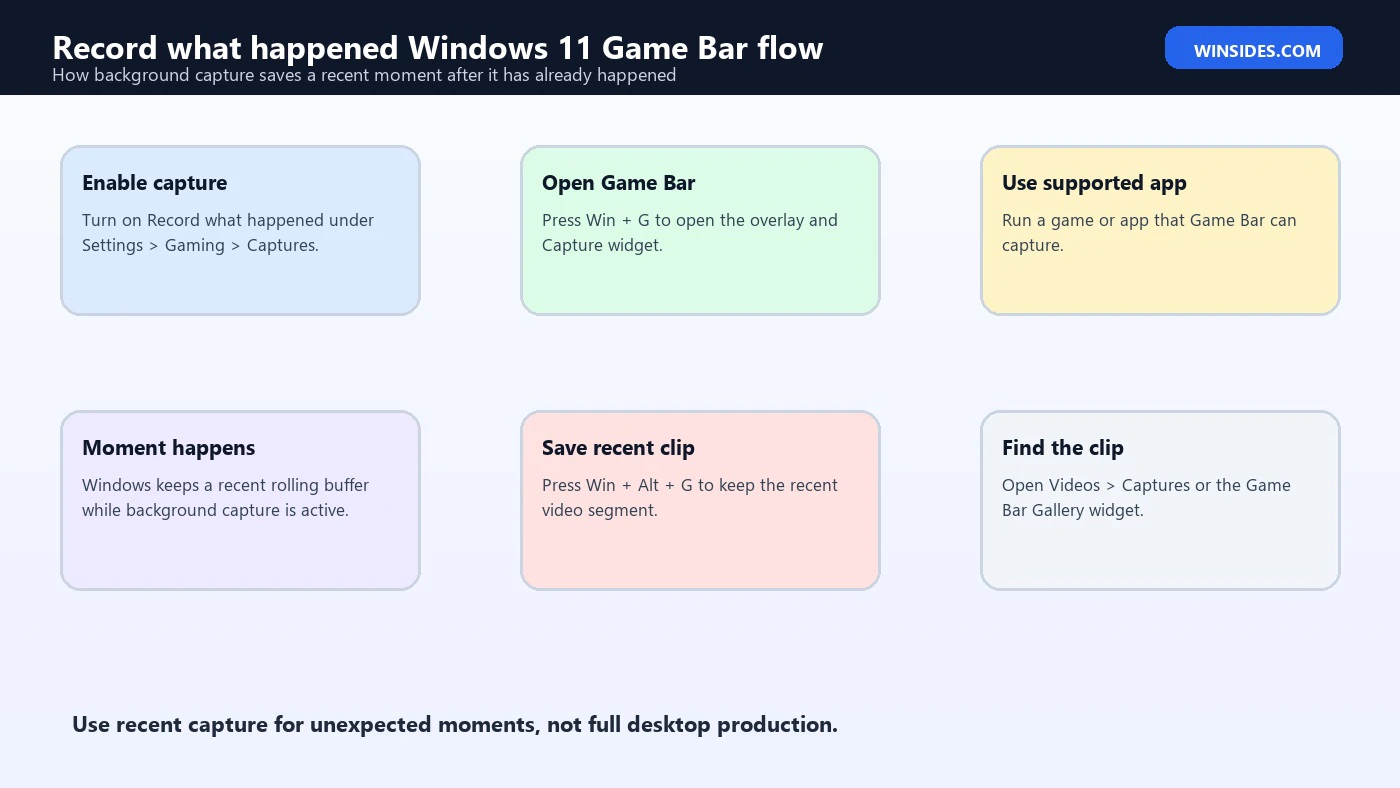
Record what happened is not the same as starting a normal recording. A normal recording begins when you press record and ends when you stop it. Record what happened works backward. Windows keeps a temporary rolling capture buffer while you are in a supported capture session. When something worth saving happens, you press the shortcut and Windows saves the recent portion as a clip.
That is why the setting is useful for unexpected moments. If you wait until after a glitch, funny moment, or tutorial step to start recording, a normal recorder is too late. Background capture gives you a chance to save what just occurred.
The feature is most commonly used for gameplay. Game Bar was designed around PC gaming capture, overlays, audio, performance widgets, and Xbox-related features. On Windows 11, it can also work with some supported apps, but it is not a universal desktop recorder. That distinction matters because many users expect it to record anything on screen, then get confused when File Explorer or the desktop is not captured.
Think of Record what happened as a quick replay saver. It is excellent for highlights, bugs, short proof clips, and moments that are hard to reproduce. It is not the best tool for long tutorials, full desktop walkthroughs, business presentations, or protected video content.
How to Enable Record What Happened
Open Settings and go to Gaming > Captures. Look for the option named Record what happened. Turn it on if you want Windows to keep a recent capture buffer while you are using supported games or apps. Depending on your Windows build and hardware, you may also see options for recording length, video frame rate, video quality, audio capture, and cursor capture. Microsofts Xbox Support capture-settings guidance is the official reference for tuning those capture options. Microsoft Xbox Support capture settings guide
You can also open Xbox Game Bar with:
Win + GFrom Game Bar, open the Capture widget. This is where you can take screenshots, start recordings, and save recent clips if background capture is enabled. Microsofts Xbox Support page for Game Bar is the official reference for using Game Bar on Windows. Microsoft Xbox Support Game Bar guide
After enabling the setting, start the game or supported app you want to capture. When something happens that you want to keep, press:
Win + Alt + GThat shortcut saves the recent captured portion. If the shortcut does nothing, check whether background capture is enabled, whether Game Bar is enabled, whether the app supports capture, and whether your keyboard shortcuts were changed.
If you want to record from this moment forward instead of saving the recent past, use:
Win + Alt + RThat shortcut starts or stops a regular recording. It is better for planned tutorials or longer clips.
Record What Happened vs Normal Recording
Record what happened saves the recent past. Normal recording records the future. That sounds simple, but it changes how you use each feature.
Use Record what happened when a moment is unpredictable. Examples include a game bug, a crash warning, a strange visual issue, a rare achievement, a funny mistake, a sudden performance problem, or a troubleshooting moment you did not know would happen.
Use normal recording when you know what you are about to show. Examples include a step-by-step walkthrough, a reproducible bug demonstration, a settings tutorial, a planned gameplay clip, or a support video where you want to narrate from the beginning.
Record what happened is more convenient, but it has a cost. Because Windows has to keep a recent buffer available, background capture can use system resources. Normal recording uses resources only while recording is active.
There is also a privacy difference. Background capture means Windows is temporarily keeping recent activity available while the feature is active. It is not the same as constantly publishing your screen, but it does mean you should be mindful about sensitive windows, private messages, personal information, or account screens.
Useful Keyboard Shortcuts to Remember
The fastest way to use this feature is through keyboard shortcuts. Open Game Bar with:
Win + GThis opens the Game Bar overlay, where you can review capture controls, audio, performance, and gallery widgets. If this shortcut does not work, Game Bar may be disabled, removed, blocked by policy, or intercepted by another utility.
To save the recent clip, use:
Win + Alt + GThis is the key shortcut for Record what happened. It only works when background capture is enabled and Windows has a supported capture context available. If you press it on the desktop, File Explorer, or a protected screen, nothing useful may happen.
To start or stop a normal recording, use:
Win + Alt + RThis is better for planned recording. If you are about to demonstrate steps, start a manual recording instead of relying on the recent buffer.
To take a screenshot with Game Bar, use:
Win + Alt + PrtScnKeyboard shortcuts in Windows can vary by device, keyboard layout, and custom Game Bar settings. Microsofts Windows keyboard shortcuts page is a useful general reference for Windows shortcut behavior. Microsoft Windows keyboard shortcuts reference If shortcuts do not behave as expected, test with an external keyboard or check whether game mode on the keyboard disables the Windows key.
Where Recordings Are Saved
Game Bar captures are commonly saved under:
C:Users<your-user-name>VideosCapturesYou can also open Game Bar and review the Gallery widget to see recent captures. If a clip is missing, check Videos > Captures first, then check whether the capture folder was moved, redirected, synced, or deleted.
If you use OneDrive backup or a custom Videos folder location, your capture path may differ. Some users move the Captures folder to another drive to save space. That can work, but if the destination drive is disconnected, full, or slow, recording may fail.
Video clips can take space quickly. Higher resolution, higher frame rate, better quality, microphone audio, and longer capture length all increase file size. If you use Record what happened often, check the folder periodically and delete clips you no longer need.
If storage is tight, reduce capture quality or move saved clips to a secondary drive after recording. Do not let the system drive run almost full because that can affect Windows Update, app performance, and capture reliability.
Audio and Microphone Capture
Game Bar can capture game or app audio, and it can optionally include microphone input. Whether your voice is included depends on capture settings, microphone permissions, and the recording shortcut you use.
Open Settings > Gaming > Captures and review audio options. If you want narration, make sure audio capture is enabled and that the microphone you expect is selected in Windows sound settings. You may also need to allow microphone access in Windows privacy settings. Microsofts camera and microphone permissions guidance explains how Windows manages app access to microphone and camera hardware. Microsoft microphone permissions guidance
If clips have game audio but no voice, check microphone privacy settings, input device selection, Game Bar audio widget, and whether your microphone is muted. If clips have your voice but no game audio, check Windows sound output, per-app volume, headset routing, and capture audio settings.
Bluetooth headsets can be tricky. Some switch between high-quality stereo output and hands-free call mode when a microphone is active. If recorded audio sounds bad, test a wired headset, USB microphone, or different audio mode.
For troubleshooting videos, consider whether microphone audio is actually needed. A clean silent clip can be better when showing a visual bug, while narration is useful for tutorials.
What Record What Happened Can and Cannot Capture
Record what happened is best for games and supported apps. It is not a universal screen recorder for every desktop surface. That is one of the most common misunderstandings.
It may not capture the desktop, File Explorer, certain system windows, protected video content, DRM-protected streaming video, secure screens, or apps that block capture. It may also behave differently with exclusive full-screen games, borderless windowed games, multiple monitors, or unusual GPU settings.
If you need to record the general desktop, use Snipping Tool screen recording instead. Microsofts Snipping Tool support page covers opening Snipping Tool and capturing screenshots, and modern Windows 11 builds include screen recording in Snipping Tool for general screen capture workflows. Microsoft Snipping Tool support guide
If you need professional recording, advanced scenes, webcam overlays, multiple audio sources, bitrate control, or streaming, a dedicated recorder such as OBS Studio may be more appropriate. Game Bar is convenient, but it is intentionally simple.
For protected content, do not expect a workaround. If an app blocks screen capture for copyright, security, or privacy reasons, Windows may record a black screen or refuse capture. That is by design.
Performance and Battery Impact
Background capture uses resources. It may affect frame rate, battery life, fan noise, thermal behavior, disk activity, and smoothness, especially on laptops or older PCs. The impact depends on resolution, frame rate, quality settings, storage speed, GPU encoder support, and what else is running.
If a game becomes less smooth after enabling Record what happened, reduce video quality, lower frame rate, shorten capture length, or turn the feature off when you do not need it. Manual recording may be a better option for low-end systems because it is active only when needed.
On laptops, background capture can drain battery faster. Keep the laptop plugged in during long gaming sessions if you want reliable capture. If the device is already thermally limited, recording can make throttling more noticeable.
Storage speed matters too. Saving clips to a slow external drive, nearly full drive, or cloud-synced folder can create delays. Keep capture storage local and fast when possible.
Performance issues are not always Game Bar’s fault. GPU drivers, overlays, antivirus scanning, other recorders, Discord streaming, browser hardware acceleration, and game settings can all contribute. But background capture should be one of the first settings to test when performance changes after turning it on.
Privacy and Safety Considerations
Record what happened is convenient, but it should be used thoughtfully. If background capture is enabled, Windows may be keeping a recent rolling buffer of supported app activity so it can save it on command. That is useful for clips, but it also means you should avoid sensitive information on screen during capture sessions.
Do not use it while showing passwords, private messages, account recovery codes, payment pages, medical records, work documents, or confidential screens. Even if you only save a short clip, it can include more than you intended.
Check microphone capture before recording. Many users accidentally include room audio, private conversations, or background sounds. If you only need game audio, turn off microphone recording.
If you share clips online, review them before uploading. Look for usernames, email addresses, notifications, chat overlays, desktop popups, and voice audio. A short clip can reveal more than expected.
For work or school devices, capture may be controlled by policy. If the PC is managed, recording features may be disabled or restricted. Respect organization rules before recording workplace apps, meetings, or internal systems.
Record What Happened Is Not Windows Recall
Do not confuse Record what happened with Windows Recall. Record what happened is a capture feature tied to Game Bar and recent clip saving. It is user-triggered, clip-based, and designed around games or supported capture contexts.
Recall is a different Windows feature on supported Copilot+ PCs that is designed around searchable snapshots of past activity. It has a separate privacy model, separate hardware requirements, and separate controls. If your goal is to save a game clip or a short app moment, Game Bar is the relevant tool. If your question is about searchable activity history, that is a different topic.
This distinction matters because the phrase record what happened can sound like Windows is watching everything. In the Game Bar context, the practical behavior is narrower: enable background capture, use the shortcut, and save a short clip from a supported app or game. It does not replace a full activity history tool, and it does not automatically create a searchable diary of your PC activity.
For most users searching this phrase, the setting they want is in Settings > Gaming > Captures, not Windows privacy history or Recall settings.
Game Bar vs Snipping Tool vs Other Recorders
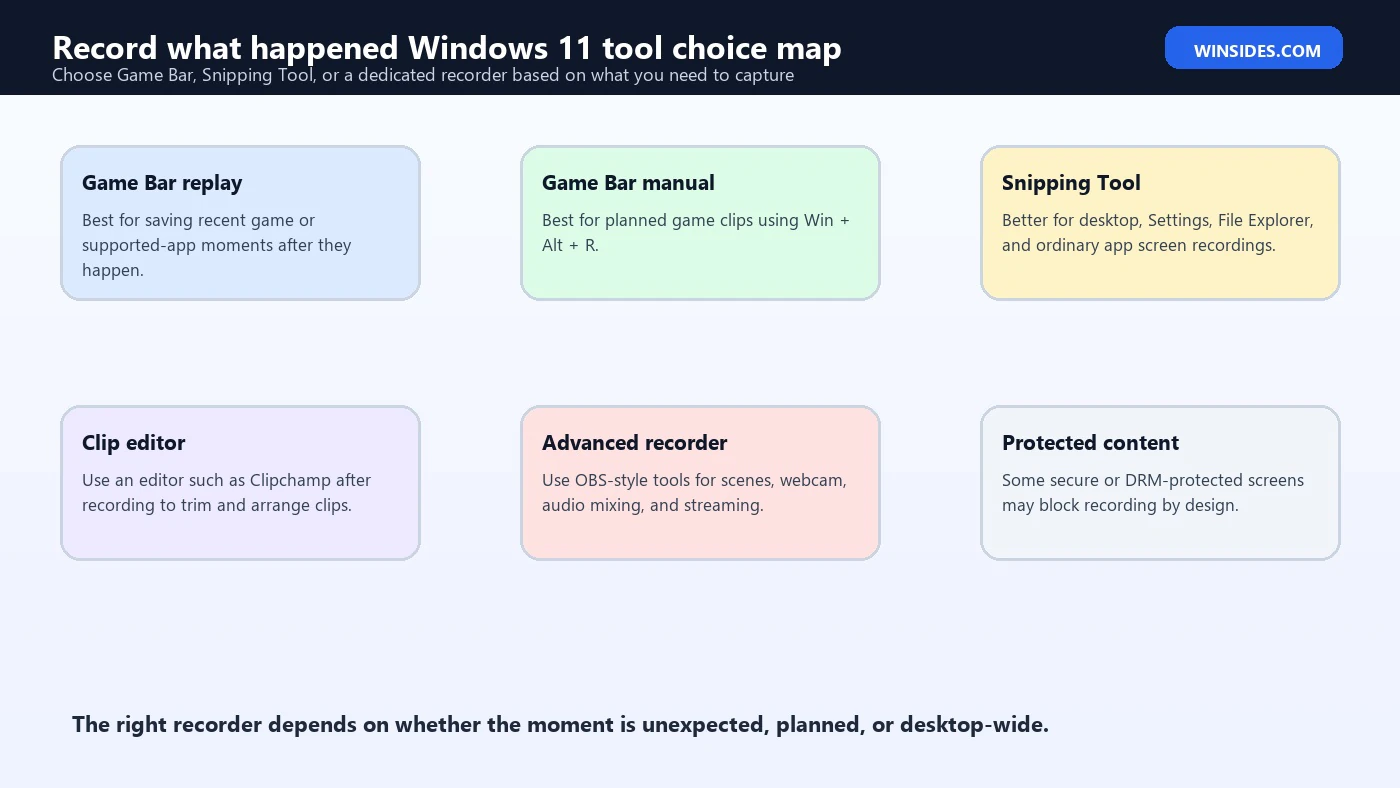
Game Bar is best for quick game clips, supported app clips, screenshots, and recent-moment captures. It is built into Windows and easy to trigger with keyboard shortcuts.
Snipping Tool is better for general desktop screen recording and screenshot workflows. If your goal is to record a Settings page, File Explorer workflow, browser demonstration, or ordinary app tutorial, Snipping Tool is often the cleaner built-in option.
Clipchamp is better for editing after recording. It is not the same as instant background capture, but it can trim, arrange, and export videos.
OBS Studio or similar tools are better for advanced recording and streaming. Use them when you need scenes, multiple displays, webcam overlays, audio mixing, bitrate control, transitions, or streaming platforms.
The right choice depends on what you want to record. Use Record what happened for unexpected moments. Use normal Game Bar recording for planned game clips. Use Snipping Tool for desktop recording. Use advanced tools for production workflows.
Best Use Cases for Record What Happened
The feature is excellent for bug reports. If a game stutters, an app flashes, a texture breaks, a UI element disappears, or a driver issue appears for only a few seconds, saving the recent clip gives you evidence without needing to run a recorder all day.
It is also useful for tutorial creators who want natural examples. Instead of staging every moment, you can save short clips when a useful example appears. Later, those clips can be trimmed and placed into a longer guide.
Gamers use it for highlights: wins, mistakes, funny moments, rare achievements, and unexpected gameplay events. The advantage is speed. You do not have to decide in advance that the next 30 seconds will be worth recording.
Support teams can use it carefully for visual proof. If a problem is hard to describe, a short clip can show exactly what happened. The clip should be reviewed before sharing so it does not include account names, chat messages, notifications, or private information.
It is less useful for long-form lessons. If you are recording a full tutorial, presentation, lecture, or software walkthrough, use manual recording, Snipping Tool, or a dedicated recorder. Record what happened is a highlight saver, not a full production workflow.
Troubleshooting: Record What Happened Is Missing
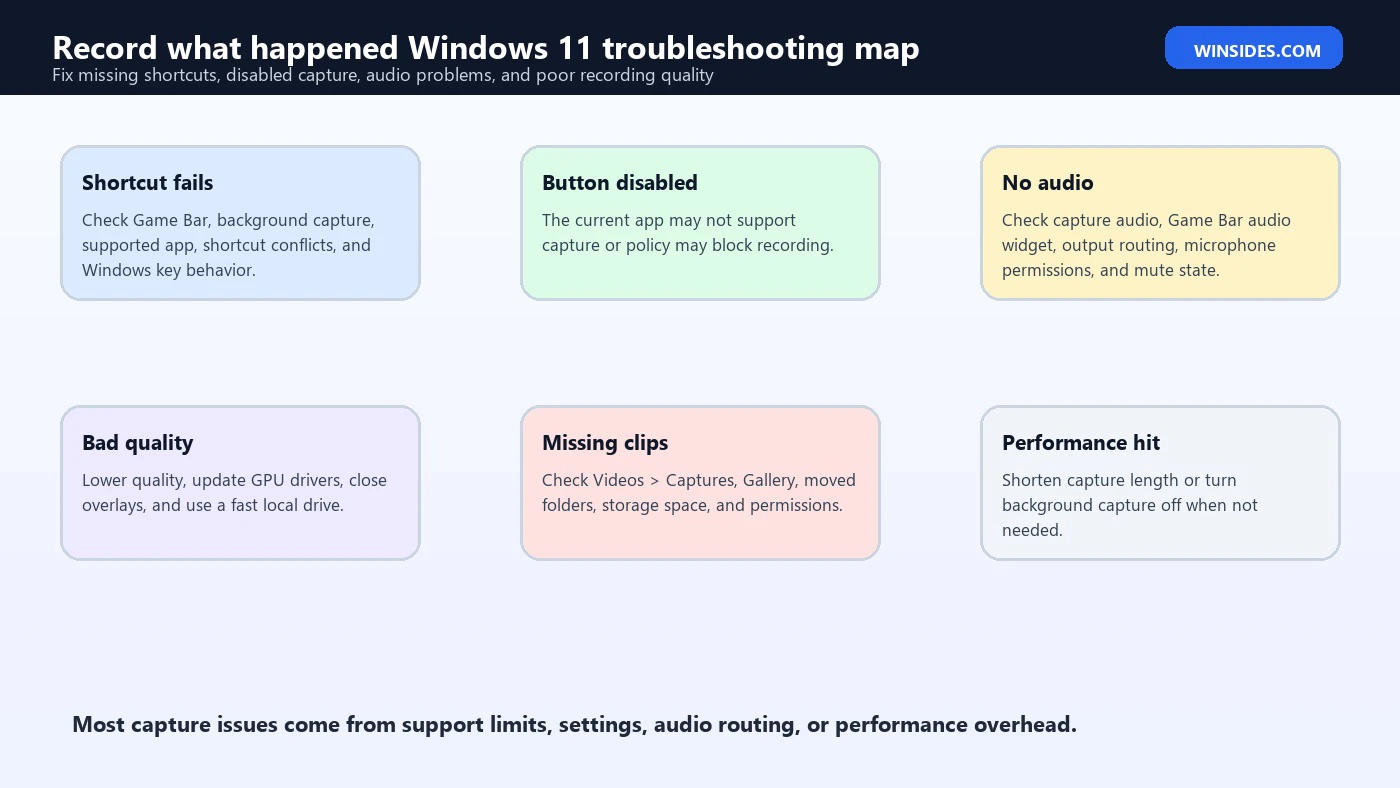
If the setting is missing, first check Windows version and Game Bar availability. Search for Game Bar in Start, or press Win + G. If Game Bar does not open, check Settings > Gaming > Game Bar and make sure Game Bar is enabled.
Some devices may not support all capture features. Hardware encoding support, GPU drivers, and system policy can affect capture availability. Update graphics drivers from Windows Update, the PC manufacturer, or the GPU vendor.
If the PC is managed by work or school, recording may be disabled by policy. In that case, the setting may be hidden, grayed out, or ineffective. Do not try to bypass policy on a managed device.
If Game Bar was removed or damaged, repair or reset the Xbox Game Bar app from Settings > Apps > Installed apps if available. You can also check Microsoft Store updates.
If the setting disappeared after using debloat scripts or registry tweaks, those changes may have removed Game Bar components or disabled gaming features. Reverse the changes or reinstall the affected Windows app components.
Troubleshooting: Shortcut Does Nothing
If Win + Alt + G does nothing, confirm that Record what happened is enabled. The shortcut cannot save recent video if background capture is off.
Next, confirm you are inside a supported game or app. If you are on the desktop or inside File Explorer, Game Bar may not have a recent capture buffer to save.
Open Game Bar with Win + G. If it opens, check the Capture widget. If the capture buttons are disabled, hover or review the message. It may say the current app cannot be captured.
Check whether the shortcut was changed. Game Bar settings can allow custom shortcuts. If another app uses the same shortcut, it may intercept the key combination.
Also check keyboard behavior. Some laptops require an Fn mode change for function keys or system shortcuts, and some gaming keyboards have game modes that disable the Windows key.
Troubleshooting: Clips Have No Audio
If the video records but audio is missing, check Settings > Gaming > Captures. Make sure audio recording is enabled. Then open Game Bar and inspect the Audio widget.
Check Windows sound output. If the game audio is routed to a headset, HDMI monitor, virtual device, or spatial-audio layer, capture may not record the source you expected.
For microphone audio, check Settings > Privacy & security > Microphone. Microsofts permissions guidance explains that Windows controls which apps can access the microphone. Microsoft microphone permissions guidance Make sure the right device is selected and not muted.
If only one app has audio problems, test another game or app. The issue may be app-specific.
If Bluetooth headset audio sounds distorted, test a wired headset or USB microphone. Bluetooth profile switching can reduce quality when microphone capture is active.
Troubleshooting: Recording Stutters or Looks Bad
If clips stutter, reduce capture quality. Lower frame rate, lower resolution if available, or shorten the Record what happened length. Close other overlays and recorders.
Update GPU drivers. Capture relies heavily on graphics hardware and drivers. Use Windows Update, the PC manufacturer, or the GPU vendor.
Check storage. A nearly full or slow drive can cause recording problems. Save clips to a fast internal drive when possible.
Turn off background capture temporarily and test game performance. If performance improves, the feature is adding overhead. Use manual recording or lower settings.
Disable other recording tools while testing. Running Game Bar, GPU overlay recording, Discord streaming, browser capture, and OBS at the same time can overload the system.
Troubleshooting: Clips Save to the Wrong Place
Open Game Bar with Win + G and check the Gallery widget. It can help locate recent captures. Also check Videos > Captures in your user folder.
If the folder was moved, check the Videos library location. If OneDrive backs up Videos, captures may be under a OneDrive path. If the destination drive is disconnected, restore the folder path to a local drive.
Search File Explorer for recent MP4 files if you are unsure:
*.mp4Sort by date modified. Game Bar clips are usually MP4 files.
If clips are not saved at all, check storage space, folder permissions, antivirus quarantine, and whether the app supports capture.
Best Settings for Most Users
For most users, keep Record what happened enabled only when you actually need quick replay capture. Leaving it on all the time can waste resources.
Use a short recent-capture length. Short clips are easier to manage, smaller to store, and less likely to include private information.
Use moderate quality unless you need high-quality clips. Better quality increases file size and system load.
Keep microphone off by default unless you are intentionally narrating. This prevents accidental room audio capture.
Review clips before sharing. Trim unnecessary parts, remove personal information, and check audio.
For troubleshooting, record the shortest clip that proves the issue. A 20-second clip showing the bug is often more useful than a five-minute video.
Frequently Asked Questions
What does Record what happened do in Windows 11?
It saves a short clip of recent gameplay or supported app activity after the moment has already happened, using Xbox Game Bar background capture.
What shortcut saves what just happened?
Use Win + Alt + G after enabling Record what happened. Use Win + G to open Game Bar and Win + Alt + R to start or stop a normal recording.
Can Record what happened record the desktop?
Usually no. Game Bar capture is best for games and supported apps. Use Snipping Tool or another screen recorder for general desktop workflows.
Where are Game Bar clips saved?
They are usually saved in Videos > Captures under your user profile. You can also review clips through the Game Bar Gallery widget.
Why is Record what happened grayed out?
It may be disabled because Game Bar is off, the current app does not support capture, hardware or drivers do not support the feature, another policy blocks recording, or the PC is managed by work or school.
Does background capture affect performance?
Yes, it can. It uses system resources to keep recent video available. Reduce quality, shorten capture length, update drivers, or turn it off when not needed.
Should I use Game Bar or Snipping Tool?
Use Game Bar for game clips and recent-moment capture. Use Snipping Tool for general screen recordings, screenshots, Settings pages, browser workflows, and desktop tutorials.
Conclusion: Use Record What Happened for Short, Unexpected Moments
record what happened windows 11 is best understood as Xbox Game Bar’s recent-clip saver. It is designed for moments you did not start recording in advance: game highlights, visual bugs, short troubleshooting clips, or unexpected app behavior in supported capture contexts.
Turn it on under Gaming > Captures, use Win + Alt + G to save the recent clip, and use Win + Alt + R when you want a normal recording. Keep an eye on storage, performance, microphone audio, and privacy. If the current screen cannot be captured, switch to Snipping Tool or a dedicated recorder.
The feature is simple when used for the right job. Use it for quick replay-style capture, not full desktop production. That keeps Windows 11 recording convenient without making it confusing, heavy, or risky.
For more interesting articles, stay tuned to Winsides.com!









Community
Comments (0)