

There are few computing experiences as frustrating as having your laptop suddenly freeze, especially when you’re simply trying to shift it from one surface to another. This common, yet perplexing, issue can disrupt your workflow, lead to data loss, and generally erode your confidence in your device’s reliability. For users of Windows 11, encountering a laptop that freezes when moved often points to a complex interplay of software configurations and physical components reacting to subtle changes in their environment.
This article aims to unravel the mystery behind this peculiar problem. We will delve into the various reasons why your Windows 11 laptop freezes when moved, exploring both the software glitches and hardware sensitivities that can trigger such an event. From power management conflicts to loose internal connections, we’ll cover the spectrum of potential culprits. Our goal is to equip you with the knowledge and actionable steps needed to diagnose and resolve this frustrating issue, ensuring your mobile workspace remains stable and responsive, no matter where you place it.
Understanding the root cause is the first step towards a lasting solution. Whether it’s a simple setting adjustment or a more involved hardware inspection, we will guide you through a systematic troubleshooting process. By the end of this comprehensive guide, you’ll be better prepared to tackle this problem head-on, restoring your laptop’s smooth operation and your peace of mind.
Table of contents
Key Takeaways: Quick Solutions for Freezing Laptops
Before diving deep into the technicalities, here are some immediate actions you can take if your Windows 11 laptop freezes when moved. These quick fixes might provide temporary relief or even resolve the issue for less severe cases. For additional context, see update drivers manually in Windows, driver updates through Windows Update, Intel processor support for power management, troubleshoot SSD issues, and Windows 11 system requirements.
- Restart Your Laptop: A simple reboot can often clear temporary software glitches and refresh system resources, resolving minor freezing incidents.
- Check Power Mode: Ensure your laptop is not in a highly restrictive power-saving mode that might be overly aggressive in managing components when jostled. Switch to a “Balanced” or “Best Performance” profile.
- Update Drivers: Outdated or corrupted drivers, especially for chipset, graphics, and storage controllers, are frequent causes of instability. Use Windows Update or your manufacturer’s website.
- Inspect External Connections: Verify that all external peripherals (USB drives, external monitors, power adapter) are securely connected. A loose connection can sometimes trigger system instability.
- Run a Quick Scan: Perform a quick scan for malware or system errors using Windows Security or a reputable antivirus program, as malicious software can impact system stability.
- Disable Fast Startup: This Windows 11 feature can sometimes lead to issues by not fully shutting down the system, potentially causing conflicts upon resume or movement.
These initial steps are designed to address the most common and easily rectifiable causes. If the problem persists, a more in-depth investigation will be necessary, which we will cover in the subsequent sections of this guide.
Understanding Why Laptops Freeze When Moved
The phenomenon of a laptop freezing specifically when it’s moved can be particularly puzzling. It suggests that the act of physical displacement or the change in orientation triggers an underlying instability. This instability can stem from a variety of sources, broadly categorized into software-related conflicts and hardware-related vulnerabilities. Pinpointing the exact cause requires a methodical approach, as symptoms can often overlap.
When a Windows 11 laptop freezes when moved, it’s essentially a system-wide halt, where the operating system becomes unresponsive, and input devices cease to function. This isn’t just a minor slowdown; it’s a complete cessation of activity, often necessitating a hard reboot. Understanding the mechanisms that lead to this state is crucial for effective troubleshooting. We’ll explore these mechanisms in detail, beginning with software.
The movement itself acts as a catalyst, revealing weaknesses that might otherwise remain dormant during stationary operation. This could be anything from a power setting misinterpreting a shift in position as a signal to enter a low-power state, to a fragile hardware connection momentarily losing contact. Identifying whether the issue is primarily software or hardware driven is the first major diagnostic hurdle.
Software-Related Causes
Software issues often manifest as system freezes because they dictate how hardware components interact and manage resources. Even a slight physical disturbance can expose flaws in these instructions, leading to system instability. These problems are generally easier to diagnose and fix compared to hardware issues.
Software conflicts can arise from various sources, including outdated drivers, misconfigured power settings, or even background applications interfering with critical system processes. The dynamic nature of a laptop, constantly transitioning between power states and orientations, makes it particularly susceptible to these kinds of software-driven hiccups.
Power Management Settings Conflicts
Windows 11 employs sophisticated power management to conserve battery life and optimize performance. However, aggressive or misconfigured settings can sometimes lead to instability, especially when the laptop undergoes physical movement. The system might incorrectly interpret a jolt or tilt as a signal to enter a sleep state or reduce power to certain components, leading to a freeze.
For instance, some power plans might be configured to spin down hard drives or put USB devices to sleep very quickly. If the laptop is moved, and these components are suddenly required, a delay or failure in their re-engagement can cause the entire system to hang. This is particularly true for older hard disk drives (HDDs) which are more sensitive to physical shock than solid-state drives (SSDs).
Furthermore, modern laptops often incorporate accelerometers and gyroscopes to detect orientation and movement. While beneficial for features like automatic screen rotation, conflicts within the drivers or software interpreting this data could trigger erroneous power state transitions, resulting in a system freeze. It’s a delicate balance between efficiency and stability.
Driver Instability or Corruption
Drivers are the essential software bridges that allow your operating system to communicate with your hardware. When these drivers are outdated, corrupted, or incompatible with your Windows 11 version, they can cause a wide range of issues, including system freezes. The act of moving the laptop can exacerbate these driver-related problems.
Consider the chipset drivers, which manage communication between the CPU and other components like storage, USB controllers, and power management units. If these drivers are unstable, a physical jolt could disrupt their operation, leading to a system-wide halt. Similarly, graphics drivers, especially for integrated GPUs, can become problematic if not properly updated.
Storage controller drivers are another critical area. If the driver for your SSD or HDD is faulty, any slight movement that causes a momentary interruption in power or data flow to the drive could result in a freeze as the system loses access to its primary storage. Keeping all drivers current and stable is paramount for preventing a Windows 11 laptop freezes when moved scenario.
Hardware-Related Causes
Hardware issues are often more challenging to diagnose because they require physical inspection and sometimes component replacement. The sensitivity of internal components to movement makes hardware a prime suspect when a laptop freezes specifically during physical displacement. These problems can range from simple loose connections to failing critical components.
Unlike software issues, which can often be resolved through updates or setting changes, hardware problems frequently demand a more hands-on approach. This might involve opening the laptop chassis, which should be done with caution and only if you are comfortable with such tasks. Improper handling can lead to further damage.
Loose Connections and Components
Inside every laptop, numerous components are connected via cables, slots, and sockets. Over time, or due to repeated minor impacts, these connections can become loose. When you move the laptop, the slight shift or vibration can cause a momentarily broken connection, leading to a system freeze. This is one of the most common hardware culprits for this specific issue.
Key areas to consider include the RAM modules, which are seated in slots and held by clips. If a RAM stick is not fully seated or its clips are weak, a jolt can cause it to lose contact with the motherboard, resulting in an immediate system crash or freeze. Similarly, the Wi-Fi card, often a small module plugged into a PCIe slot, can also become loose.
Furthermore, internal cables for the display, battery, or even the keyboard and trackpad can become partially disconnected. While less likely to cause a full system freeze, a loose display cable might cause the screen to go black, giving the impression of a freeze. For the power button or battery cable, a momentary disconnection could indeed cause an abrupt shutdown or freeze.
Hard Drive or SSD Issues
The storage drive, whether a traditional Hard Disk Drive (HDD) or a Solid State Drive (SSD), is fundamental to your laptop’s operation. Any instability or failure in this component can lead to severe system issues, including freezing. HDDs, with their spinning platters and read/write heads, are particularly susceptible to physical shock.
If an HDD experiences a jolt while operating, the read/write heads can crash onto the platters, causing damage and immediate data access failure, which translates to a system freeze. Even without physical damage, a failing HDD might have sectors that become unreadable when the drive is jostled, leading the operating system to hang while trying to access critical files.
While SSDs are much more resilient to physical shock due to their lack of moving parts, they are not entirely immune. A faulty connection to the motherboard (e.g., M.2 slot or SATA cable) or an internal controller issue within the SSD itself can still cause it to become unresponsive when the laptop is moved. This loss of primary storage access will inevitably cause your Windows 11 laptop freezes when moved.
Initial Troubleshooting Steps for Immediate Relief
When your laptop starts freezing upon movement, the first course of action should involve a series of straightforward troubleshooting steps. These steps are designed to address the most common software-related causes and can often provide immediate relief without requiring advanced technical knowledge or opening your device. It’s about systematically eliminating the simplest possibilities first.
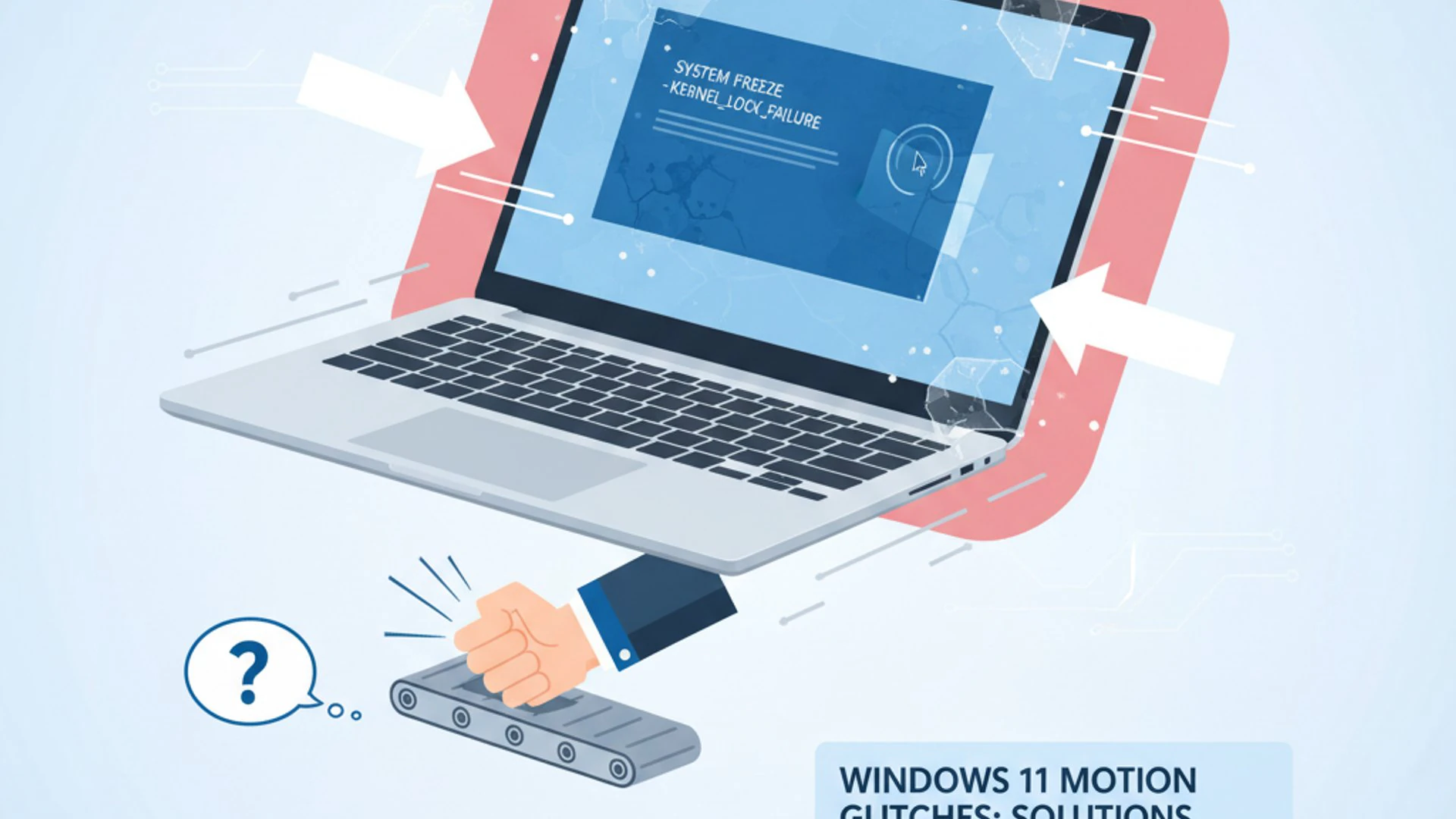
These initial checks are crucial because they can save you significant time and effort. Many freezing issues are not complex hardware failures but rather simple misconfigurations or outdated software. By starting here, you increase your chances of a quick resolution and gain valuable diagnostic information if the problem persists.
Check Power Settings and Sleep Modes
Power management settings are a common culprit for freezing issues related to movement. Windows 11 offers various power plans that dictate how your system conserves energy. An overly aggressive power plan might be causing components to shut down too quickly or fail to resume properly when the laptop is moved.
- Open Settings by pressing
Win + I. - Navigate to System > Power & battery.
- Under “Power mode,” ensure it’s set to Balanced or Best performance, rather than “Best power efficiency.”
- Click on Screen and sleep to review those settings. Make sure the laptop isn’t set to sleep too aggressively after a short period.
- For more detailed options, search for “Edit power plan” in the Windows search bar and open the Control Panel option.
- Click Change advanced power settings. Here, you can delve into specific component settings.
- Expand Hard disk and set “Turn off hard disk after” to a higher value or “Never” for both battery and plugged-in states. This is especially important for HDDs.
- Also, check USB settings > USB selective suspend setting and try disabling it to prevent USB devices from powering down and potentially causing conflicts.
Adjusting these settings can prevent the system from misinterpreting movement as a signal to enter a problematic power state. Experiment with these settings incrementally to see which change resolves the issue without significantly impacting battery life.
Update All Drivers and Windows
Outdated or corrupted drivers are a primary source of system instability. Ensuring all your drivers, especially critical ones, are up to date is a fundamental troubleshooting step. Windows 11 updates also frequently include driver updates and system stability improvements that can resolve freezing issues.
- Update Windows 11:
- Go to Settings > Windows Update.
- Click Check for updates and install any available updates. Restart your laptop if prompted.
- Update Device Drivers:
- Open Device Manager by searching for it in the Windows search bar.
- Expand categories like Display adapters, IDE ATA/ATAPI controllers (for storage), System devices, and Universal Serial Bus controllers.
- Right-click on each device and select Update driver. Choose “Search automatically for drivers.”
- If Windows doesn’t find a newer driver, visit your laptop manufacturer’s support website (e.g., Dell, HP, Lenovo, Asus) and download the latest drivers specifically for your model, particularly for chipset, graphics, and storage.
Always download drivers from official sources to avoid installing malicious or incompatible software. A systematic update of all drivers can significantly enhance system stability and prevent your Windows 11 laptop freezes when moved.
Advanced Software Solutions to Prevent Freezing
If the initial troubleshooting steps don’t resolve the issue, it’s time to delve into more advanced software solutions. These methods involve deeper dives into system configurations and diagnostics, aiming to uncover and rectify underlying software conflicts or corruption that might be contributing to the freezing problem. These steps require a bit more technical comfort but are still within the realm of software fixes.
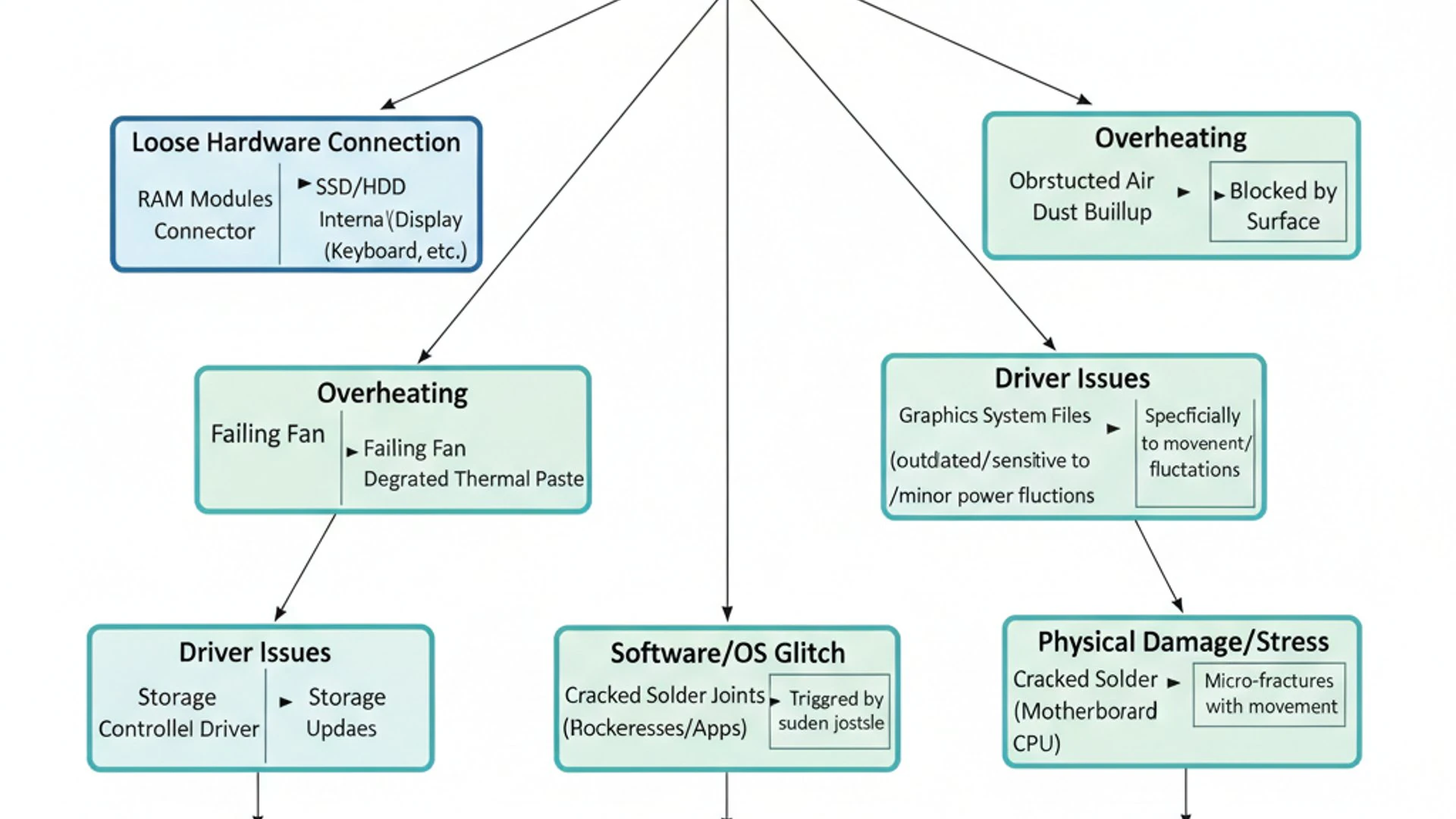
These advanced solutions often target persistent issues that aren’t immediately obvious. They involve leveraging built-in Windows tools and making specific configuration changes that can significantly improve system resilience. Patience and careful execution are key when performing these steps.
Adjusting Power Plan Settings
Beyond the basic power mode selection, Windows 11 offers granular control over various hardware components’ power behavior. Fine-tuning these settings can prevent components from misbehaving when the laptop is moved. This is especially critical for components sensitive to power fluctuations or rapid state changes.
- Access the Advanced Power Settings as described in the “Check Power Settings” section (search for “Edit power plan” > “Change advanced power settings”).
- Expand PCI Express > Link State Power Management. Set this to Off for both “On battery” and “Plugged in.” This prevents PCIe devices (like Wi-Fi cards or NVMe SSDs) from entering low-power states too aggressively.
- Under Processor power management, ensure that “Minimum processor state” is not set too low, especially for “On battery.” A very low minimum state might cause the CPU to struggle when suddenly needed.
- For laptops with traditional HDDs, revisit Hard disk > Turn off hard disk after. Set this to a very high number (e.g., 9999 minutes) or “Never” to prevent the drive from spinning down and potentially failing to spin back up smoothly upon movement.
Important Tip: After making changes to advanced power settings, remember to click Apply and then OK. It’s also a good practice to test the laptop’s behavior after each significant change to identify which adjustment had an impact.
These adjustments aim to provide consistent power to critical components, reducing the likelihood of them becoming unresponsive due to aggressive power-saving measures when your Windows 11 laptop freezes when moved.
Disabling Fast Startup
Fast Startup is a feature in Windows 11 designed to make your computer boot up quicker after a shutdown. It achieves this by saving a hibernation file of the system state, similar to how hibernation works, rather than performing a full shutdown. While beneficial for boot times, it can sometimes lead to system instability, especially with driver issues or hardware changes.
If your laptop isn’t fully shutting down, certain processes or drivers might remain in an unstable state, which could be exacerbated by physical movement. Disabling Fast Startup ensures a complete system shutdown and fresh boot cycle each time, potentially resolving conflicts.
- Search for “Control Panel” in the Windows search bar and open it.
- Change the “View by” option to Large icons or Small icons, then select Power Options.
- On the left pane, click Choose what the power buttons do.
- Click Change settings that are currently unavailable (you might need administrator privileges).
- Uncheck the box next to Turn on fast startup (recommended).
- Click Save changes and then perform a full shutdown and restart your laptop.
This simple change forces a complete system refresh, which can often eliminate persistent software glitches that contribute to freezing when the laptop is moved.
Running System File Checker and DISM
Corrupted system files can lead to a myriad of issues, including system freezes. Windows 11 includes powerful built-in tools, System File Checker (SFC) and Deployment Image Servicing and Management (DISM), to detect and repair these corruptions. Running these utilities can restore the integrity of your operating system files.
SFC scans for and repairs corrupted Windows system files, while DISM is used to repair the Windows image itself, which SFC relies upon. Using them together provides a robust solution for ensuring your operating system’s foundational files are sound.
- Open Command Prompt as an administrator. Search for “cmd,” right-click, and select “Run as administrator.”
- First, run the DISM command to prepare the system image:
DISM /Online /Cleanup-Image /RestoreHealthThis process can take several minutes. Let it complete fully.
- Once DISM finishes, run the System File Checker command:
sfc /scannowThis command will scan all protected system files and replace corrupted files with cached copies. It also takes some time.
- After both commands have completed, restart your laptop.
These commands are crucial for maintaining the health of your Windows 11 installation. A healthy system file environment is less prone to unexpected freezes, especially when interacting with hardware changes like movement. For more details on system health, you might find System Image Backup on Windows 11: Comprehensive Guide useful.
Checking for Software Conflicts
Sometimes, the freezing issue isn’t due to a single faulty component or driver, but rather an incompatibility or conflict between different software applications. Third-party utilities, antivirus programs, or even background services can interfere with Windows 11’s normal operation, especially during dynamic events like movement.
Identifying software conflicts can be challenging, but a systematic approach can help. The goal is to isolate whether a specific application or service is the root cause of your Windows 11 laptop freezes when moved.
- Perform a Clean Boot:
- Search for “msconfig” and open System Configuration.
- Go to the Services tab, check “Hide all Microsoft services,” and then click Disable all.
- Go to the Startup tab, click “Open Task Manager,” and disable all startup items there.
- Restart your laptop. If the freezing stops, re-enable services and startup items one by one or in small groups to identify the culprit.
- Review Recently Installed Software: Think about any programs installed just before the freezing issue started. Uninstall them temporarily to see if the problem resolves.
- Check Antivirus/Security Software: Some aggressive security suites can interfere with system processes. Temporarily disable your third-party antivirus (if you have one) and test. Remember to re-enable it or use Windows Security after testing.
By systematically disabling non-essential software and services, you can often pinpoint the application causing the conflict. This method is effective for isolating software-related instability.
Diagnosing and Addressing Hardware-Related Problems
If software troubleshooting doesn’t resolve the issue, the problem likely lies with the hardware. Hardware-related freezes, especially those triggered by movement, often indicate a physical component that is loose, failing, or overheating. Diagnosing these issues requires a more hands-on approach and a degree of caution.
Before proceeding with any internal inspection, always ensure your laptop is powered off and disconnected from the charger. If you’re uncomfortable opening your laptop, it’s best to seek professional assistance. However, some external checks and monitoring can still be performed safely.
Inspecting Internal Components (Caution Advised)
Opening your laptop can void warranties and carries risks if not done carefully. If you proceed, ensure you have the correct tools (small screwdrivers, plastic spudgers) and work in a clean, static-free environment. Ground yourself to prevent electrostatic discharge (ESD) damage by touching a metal object before handling internal components.
- Remove the Back Panel: Consult your laptop’s service manual or a reliable online guide for your specific model to safely open the back panel.
- Check RAM Modules: Locate the RAM sticks. Gently press down on each end of the modules until you hear a click, ensuring they are fully seated in their slots. If they are held by clips, ensure the clips are securely fastened.
- Inspect Storage Drive Connections:
- For SATA SSDs/HDDs: Ensure the SATA data and power cables are firmly connected to both the drive and the motherboard.
- For M.2 NVMe SSDs: Confirm the M.2 drive is fully seated in its slot and secured by its screw.
- Verify Other Internal Cables: Briefly check other visible cables, such as those for the battery, Wi-Fi card, or display, to ensure they are snugly connected.
- Clean Dust: While inside, use compressed air to gently clear any dust from fans and heatsinks, as excessive dust can contribute to overheating.
Warning: Be extremely gentle when handling internal components. Avoid touching circuit boards directly with your bare hands. If any component appears physically damaged or burnt, do not attempt to repair it yourself.
Reassemble the laptop carefully and test if the issue persists. A loose connection is a very common reason why a Windows 11 laptop freezes when moved.
Testing Storage Drive Health
A failing storage drive is a critical hardware issue that can cause system freezes. While SSDs are more robust than HDDs, both can develop issues. Testing the health of your storage drive can help determine if it’s contributing to the problem.
- Use Windows’ Built-in Tools:
- Open File Explorer, right-click on your C: drive (or any drive), and select Properties.
- Go to the Tools tab and click Check under “Error checking.” This will scan for file system errors.
- Open Command Prompt as administrator and type
chkdsk /f /rand press Enter. You’ll likely be prompted to schedule the scan for the next restart. This command checks for and attempts to repair bad sectors.
- Use Manufacturer’s Diagnostic Tools: Most SSD and HDD manufacturers provide their own diagnostic software (e.g., Samsung Magician, Western Digital Dashboard, CrystalDiskInfo). Download and run these tools to get a detailed health report, including SMART (Self-Monitoring, Analysis and Reporting Technology) data.
- Backup Data: If the diagnostic tools report any warnings or failures, immediately back up your important data. A failing drive is a ticking time bomb. You can use tools like System Image Backup on Windows 11 for comprehensive backups.
If your storage drive shows signs of failure, replacing it is often the best solution. This is a critical step, as a compromised drive will continue to cause instability.
Monitoring Temperature and Cooling
Overheating can lead to system instability and freezes, especially when the laptop is under load or when components are stressed by movement. While movement itself doesn’t directly cause overheating, a poorly cooled system might be pushed over the edge by a slight jolt that disrupts airflow or component contact.
Monitoring your laptop’s internal temperatures can help determine if thermal issues are playing a role in the freezing. High temperatures can cause the CPU or GPU to throttle performance or even shut down to prevent damage, which can manifest as a freeze.
- Use Monitoring Software: Install a third-party utility like HWMonitor, Core Temp, or SpeedFan to monitor CPU, GPU, and other component temperatures in real-time.
- Observe Temperatures: Note the temperatures during normal use and then try to replicate the movement that causes the freeze. See if temperatures spike significantly just before or during the freeze.
- Clean Cooling System: If temperatures are consistently high, ensure your laptop’s cooling vents are not blocked. Use compressed air to blow out dust from the fan and heatsink fins.
- Check Fan Operation: Listen for your laptop’s fans. Are they spinning? Are they making unusual noises? A failing fan can lead to rapid overheating.
- Consider Thermal Paste: If you’re experienced, reapplying thermal paste to the CPU and GPU can significantly improve heat transfer to the heatsink. This is an advanced step and should only be attempted if you are confident in your abilities.
Effective cooling is vital for laptop stability. Addressing overheating can prevent your Windows 11 laptop freezes when moved due to thermal stress.
Best Practices for Laptop Handling and Maintenance
Preventing future occurrences of your Windows 11 laptop freezing when moved involves adopting good habits for handling and maintenance. Many hardware-related issues stem from cumulative stress or neglect. By following these best practices, you can extend the lifespan of your laptop and maintain its stability.
Proactive care is always better than reactive troubleshooting. These practices are simple to implement but can make a significant difference in your laptop’s long-term reliability and performance, especially for a mobile device that frequently experiences movement.
Gentle Handling and Proper Storage
Laptops are designed to be portable, but they are still sensitive electronic devices. How you handle and store your laptop directly impacts its internal components and connections. Rough handling is a prime contributor to loose internal parts and potential damage.
- Avoid Sudden Jolts or Drops: Even minor impacts can dislodge internal components or damage sensitive parts like hard drives. Always handle your laptop gently.
- Use a Padded Bag: When transporting your laptop, always use a dedicated laptop bag or sleeve with adequate padding. This absorbs shocks and protects against bumps.
- Never Pick Up by the Screen: Lifting your laptop by the screen can put undue stress on the hinges and the display assembly, potentially leading to loose display cables or screen damage.
- Avoid Placing on Unstable Surfaces: Do not place your laptop on surfaces where it might easily fall or be knocked over. Ensure it’s always on a stable, flat surface.
- Proper Closing: Always close the lid gently and ensure no objects are left on the keyboard before closing, as this can damage the screen or keyboard.
These simple handling practices can significantly reduce the risk of physical damage that leads to freezing or other malfunctions. Treat your laptop like the delicate instrument it is, and it will serve you better.
Regular Cleaning and Dust Removal
Dust is the silent enemy of electronics. Over time, dust accumulates inside your laptop, especially in the cooling system. This accumulation acts as an insulator, trapping heat and reducing the efficiency of your fans. Overheating can lead to performance throttling, instability, and eventually, system freezes.
Regular cleaning is a crucial maintenance task that can prevent many heat-related issues and ensure optimal performance.
- Clean External Vents: Periodically use a can of compressed air to blow dust out of the intake and exhaust vents on your laptop. Do this in short bursts and hold the can upright to prevent propellant discharge.
- Clean Keyboard and Screen: Use a soft, lint-free cloth for the screen and a small brush or compressed air for the keyboard.
- Internal Cleaning (Advanced): Every 6-12 months, consider opening the laptop (if comfortable and knowledgeable) to thoroughly clean the fan blades and heatsink fins. This is where most dust accumulates. Again, use compressed air and ensure the fan is held still to prevent overspinning.
- Avoid Fabric Surfaces: When using your laptop, try to place it on a hard, flat surface rather than soft ones like blankets or carpets. These can block airflow vents and cause rapid heat buildup.
Maintaining a clean cooling system ensures your laptop can dissipate heat effectively, preventing thermal shutdowns or freezes that might appear to be triggered by movement. This proactive approach is key to preventing your Windows 11 laptop freezes when moved.
When to Seek Professional Help
While many laptop freezing issues can be resolved with DIY troubleshooting, there comes a point where professional assistance becomes necessary. Knowing when to call in the experts can save you time, prevent further damage, and ultimately lead to a more reliable solution. If you’ve exhausted all the troubleshooting steps outlined in this guide and your Windows 11 laptop freezes when moved persists, it’s time to consider professional help.
Here are clear indicators that it’s time to seek a qualified technician:
- Persistent Freezing: Despite trying all software and basic hardware checks, the laptop continues to freeze consistently upon movement.
- Physical Damage Suspected: If you suspect internal physical damage, such as a cracked motherboard, damaged component, or a failing hard drive that you cannot replace yourself.
- Uncomfortable with Internal Inspection: If you are not confident in opening your laptop or handling its internal components, attempting a repair yourself could cause more harm than good.
- Warranty Considerations: If your laptop is still under warranty, attempting self-repair might void it. A professional repair service authorized by the manufacturer can perform repairs without voiding the warranty.
- Lack of Specialized Tools: Some diagnostics or repairs require specialized tools that are not readily available to the average user.
- Intermittent or Complex Issues: If the freezing is highly unpredictable or accompanied by other strange symptoms that don’t fit a clear pattern, a professional diagnostic can pinpoint complex issues.
A reputable technician has the experience, tools, and diagnostic software to accurately identify complex hardware failures, such as motherboard component issues or intricate sensor problems, that are beyond the scope of typical home troubleshooting. They can also perform repairs safely and efficiently, ensuring your laptop is restored to full functionality.
Conclusion: Restoring Stability to Your Mobile Workspace
A Windows 11 laptop that freezes when moved is more than just an inconvenience; it’s a significant impediment to productivity and a source of constant frustration. This comprehensive guide has walked you through the intricate layers of potential causes, from subtle software misconfigurations to critical hardware vulnerabilities. By systematically addressing each possibility, you gain the power to diagnose and often resolve this perplexing issue yourself.
Remember, the key to successful troubleshooting lies in patience and methodical execution. Start with the simplest solutions, like checking power settings and updating drivers, before delving into more complex hardware inspections. Adopting best practices for handling and maintenance will also go a long way in preventing future occurrences, ensuring your mobile workspace remains reliable and responsive.
Ultimately, your laptop should be a tool that empowers your work and creativity, not one that causes anxiety with every shift. By understanding the underlying reasons and applying the solutions provided, you can restore stability to your device. If, despite your best efforts, the problem persists, don’t hesitate to seek professional help. Your peace of mind and the longevity of your valuable device are worth the investment. Here’s to a freeze-free computing experience!
For more interesting articles, stay tuned to Winsides.com!









Community
Comments (0)