

Introduction to System Image Backup on Windows 11
In our increasingly digital world, the data stored on our computers is often irreplaceable. From cherished family photos to critical work documents and intricate system configurations, a sudden hardware failure, a nasty virus, or even an accidental deletion can lead to devastating data loss. While individual file backups are essential, they often fall short when your entire operating system becomes unbootable or corrupted. For additional context, see Backup and Restore in Windows, Windows Server Backup Overview, Deploy a System Image with Windows PE, How to Create a System Image in Windows, and System Image Backup Explained.
Imagine your Windows 11 PC suddenly refusing to start, displaying cryptic error messages, or suffering from a severe malware infection that renders it unusable. Reinstalling Windows, reconfiguring all your settings, and reinstalling every application can be a time-consuming and frustrating ordeal, potentially taking days to recover fully. This is precisely where a system image backup on Windows 11 becomes your ultimate safeguard.
A system image is much more than just a copy of your files; it’s a complete snapshot of your entire system drive, including the operating system, installed programs, system settings, and all your personal data. It’s like taking a photograph of your entire computer at a specific moment in time. This comprehensive article will guide you through understanding, creating, and restoring a system image, empowering you to protect your digital life effectively.
We’ll explore the built-in tools available in Windows 11, delve into best practices for managing your backups, and troubleshoot common issues. By the end of this guide, you’ll possess the knowledge and confidence to ensure your Windows 11 environment is resilient against unforeseen disasters, allowing for swift and complete recovery.
Table of contents
Key Takeaways: Mastering System Image Backups
Before diving into the detailed steps, here are the crucial points you should understand about system image backups on Windows 11:
- Complete System Snapshot: A system image captures your entire Windows 11 operating system, programs, settings, and files, offering a full recovery solution, unlike simple file backups.
- Disaster Recovery: It’s your primary defense against catastrophic events like hard drive failure, severe virus infections, or unrecoverable system errors, enabling you to restore your PC to a previous working state.
- Legacy Tool Reliance: Windows 11 still utilizes the older Backup and Restore (Windows 7) feature for creating system images, accessible via the Control Panel.
- Dedicated Storage Essential: You’ll need an external hard drive, network location, or multiple DVDs with sufficient space to store the system image, as it can be quite large.
- Regular Updates are Key: Schedule periodic system image backups to ensure your recovery point is always relatively current, minimizing data loss from the last backup.
- Practice Restoration: Periodically test your restoration process on a non-critical machine or virtual environment to ensure your backups are viable and you understand the steps involved.
- Consider Alternatives: While built-in tools are useful, third-party software often offers more features, flexibility, and a more modern user interface for backup and recovery.
Understanding System Image Backup: What It Is and Why It’s Crucial
When we talk about backing up data, many people immediately think of copying their documents, photos, and videos to an external drive or cloud service. While this is an important part of data protection, it only addresses a fraction of the potential problems that can cripple a computer. A system image backup on Windows 11 goes far beyond simple file preservation.
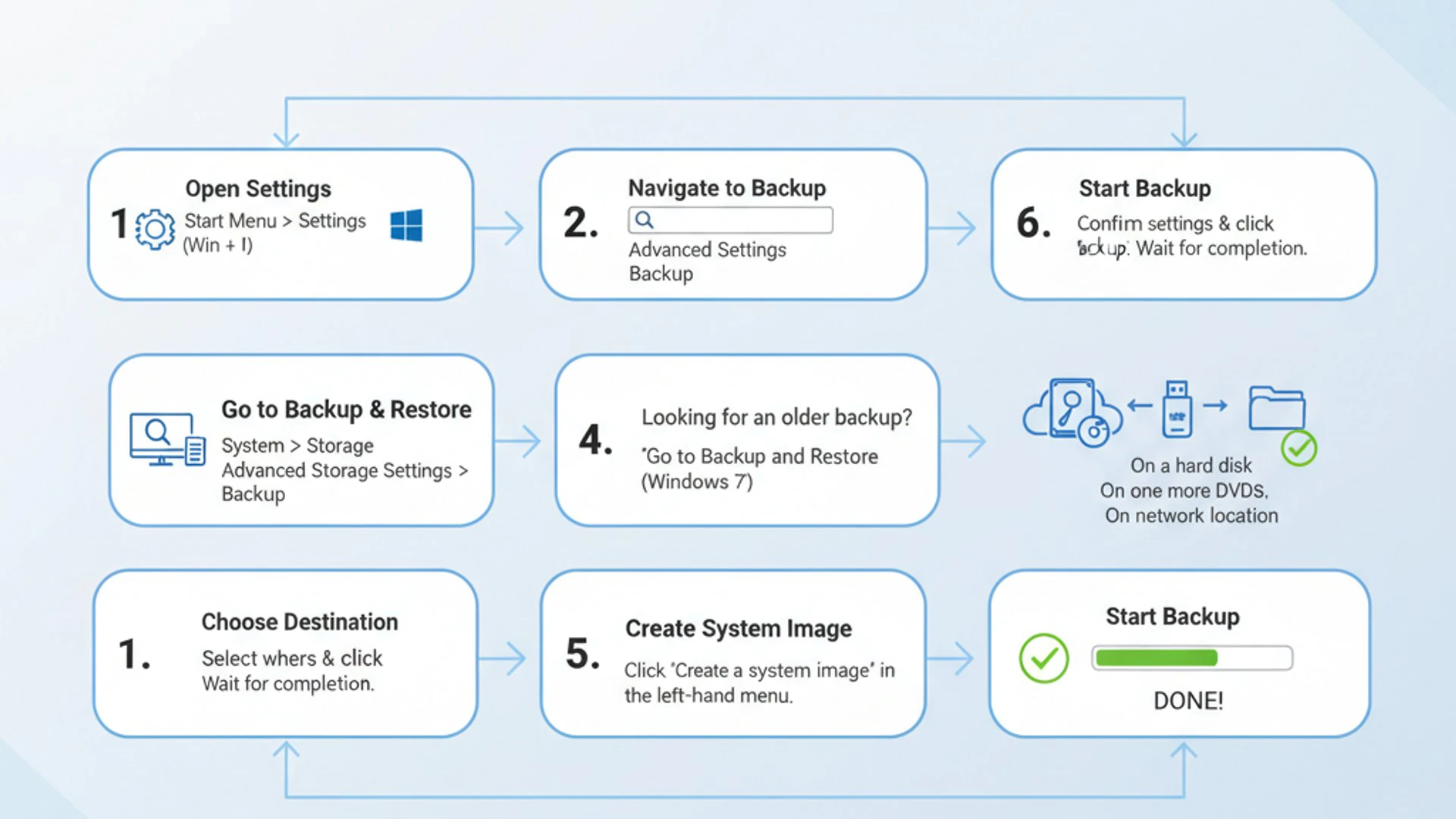
At its core, a system image is an exact, sector-by-sector copy of your entire system drive. This includes the Windows 11 operating system itself, all installed applications (like Microsoft Office, Adobe Creative Suite, or your favorite games), your personalized settings, user profiles, and every single file residing on that primary drive. It’s a complete clone of your hard drive’s state at the moment the backup was created.
This comprehensive approach means that if your hard drive fails completely, or if your Windows 11 installation becomes irreparably corrupted, you don’t just get your files back. You get your entire working environment back. This saves countless hours of reinstallation, configuration, and troubleshooting, transforming a potential multi-day recovery effort into a much quicker process.
Understanding this distinction is vital for any Windows 11 user who values their time and data integrity. It moves beyond basic data protection to full-fledged disaster recovery, ensuring business continuity for professionals and peace of mind for home users.
Differentiating System Image from File/Folder Backups
To fully appreciate the power of a system image, it’s helpful to contrast it with other common backup methods. Most users are familiar with file and folder backups, which involve copying specific documents, pictures, or project folders to another location.
These backups are excellent for protecting individual data assets. If you accidentally delete a document or a specific folder, you can easily retrieve it from your file backup. Services like OneDrive, Google Drive, or Dropbox primarily offer this type of protection, syncing selected files and folders to the cloud.
However, file/folder backups do not include your operating system, installed applications, or system settings. If your hard drive fails, even with a perfect file backup, you would still need to:
- Install a new hard drive.
- Reinstall Windows 11 from scratch.
- Install all necessary device drivers.
- Reinstall every single application you use.
- Manually reconfigure all your system and application settings.
- Finally, restore your personal files from the backup.
This process is incredibly time-consuming and requires significant technical knowledge. A system image bypasses almost all these steps, allowing you to restore your entire PC to its previous working state with minimal effort.
Benefits of a Full System Image for Windows 11 Users
The advantages of maintaining a system image backup on Windows 11 are numerous and significant:
- Complete Disaster Recovery: This is the paramount benefit. In the event of a catastrophic hard drive failure, unrecoverable system corruption, or a severe malware attack that bypasses antivirus, a system image allows you to restore your entire PC to a functional state.
- Time Savings: Reinstalling an operating system and all applications can take many hours, if not days. Restoring from a system image typically takes a fraction of that time, often just a few hours depending on the image size and hardware speed.
- Preservation of Settings and Configurations: All your personalized settings, network configurations, application preferences, and even desktop wallpaper are preserved. There’s no need to spend time re-customizing your environment.
- Application Preservation: Every program installed on your system drive is included in the image. You won’t need to hunt for installation media or product keys for each application.
- Effortless Migration: While not its primary purpose, a system image can sometimes be used to migrate your entire Windows 11 setup to a new, larger hard drive or SSD, provided there are no significant hardware differences.
- Rollback from Bad Updates: If a Windows Update or driver installation causes instability, you can roll back your entire system to a pre-update state using a system image.
“A system image backup is not just a safety net; it’s a complete system reset button that brings your entire Windows 11 environment back to life exactly as you left it.”
These benefits highlight why integrating system image backups into your data protection strategy is not just a good idea, but a critical one for any serious Windows 11 user.
Prerequisites for Creating a System Image Backup
Before you embark on creating a system image backup on Windows 11, it’s essential to ensure you have the right tools and your system is in optimal condition. Neglecting these prerequisites can lead to failed backups or, worse, an unusable backup when you desperately need it.
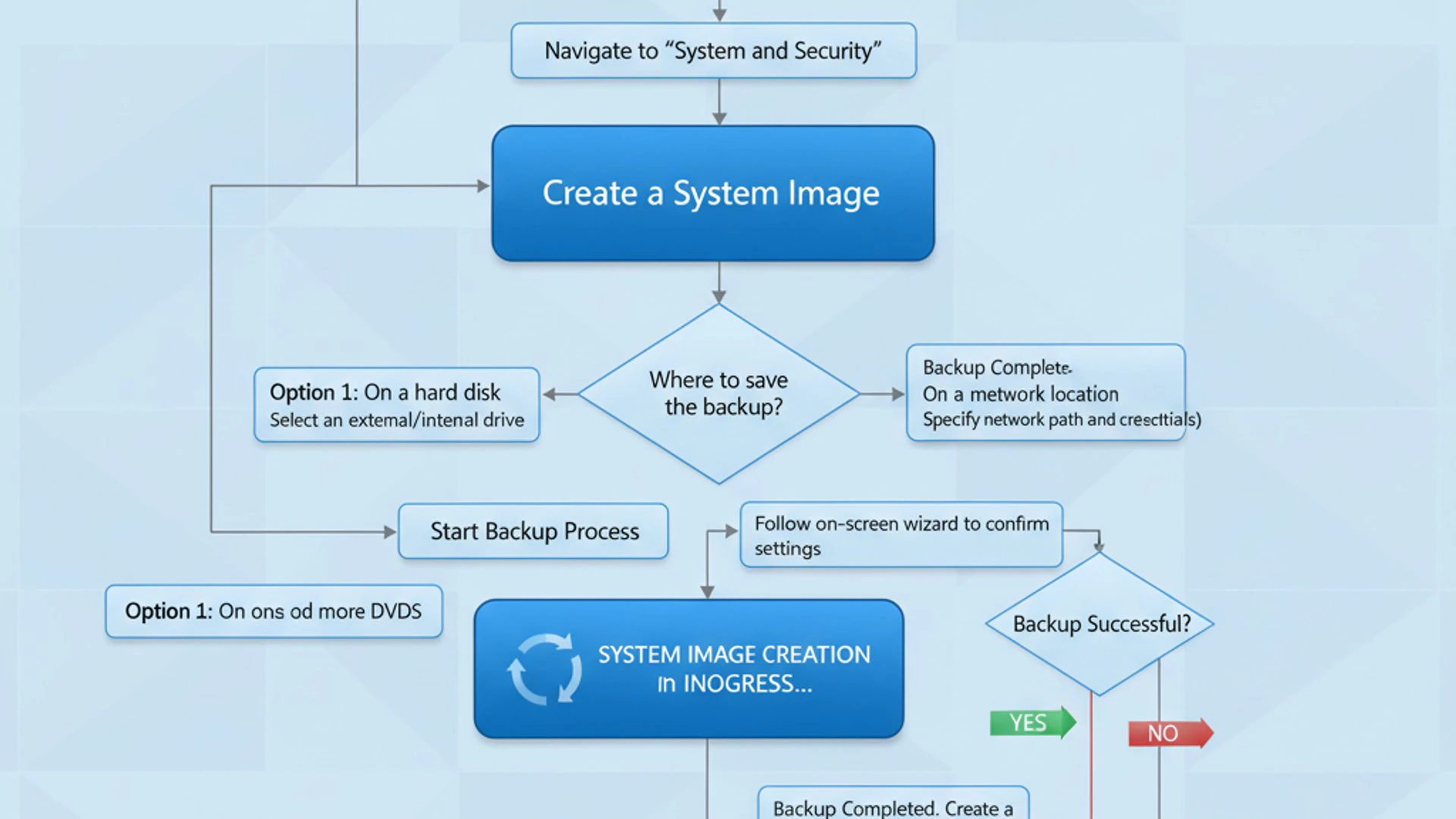
Proper preparation lays the groundwork for a smooth and successful backup process. This involves checking your hardware, confirming sufficient storage, and performing a quick health check on your Windows 11 installation itself. Taking a few minutes for these steps now can save you significant headaches down the line.
Essential Hardware and Storage Considerations
The most critical component for a system image backup is the destination storage. A system image can be very large, often consuming hundreds of gigabytes, so you need a reliable and spacious location to store it.
- External Hard Drive: This is the most common and recommended option. Choose an external HDD or SSD that has at least 1.5 to 2 times the capacity of your C: drive (or the drive containing your Windows installation). For example, if your C: drive is 500GB, aim for a 1TB external drive. Ensure it’s formatted with NTFS for optimal compatibility with Windows.
- Network Location: You can save a system image to a shared folder on another computer or a Network Attached Storage (NAS) device. This offers convenience but requires a stable and fast network connection. Make sure the network share has sufficient free space and appropriate write permissions.
- Multiple DVDs: While technically possible, this method is highly impractical for modern systems due to the large size of system images. It would require dozens of DVDs and is prone to errors. It’s generally not recommended.
- Internal Secondary Drive: If your PC has a second internal hard drive that is separate from your Windows installation drive, you can use it. However, this offers less protection against total hardware failure (e.g., if your PC’s power supply dies, both drives might be inaccessible).
Ensure your chosen backup drive is directly connected (for external drives) or reliably accessible (for network locations) during the entire backup process. Interrupted connections can corrupt the backup.
Verifying System Health Before Backup
Creating a system image of a corrupted or unstable Windows 11 installation will only give you a backup of a problematic system. The goal is to back up a healthy, working system. Therefore, a quick system health check is crucial.
- Run Disk Cleanup: Remove unnecessary temporary files, system logs, and old updates to reduce the size of your backup. Search for “Disk Cleanup” in the Start menu and run it as an administrator.
- Check for Disk Errors: Open File Explorer, right-click on your C: drive, go to Properties, then the Tools tab, and click “Check” under Error checking. This will scan for and attempt to fix any file system errors.
- Scan for Malware: Perform a full scan with your antivirus software (e.g., Windows Security) to ensure your system is free from viruses or other malicious software. A clean system image is a reliable system image.
- Update Windows 11: Ensure your operating system is fully up to date. Go to Settings > Windows Update and install any pending updates. This ensures you’re backing up the most stable and secure version of your OS.
- Uninstall Unnecessary Programs: Remove any software you no longer use. This also helps reduce the overall size of the system image and keeps your system lean.
“Always back up a clean, stable system. A system image of a problematic Windows 11 installation will only restore those same problems.”
By following these steps, you’ll ensure that your system image backup on Windows 11 is not only successful but also a true representation of a healthy and functional computer, ready for reliable restoration.
Step-by-Step Guide: Creating a System Image Backup on Windows 11
Despite Windows 11’s modern interface, the built-in tool for creating a system image is a legacy feature carried over from Windows 7. While it might seem a bit dated, it remains a robust and reliable option for comprehensive system backups. This section will walk you through the entire process, ensuring you can confidently create your first system image backup on Windows 11.
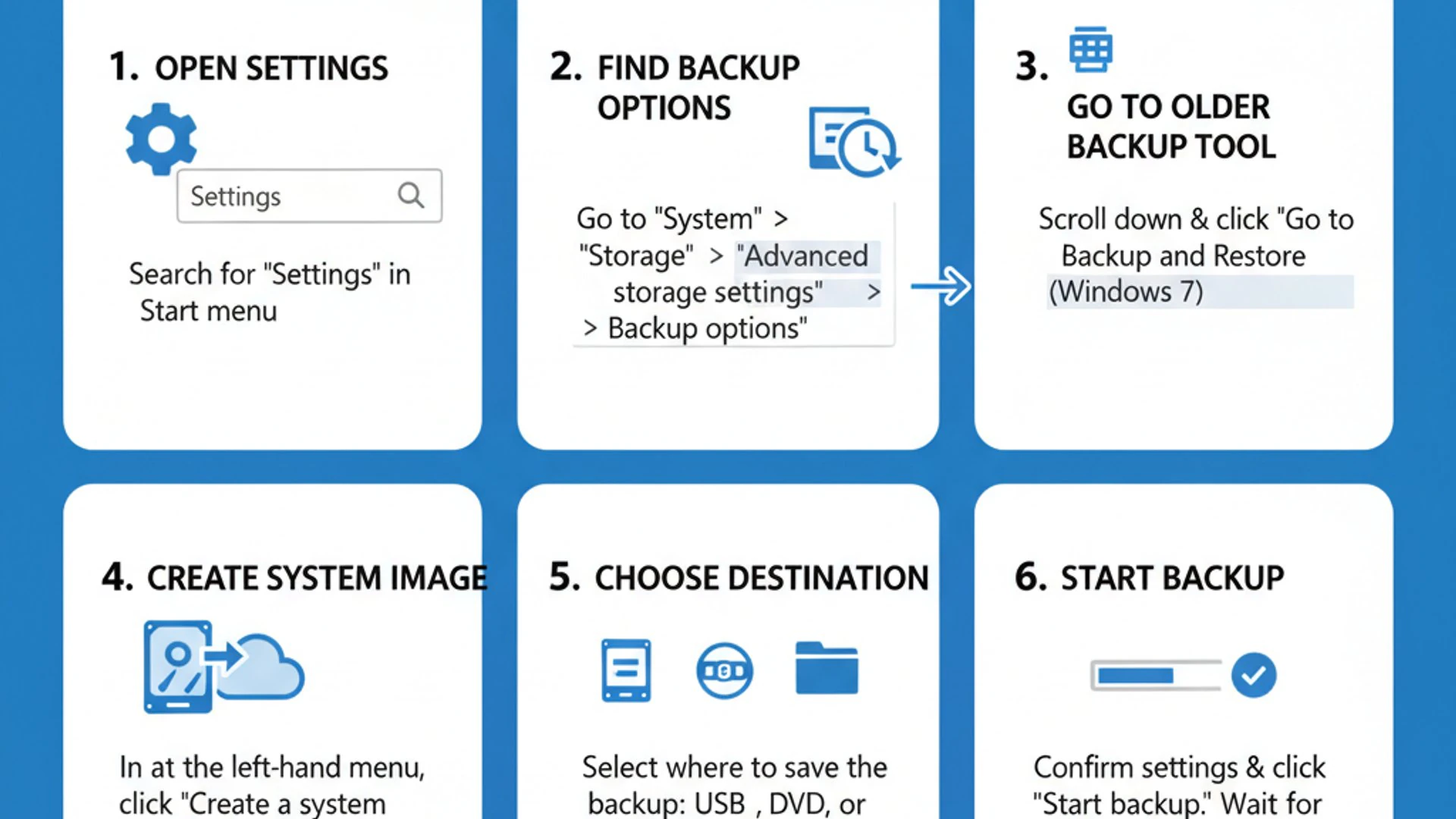
The process involves navigating through the Control Panel, selecting your backup destination, and confirming the settings. It’s crucial to follow each step carefully to avoid any potential issues during the backup creation. Remember to have your external drive connected and powered on, or your network location accessible, before you begin.
Accessing the Legacy Backup and Restore (Windows 7) Tool
The first step is to locate the specific tool within Windows 11 that handles system image creation. It’s not immediately obvious in the modern Settings app, but rather nestled within the classic Control Panel.
Navigating to Control Panel and Backup Options
- Open the Start Menu: Click on the Windows icon in your taskbar or press the
Windows key. - Search for Control Panel: Type “Control Panel” into the search bar and select the “Control Panel” desktop app from the results.
- Access Backup and Restore: In the Control Panel window, ensure “View by:” is set to “Category.” Then, click on “System and Security.”
- Locate Backup and Restore: Under the “System and Security” section, you will find an option titled “Backup and Restore (Windows 7).” Click on this to open the legacy backup utility.
This window is your gateway to creating and managing system images. You’ll notice options for creating system repair discs and setting up regular file backups, but our focus here is specifically on the system image.
Initiating the System Image Creation Process
Once you’re in the “Backup and Restore (Windows 7)” window, you’ll see several options. Look for the one dedicated to system images.
- Click “Create a system image”: On the left-hand side of the “Backup and Restore (Windows 7)” window, locate and click the link that says “Create a system image.”
- Wait for Device Scan: Windows will now scan for available backup devices. This might take a few moments.
A wizard will then appear, guiding you through the subsequent steps. This wizard is designed to be straightforward, but careful selection of your destination is paramount.
Choosing Your Backup Destination
The next screen will ask you where you want to save the system image. You’ll be presented with three main options:
- On a hard disk: This is the most common choice. If you have an external hard drive connected, it should appear in the dropdown list. Select the appropriate drive. Make sure it has enough free space.
- On one or more DVDs: As mentioned earlier, this is generally not recommended due to the large size of system images and the potential for errors.
- On a network location: If you have a shared folder on another computer or a NAS device, select this option. You will then need to browse to the network location and provide any necessary credentials.
For most users, selecting an external hard drive is the simplest and most reliable method. After selecting your preferred destination, click “Next.”
Confirming Backup Settings and Starting the Process
The final step before the backup begins is to review and confirm your selections.
- Review Drives to be Backed Up: The wizard will automatically select the necessary drives for a complete Windows 11 system image, typically including your C: drive (where Windows is installed) and any associated system partitions (like the EFI System Partition or Recovery Partition). You usually cannot deselect these.
- Confirm Destination and Size: The wizard will display the estimated size of the backup and the amount of free space available on your chosen destination. Double-check that the destination is correct and has ample space.
- Click “Start backup”: Once you are satisfied with all the settings, click the “Start backup” button.
The backup process will now begin. This can take anywhere from 30 minutes to several hours, depending on the size of your system drive, the speed of your computer, and the speed of your backup destination. It’s best to perform this when you won’t need to use your computer intensively, as it can slow down your system.
“During the system image creation, avoid disconnecting the backup drive or shutting down your computer to prevent corruption of the image file.”
Once the backup is complete, you may be prompted to create a system repair disc. While not strictly necessary if you have a Windows 11 installation USB, it can be a useful recovery tool. Keep your external drive safely stored. You have now successfully created a system image backup on Windows 11!
Best Practices for Managing Your System Image Backups
Creating a single system image backup on Windows 11 is a great start, but effective data protection requires ongoing management. A backup is only as good as its currency and accessibility. Implementing best practices ensures that your system images are always ready to serve their purpose, providing robust resilience against data loss and system failures.
This section will guide you through strategies for scheduling, secure storage, and maintaining multiple versions, transforming your backup strategy from a one-time task into a continuous, reliable safety net. Think of it as maintaining your digital insurance policy.
Scheduling Regular Backups for Optimal Protection
A system image is a snapshot in time. If your last backup is six months old, restoring it means losing six months of data, settings, and installed applications. Regular backups are crucial to minimize potential data loss.
- Determine Frequency: The ideal backup frequency depends on how often your system changes and how much data you’re willing to lose.
- Weekly: Recommended for users who frequently install new software, make significant system changes, or work with critical data daily.
- Bi-weekly/Monthly: Suitable for average users who mainly browse the web, use office applications, and don’t make drastic system changes.
- Before Major Changes: Always create a system image before installing major Windows updates, new hardware, or significant software that might destabilize your system.
Consider setting a recurring calendar reminder to prompt you to update your system image backup on Windows 11. Consistency is key.
Storing Backups Securely and Off-Site
Where you store your system image is almost as important as creating it. A backup stored on the same drive as your operating system is useless if that drive fails. Similarly, a backup stored next to your computer offers no protection against theft, fire, or flood.
- External Drive Disconnection: After creating the system image, disconnect the external hard drive. This protects it from electrical surges, malware (ransomware can encrypt connected drives), and accidental deletion.
- Off-Site Storage: For critical data, consider storing a copy of your system image (or rotating external drives) in a separate physical location. This could be a friend’s house, a safe deposit box, or your workplace. This protects against localized disasters.
- Secure Network Storage: If using a NAS, ensure it’s protected by strong passwords and ideally, not directly exposed to the internet without proper security measures.
- Environmental Protection: Store external drives in a cool, dry place, away from direct sunlight, extreme temperatures, and strong magnetic fields.
Think of the “3-2-1” backup rule: 3 copies of your data, on 2 different types of media, with 1 copy off-site. While a system image is one copy, you might have another file backup and then the off-site system image.
Maintaining Multiple Backup Versions
Relying on a single system image can be risky. What if that single image becomes corrupted? Or what if you discover a problem that was present in your system weeks ago, and your latest backup also contains that problem?
- Rotation Strategy: Implement a rotation strategy for your external backup drives. For example, use two or three external drives, labeling them “Week 1,” “Week 2,” etc. This way, you always have a slightly older, but still viable, backup if the newest one has issues.
- Incremental vs. Full: Windows’ built-in system image tool creates full images. While some third-party tools offer incremental or differential backups (saving only changes), with the built-in tool, you’ll be creating new full images. This means you’ll need sufficient space for multiple full images if you plan to keep several versions.
- Delete Old, Irrelevant Images: Periodically review your stored system images. Once an image is very old (e.g., several months) and you’re confident your current system is stable, you can delete older images to free up space, especially if you have newer, reliable ones.
“Never rely on a single backup. Multiple versions and off-site storage are the hallmarks of a truly resilient data protection strategy for your Windows 11 PC.”
By diligently applying these best practices, your system image backup on Windows 11 will be a robust, reliable, and always-ready solution for any recovery scenario.
Restoring Your System from a System Image Backup
The true value of a system image backup on Windows 11 becomes apparent when disaster strikes. Whether it’s a hard drive failure, a corrupted operating system, or a severe malware infection, restoring your system from an image can bring your PC back to life quickly and efficiently. This process essentially overwrites your current system drive with the contents of your chosen system image.
It’s important to understand that restoring a system image is a destructive process for the target drive. All data currently on the drive where Windows 11 is installed will be erased and replaced by the contents of the system image. Therefore, ensure you’ve backed up any new personal files created since the last system image was made.
Accessing Advanced Startup Options
To restore a system image, you typically need to boot your computer into the Windows Recovery Environment (WinRE). This environment provides the necessary tools to perform system repairs and restorations outside of the main Windows operating system.
There are several ways to access Advanced Startup Options:
- From within Windows (if accessible):
- Go to Settings > System > Recovery.
- Under “Recovery options,” find “Advanced startup” and click “Restart now.”
- Your PC will restart into the WinRE.
- From a bootable Windows 11 installation media (USB drive or DVD):
- Boot your computer from the Windows 11 installation media.
- On the “Windows Setup” screen, click “Next.”
- Click “Repair your computer” in the bottom-left corner. This will take you to the WinRE.
- Force Shutdown (if Windows won’t boot): If Windows 11 fails to boot multiple times, it will often automatically enter the WinRE. If not, you can force it by turning off your PC during the boot process (e.g., when the Windows logo appears) three times in a row.
Once you are in the WinRE, you will see a screen titled “Choose an option.” Select “Troubleshoot.”
Utilizing the System Image Recovery Tool
After selecting “Troubleshoot,” you’ll be presented with further options for recovery and repair.
- Select “Advanced options”: From the “Troubleshoot” screen, click on “Advanced options.”
- Choose “System Image Recovery”: Among the advanced options, you will find “System Image Recovery.” Click this option.
- Select Target Operating System: If you have multiple operating systems installed, you might be asked to choose the target OS. Select “Windows 11.”
The “Re-image your computer” wizard will now launch. This is the tool that will guide you through the restoration process.
Selecting the Correct System Image and Drive
The wizard will first try to find the latest available system image. Ensure your external drive containing the system image is connected to your computer.
- Choose a System Image:
- If the wizard automatically finds the correct system image, confirm it.
- If not, or if you want to use an older image, select “Select a system image” and click “Next.”
- You can then browse to the location of your system image (e.g., your external hard drive or network share). Select the appropriate image file (it will typically be in a folder named “WindowsImageBackup”).
- Select Additional Restore Options (Optional):
- Format and repartition disks: This option is usually selected by default and recommended, especially if you’re restoring to a new hard drive or one that has been corrupted. It ensures the drive is properly prepared.
- Exclude disks: If you have multiple internal drives and only want to restore the system drive, ensure other data drives are not selected for formatting. Be extremely careful with this step to avoid accidental data loss on other partitions.
Carefully review these options. Incorrect selections can lead to data loss on other drives.
Completing the Restoration Process
Once you’ve selected the system image and reviewed the restoration options, you’re almost ready to begin.
- Confirm Settings: The wizard will display a summary of the restoration operation. This is your last chance to verify that you are restoring the correct image to the correct drive.
- Click “Finish”: Once you are absolutely certain, click “Finish.”
- Confirmation Prompt: You will receive a warning that all data on the target drive will be overwritten. Click “Yes” to proceed.
“Restoring a system image is irreversible for the target drive. Double-check all selections before clicking ‘Finish’ to prevent unintended data loss.”
The restoration process will now begin. This can take several hours, depending on the size of the image and the speed of your hardware. Do not interrupt the process by shutting down your computer or disconnecting the backup drive.
Once complete, your computer will restart, and you should find your Windows 11 system exactly as it was when the system image was created, complete with all your programs, settings, and files. You have successfully recovered your system using your system image backup on Windows 11.
Common Issues and Troubleshooting Tips
While creating and restoring a system image backup on Windows 11 is generally straightforward, users can occasionally encounter problems. Knowing how to troubleshoot these common issues can save you a lot of frustration and ensure your backup strategy remains effective. This section covers some of the most frequently reported difficulties during both the backup and restoration phases.
Being prepared for these potential roadblocks means you can quickly address them and get back on track. Remember, patience and methodical troubleshooting are your best allies when dealing with system-level operations.
Backup Fails Due to Insufficient Space or Drive Errors
This is one of the most common reasons for a failed system image backup.
- Insufficient Space:
- Symptom: The backup process stops with an error message indicating not enough space on the destination drive.
- Solution: Ensure your external drive or network location has significantly more free space than the estimated backup size (ideally 1.5x to 2x the source drive’s used space). Delete old, unnecessary files from the destination, or use a larger backup drive. You can also run Disk Cleanup on your C: drive to reduce the source size.
- Symptom: The backup fails with I/O errors, CRC errors, or messages about bad sectors.
- Solution: Run a disk check on both your source (C: drive) and destination drives.
- Open File Explorer.
- Right-click the drive (e.g., C: or your external drive).
- Go to Properties > Tools tab.
- Click “Check” under Error checking. Follow prompts to scan and repair.
- Symptom: Backup to a network location fails or disconnects.
- Solution: Ensure a stable wired connection, check network permissions, and verify the network path. Temporarily disable firewalls on both machines if troubleshooting.
System Image Not Found During Restoration
This issue can be particularly alarming when you’re trying to recover a non-bootable system.
- Incorrect Drive Connected/Selected:
- Symptom: The “Re-image your computer” wizard cannot find any system images, or it shows an outdated one.
- Solution: Double-check that the external drive containing your system image is properly connected and powered on. If using a network location, ensure your PC can access the network share and you provide correct credentials. If you have multiple images, ensure you’re browsing to the correct one.
- Symptom: The wizard finds the image but fails during the restoration process, citing corruption.
- Solution: This highlights the importance of maintaining multiple backup versions. Try restoring an older system image if available. If all images are corrupted, you might have to resort to a clean Windows 11 installation. This can sometimes be caused by an unstable system during the backup process or an unreliable backup drive.
- Symptom: Sometimes, in the recovery environment, drive letters can be different, making it hard to locate the image.
- Solution: Use the “Advanced options” in the wizard to browse for the image manually. You might need to try different drive letters until you find the “WindowsImageBackup” folder.
Dealing with Hardware Changes Post-Backup
Restoring a system image to a computer with significantly different hardware than the one it was created on can lead to boot issues.
- Restoring to Different Hardware:
- Symptom: After restoring to a new motherboard, CPU, or even a different brand of PC, Windows 11 fails to boot, displays a blue screen, or has driver issues.
- Solution: Windows’ built-in system image recovery is primarily designed for restoring to the same or very similar hardware. Significant hardware changes can cause driver conflicts.
- If possible, try booting into Safe Mode after restoration to install new drivers.
- If it consistently fails, you might need to perform a clean installation of Windows 11 on the new hardware and then manually restore your personal files. Some third-party backup solutions offer “universal restore” features that handle hardware abstraction better.
- Symptom: The restoration fails because the target drive is smaller than the original drive, even if it has enough free space for the actual data.
- Solution: The target drive must be equal to or larger than the original drive’s *total capacity*, not just the used space. If you’re upgrading to an SSD, ensure its capacity is at least as large as your old HDD. If not, you’ll need to shrink the partitions on your original drive before creating the system image, or use a larger target drive.
“Always keep a Windows 11 installation media (USB or DVD) handy. It’s your ultimate fallback for accessing advanced recovery options and performing clean installations when all else fails.”
By understanding these common issues and their solutions, you can approach your system image backup on Windows 11 with greater confidence, knowing you’re prepared for most eventualities.
Alternatives to Windows’ Built-in System Image Tool
While Windows 11’s built-in system image tool is a functional and free solution, it does have its limitations. Its legacy interface, lack of advanced scheduling, and sometimes finicky behavior with dissimilar hardware can lead users to seek more robust and feature-rich alternatives. Fortunately, the market offers a wide array of third-party backup software and cloud-based services that provide enhanced capabilities for protecting your Windows 11 system.
Exploring these alternatives can offer greater flexibility, more intuitive user interfaces, and advanced features like incremental backups, universal restore, and seamless cloud integration. This section will briefly touch upon some popular options, allowing you to consider what might best suit your specific needs and technical proficiency.
Third-Party Backup Software Solutions
Many reputable software vendors offer dedicated backup and recovery solutions that often surpass the capabilities of Windows’ native tools. These applications typically provide a more modern user experience, advanced features, and better support for complex scenarios.
- Acronis Cyber Protect Home Office (formerly True Image):
- Features: Comprehensive backup (full, incremental, differential), disk cloning, ransomware protection, cloud backup integration, universal restore (restore to dissimilar hardware), and bootable rescue media.
- Pros: Very feature-rich, reliable, strong security features.
- Cons: Subscription-based, can be resource-intensive.
- Features: Excellent disk imaging, rapid delta restore, bootable rescue media, scheduling, and encryption. The free version is highly capable for basic system imaging.
- Pros: Fast, reliable, user-friendly, excellent free version.
- Cons: Paid version unlocks advanced features.
- Features: System backup, disk/partition backup, file backup, smart backup (automatic backups), cloud backup, and universal restore.
- Pros: Good balance of features and ease of use, a decent free version.
- Cons: Free version has limitations.
- Features: Image-based backup, volume-level backup, file-level backup, bare-metal recovery, and direct restore to Microsoft Azure or AWS.
- Pros: Enterprise-grade reliability, powerful free version for personal use.
- Cons: Can be more complex for novice users.
These tools often provide more granular control over what is backed up, how often, and where it’s stored, offering a more flexible approach to your system image backup on Windows 11.
Cloud-Based Backup Options for Windows 11
While traditional system images are often stored locally, cloud-based solutions offer the advantage of off-site storage by default, protecting against localized disasters. However, full system image backups directly to the cloud can be bandwidth-intensive and are not always the primary focus of these services.
- OneDrive/Google Drive/Dropbox:
- Focus: Primarily file and folder synchronization and backup. They do not natively create full system images.
- Use Case: Excellent for protecting personal documents, photos, and small project files. Not suitable for full system recovery.
- Focus: Continuous, automatic backup of all files and folders on your computer to the cloud. Some services offer system state backup or bare-metal restore options, but these might be more complex or require specific plans.
- Pros: Automatic, off-site, unlimited storage (often), easy recovery of individual files.
- Cons: Initial upload can take weeks for large datasets. Full bare-metal recovery from the cloud can be slow and may require shipping a drive. Not all services offer true system image recovery.
- Some third-party backup software (like Acronis) allows you to store your system images directly to their proprietary cloud storage, combining the benefits of local imaging with off-site cloud protection.
- This offers a balanced approach, allowing for quick local restores and slower, but reliable, cloud-based disaster recovery.
“When choosing an alternative, consider your budget, technical comfort level, the importance of off-site storage, and the need for advanced features like universal restore.”
Ultimately, the best solution for your system image backup on Windows 11 might be a combination of approaches: a local system image for quick recovery and a cloud-based file backup for continuous data protection and off-site redundancy.
Conclusion: Ensuring Data Resilience with System Image Backups
In an era where our digital lives are inextricably linked to our computers, the importance of a robust data protection strategy cannot be overstated. A system image backup on Windows 11 stands out as a cornerstone of this strategy, offering a comprehensive safety net against the myriad of threats that can compromise your PC.
Throughout this guide, we’ve explored what a system image truly entails – a complete, bit-for-bit snapshot of your entire Windows 11 environment. We’ve differentiated it from simple file backups, highlighting its unique ability to restore not just your data, but your entire operating system, applications, and personalized settings to a previous, functional state. This capability transforms a potentially catastrophic system failure into a manageable recovery process, saving you invaluable time and mitigating significant frustration.
We’ve walked through the practical steps of creating a system image using Windows 11’s built-in, albeit legacy, tools. We’ve also emphasized the critical prerequisites, such as adequate storage and a healthy system, and outlined best practices for managing your backups, including regular scheduling, secure storage, and maintaining multiple versions for enhanced resilience. Furthermore, we’ve provided a detailed guide on how to restore your system from an image, along with troubleshooting tips for common issues.
While Windows offers a free solution, we also touched upon the benefits of exploring third-party software and cloud alternatives for those seeking more advanced features or a more streamlined experience. Regardless of the tool you choose, the fundamental principle remains: a current, reliable system image is your ultimate defense against unforeseen digital disasters.
By diligently implementing the strategies outlined in this article, you are not just backing up data; you are investing in peace of mind, ensuring the continuous availability and integrity of your Windows 11 environment. Make system image backup on Windows 11 a regular part of your digital routine, and rest assured that your digital life is well-protected.
For more interesting articles, stay tuned to Winsides.com!









Community
Comments (0)