

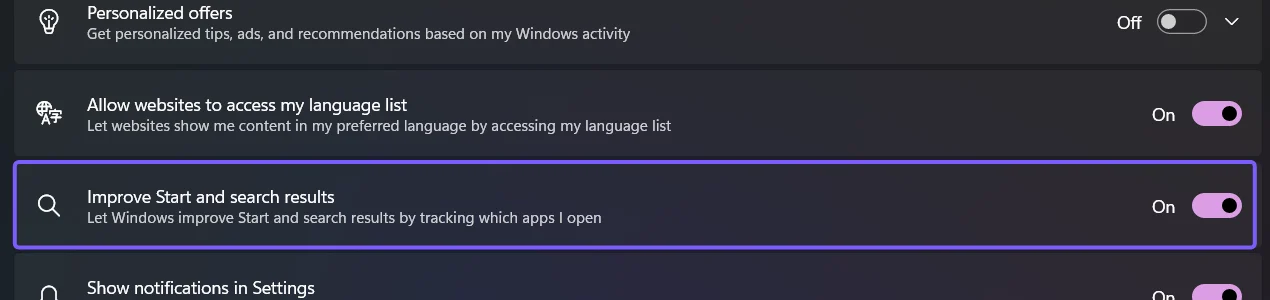
Windows 11 can use the apps you open to improve the Start menu and device search results. The current switch is named Improve Start and search results on Settings > Privacy & security > Recommendations & offers.
I reproduced the switch on Windows 11 Home Single Language version 25H2, build 26220.7872. It started On, changed to Off, and returned to On. The same Windows UI Automation control reported each state, and the original setting was restored without a restart.
What does app launch tracking do in Windows 11?
Microsoft says Windows can personalize Start based on the apps you launch. That can make frequently used apps easier to reach in Start and can influence results when you search the device. The switch controls whether Windows uses app-launch information for that specific personalization.
This setting is narrower than a general privacy or advertising control. It does not uninstall apps, hide every app from Start, clear browser history, disable diagnostic data, or turn off the Windows Advertising ID. If you want to control personalized ads inside supported Windows apps, use the separate Advertising ID setting.
Table of contents
Where is the app launch tracking setting?
- Press Windows + I to open Settings.
- Select Privacy & security in the left sidebar.
- Select Recommendations & offers.
- Find Improve Start and search results.
Microsoft's documentation can still refer to Privacy & security > General. Microsoft notes that the General page is being replaced by Recommendations & offers in newer Windows 11 releases. The wording beneath the current switch—tracking which apps you open—confirms that it is the same app-launch preference.
How do you turn app launch tracking off?
- Open Settings > Privacy & security > Recommendations & offers.
- Read the current state beside Improve Start and search results.
- Set the switch to Off.
- Close Settings. No sign-out or restart is required.
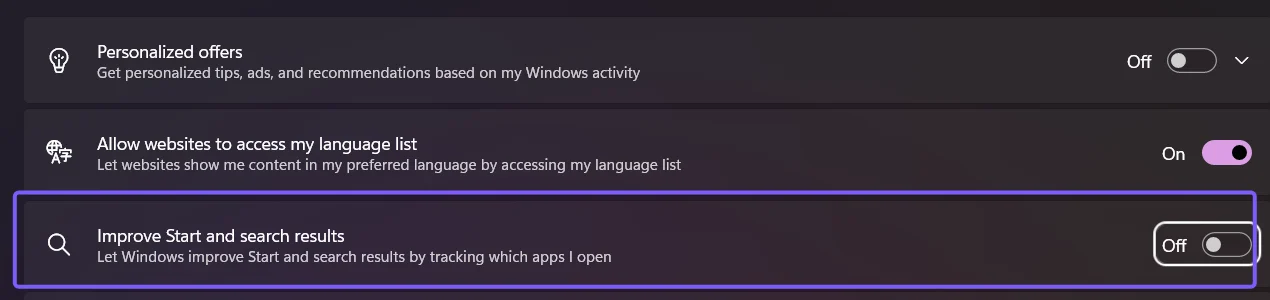
On the reproduced PC, the real Settings control changed from On to Off immediately. The neighboring Personalized offers, language-list, notification, recommendations-in-Settings, and Advertising ID controls kept their existing states.
How do you turn app launch tracking on?
- Return to Settings > Privacy & security > Recommendations & offers.
- Set Improve Start and search results to On.
- Confirm that On appears beside the switch.
The preference applies to the signed-in Windows user. Restoring On allows Windows to use future app launches again for Start and device-search personalization. It does not guarantee that a particular app appears immediately because Windows still decides how to rank and display results.
What does not change when app launch tracking is off?
- Your apps remain installed. The switch changes personalization, not software installation.
- Start still opens and searches. Turning tracking off does not disable the Start menu or Windows Search.
- Advertising ID stays independent. Supported apps can still use it if its own switch is On.
- Other recommendations remain independent. Personalized offers and recommendations in Settings each have separate controls.
- Browser and website history are unaffected. Those products have their own history and privacy settings.
What can you do if the switch is missing or unavailable?
- Install current Windows updates, then reopen Privacy & security.
- Look for either Recommendations & offers or the older General page name.
- Use Settings search for Improve Start and search results.
- If the switch is disabled, check whether the PC is managed by work, school, or another organization.
- Avoid an unsupported Registry workaround when the supported Settings control is available.
Frequently Asked Questions
Does turning off app launch tracking disable Windows Search?
No. Start and Windows Search still work. The switch only controls whether Windows uses app launches to improve Start and device-search results.
Does app launch tracking control the Windows Advertising ID?
No. Advertising ID is a separate switch on the same privacy page. Changing app launch tracking does not change the Advertising ID state.
Do you need to restart after changing app launch tracking?
No. The real Settings control changed immediately on the reproduced PC, and the original On state was restored without a restart.
Why does Microsoft documentation say General instead of Recommendations & offers?
Microsoft says the General privacy page is being replaced by Recommendations & offers in newer Windows 11 versions. The app-launch description identifies the same preference even when the page label differs.
Use the supported privacy switch and keep neighboring settings separate
Open Settings > Privacy & security > Recommendations & offers and change Improve Start and search results. Turn it Off to stop app launches from being used for that personalization, or turn it On to allow the feature. Record the starting state and leave the other privacy switches unchanged unless you intend to adjust them too.
For more Windows 11 tutorials grounded in reproduced steps, stay tuned to WinSides.com.

Community
Comments (0)