

You can view the security products registered with Windows 11 from Windows Security > Settings > Manage providers. The Security providers page groups the current registrations into Antivirus, Firewall, and Web protection cards. It is useful for confirming which product Windows recognizes for each role, but it is not a complete security audit and does not prove that every protection feature is configured correctly.
I reproduced both routes in this guide on Windows 11 Home Single Language, version 25H2, build 26220.7872, with Windows Security app version 1000.29628.1000.0. The tested PC showed Microsoft Defender Antivirus is turned on, Windows Firewall is turned on, and No providers under Web protection. Your names and statuses can differ if another security suite is installed or an organization manages the device.
What should you know before viewing Security providers?
Opening this page is read-only. It does not switch antivirus engines, change firewall rules, install a security app, or alter Windows Security settings. The page also includes a Microsoft Store link, but selecting it would leave the observation-only workflow and is unnecessary for checking current registrations.
Close any confidential work before taking a screenshot. Security software names can reveal products your organization uses, and a full Windows Security window can expose notification badges, device edition, navigation state, or managed configuration. The public image in this guide is cropped to the status cards.
Table of contents
How can you view Security providers from Windows Security Settings?
- Open Windows Security from Start or Windows Search.
- Select Settings at the bottom of the navigation pane.
- Find the Security providers section on the Settings page.
- Select Manage providers.
- Read the Antivirus, Firewall, and Web protection cards without selecting a provider name or the Microsoft Store link.
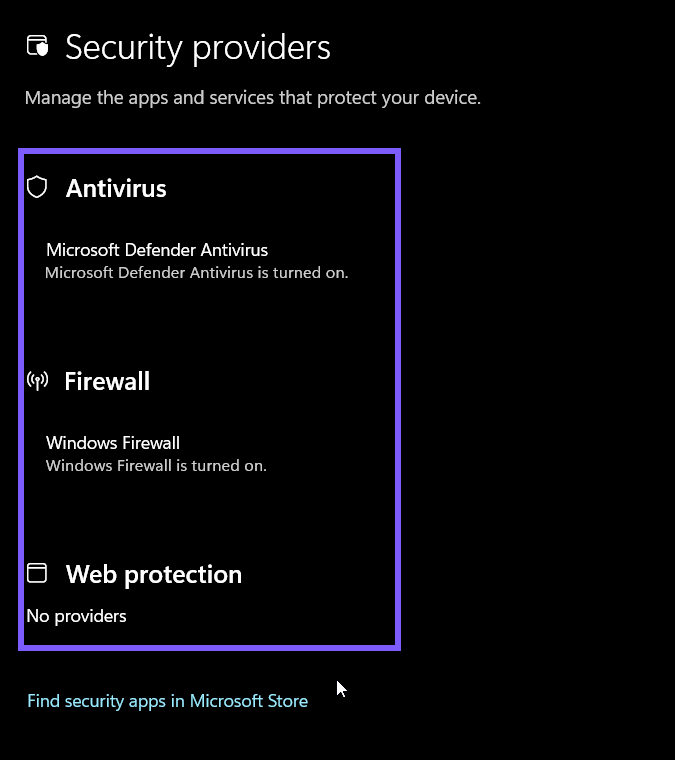
The page title should read Security providers, followed by the description “Manage the apps and services that protect your device.” In the reproduced state, all three cards fit in one view. A different provider name is not automatically an error; interpret the status together with the product you intentionally installed and any administrator policy.
Is there another route to the Security providers page?
Yes. Open Virus & threat protection in Windows Security, find Who's protecting me?, and select Manage providers. I reproduced this alternate path on the same PC and confirmed that it opened the identical Security providers page. This route is convenient when you are already reviewing antivirus status.
If the section is not immediately visible, scroll within Virus & threat protection. Do not select scan, remediation, or provider controls merely to reach it. Layout can vary with window size, Windows Security version, or managed policy.
What does the Antivirus provider card tell you?
The Antivirus card identifies the antivirus product currently registered with Windows Security and displays its reported state. On the tested PC, it named Microsoft Defender Antivirus and said it was turned on. A third-party antivirus can appear instead when it registers with Windows through the supported security-provider interfaces.
Treat this card as a registration summary, not proof that definitions are current, real-time protection is configured as expected, or a recent scan found no threats. Use Virus & threat protection to review the active product's detailed status. Microsoft also documents compatibility behavior in which Defender Antivirus can enter passive or disabled modes when another antivirus product is installed, depending on the device and management configuration.
What does the Firewall provider card tell you?
The Firewall card identifies the registered firewall provider and its reported state. The reproduced page showed Windows Firewall as turned on. That is a useful confirmation, but it does not list every inbound or outbound rule, confirm that each network profile has the intended policy, or validate a router or network firewall.
For profile-specific details, open Firewall & network protection and inspect the active network. Avoid changing profile state or restoring default rules while you are only identifying the provider. Those actions can disrupt connectivity and require a separate, reversible procedure.
What does No providers under Web protection mean?
On the tested Windows 11 installation, the Web protection card displayed No providers. Record that wording exactly, but do not turn it into a broader claim that all web protection is disabled. The provider card reports registered products for this category; it is not a complete inventory of every browser, reputation, network, or SmartScreen protection feature.
Windows Security exposes Microsoft Defender SmartScreen and reputation-based controls separately under App & browser control. Microsoft documents SmartScreen as protection against malicious sites, downloads, apps, and potentially unwanted applications. Therefore, a No providers card by itself is not evidence that SmartScreen is off. Inspect the relevant App & browser control page if that is the question you need to answer.
How can you verify that you reached the correct page?
Confirm the Security providers heading and the three category labels: Antivirus, Firewall, and Web protection. Each card should contain a registered product and status or a message such as No providers. You do not need to open any card to establish the page identity.
If Windows Security instead shows its home dashboard, return to Settings and choose Manage providers again. If the page is hidden or the controls are unavailable on a work or school PC, stop and ask the administrator. Missing controls can reflect policy and should not be “fixed” with Registry edits, service changes, or security-product removal.
What should you do if Windows shows an unexpected provider?
First, compare the displayed name with software you intentionally installed. Then open the provider's supported application from Start—not from an untrusted prompt—to review its status, subscription, and update information. If the name is unfamiliar, preserve a screenshot and check installed-app records before removing anything.
Do not run two active antivirus products merely to make two names appear, and do not uninstall a security suite without its recovery information. Microsoft notes that Defender Antivirus behavior changes when compatible third-party antivirus is installed. On managed devices, the expected provider may be enforced by the organization.
How can you share the provider page safely?
Crop the image to the title and status cards. Remove account details, organization names, device labels, notification badges, and unrelated security alerts. If a third-party provider name is sensitive in your environment, describe the category and status in text instead of publishing the screenshot.
The original ShareX PNG for this article remains private. Its public WebP derivative contains only the page title, explanatory line, three provider cards, and the visible Microsoft Store prompt. The purple outline identifies the evidence region; it does not imply a warning.
Frequently Asked Questions
Does opening Manage providers change my antivirus or firewall?
No. Opening the page only displays registered security providers and their reported status. A change occurs only if you deliberately use another control or provider application.
Why does another antivirus appear instead of Microsoft Defender Antivirus?
A compatible third-party antivirus can register as the active provider. Confirm that it is software you intentionally installed and review its status in the vendor's supported app.
Does No providers for Web protection mean Microsoft Defender SmartScreen is off?
No. The card alone does not establish SmartScreen state. Check the separate App & browser control area for reputation-based protection settings.
Why is Manage providers missing on a work or school PC?
Windows Security layout and availability can be affected by organization policy. Ask the administrator instead of changing policy, services, or installed security software.
Use the page as a registration check
Security providers gives you one concise view of the antivirus, firewall, and web-protection products Windows currently recognizes. Verify the page labels, read each status narrowly, and move to the relevant protection area only when you need configuration details.
For more interesting articles, stay tuned to WinSides.com!

Community
Comments (0)