

You can check a file's digital signature without opening or running the file. In File Explorer, right-click the file, select Properties, and open Digital Signatures. Select the relevant signature and use Details when the button is available. For a text result, PowerShell's Get-AuthenticodeSignature command reports the signature status and whether Windows found an embedded Authenticode signature or a catalog signature.
I reproduced both read-only methods on Windows 11 Home Single Language, version 25H2, build 26220.7872, using C:\Windows\System32\notepad.exe. Properties displayed a Microsoft Windows catalog signature with SHA-256 and a timestamp. The PowerShell result was Valid, Catalog, and IsOSBinary True. The file was never executed, and no certificate, trust store, permission, or setting was changed.
What does a file's digital signature prove?
Microsoft's Authenticode overview explains that a digital signature helps identify the software publisher and verify the integrity of signed code. Windows evaluates the signature and its certificate chain against the current system. If the file changes after signing, its calculated hash no longer matches the signed information.
A valid signature is useful evidence, but it is not a malware scan, download-history record, reputation score, or guarantee that you intended to obtain the file. Microsoft is especially explicit in the SignatureStatus documentation: Valid means the signature is syntactically valid and does not imply trust by itself. Confirm that the signer matches the publisher you expected and that the file came from the correct source.
Table of contents
What should you do before inspecting an unfamiliar file?
Do not double-click the file just to discover its publisher. Keep it in a readable local folder, note the exact filename and source, and use Properties or PowerShell. A normal user can inspect a readable file; elevation was not needed for the tested Windows file. If Windows reports access denied, do not take ownership, change permissions, or copy a protected company file merely to force a result.
This tutorial never installs a certificate, trusts a publisher, imports a root, disables SmartScreen, changes execution policy, or uploads a private binary to a third-party service. Those are materially different actions. Signature inspection should remain an observation step.
How can you check a digital signature in File Explorer?
- Open File Explorer and locate the exact file. Do not open it.
- Right-click the file and select Properties. If the compact menu hides the command, select Show more options first.
- Open the Digital Signatures tab.
- Review every relevant row under Embedded Signatures and Catalog Signatures.
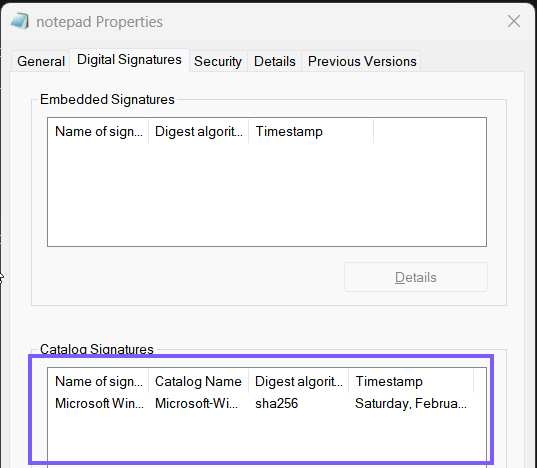
- Select a signature row and choose Details if it is enabled.
- Read the displayed verification message and signer name. Microsoft's current dialog guidance documents messages such as This digital signature is OK and This digital signature is not valid.
- Close every dialog when finished. Do not select an install-certificate or trust action.
A file can contain more than one signature. Inspect the one that applies to the product and publisher you are validating rather than assuming the first row answers everything. The signer should make sense for the file's claimed source: Microsoft Windows was expected for the tested System32 Notepad binary, but it would not be the universal expected signer for third-party software.
What can Signature Details and the certificate tell you?
Microsoft documents opening View Certificate and Certification Path from Signature Details. The path shows the signing certificate and the chain used to reach a root certificate. The signer subject names the publisher represented by the certificate; the issuer identifies the certificate authority or intermediate that issued it. Validity dates describe the certificate, not the file's creation date.
Do not install a displayed certificate to make an error disappear. Changing trusted certificate stores can affect what Windows trusts for the current account or the whole computer. If the signer or chain is unexpected, stop and compare the file with the publisher's official distribution guidance or ask your administrator.
How can you check the signature with PowerShell?
Microsoft documents Get-AuthenticodeSignature as a Windows-only command that retrieves signature information. Run a narrow command in a normal PowerShell window and replace the sample path with the exact file you are checking:
Get-AuthenticodeSignature -LiteralPath 'C:\Windows\System32\notepad.exe' |
    Select-Object Status, StatusMessage, SignatureType, IsOSBinary
-LiteralPath treats the path exactly as typed instead of interpreting wildcard characters. The command reads the file; it does not execute it. On the test PC, it exited with code 0 and returned Valid, “Signature verified,” Catalog, and True. The same file's Properties dialog showed the catalog signer Microsoft Windows and SHA-256.
To inspect a publisher and timestamp certificate without dumping installation paths or unrelated properties, use:
$signature = Get-AuthenticodeSignature -LiteralPath 'C:\Windows\System32\notepad.exe'
$signature.SignerCertificate | Select-Object Subject, Issuer, NotBefore, NotAfter
$signature.TimeStamperCertificate | Select-Object Subject, Issuer, NotBefore, NotAfter
An empty timestamp certificate does not automatically mean malware. It means this check did not return a timestamp certificate. Similarly, a blank signer on an unsigned file is an absence of signature evidence, not proof of malicious intent.
What do the PowerShell signature statuses mean?
Use the exact result instead of reducing every non-Valid outcome to “bad file.” Microsoft defines these statuses:
- Valid: the signature is syntactically valid; it does not itself imply trust or safety.
- NotSigned: no signature was found by this check.
- HashMismatch: the current file hash differs from the value stored with the signature. Treat this as a serious integrity warning.
- NotTrusted: the current system does not trust the publisher's signing chain.
- UnknownError: the file has an invalid signature without a more specific enum result.
- NotSupportedFileFormat: Windows does not know how to sign or verify that file type.
- Incompatible: the signature cannot be verified on the current system.
Unsupported and incompatible are inconclusive, not synonyms for unsigned. Trust can also differ between computers because their trusted roots, policy, network access, and verification context differ. Record the full Status and StatusMessage when asking for help.
What is the difference between embedded and catalog signatures?
An embedded Authenticode signature is stored inside the signed file. A catalog signature is detached: a signed catalog records hashes for one or more files. Microsoft documents both models and describes catalog files as detached signatures. This is why a legitimate Windows binary can be covered by a catalog even when its Embedded Signatures list is empty.
The tested Notepad binary demonstrates the distinction. Its Properties tab showed an empty Embedded Signatures grid and a populated Catalog Signatures grid. PowerShell returned SignatureType Catalog. Microsoft also says that if a file has both an embedded signature and a Windows catalog signature, Get-AuthenticodeSignature reports the catalog signature. Therefore, PowerShell and a shell dialog can emphasize different signature sources without either result necessarily being false.
What if the Digital Signatures tab is missing?
A missing tab is not conclusive proof that a file is fake, unsigned, or malicious. The shell display can depend on file type, signature form, and Windows behavior. Use the PowerShell command and inspect SignatureType plus Status. A catalog result can explain why an individual file does not expose an embedded signature in the way you expected.
If PowerShell returns NotSigned, record that narrow finding. Verify the official source, expected publisher documentation, and file hash if the publisher provides one. Do not solve a missing tab by running the file, bypassing warnings, or importing a certificate.
Why can a signature remain valid after the signer certificate expires?
A trusted timestamp records when a signature was applied. Microsoft's timestamping guidance explains that a correctly timestamped signature can remain verifiable after the signing certificate expires, provided the signature was valid when timestamped and the verification chain remains acceptable.
The local Notepad result illustrates this safely: the Microsoft Windows signer certificate ended on June 17, 2026, while the check on August 14, 2026 still returned Valid and included a Microsoft timestamp certificate. The Properties row showed February 14, 2026 as the catalog timestamp. That date is not the file's creation, download, compilation, or last-modified time, and a timestamp cannot rescue a file whose signed content no longer matches.
How can you share signature evidence safely?
Crop screenshots to the Properties or Signature Details dialog. Exclude Explorer folder paths, usernames, client or project names, unrelated files, terminal history, desktop notifications, and organization-specific certificate identities unless they are essential to the support case. Certificate thumbprints and serial numbers are not private keys, but they can reveal internal PKI details that the reader did not need to publish.
The private ShareX frame used for this article included an unrelated app behind the Properties dialog. The public derivative excludes that entire background and preserves only the Notepad signature UI. Text examples use a generic System32 path and selected fields rather than a broad certificate or file-system dump.
Frequently Asked Questions
Does a Valid result prove the file is safe?
No. Valid reports signature integrity, not malware status, reputation, source, or intent. Confirm the expected publisher and obtain the file from the correct source.
Do I need administrator permission to check a signature?
Not for a file the current user can read. Both tested methods worked without elevation. Do not change permissions merely to force access.
Why is Embedded Signatures empty for a valid Windows file?
The file can be covered by a detached Windows catalog signature. Check Catalog Signatures or PowerShell's SignatureType before drawing a conclusion.
Is the signature timestamp the file's creation date?
No. It records the signing timestamp context, not when you downloaded, copied, compiled, or last modified the file.
Record the signer, status, and signature type together
Use Properties for a visual inspection and PowerShell for an exact text result. Record who signed the file, the complete Status and StatusMessage, and whether SignatureType is Authenticode or Catalog. A valid result strengthens integrity evidence, but source verification and normal Windows security checks still matter.
For more interesting articles, stay tuned to WinSides.com!





Community
Comments (0)