

Windows 11 can use Microsoft's cloud-based speech service to turn spoken words into text for apps and features that rely on online speech recognition. The reversible control is Online speech recognition under Settings > Privacy & security > Speech.
I reproduced the setting on Windows 11 Home Single Language version 25H2, build 26220.7872. The real switch started Off, changed to On, and returned to Off. Windows UI Automation confirmed every state, and the process required neither administrator approval nor a restart.
What does online speech recognition do?
Microsoft distinguishes online speech recognition from device-based recognition. Online recognition uses Microsoft's cloud service to provide speech-to-text capabilities to supported apps. Microsoft says voice typing uses this online technology.
With the switch Off, Windows prevents apps from using Microsoft's online speech-recognition technology. The current Settings page also says that Windows Speech Recognition and other speech services that do not use the online technology can still work. This is therefore not a master microphone switch or a promise that every speech feature will stop.
Table of contents
Where is the online speech-recognition setting?
- Press Windows + I to open Settings.
- Select Privacy & security.
- Select Speech.
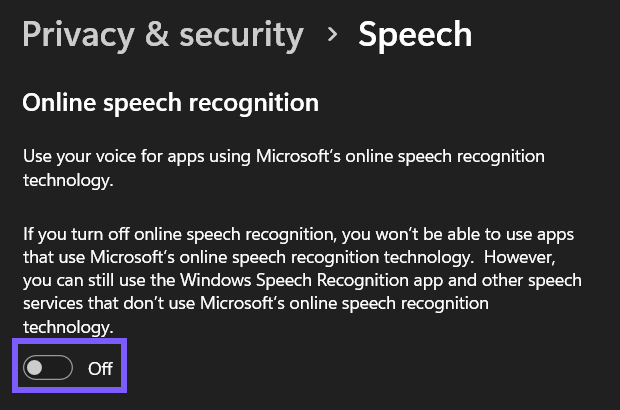
- Find Online speech recognition.
How do you turn online speech recognition on?
- Open Settings > Privacy & security > Speech.
- Read the current state below Online speech recognition.
- Set the switch to On.
- Confirm that On appears beside the switch. You do not need to restart Windows.
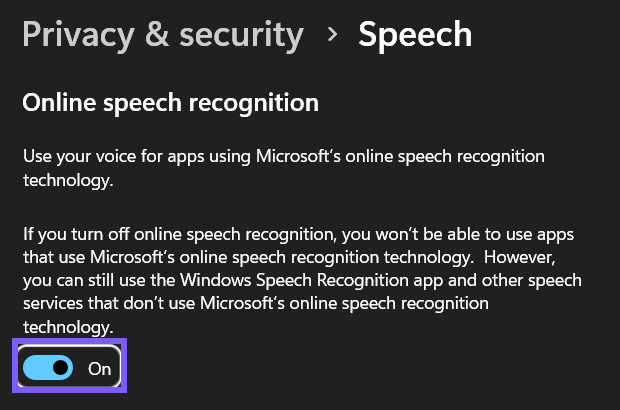
Enabling the setting allows supported apps to use Microsoft's online recognition service. It does not give every app microphone permission automatically; Windows microphone permissions and an app's own controls remain separate.
How do you turn online speech recognition off?
- Return to Settings > Privacy & security > Speech.
- Set Online speech recognition to Off.
- Confirm that Off appears beside the switch.
The reproduced switch changed immediately and returned to its original Off state without a restart. Apps that require Microsoft's online speech-recognition technology will not be able to use that service while it is Off.
What can still work when online speech recognition is off?
- Device-based speech services can remain available. Microsoft says local recognition does not send voice data to Microsoft for online processing.
- Windows Speech Recognition and other non-online services can still work. The current Settings text states this directly.
- Your microphone is not disabled. Microphone access uses separate privacy controls.
- Voice activation permissions are separate. Supported apps have their own voice-activation controls.
- Account privacy data is not cleared by this switch. Review the Microsoft privacy dashboard separately if that is your goal.
Does turning the setting off affect voice typing?
Yes. Microsoft says Windows voice typing uses online speech recognition, so Windows + H speech-to-text depends on the online service. If you want to use voice typing, turn Online speech recognition On and make sure microphone access is also allowed.
How do you restore the original speech setting?
Before testing, note whether the switch is On or Off. Return to the Speech page, set the control back to that value, and read the state label. The reproduced PC started Off, changed to On, and was restored to Off. An independent UI Automation check confirmed the final Off state.
What can you do if the speech switch is missing or unavailable?
- Install current Windows updates, then reopen Privacy & security > Speech.
- Search Settings for online speech recognition.
- If the control is unavailable, check whether a work or school organization manages the PC.
- Review Privacy & security > Microphone separately if a speech app cannot hear you.
- Use the supported Settings switch instead of importing an unverified Registry file.
Frequently Asked Questions
Does turning off online speech recognition disable the microphone?
No. Microphone access is controlled separately. This switch prevents supported apps from using Microsoft's online speech-recognition technology.
Can device-based speech recognition still work when the switch is off?
Yes. Microsoft distinguishes device-based recognition from the online service, and the current Settings page says non-online speech services can remain available.
Does Windows voice typing need online speech recognition?
Yes. Microsoft documents voice typing as using online speech-recognition technology.
Do you need to restart after changing online speech recognition?
No. The reproduced switch changed immediately from Off to On and returned to Off without a restart.
Choose between online and device-based speech processing
Open Settings > Privacy & security > Speech and change Online speech recognition. Turn it On for supported cloud-based speech features such as voice typing, or Off to prevent apps from using Microsoft's online recognition service. Record the starting value first so you can restore it accurately.
For more interesting articles, stay tuned to WinSides.com!







Community
Comments (0)