

You can check the firmware version that Windows 11 currently receives from the PC in System Information or with a focused Win32_BIOS PowerShell query. Both methods are read-only: they do not enter firmware setup, flash an update, change the boot mode, reset UEFI settings, or create an inventory file.
I reproduced both methods on Windows 11 Home Single Language version 25H2, build 26220.7872. The tested laptop reported American Megatrends International, LLC. firmware version G513IH.329 with a release date of March 1, 2023. System Information also reported UEFI as the active BIOS Mode. The public screenshots omit the computer name, user path, serial number, and unrelated device identifiers.
Why does Windows say BIOS on a UEFI computer?
Windows and hardware makers often keep the familiar word BIOS in labels such as BIOS Version/Date and Win32_BIOS even when a current PC starts with UEFI firmware. UEFI is the modern firmware interface used for early hardware initialization and the handoff to the operating-system boot process. The Windows labels do not prove that the machine uses legacy BIOS mode.
System Information provides a separate BIOS Mode row. On the tested laptop, that row said UEFI. Treat the mode and version as different facts: BIOS Mode describes the active firmware boot interface, while BIOS Version/Date identifies the installed firmware release information exposed to Windows.
The broader WinSides guide to checking System Information in Windows 11 covers the general hardware summary. This article stays focused on interpreting the firmware version, release date, SMBIOS version, and mode without making a firmware change.
Table of contents
Method 1: How can you check the BIOS/UEFI version in System Information?
- Press Windows + R to open Run.
- Type
msinfo32, then press Enter. - Select System Summary in the left pane if it is not already selected.
- Find BIOS Version/Date. Read the manufacturer, version string, and displayed date together.
- Check BIOS Mode separately to see whether Windows reports UEFI or Legacy.
- Close System Information when you finish. Reading these rows changes nothing.

The tested BIOS Version/Date row contained the firmware vendor, model-specific version string, and date in one line. The exact punctuation and ordering can vary by manufacturer. Copy the version exactly when comparing it with an official support page; dropping a prefix, suffix, or model code can point to firmware for a different device.
The nearby SMBIOS Version row is not the same field. SMBIOS is a specification Windows uses to receive structured hardware and firmware information. A value such as 3.2 describes the reported SMBIOS specification level, not the laptop firmware release named G513IH.329.
Method 2: How can you check the firmware version with PowerShell?
- Open Windows Terminal or Windows PowerShell as a regular user. The reproduced query did not require elevation.
- Run this focused command:
Get-CimInstance -ClassName Win32_BIOS |
  Select-Object Manufacturer, SMBIOSBIOSVersion,
    @{Name='ReleaseDate';Expression={
      $_.ReleaseDate.ToString('yyyy-MM-dd')
}}- Read Manufacturer, SMBIOSBIOSVersion, and ReleaseDate from the returned block.
- Close the terminal when you finish. The command retrieves and formats values in memory; it does not write a report or modify firmware.
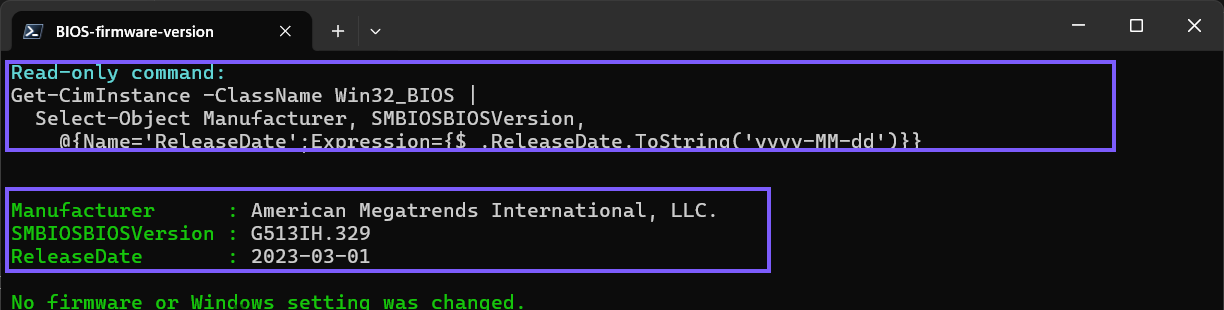
Microsoft documents Get-CimInstance as retrieving a snapshot of instances from a CIM class. The Win32_BIOS reference identifies SMBIOSBIOSVersion and ReleaseDate as read-only properties derived from BIOS information. Selecting only the three useful fields avoids the class's SerialNumber property.
The expression formats a returned date as year-month-day for a compact comparison. If ReleaseDate is empty on a particular device, remove the formatting expression and inspect the raw property, or use System Information. A missing provider value should not be replaced with a guessed date.
How should you compare the two results?
Start with the version string. On the tested laptop, System Information displayed G513IH.329 within BIOS Version/Date, and PowerShell returned G513IH.329 as SMBIOSBIOSVersion. That agreement shows that both Windows views were reading the same firmware-provided version for this device.
Then compare the dates. System Information used the local short-date display 3/1/2023, while the PowerShell formatting displayed 2023-03-01. Those are two representations of March 1, 2023, not different releases. Regional date formats can make an all-numeric date ambiguous, so the ISO-style PowerShell output is useful when recording evidence.
Do not expect every manufacturer to populate every field consistently. A virtual machine can expose virtual firmware, and some physical systems can provide a generic vendor string, an unusual version layout, or no release date. If the two methods disagree, record both exact values privately and consult the correct computer or motherboard manufacturer before drawing a conclusion.
Does the BIOS release date tell you the age of the PC?
No. ReleaseDate belongs to the installed firmware information exposed through SMBIOS. A firmware update can be newer than the computer, and an older firmware date can remain after years of use. It is not a manufacturing date, purchase date, warranty start date, Windows installation date, or proof of how old a motherboard is.
Use a private purchase record, service tag lookup, invoice, or the manufacturer's device-specific support channel when you need production or warranty information. Avoid publishing a device serial number merely to ask whether a firmware date looks old.
How can you verify whether the version is current?
Use the exact computer model for a laptop or prebuilt desktop and compare the installed version with that manufacturer's official support page or update utility. For a custom-built desktop, use the exact motherboard manufacturer, model, and hardware revision. A similarly named board can require a different firmware image.
This article intentionally stops at identification. Do not install a BIOS or UEFI update solely because another version number is larger. Firmware updates are device-specific and can involve power requirements, drive-encryption recovery keys, staged prerequisite versions, reset settings, model restrictions, and recovery procedures. Follow the current manufacturer instructions and make sure you have a real reason and recovery plan before a separate update task.
Windows Update can distribute some system-firmware packages, while manufacturers can also provide their own tools. That does not make a firmware file interchangeable across devices. Verify the publisher, exact model, release notes, and installation path before any future update.
What should you leave out of a shared firmware screenshot?
Share only the fields needed to compare the firmware release. System Information can display the computer name, system model, system SKU, Windows paths, user name, memory details, and other inventory on the same page. PowerShell's Win32_BIOS class also has a SerialNumber property. None of those values is required for the public version check shown here.
The reproduced command deliberately omits SerialNumber, and the PowerShell derivative ends above the user prompt path. The System Information derivative is cropped to the firmware rows. If a trusted manufacturer needs a serial or service tag, provide it through that company's private support channel rather than a public forum or screenshot.
What can you do if a firmware version is missing?
If Run cannot find System Information, enter %SystemRoot%\System32\msinfo32.exe. If Get-CimInstance is unavailable in a third-party shell, open the built-in Windows PowerShell session and run the exact query. Managed devices can restrict CIM access, so use the organization's support path instead of bypassing policy.
If both methods return a blank or generic value, check the device manufacturer's official diagnostic or support application. Restarting Windows can clear a one-time provider problem, but elevation will not manufacture firmware data that the platform does not expose. Do not edit Registry values, WMI data, or SMBIOS tables to make an inventory label look complete.
If only the displayed date looks different, first account for regional formatting and time conversion. Compare the exact version string as the stronger release identifier, then confirm the date in the manufacturer's release notes when available.
Frequently Asked Questions
Is SMBIOS Version the same as the BIOS firmware version?
No. SMBIOS Version describes the reported SMBIOS specification level. BIOS Version/Date or SMBIOSBIOSVersion contains the manufacturer-provided firmware release string.
Do you need administrator rights to check the BIOS version?
No administrator prompt was required for System Information or the focused Win32_BIOS query on the tested Windows 11 laptop. Managed environments can apply different access rules.
Does BIOS Mode UEFI mean the firmware is up to date?
No. UEFI identifies the active firmware boot interface. It does not compare the installed version with the latest release for the device.
Will these methods update or reset the firmware?
No. Both reproduced methods only read information exposed to Windows. They do not enter setup, flash an image, reset settings, or change the boot mode.
Record the exact firmware version without changing it
Use System Information for a graphical BIOS Version/Date and BIOS Mode view, or query Win32_BIOS for a concise manufacturer, SMBIOSBIOSVersion, and ReleaseDate result. Keep the SMBIOS specification level separate from the firmware release, do not treat the release date as the PC's age, and compare the exact version only with the correct manufacturer's device-specific support information.
For more interesting articles, stay tuned to WinSides.com!






Community
Comments (0)