

You can check whether a Windows 11 PC uses the x64 or Arm64 architecture without changing a setting. The clearest graphical answer is the System type row in Settings > System > About. System Information provides another Windows view, and a short PowerShell query can distinguish the operating-system architecture from the architecture of the process that is currently running.
I reproduced all three read-only methods on Windows 11 Home Single Language version 25H2, build 26220.7872. The tested laptop reported a 64-bit operating system on an x64-based processor. PowerShell reported X64 for both the operating system and the current process, while the older environment-variable name used the equivalent AMD64 label. No account, device identifier, product key, serial number, firmware setting, registry value, or system configuration was changed.
What do x64, AMD64, Arm64, and 64-bit mean?
64-bit operating system describes the Windows installation's bitness. Every supported Windows 11 installation is 64-bit; Microsoft does not provide a 32-bit edition of Windows 11. The processor family still matters because Windows 11 is available for conventional x64 PCs and for Arm64 devices.
x64 and AMD64 normally refer to the same 64-bit instruction-set family used by current AMD and Intel PC processors. AMD originally designed the extension, which explains why Windows environment variables and some tools still say AMD64 even on an Intel PC. The label does not mean the computer must contain an AMD-branded processor.
Arm64 identifies 64-bit Windows on Arm hardware. Windows 11 on Arm can run native Arm64 software and can emulate many x64 and x86 applications, but driver, plug-in, security-tool, and virtualization compatibility can still depend on architecture. A download page that offers x64 and Arm64 packages is asking for this processor/Windows family, not merely whether the operating system is 64-bit.
Table of contents
Method 1: How can you read System type in Settings?
- Press Windows + I to open Settings.
- Select System, then select About.
- Expand Device specifications if that section is collapsed.
- Read System type. A typical conventional PC says 64-bit operating system, x64-based processor; an Arm device identifies an Arm64-based processor.
- Close Settings. The Copy button is unnecessary for this check and can place unrelated device details on the clipboard.

Microsoft's current 32-bit and 64-bit Windows guidance directs Windows 11 users to System > About and the System type row. It also confirms that Windows 11 itself is 64-bit only. The second part of the row—x64-based or Arm64-based processor—is therefore the important distinction when selecting architecture-specific software.
Method 2: How can you check System Type in System Information?
- Press Windows + R.
- Type
msinfo32, then press Enter. - Select System Summary in the left pane.
- Find the System Type row. The tested PC displayed x64-based PC.
- Close System Information without exporting or sharing the complete report.

Microsoft describes System Information as a comprehensive view of hardware, components, and the software environment. That breadth is why it is useful, but also why a full-window screenshot can reveal more than an architecture question requires. The separate WinSides guide to checking System Information in Windows 11 explains the broader tool.
Do not confuse System Type with System Model, Platform Role, or the processor's marketing name. Those fields answer different inventory questions. For architecture-specific downloads, the System Type value is the relevant summary.
Method 3: How can you distinguish OS and process architecture with PowerShell?
- Open a standard PowerShell tab in Windows Terminal. Administrator rights are not required for this query.
- Run these read-only expressions:
[System.Runtime.InteropServices.RuntimeInformation]::OSArchitecture
[System.Runtime.InteropServices.RuntimeInformation]::ProcessArchitecture
$env:PROCESSOR_ARCHITECTURE- Use OSArchitecture for the Windows architecture. Use ProcessArchitecture only to understand the current PowerShell host.
- Close the terminal. The expressions read runtime and environment information and create no file.
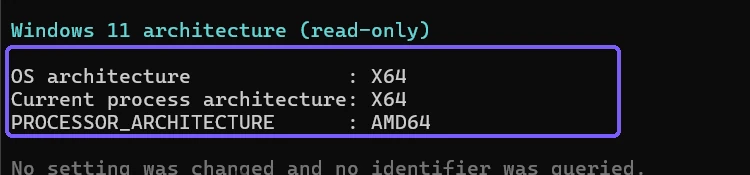
Microsoft documents OSArchitecture as the architecture on which the current operating system is running. ProcessArchitecture can differ when an emulated or architecture-specific process is used. That distinction is especially relevant on Windows on Arm, where an x64 application can run through emulation even though the operating system is Arm64.
Which architecture value should you use for a download?
Prefer the operating-system/processor family requested by the publisher. If a Windows download offers x64 and Arm64, use Settings System type or OSArchitecture. On the tested device, x64 was the correct choice. On a Windows 11 Arm device, Arm64 is normally the best choice when a native build exists.
An application's own About page can report the app build architecture instead of Windows architecture. Task Manager can also identify architecture for some processes, but that is a process-level answer. Do not select an Arm64 installer merely because a product supports Arm in general, and do not assume AMD64 means AMD hardware.
Drivers require more care than ordinary apps. Obtain a driver from Windows Update or the device/computer manufacturer for the exact hardware and Windows architecture. Application emulation does not make an x64 kernel driver compatible with Arm64 Windows.
Why can OSArchitecture and ProcessArchitecture differ?
A process can run with an architecture different from the operating system because Windows supports compatibility layers. A 32-bit process can run on x64 Windows, and Windows 11 on Arm can emulate supported x64 and x86 applications. In those cases, ProcessArchitecture describes the host process while OSArchitecture describes Windows.
The environment variable is inherited by a process and uses historical names. AMD64 corresponds to x64. A 32-bit process on 64-bit Windows can also expose additional variables such as PROCESSOR_ARCHITEW6432. For a simple installation choice, Settings System type remains easier to interpret than combining environment variables.
What should you hide before sharing architecture evidence?
The About page can show the device name, processor, installed RAM, graphics card, storage, device ID, product ID, and account identity. System Information can show the computer name, model, SKU, firmware, motherboard, Windows paths, and security state. A terminal prompt can reveal a user-profile name and current path.
Share only the System type line or the three focused architecture outputs. Do not paste the About page's Copy result into a public forum without reviewing it. The images in this guide use narrow article-specific crops, and the reused System Information raw frame was accepted only after identical Windows build, UI path, read-only state, and privacy context were verified.
What can you do if the methods seem inconsistent?
First compare Settings System type with OSArchitecture, not ProcessArchitecture. Restart the terminal in a normal Windows PowerShell or PowerShell session if a development shell, compatibility environment, or remote session is involved. Confirm that you are reading the local PC rather than a virtual machine or remote computer.
If a download page uses unfamiliar labels, check the publisher's architecture documentation. Common equivalents include x64, x86-64, AMD64, and Intel 64 for the conventional 64-bit PC family. Arm64 and AArch64 refer to the 64-bit Arm family. Do not change firmware or reinstall Windows merely to make the labels match; an architecture mismatch is usually solved by choosing the correct package.
Frequently Asked Questions
Is Windows 11 available as a 32-bit operating system?
No. Microsoft states that Windows 11 is 64-bit only. System type still distinguishes x64-based and Arm64-based processors.
Does AMD64 mean the PC has an AMD processor?
No. AMD64 is a historical name for the x64 instruction-set family and can appear on Intel-based x64 PCs too.
Should you use OSArchitecture or ProcessArchitecture?
Use OSArchitecture to identify Windows. ProcessArchitecture identifies only the current application process and can differ under compatibility or emulation.
Do these checks require administrator rights?
No. Settings, System Information, and the focused runtime expressions worked in a standard user session on the tested laptop.
Use System type for the clearest architecture answer
Open Settings > System > About and read System type when you need to choose between x64 and Arm64 software. System Information provides an independent Windows view, and PowerShell can explain the difference between operating-system and process architecture. Keep 64-bit bitness separate from the processor family, treat AMD64 as the x64 label, and crop unrelated identifiers before sharing evidence.
For more interesting articles, stay tuned to WinSides.com!







Community
Comments (0)