

Windows records the date and time when the operating system was last restarted. PowerShell can read that value from the Win32_OperatingSystem CIM class and calculate the elapsed interval between it and the time of the check. This gives you a precise last-restart timestamp and a useful uptime snapshot without restarting the PC or changing any Windows setting.
I reproduced the check in a regular non-administrator PowerShell window on Windows 11 Home Single Language version 25H2, build 26220.7872. The tested laptop reported a last restart at 8:56:27 AM on August 12, 2026. At 2:46:38 AM the next day, the calculated interval was 17 hours and 50 minutes. The query did not change files, services, Registry values, power settings, sleep, hibernation, Fast Startup, or system availability.
What do last boot time and system uptime mean?
LastBootUpTime is the date and time Windows reports that the operating system was last restarted. The uptime in this guide is the wall-clock interval from that timestamp to a captured check time. It is not an app's running time, a CPU utilization measurement, or a record of how long someone actively used the computer.
Microsoft documents LastBootUpTime as a read-only Win32_OperatingSystem property. This focused workflow complements the broader WinSides guide to checking System Information in Windows 11, which covers general inventory views rather than calculating time since the last restart.
Table of contents
How can you find the last boot time and uptime with PowerShell?
- Open Windows Terminal or Windows PowerShell. Administrator rights were not required on the tested laptop.
- Run the following commands. They read the operating-system instance, capture the current time once, and calculate one consistent interval.
- Read LastBootUpTime, CheckedAt, and the three uptime fields in the result.
$os = Get-CimInstance -ClassName Win32_OperatingSystem
$checkedAt = Get-Date
$uptime = New-TimeSpan -Start $os.LastBootUpTime -End $checkedAt

[pscustomobject]@{
  LastBootUpTime = $os.LastBootUpTime.ToString('yyyy-MM-dd HH:mm:ss zzz')
  CheckedAt      = $checkedAt.ToString('yyyy-MM-dd HH:mm:ss zzz')
  UptimeDays     = $uptime.Days
  UptimeHours    = $uptime.Hours
  UptimeMinutes  = $uptime.Minutes
} | Format-List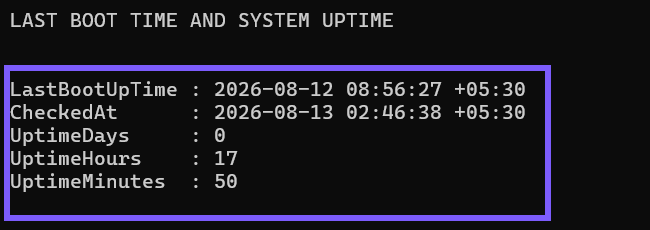
Get-CimInstance retrieves a CIM instance, while New-TimeSpan calculates the interval between two times. Close the terminal when you finish; no rollback is needed.
How should you read the last boot timestamp?
The formatted result uses yyyy-MM-dd HH:mm:ss zzz. The first part is year-month-day, the middle is the 24-hour local time, and the final value is the UTC offset. Showing the offset matters when you copy a result into a support ticket or compare checks made in different time zones.
CheckedAt records when this particular result was calculated. Uptime keeps increasing after that moment, so treat a saved screenshot or pasted result as a snapshot rather than a live counter.
Why can the timestamp predate the most recent shutdown?
With Fast Startup, Windows can close user sessions but save the kernel session to the hibernation file during shutdown. The next start restores that session instead of performing the same full operating-system restart. Microsoft therefore notes that uptime between kernel restarts can be longer than a user expects from ordinary shutdown and power-on events.
A Restart requests a full boot cycle. The published workflow does not restart the PC, change Fast Startup, or try to classify the previous boot. Use the timestamp only for its documented meaning: when Windows reports the operating system was last restarted. Microsoft's system power-state reference explains the Fast Startup distinction.
Do sleep or hibernation reset this uptime?
Sleep and hibernation preserve system state rather than performing a normal restart. Because this guide subtracts the last restart timestamp from the current time, its elapsed interval includes wall-clock time while the computer was asleep or hibernated. It does not measure awake time, active user time, or time spent doing work.
If you need power-transition history, diagnose that separately with an appropriate Windows power or event tool. Do not infer a specific sleep, hibernate, shutdown, or Fast Startup transition from this one timestamp.
How do the uptime fields fit together?
The example displays the interval as separate day, hour, and minute components. Read them together: 2 days, 3 hours, and 14 minutes means one elapsed interval of 2 days and 3 hours, not three independent totals. Seconds are intentionally omitted for a cleaner support-friendly result.
If you rerun the commands, CheckedAt changes and the interval is recalculated. The last restart value should remain the same until the operating system completes another restart.
What are the limits of this check?
The result reflects the current Windows CIM provider and system clock. It does not prove whether a previous power event was a cold start, Fast Startup, wake, or resume. It also does not audit unexpected resets, diagnose boot performance, measure application availability, or guarantee that a remote monitoring product uses the same definition of uptime.
Changing the system clock or time-zone configuration can also make comparisons confusing. This guide includes the check time and UTC offset so the snapshot can be interpreted honestly without modifying either setting.
Frequently Asked Questions
Do you need administrator rights to check the last boot time?
No administrator prompt was required on the tested Windows 11 laptop. A managed computer can impose different permissions for CIM queries.
Does shutting down always reset the reported uptime?
Not necessarily. Fast Startup can preserve the kernel session through a shutdown, so the last-restart timestamp can predate the most recent power-on event.
Does the uptime value exclude sleep time?
No. This calculation is elapsed wall-clock time since the reported restart, so it is not a measurement of awake or active-use time.
Why should you include the check time?
The interval is a snapshot that becomes older immediately. Including CheckedAt makes the saved result interpretable later.
Use the timestamp as a precise restart snapshot
Read LastBootUpTime and calculate one interval against a captured check time when you need a precise, non-invasive restart snapshot. Keep the Fast Startup and sleep limitations in view, and use a separate diagnostic method when the real question is how the computer entered its current power state.
For more interesting articles, stay tuned to WinSides.com!









Community
Comments (0)