

Windows exposes a recorded installation date for the current operating-system object through the read-only Win32_OperatingSystem CIM class. A short PowerShell command can display that value without changing a setting, writing to the Registry, restarting the computer, or requiring administrator rights on the tested PC.
I reproduced the check on Windows 11 Home Single Language version 25H2, build 26220.7872. Treat the result as Windows' recorded date for the current installation—not as the computer's manufacture or purchase date, the activation date, or guaranteed proof of the first time Windows was ever installed on the device.
What should you know before checking the date?
The command works in the Windows PowerShell session available on Windows 11 and reads the local computer by default. You need no download, third-party utility, Registry edit, or administrator window for the reproduced check. On a company-managed PC, policy can restrict access to CIM data; if the query is denied, contact the administrator instead of changing security controls.
Decide what question you are trying to answer before interpreting the result. This date can help document the current Windows installation, compare a PC with a deployment record, or give support staff useful context. It cannot independently prove the hardware's age, the original factory image date, who installed Windows, or whether every later upgrade preserved the same value. Record the Windows edition, version, build, time-zone offset, and collection date beside the result when the distinction matters.
Table of contents
What does the recorded Windows installation date mean?
Microsoft documents Win32_OperatingSystem as the installed Windows operating-system object and lists InstallDate as a read-only date-time property. Microsoft also uses this property in its WMI operating-system task guidance.
The value belongs to the represented Windows installation. It does not identify when the hardware was built, sold, first turned on, or activated. A reinstall, reset, image deployment, or repair installation can change the current installation lineage, and Microsoft does not promise one immutable historical date across every servicing path.
How can you find the recorded Windows 11 installation date with PowerShell?
- Open Windows Terminal or Windows PowerShell. Administrator rights were not required on the tested laptop.
- Run the following command:
(Get-CimInstance -ClassName Win32_OperatingSystem).InstallDate- Read the date and time in the result. PowerShell returns a local
DateTimevalue. - Close the terminal when you finish. No rollback is needed because the query is read-only.
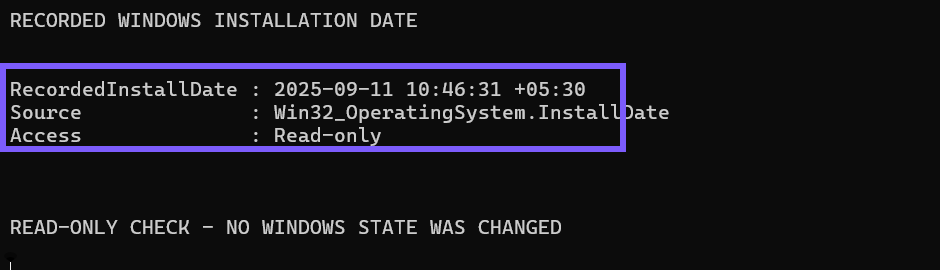
Get-CimInstance retrieves a CIM instance. The command requests only the local Win32_OperatingSystem object and reads its InstallDate property; it does not invoke a reset, repair, update, or installation action.
How should you format the result for a support record?
If you need a clear copy with the local UTC offset, use this read-only formatting command:
(Get-CimInstance -ClassName Win32_OperatingSystem).InstallDate.ToString('yyyy-MM-dd HH:mm:ss zzz')The result is year-month-day, followed by the 24-hour local time and UTC offset. Including the offset prevents ambiguity when someone in another time zone reviews the record.
Why is the date not necessarily the age of the PC?
The operating system can be installed after the hardware was manufactured or purchased. Windows can also be reinstalled later. Microsoft documents installation-media workflows that reinstall Windows while optionally preserving files, apps, and settings, which is why an operating-system installation date should not be presented as a hardware-age certificate.
For the same reason, do not use the value to calculate a warranty period or prove the original factory setup date. Use purchase records, manufacturer warranty data, or deployment records for those separate questions.
Why might another Windows date look different?
Windows and applications expose several dates with different meanings. A feature update, servicing operation, reset, reinstall, app repair, or application update can affect one data source without creating a universal historical timeline. Labels can also be localized.
This guide deliberately uses the documented CIM property and does not claim that every Settings label, file timestamp, Registry field, command output, or application metadata value is interchangeable. If another date differs, first identify what that source actually represents.
What can you check if the command does not return a usable date?
First, confirm that the command was copied into Windows PowerShell or a PowerShell tab in Windows Terminal, not Command Prompt. PowerShell commands use cmdlet names and property access syntax that cmd.exe does not understand. Retype the command if a pasted smart quote, wrapped line, or missing parenthesis caused a parser error.
If PowerShell says that Get-CimInstance is not recognized, verify that you are using the built-in Windows PowerShell environment or a supported PowerShell installation with the CimCmdlets module. Do not substitute the older Get-WmiObject command merely to silence the error; Microsoft identifies Get-CimInstance as the current replacement, and the published result was reproduced with it.
An empty value or access-denied error is not permission to edit the Registry or repair Windows. Close the terminal, retry in a fresh standard PowerShell session, and note the exact error. On a managed device, ask the administrator whether CIM access is restricted. When the property is available but disagrees with an inventory system, preserve both values and their source names rather than choosing the older-looking date without provenance.
Which methods should you avoid for this check?
- Do not use the creation date of the
Windowsfolder as authoritative proof; files and directories can be restored, migrated, or replaced. - Do not infer the installation date from activation status. Activation and operating-system installation are different events.
- Do not query Win32_Product. Microsoft warns that it can trigger Windows Installer consistency checks and possible repair activity, and it concerns MSI products rather than the Windows operating-system install date.
- Do not edit the InstallDate Registry value. This tutorial is a read-only inspection, not a metadata-change procedure.
How is this different from last boot time?
The installation date describes the current operating-system object's recorded installation. The last boot time describes when Windows reports that the operating system was most recently restarted. The WinSides guide to finding the last boot time and system uptime in Windows 11 covers that separate, much more frequently changing timestamp.
Frequently Asked Questions
Does the recorded installation date show when the PC was manufactured?
No. It belongs to the represented Windows operating-system installation, not to the manufacture, sale, or first-use date of the hardware.
Is the installation date the same as the Windows activation date?
No. Installation and activation are different events, and this command reads the operating-system object's InstallDate property rather than activation records.
Can a reinstall or reset affect the recorded date?
It can establish a new current Windows installation. Microsoft does not guarantee one immutable InstallDate across every reset, reinstall, repair, image-deployment, or feature-upgrade path.
Do you need administrator rights to read the date?
No administrator prompt was required on the tested Windows 11 laptop. Managed computers can impose different permissions for CIM queries.
Use the date as a current-installation record
Read Win32_OperatingSystem.InstallDate when you need Windows' recorded date for the current operating-system installation. Keep its scope precise, include the local time-zone offset in support records, and use separate evidence for hardware age, purchase, activation, deployment, and last restart questions.
For more interesting articles, stay tuned to WinSides.com!







Community
Comments (0)