

Windows 11 does not have a one-click Task Scheduler command that exports every registered task as a list. The safest built-in options are to run schtasks /query and save its verbose output as CSV, or use Get-ScheduledTask with Export-Csv when you want a smaller set of columns. Both methods are read-only with respect to the registered tasks.
I reproduced both exports in a standard Windows 11 Home Single Language session on version 25H2, build 26220.7872. The commands created new private CSV files but did not run, register, enable, disable, or modify a scheduled task. The full files were kept private because task names and paths can reveal installed software, organizational tooling, or personal automation.
What should you know before exporting the list?
A CSV list is an inventory, not a restorable backup. It can help you compare computers, review states, or record what Windows currently reports. It does not preserve every trigger, action, security descriptor, stored credential, task history entry, or folder permission in a form that Task Scheduler can import.
Task Scheduler can export one selected task as XML. That is useful when you need the definition of a specific task, but the graphical interface does not provide a single Export All command for the complete library. For a whole-machine list, use one of the two methods below.
- Choose a new output filename. Command Prompt's > redirection replaces an existing file with the same name.
- Save to a private folder you control. Do not upload the result until you have reviewed every row.
- Start in a standard session. If the result is incomplete or access is denied, retry only when you are authorized to use an administrator session.
- Do not change a task's Enabled setting or use Run while gathering an inventory.
You can open Task Scheduler first to understand where the registered definitions live. Press Windows + R, type taskschd.msc, and press Enter. Expand Task Scheduler Library only for inspection; you do not need to select or alter a task.
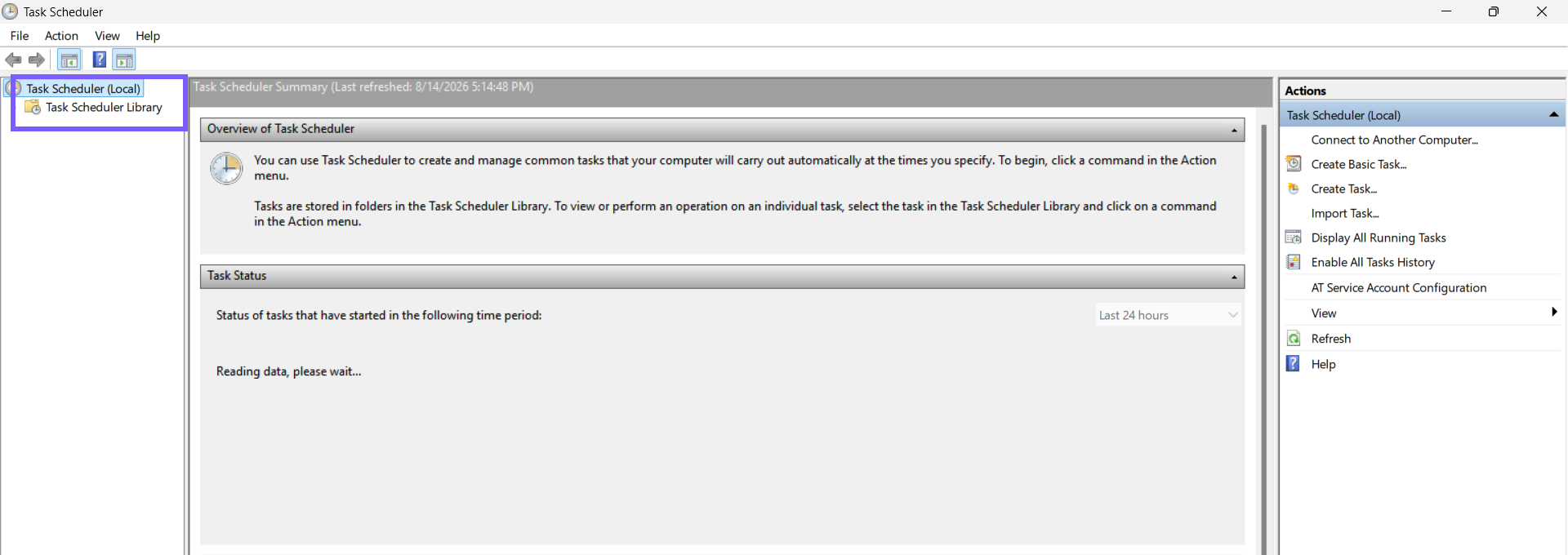
Table of contents
Method 1: How can you export the list with schtasks?
Microsoft documents schtasks /query as the operation that displays scheduled tasks. The /fo csv option formats the output as comma-separated values, while /v requests verbose properties. Redirection sends that text to a file instead of leaving it only in the console.
- Create or choose a private folder for the export, and confirm that scheduled-tasks-schtasks.csv does not already exist there.
- Open Command Prompt or a Command Prompt tab in Windows Terminal. An administrator session is not required for the first attempt.
- Change to the private folder, then run:
schtasks /query /fo csv /v > "scheduled-tasks-schtasks.csv"- Wait for the prompt to return. A successful redirection can finish without printing a completion message.
- Confirm that the new CSV exists and has a nonzero size before closing the console.
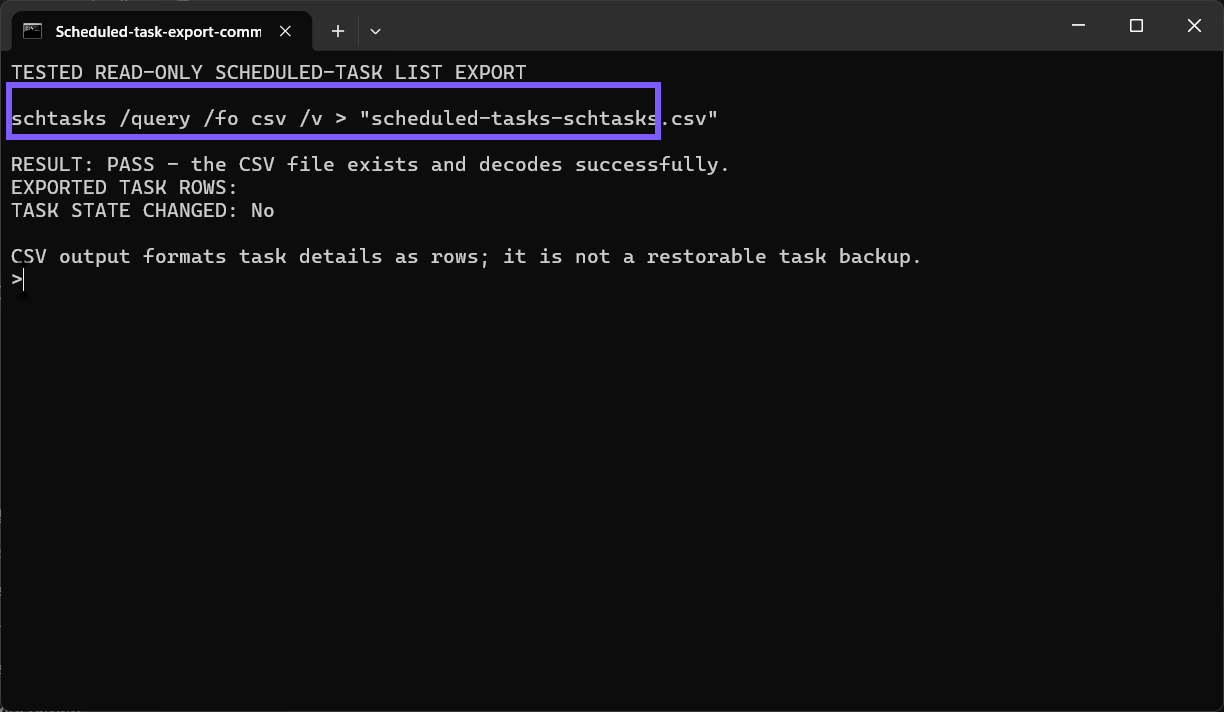
Verbose schtasks output contains many columns, including the host name, task name, next and last run information, status, logon mode, schedule details, and task action. The exact header text can vary with the Windows display language. Treat the complete CSV as potentially sensitive because a task action can disclose program paths, script locations, arguments, or network destinations.
How can you verify the schtasks CSV safely?
Verification should answer three questions: did the file decode as CSV, does it have headers, and does it contain data rows? You do not need to publish or copy the full output. In PowerShell, the following read-only check imports the file, reports the number of rows, and shows only a few selected fields locally:
$rows = Import-Csv -LiteralPath .\scheduled-tasks-schtasks.csv
$rows.Count
$rows | Select-Object -First 5
The public evidence below is not the complete export. It is a separately generated privacy-safe preview containing eight real Microsoft-owned task rows from the reproduced machine, with only generic fields retained. User-created, third-party, organization-specific, host, and action values were excluded from the public derivative.
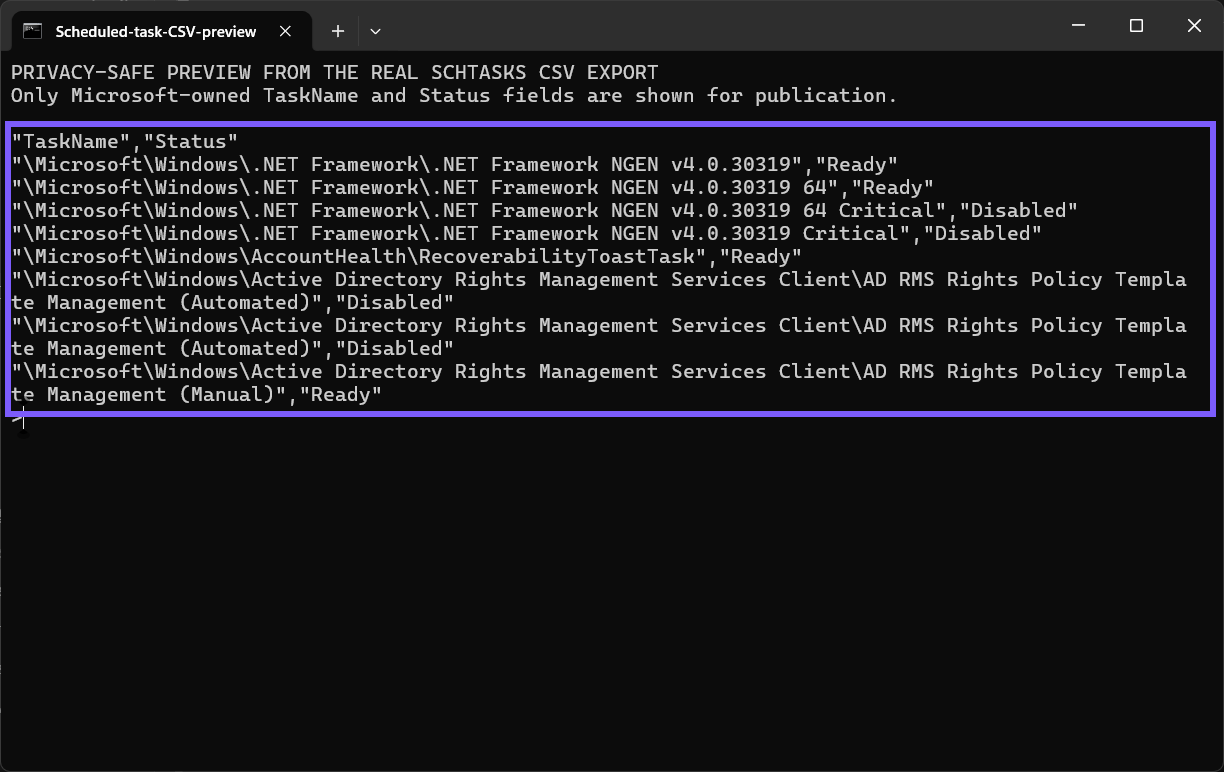
If you need to compare two computers, select the same stable columns on both before comparing. Next-run time and last-run result can change between exports, so differences in those fields do not necessarily mean a task definition changed.
Method 2: How can you export selected fields with PowerShell?
Get-ScheduledTask retrieves registered scheduled-task definition objects. PowerShell is the better choice when you want a concise inventory rather than every verbose schtasks field. Selecting properties before Export-Csv also makes the file easier to review.
- Open a standard PowerShell or Windows PowerShell tab in Terminal.
- Go to a private folder and confirm that scheduled-tasks-powershell.csv is a new filename.
- Run this command:
Get-ScheduledTask |
  Sort-Object TaskPath, TaskName |
  Select-Object TaskPath, TaskName, State |
  Export-Csv -LiteralPath .\scheduled-tasks-powershell.csv `
-NoTypeInformation -Encoding utf8- Verify the saved objects without altering any task:
$rows = Import-Csv -LiteralPath .\scheduled-tasks-powershell.csv
$rows.Count
$rows | Select-Object -First 5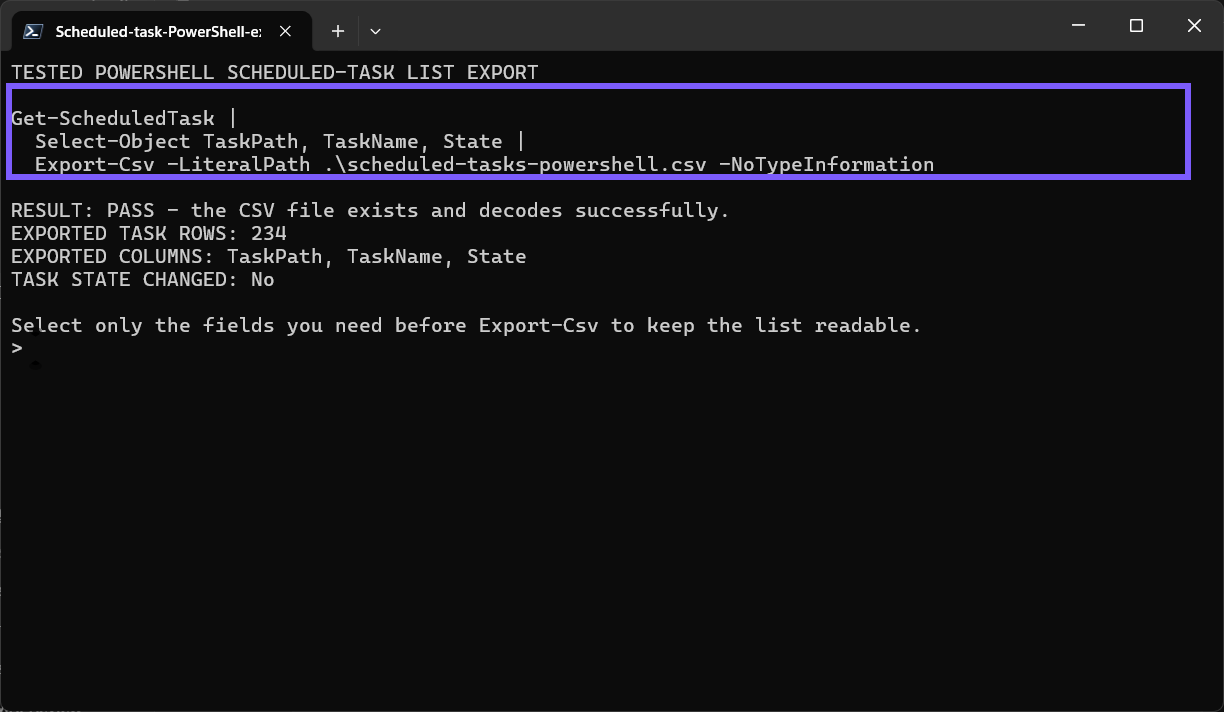
-NoTypeInformation is included for compatibility with Windows PowerShell 5.1, where it prevents a type-information line from being written above the headers. -Encoding utf8 makes the output choice explicit. You can add other properties only after inspecting the objects and deciding that the extra information is useful and safe to store.
The PowerShell and schtasks row counts do not have to match. On the reproduced PC, the verbose schtasks export contained 293 data rows while Get-ScheduledTask returned 234 objects. The tools expose and represent registered-task information differently, and permissions can also affect what a session sees. A count difference alone is not proof that tasks are missing or damaged.
Which export method should you use?
- Use schtasks /query /fo csv /v when you need a broad snapshot that includes scheduling and run-status fields in one output.
- Use Get-ScheduledTask when you want a deliberately small, consistently ordered set of object properties.
- Use Task Scheduler's single-task Export action or PowerShell's Export-ScheduledTask only when you need an XML definition for a particular task.
If the export is incomplete and you administer the PC, first check whether your account is an administrator or standard user. Use elevation only when authorized; it can reveal protected definitions, but it does not turn a CSV list into a restorable backup.
What can you do if the export is empty or incomplete?
- Check the current folder. A relative filename is saved in the shell's present working directory. Use Get-Location in PowerShell or cd in Command Prompt to confirm it.
- Keep quotes around paths with spaces. For an absolute target, quote the entire filename and use -LiteralPath in PowerShell.
- Look for an access error. Retry in an administrator session only if you own or administer the PC and need visibility into protected definitions.
- Expect localized schtasks headers. Scripts that refer to English header names can fail on another display language. PowerShell property names are usually more predictable for automation.
- Do not reuse a valuable filename. The schtasks redirection operator and Export-Csv can replace an existing target. Choose a dated or otherwise new filename, then preserve any prior inventory separately.
When you finish, close Task Scheduler and Terminal. Keep the CSV in a protected location if it is part of an audit; otherwise, delete only the newly created export after confirming you no longer need it. Neither cleanup choice requires changing a registered task.
Frequently Asked Questions
Is a scheduled-task CSV a complete backup?
No. It is an inventory. A restorable definition also involves XML details such as triggers and actions, and some operational information, credentials, permissions, and history are not captured as an importable whole-library backup.
Do you need administrator rights to export the list?
Not for the first attempt. Both reproduced commands ran in a standard session. An authorized administrator session can be necessary when protected task folders or definitions are not visible to the current account.
Why do schtasks and PowerShell return different row counts?
The commands expose and represent scheduled-task information differently, and permissions can affect visibility. The reproduced counts were 293 and 234, but those numbers are evidence for one PC, not a universal expected total.
Can you export one scheduled task as XML?
Yes. Select the task in Task Scheduler and use Export, or use Export-ScheduledTask in PowerShell. Review the XML before sharing it, and remember that credentials, access-control context, and run history require separate consideration.
Export the smallest useful scheduled-task inventory
Use schtasks when you need a verbose CSV snapshot and PowerShell when selected properties are enough. Verify the new file locally, protect it as sensitive inventory, and avoid treating it as a complete backup. Both reproduced approaches preserve the scheduled-task state because they query definitions without running or modifying them.
For more interesting articles, stay tuned to WinSides.com!









Community
Comments (0)