

Windows 11 can report both the media type and storage bus type for physical disks that its Storage providers can see. These are separate properties: HDD and SSD describe storage media, while NVMe describes a storage interface. A typical NVMe solid-state drive therefore appears as SSD under MediaType and NVMe under BusType.
I reproduced this check on Windows 11 Home Single Language version 25H2, build 26220.7872, from a regular non-administrator PowerShell window. The provider returned three physical disks. Two reported SSD and NVMe; one USB device reported an Unspecified media type. The command changed no disk, volume, partition, file, driver, firmware, Registry value, service, or storage setting.
What is the difference between HDD, SSD, and NVMe?
HDD means hard disk drive, which stores data on spinning magnetic media. SSD means solid-state drive, which stores data in flash or another non-mechanical medium. NVMe is not a media category; it is a storage bus/protocol used by many modern SSDs.
Microsoft's MSFT_PhysicalDisk definition documents MediaType as a read-only property with values such as Unspecified, HDD, SSD, and SCM. It separately documents BusType values including SATA, USB, RAID, Storage Spaces, and NVMe. Reading both columns prevents the common mistake of treating SSD and NVMe as competing labels.
Table of contents
How can you check MediaType and BusType with PowerShell?
- Open Windows Terminal or Windows PowerShell. The reproduced check did not require administrator rights.
- Run the following read-only command.
- Read MediaType and BusType together for each DeviceId.
Get-PhysicalDisk |
  Sort-Object DeviceId |
  Format-Table DeviceId, MediaType, BusType -AutoSize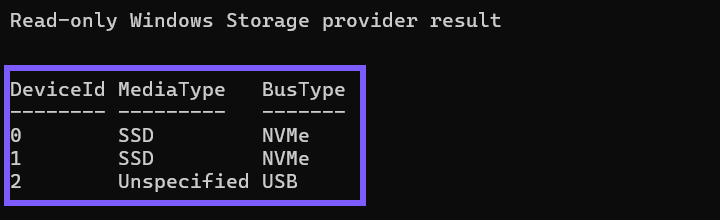
Close the terminal when you finish. No rollback is required because Get-PhysicalDisk retrieves physical-disk objects; the reproduced command does not call Set-PhysicalDisk or any disk-changing operation.
How should you interpret the results?
- SSD + NVMe: Windows reports solid-state media connected through an NVMe storage bus. DeviceId 0 and DeviceId 1 produced this combination on the tested laptop.
- SSD + SATA: The provider reports solid-state media using a SATA bus. It is still an SSD, but it does not use NVMe.
- HDD + SATA: The provider reports a mechanical hard drive on a SATA bus.
- Unspecified + USB: Windows can identify the USB connection but the provider does not declare whether the underlying media is HDD, SSD, or another type.
DeviceId is a provider-local identifier, not a drive letter. One physical disk can contain several partitions and volumes, so do not expect DeviceId values to match C, D, or another volume letter.
Why can MediaType say Unspecified?
Unspecified means the Storage provider did not supply one of the documented media classifications. It does not prove that the device is an HDD, an SSD, damaged, unsupported, or empty. USB bridges, RAID controllers, virtual disks, older drivers, and vendor storage stacks can all change what Windows exposes.
Do not initialize, format, update firmware, replace a driver, or change a provider attribute just to remove the word Unspecified. If the exact hardware type matters, use current documentation or a diagnostic tool from the computer, controller, enclosure, or drive manufacturer. Keep serial numbers and unique device identifiers private when sharing results.
Can an SSD use SATA instead of NVMe?
Yes. SSD describes the media, while SATA and NVMe describe different storage connections. A SATA SSD can correctly appear as SSD and SATA. An NVMe SSD can correctly appear as SSD and NVMe. Capacity alone does not identify either interface.
The bus result can also describe the controller or abstraction that Windows sees. For example, a disk behind RAID or Storage Spaces may report that layer instead of the device's native connection.
Does USB tell you whether a drive is an HDD or SSD?
No. USB in BusType identifies the reported connection, not the storage medium inside the enclosure. An external USB device can contain a mechanical HDD, a SATA SSD behind a bridge, an NVMe SSD in an enclosure, or removable flash media.
If your goal is to disconnect external storage, first finish active file operations and use the supported Windows removal workflow described in the safe USB and external-drive eject guide. A BusType result does not prove that all writes have finished or that unplugging is safe at that moment.
What are the limits of this check?
Get-PhysicalDisk lists objects visible across available Storage Management Providers. A disk hidden behind a controller, presented as a virtual device, or omitted by a driver may be absent or generalized. The result is a provider snapshot, not a benchmark, health guarantee, serial-number lookup, or complete hardware inventory.
The reproduced command intentionally requests only DeviceId, MediaType, and BusType. It does not display the friendly name, model, serial number, firmware version, unique ID, physical location, health counters, temperature, or file-system details. That restrained output is enough for the queue intent and avoids exposing unnecessary device information.
Frequently Asked Questions
Do you need administrator rights to run this check?
No administrator prompt was required on the tested Windows 11 laptop. A managed computer or particular Storage provider can impose different access limits.
Does NVMe always mean the drive is an SSD?
NVMe is a bus type, so read MediaType as the provider's media classification. On the tested PC, both NVMe devices also reported SSD.
Does Unspecified mean the drive is failing?
No. Unspecified means the provider did not report HDD, SSD, or another documented media value. Check health separately and use vendor guidance when the exact medium matters.
Will the command reveal a model or serial number?
Not in the reproduced form. The selected columns omit friendly names, models, serial numbers, firmware, unique IDs, and physical locations.
Read the media and bus types together
Use the read-only Get-PhysicalDisk view to compare MediaType and BusType for each disk that Windows can see. Treat HDD or SSD as the provider's media classification, treat NVMe, SATA, USB, or another value as the reported connection, and do not guess when the provider returns Unspecified.
For more interesting articles, stay tuned to WinSides.com!





Community
Comments (0)