

You can find a Windows 11 motherboard's manufacturer, product, and version in System Information or with a focused Win32_BaseBoard PowerShell query. Both methods read information supplied by the computer's firmware. They do not open the case, change UEFI settings, update the BIOS, install software, or require an administrator prompt on the tested laptop.
I reproduced both methods on Windows 11 Home Single Language version 25H2, build 26220.7872. System Information and PowerShell returned the same baseboard manufacturer, product, and version. The public screenshots deliberately omit the motherboard serial number, Windows computer name, user name, and terminal prompt path because none of those identifiers is needed to answer the model question.
What should you know before checking the motherboard?
Windows and hardware documentation often use motherboard, baseboard, and system board for the main board inside a PC. Microsoft's Win32_BaseBoard documentation describes that class as representing a baseboard, also known as a motherboard or system board. The words refer to the same inventory target in this guide.
A motherboard product is not always the same as the retail computer model. A laptop maker can use a board identifier that resembles the notebook model, while a custom-built desktop can report the board maker and product directly. The broader computer model describes the complete system. If that is the value you need for a support page, use the separate guide to check System Information in Windows 11.
Keep the scope narrow before you share any result:
- Manufacturer identifies the organization recorded as producing the physical baseboard.
- Product is the baseboard product or part designation supplied by the manufacturer.
- Version is the version recorded for the physical board. It is not the BIOS version.
- SerialNumber can identify one physical board and is intentionally excluded from the public workflow.
Table of contents
Method 1: How can you find motherboard details in System Information?
- Press Windows + R to open Run.
- Type msinfo32, then press Enter.
- Select System Summary in the left pane if it is not already selected.
- In the Item column, locate BaseBoard Manufacturer, BaseBoard Product, and BaseBoard Version.
- Copy only the fields you need, then close System Information. The page is read-only, so there is nothing to undo.

Microsoft documents msinfo32 as the command that opens System Information for a comprehensive view of local hardware, system components, and the software environment. The tested BaseBoard rows appeared in the default System Summary; no export or report file was needed.
If the list is long, click inside the right pane and scroll until the BaseBoard rows appear. Do not confuse System Manufacturer and System Model with the BaseBoard fields directly below the firmware rows. The former describe the complete computer, while the latter describe the motherboard information supplied to Windows.
Method 2: How can you find motherboard details with PowerShell?
- Open a standard Windows PowerShell or PowerShell tab in Windows Terminal.
- Run this focused command:
Get-CimInstance -ClassName Win32_BaseBoard |
Select-Object Manufacturer, Product, Version- Read the returned block. If the computer exposes more than one baseboard instance, PowerShell can return more than one row or block.
- Close the terminal when you finish. The query only reads the selected properties and creates no file or persistent setting.
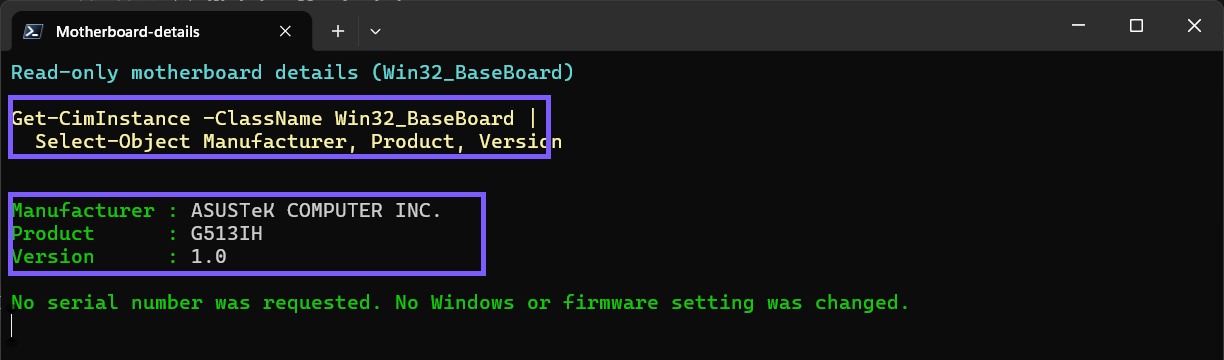
Get-CimInstance retrieves CIM class instances and returns a snapshot of what the local provider reports. Microsoft's Win32_BaseBoard reference documents Manufacturer, Product, and Version as read-only properties. Selecting only those fields keeps the output relevant and reduces the chance of sharing an unnecessary identifier.
How should you interpret the three motherboard fields?
Start with Manufacturer and Product together. A product label by itself can be short or reused across vendors. On the tested laptop, Windows reported ASUSTeK COMPUTER INC. as the manufacturer and G513IH as the product. Those values came from the firmware provider; they were not inferred from the Windows edition or the device name.
Version describes the version value attached to the physical baseboard record. The tested board reported 1.0. Do not treat that value as a BIOS release. System Information has a separate BIOS Version/Date row, and the two values answer different questions. A firmware update can change the BIOS version without changing the motherboard's hardware version.
Use the exact manufacturer and product spelling when searching for a board manual, specification, memory compatibility list, or support page. For a laptop or prebuilt desktop, begin with the complete computer maker's support site because its motherboard can be an OEM-specific design. A generic retail-board search can lead to unrelated firmware or drivers even when a product string looks similar.
Why might the motherboard result be blank or generic?
Windows can only display what the device manufacturer placed in the relevant firmware structures. A field can therefore be blank, contain a placeholder, or show a broad system-product label. That does not prove the board is damaged, counterfeit, or missing. It means the current firmware data does not supply a more useful value through this interface.
Compare System Information and the focused PowerShell query. If both return the same generic wording, repeating the query in an administrator window is unlikely to manufacture a missing value. Check the original invoice, system manual, service label, or the computer manufacturer's private support tool instead. On a desktop you built yourself, the product may also be printed on the board, but shut down and follow the hardware maker's safety instructions before opening a case.
Do not edit WMI data, Registry values, SMBIOS tables, or UEFI settings merely to make an inventory label look friendlier. Those changes do not turn a placeholder into verified hardware identity and can create a misleading support record.
Should you include the motherboard serial number?
Win32_BaseBoard also exposes a read-only SerialNumber property, but it is a manufacturer-allocated identifier for the physical element. It is not required to find the manufacturer, product, or version. Leave it out of screenshots, forum posts, and public support requests unless a trusted manufacturer explicitly needs it in a private support channel.
If you must retrieve it for an authorized warranty workflow, add SerialNumber only in a private session, verify the recipient, and do not paste the result into a public issue. A serial number can be useful for service, but publishing it adds privacy risk without improving a general motherboard-model lookup.
Which motherboard lookup method should you use?
- Use System Information when you prefer a graphical page and want to compare BaseBoard fields with nearby system and firmware information.
- Use PowerShell when you need a concise, copyable result with only the three selected properties.
- Use the computer maker's official support tool when both Windows methods return a generic value and you need a device-specific service record.
- Use the motherboard maker's documentation only after confirming that the reported product belongs to the exact board in the computer.
Neither Windows method verifies physical revision markings that a manufacturer chose not to expose through firmware. Treat the result as a current software inventory view, not as a substitute for a service manual, component inspection, or manufacturer confirmation.
What can you do if a method does not work?
If Run cannot find msinfo32, enter %SystemRoot%\System32\msinfo32.exe in Run. If PowerShell says that Get-CimInstance is not recognized, open the built-in Windows PowerShell session and retry the exact command. A managed computer can restrict WMI or CIM access, so follow the organization's support process rather than bypassing a policy.
If PowerShell returns no instance or reports a provider error, restart Windows once and test again before changing anything. A one-time provider failure is different from a consistently blank firmware field. Record the exact error and Windows build for support, but remove device names, user paths, serial numbers, and other unrelated identifiers from any screenshot.
If the two methods disagree, save the exact three values from each method privately and consult the computer or board manufacturer. Do not install a BIOS update solely to force the labels to match. Firmware updates have separate compatibility, power, recovery, and warranty considerations and are outside this read-only identification task.
Frequently Asked Questions
Is a baseboard the same as a motherboard?
Yes for this Windows inventory task. Microsoft describes Win32_BaseBoard as representing a baseboard, also known as a motherboard or system board.
Do you need administrator rights to find motherboard details?
No administrator prompt was required for System Information or the focused PowerShell query on the tested Windows 11 laptop. Managed devices can enforce different access rules.
Is BaseBoard Version the same as the BIOS version?
No. BaseBoard Version describes the physical-board record, while BIOS Version/Date identifies the installed firmware release reported in a separate field.
Why does the motherboard product match the laptop model?
An OEM can use a related product identifier for both the system family and its custom board. Confirm the complete computer model before choosing laptop drivers or firmware.
Use focused firmware-provided motherboard fields
Open System Information for a graphical view or query Win32_BaseBoard for a concise result. Read Manufacturer, Product, and Version together, keep the hardware version separate from the BIOS version, and expect some manufacturers to supply generic values. Omit the serial number from public evidence and confirm ambiguous results through the correct computer or board maker.
For more interesting articles, stay tuned to WinSides.com!






Community
Comments (0)