

Windows 11 can show the current connection speed negotiated by a Wi-Fi or Ethernet adapter in connected-network Settings, the classic adapter Status dialog, or PowerShell with Get-NetAdapter. These views read the active link; they do not run an internet speed test, change the network profile, disable an adapter, reset networking, or modify Speed & Duplex.
I reproduced all three methods in a standard Windows 11 Home Single Language session on version 25H2, build 26220.7872. The connected Wi-Fi link changed while the screenshots were captured: Settings displayed 292/390 Mbps for receive/transmit, the Status dialog displayed 351.0 Mbps, and PowerShell later displayed 390 Mbps. That variation is useful evidence—Wi-Fi can renegotiate its link rate between snapshots. None of those numbers is a promise of identical download throughput.
What is the difference between link speed and internet speed?
Link speed is the connection rate currently negotiated between the network adapter and the next local network device. For Wi-Fi, that is normally the wireless access point or router. For Ethernet, it is normally a switch or router port. The value reflects the local link and is often shown in Mbps or Gbps.
An internet speed test measures data transferred to and from a remote test server. Its result can be lower than link speed because Wi-Fi protocol overhead, interference, signal quality, other devices, router performance, Ethernet uplinks, the internet plan, congestion, server capacity, VPNs, security software, and application behavior all affect end-to-end throughput.
Do not use link speed alone to prove that an internet service provider is delivering a particular rate. It is most useful for checking whether the adapter negotiated an expected local tier—for example, whether a wired link reports 1 Gbps instead of 100 Mbps, or whether a Wi-Fi link changes when the computer moves closer to the access point.
Table of contents
Method 1: How can you check link speed in Windows Settings?
- Right-click the network icon on the taskbar and select Network and internet settings. You can also open Settings > Network & internet.
- Select Properties for the currently connected network. For Wi-Fi, you can select Wi-Fi, then the connected network.
- Scroll through the properties until you reach Network band (channel) and Aggregated link speed (Receive/Transmit).
- Read the receive and transmit values, then close Settings. Do not select Edit beside IP or DNS assignment; no change is needed for this check.
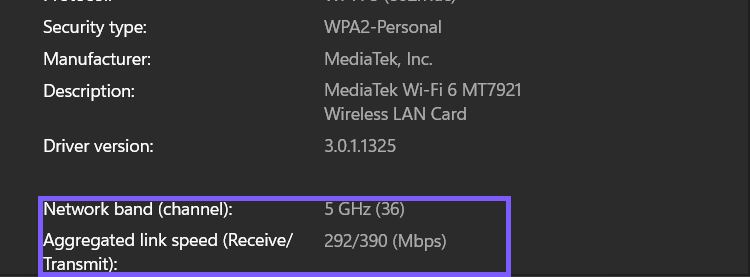
Microsoft's network Settings guidance identifies the connected network's Properties page as the place to inspect connection details. Windows can show two Wi-Fi rates because receive and transmit do not have to negotiate the same value. Some builds or adapter types can use different wording or present one rate.
The same page can contain the network name, IP addresses, DNS servers, gateway, and physical address. Those values are not necessary for a link-speed question. Review and crop a screenshot before sharing it; the published derivative above deliberately omits them.
Method 2: How can you check Speed in the adapter Status dialog?
- Press Windows + R, type ncpa.cpl, and press Enter to open Network Connections.
- Double-click the connected Wi-Fi or Ethernet adapter. You can also right-click it and choose Status.
- Read Speed in the Connection section. Duration shows how long that adapter connection has remained active.
- Select Close. Do not select Disable, Diagnose, Wireless Properties, or the shielded Properties button for this read-only check.
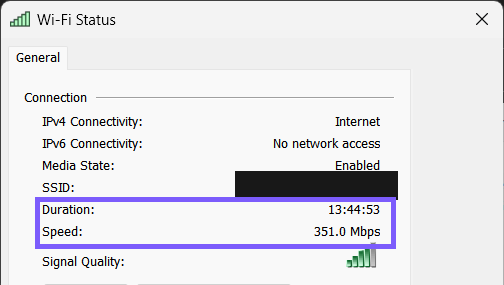
Microsoft uses ncpa.cpl as the direct route to Network Connections in current Windows troubleshooting documentation. The Status dialog does not send traffic to measure the internet connection. It reports the adapter's current connection state and a single displayed speed value.
An Ethernet Status dialog commonly shows tiers such as 100 Mbps, 1.0 Gbps, or 2.5 Gbps when the adapter, cable, and other port negotiate that rate. A Wi-Fi value is more likely to change while the connection is active. Read the field as a snapshot, not a fixed hardware maximum.
Method 3: How can you check active adapter LinkSpeed with PowerShell?
- Open a standard Windows PowerShell or PowerShell tab in Windows Terminal.
- Run this read-only command:
Get-NetAdapter |
  Where-Object Status -eq 'Up' |
Select-Object Name, InterfaceDescription, Status, LinkSpeed- Match the adapter Name to the connection you are using. LinkSpeed is the current value Windows reports for that visible active adapter.
- Close the terminal when you finish. The pipeline reads and formats properties; it does not call Enable-NetAdapter, Disable-NetAdapter, Restart-NetAdapter, Set-NetAdapterAdvancedProperty, or a reset command.
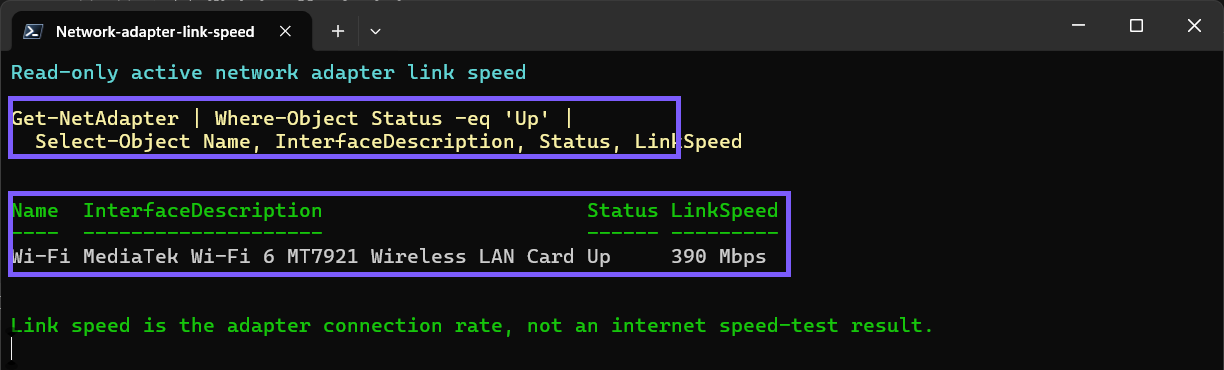
Microsoft documents Get-NetAdapter as returning basic properties for visible network adapters. Filtering for Status -eq 'Up' keeps the result focused on currently active links. Remove that filter only when you need to inspect disconnected adapters too, and do not interpret a disconnected adapter's capability or stale display value as an active connection rate.
The reproduced command did not require an administrator prompt. A managed device can impose different PowerShell policies. If a support workflow asks you to use an elevated session, first understand whether your Windows account is an administrator or standard user and follow the organization's authorization rules.
Why can the three link-speed values be different?
Wi-Fi adapters can renegotiate transmit and receive rates as radio conditions change. Signal strength, access-point distance, obstacles, channel width, network band, interference, roaming, power management, driver decisions, and access-point load can affect the displayed rate. The three screenshots in this guide were taken minutes apart, so 292/390, 351.0, and 390 Mbps are not a claim that the tools disagree at the same instant.
Settings also displayed separate aggregated receive and transmit values, while the classic Status dialog and the default LinkSpeed property each displayed one number. Different presentation models can therefore produce different-looking results even when every surface is functioning normally.
For a useful comparison, record the method, time, adapter, band, and location. Repeat the same method several times without moving the computer or changing network settings. A consistent Ethernet downgrade from 1.0 Gbps to 100 Mbps warrants checking the entire wired path; a changing Wi-Fi value can simply reflect normal radio adaptation.
How should you interpret Ethernet and Wi-Fi link speed?
For Ethernet, the negotiated speed cannot exceed the slowest supported part of the link. The network adapter, cable quality and category, wall jack, dock, USB adapter, switch port, router port, and configuration can all matter. A 2.5 GbE adapter connected to a 1 GbE port should normally negotiate no more than 1 Gbps.
For Wi-Fi, the link rate is a radio-layer value, not usable payload throughput. The protocol shares airtime and carries management, encryption, acknowledgment, and retransmission overhead. Receive and transmit can also differ. A device can show a strong link rate while remote internet performance is limited elsewhere.
Do not change an adapter's Speed & Duplex advanced property merely to make a number higher. Automatic negotiation is the normal default for modern Ethernet. A forced setting that does not match the other side can cause performance or connectivity problems. Use adapter, computer, switch, or router documentation before changing an advanced property.
What can you do if LinkSpeed is missing, zero, or lower than expected?
First confirm that the adapter is connected. PowerShell filters for Status Up because a disconnected Ethernet or Bluetooth adapter does not have an active link to measure. In Settings, make sure you opened the properties of the currently connected network rather than a saved but disconnected Wi-Fi profile.
For Wi-Fi, move closer to the access point and repeat the same method. Check the displayed band and channel, but do not publish the network name or address details. For Ethernet, reconnect both cable ends and test a known-compatible cable and port if you are authorized to do so. Avoid resetting the network stack during an inventory check because that can interrupt connectivity and remove saved configuration.
If a previously stable wired link suddenly negotiates at a lower tier, review recent driver, dock, cable, and switch changes. If no adapter appears, use Device Manager or the computer manufacturer's support process to confirm that Windows detects the hardware. Do not install an unknown driver utility or disable security controls solely to obtain a different displayed rate.
Which network details should you keep private?
A link-speed question normally needs only the adapter name or description, Status, LinkSpeed, and perhaps the Wi-Fi band. Connected-network pages and dialogs can also expose an SSID, IP addresses, DNS servers, default gateway, physical address, account identity, traffic byte counts, and organization-specific connection names.
Crop or redact those unrelated values before posting a screenshot. The PowerShell command in this guide intentionally avoids Get-NetIPConfiguration, Get-NetConnectionProfile, physical-address properties, and WLAN interface details. Share the minimum evidence needed to explain the link-rate issue.
Frequently Asked Questions
Is LinkSpeed the same as internet speed?
No. LinkSpeed describes the local adapter connection. Internet throughput also depends on the router, wider network, service plan, congestion, remote server, and protocol overhead.
Why does Settings show two Wi-Fi link-speed numbers?
Settings can show separate aggregated receive and transmit values. Wi-Fi does not have to negotiate the same rate in both directions.
Do you need administrator rights to run Get-NetAdapter?
No administrator prompt was required for the focused read-only query on the tested laptop. Managed devices can apply different PowerShell policies.
Why does Wi-Fi LinkSpeed change while you are connected?
The adapter can renegotiate its radio rate as signal, interference, band, distance, channel conditions, power state, and access-point behavior change.
Treat connection speed as a current local-link snapshot
Use connected-network Settings for receive/transmit detail, the adapter Status dialog for a quick graphical value, or Get-NetAdapter for a focused active-adapter inventory. Keep link speed separate from internet-test throughput, expect Wi-Fi snapshots to vary, avoid changing adapter settings during the check, and remove private network details before sharing evidence.
For more interesting articles, stay tuned to WinSides.com!








Community
Comments (0)