

You can check which Wi-Fi radio standards a Windows 11 adapter supports with the built-in netsh wlan show drivers command. Look for Radio types supported: values such as 802.11ac, 802.11ax, or 802.11be describe capabilities reported by the installed wireless driver. To see the standard used by the current connection instead, read Protocol in Settings or the Radio type line from netsh wlan show interfaces.
I reproduced all three read-only checks on Windows 11 Home Single Language version 25H2, build 26220.7872. The tested MediaTek adapter reported 802.11b, a, g, n, ac, and ax support. Its current 5 GHz connection used 802.11ac, commonly called Wi-Fi 5. That difference is expected: an adapter can support a newer standard than the router, band, channel, driver, or current connection is using. None of these checks changed the Wi-Fi profile, connection, password, driver, network band, or adapter state.
What is the difference between supported and current radio types?
Supported radio types are the Wi-Fi standards the active adapter and its installed driver advertise to Windows. This is the useful line when you want to know whether the PC can work with 802.11ax or 802.11be. It does not promise that every band, channel width, security mode, or regional feature of that generation is available.
Current radio type is the standard negotiated for the connection that is active now. It can be lower than the adapter's maximum. For example, the tested adapter supported 802.11ax but connected to the current access point with 802.11ac. A router set to an older mode, signal conditions, band selection, channel width, power settings, or the installed driver can influence the negotiated link.
The familiar generation names map broadly as follows: 802.11n is Wi-Fi 4, 802.11ac is Wi-Fi 5, 802.11ax is Wi-Fi 6 or Wi-Fi 6E depending on band support, and 802.11be is Wi-Fi 7. Older 802.11a, b, and g entries are compatibility standards. Seeing 802.11ax alone does not prove that the adapter supports the 6 GHz band required for Wi-Fi 6E.
Table of contents
Method 1: How can you see the current Wi-Fi protocol in Settings?
- Connect to the Wi-Fi network you want to examine.
- Press Windows + I to open Settings.
- Select Network & internet, select Wi-Fi, then open the properties page for the connected network.
- Scroll to the properties list and read Protocol. You can also note Network band (channel) because it helps explain the negotiated standard.
- Close Settings without changing the IP, DNS, security, or random hardware address options.
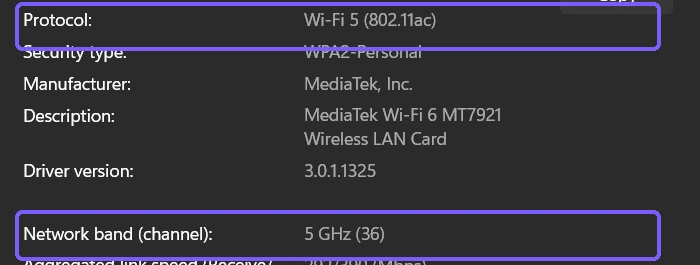
This view answers what the current connection is using, not the adapter's highest supported radio type. It is the quickest graphical check and requires no command. If the page shows a protocol such as Wi-Fi 5 while the driver check lists 802.11ax, Windows is reporting two different but compatible facts.
Method 2: How can you list all supported radio types with netsh?
- Open a standard Windows Terminal or PowerShell window. Administrator rights are not required.
- Run this read-only command:
netsh wlan show drivers- Find the wireless adapter you intend to use, then read Radio types supported.
- Use the newest listed standard as the driver's reported maximum generation, while remembering that band and feature support need separate confirmation.
- Close the terminal. The command reads driver capabilities and creates no report file.

Microsoft's Wi-Fi generation guidance uses this same command and field to check supported radio types. The installed driver participates in the result, so an outdated, generic, or missing vendor driver can prevent a capability from appearing even when the underlying adapter model is capable of it.
Method 3: How can you verify the current radio type with netsh?
- Keep the PC connected to the Wi-Fi network you want to inspect.
- Open a standard terminal and run
netsh wlan show interfaces. - Read State, Channel, and Radio type. The Radio type line is the negotiated standard for that interface.
- Compare it with Radio types supported from the driver query. A lower current value is not automatically a fault.
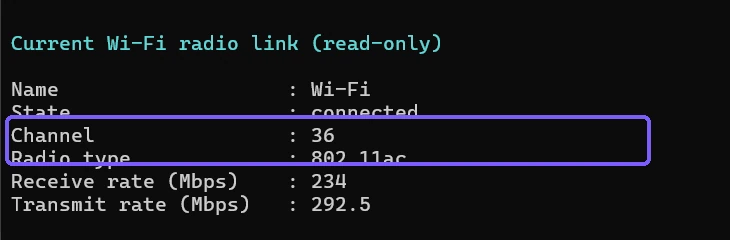
The full command normally returns sensitive network and adapter details. Review the output before pasting it into a forum or support ticket. In this guide, the command output was filtered before capture so the public image never contained the network name, access-point address, device address, authentication details, or profile name.
How should you interpret b, g, n, ac, ax, and be?
The list is a set of IEEE 802.11 families, not a speed test. 802.11b and g are older 2.4 GHz standards; 802.11a is associated with 5 GHz; 802.11n can operate on 2.4 or 5 GHz; 802.11ac is primarily 5 GHz; 802.11ax covers Wi-Fi 6 behavior and can also be used for 6 GHz Wi-Fi 6E hardware; and 802.11be is the Wi-Fi 7 generation. Backward compatibility explains why a modern adapter can list several older entries.
Do not infer a precise maximum Mbps value from the newest label. Throughput depends on the number of spatial streams, channel width, modulation, band, signal quality, interference, router capabilities, driver, and network traffic. The receive and transmit rates reported by Windows are negotiated link rates, not guaranteed internet speeds.
If you are diagnosing performance rather than capability, compare the current protocol and band with the adapter's supported list, then check signal quality. The WinSides guide to checking Wi-Fi signal strength in Windows 11 covers that separate measurement.
Does 802.11ax prove that the PC supports Wi-Fi 6E?
No. Wi-Fi 6 and Wi-Fi 6E both use the 802.11ax standard, but Wi-Fi 6E extends it into the 6 GHz band. A Radio types supported line ending in 802.11ax confirms the standard family; it does not by itself confirm 6 GHz radio support. Check the adapter manufacturer's exact model specification and the Windows network-band information.
A complete 6 GHz connection also requires a compatible router or access point, an appropriate Windows version and driver, supported regional settings, and the required security configuration. If the PC connects on 5 GHz with 802.11ax, it is using Wi-Fi 6 rather than proving Wi-Fi 6E operation.
What can you do if no supported radio types appear?
If netsh wlan show drivers reports that there is no wireless interface, confirm that the PC actually has a Wi-Fi adapter and that it is enabled in Device Manager. On a desktop, Wi-Fi may be optional. In a virtual machine or remote environment, Windows may see only a virtual Ethernet adapter.
If the adapter appears but expected standards are missing, install the correct signed driver through Windows Update or the PC or adapter manufacturer's support channel. Do not use an unrelated driver merely because its version number is newer. Restart Windows after a legitimate driver update, then run the command again.
If the supported list is modern but the current radio type remains older, check the router's supported generation, band, channel width, and compatibility settings. Move closer to the access point and reconnect normally. Avoid deleting a working Wi-Fi profile, resetting the network stack, or changing router security just to make the label increase. Those are separate, disruptive troubleshooting steps and are not needed for the inventory check.
What should you remove before sharing Wi-Fi evidence?
A Wi-Fi properties page can expose the account, SSID, IP addresses, DNS configuration, adapter description, driver version, and network details. The full netsh wlan show interfaces output can include the SSID, BSSID, physical address, profile, authentication and cipher, and other information that can identify a device or network.
Crop the Settings view to Protocol and Network band, and copy only the Radio types supported line from the driver output. Never share a saved Wi-Fi profile with a clear-text key. If your real goal is password recovery on your own network, follow a focused local procedure such as finding a Wi-Fi password in Windows 11, and do not publish the result.
Frequently Asked Questions
Which command shows supported Wi-Fi radio types in Windows 11?
Run netsh wlan show drivers in a standard terminal and read Radio types supported for the relevant wireless adapter.
Why does Windows show 802.11ac when the adapter supports 802.11ax?
The current connection can negotiate an older standard than the adapter supports because of the router, band, channel, signal, settings, or driver. The two values answer different questions.
Is 802.11ax Wi-Fi 6 or Wi-Fi 6E?
It can describe either. Wi-Fi 6E is 802.11ax extended to the 6 GHz band, so the radio-type label alone does not prove 6 GHz support.
Do the radio-type checks require administrator rights?
No. Settings and both focused netsh queries worked in a standard user session, and none changed the connection or adapter.
Compare the supported list with the current connection
Use netsh wlan show drivers to find every radio type the installed adapter driver reports. Use Settings Protocol or netsh wlan show interfaces to identify the standard negotiated right now. Keep 802.11ax separate from proof of 6 GHz support, do not treat a generation label as a speed guarantee, and remove network identifiers before sharing evidence.
For more interesting articles, stay tuned to WinSides.com!








Community
Comments (0)