

A Windows 11 PC can connect over the 2.4 GHz, 5 GHz, or 6 GHz Wi-Fi band, depending on the router, adapter, signal conditions, and negotiated connection. To check the band in use now, open the connected network's properties and read Network band (channel). This is different from checking every band that the wireless adapter supports.
This guide also provides a privacy-safe command-line check. The raw wireless-interface report contains identifiers that should not appear in a public screenshot, so the reproduced command keeps only radio type, band, channel, and signal. Nothing here reconnects Wi-Fi or changes the adapter's preferred band.
What the Wi-Fi band tells you
A band is a frequency range used by the active wireless link. In common home networks, 2.4 GHz generally travels farther and passes through obstacles more readily, while 5 GHz usually offers more channel capacity at shorter range. 6 GHz adds more spectrum for compatible Wi-Fi 6E and Wi-Fi 7 equipment. Those are useful tendencies, not a guarantee of speed on a particular PC.
The active band describes the connection at the moment you inspect it. A dual-band or tri-band adapter can still be connected on only one band. With Wi-Fi 7 Multi-Link Operation, Windows can report more than one band for the connection. Microsoft documents that behavior on its Wi-Fi technology overview.
Table of contents
Check Network band (channel) in Settings
Open Start and select Settings.
Select Network & internet, then Wi-Fi.
Open the properties for the Wi-Fi network that is currently connected.
Find Network band (channel).
You can start at the Wi-Fi page with this Settings URI from a normal PowerShell or Run window:
Start-Process 'ms-settings:network-wifi'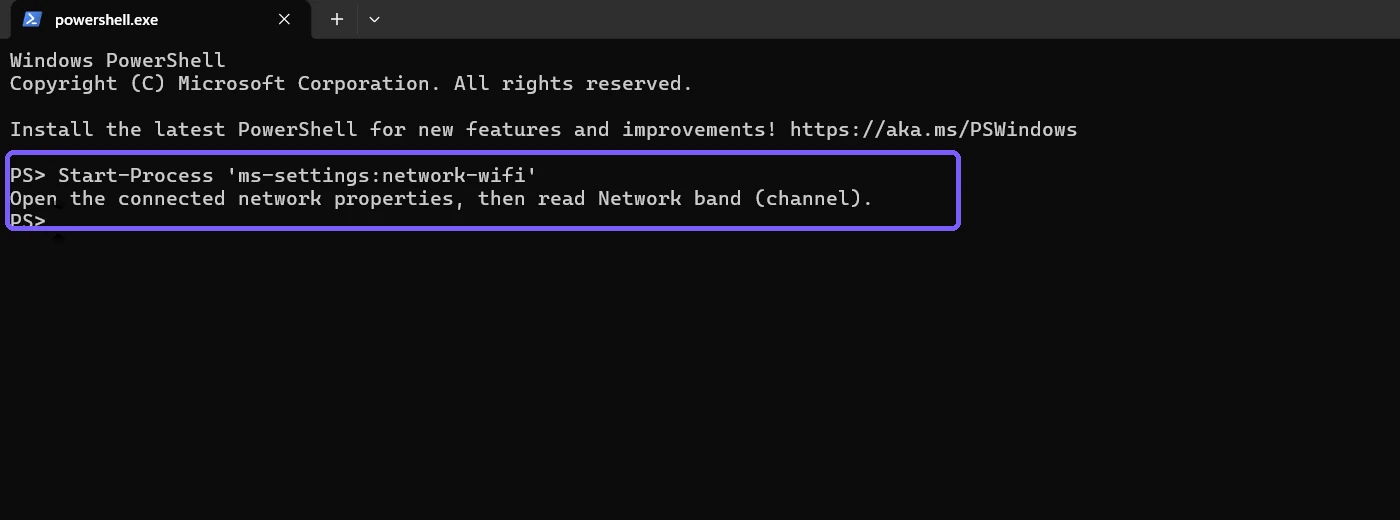
The exact layout can vary with the Windows build and adapter. Look inside the properties of the active connection rather than the list of available networks. Do not select another network merely to produce a different band result.
Run a privacy-safe command check
Microsoft documents netsh wlan show interfaces as a display command supported on Windows 11. Its complete output can include the SSID, BSSID, interface GUID, physical address, and profile name. Those values are not necessary for identifying the band.
Open Windows PowerShell as a standard user and filter the output to the useful field names:
netsh wlan show interfaces | Select-String 'Radio type|Band|Channel|Signal'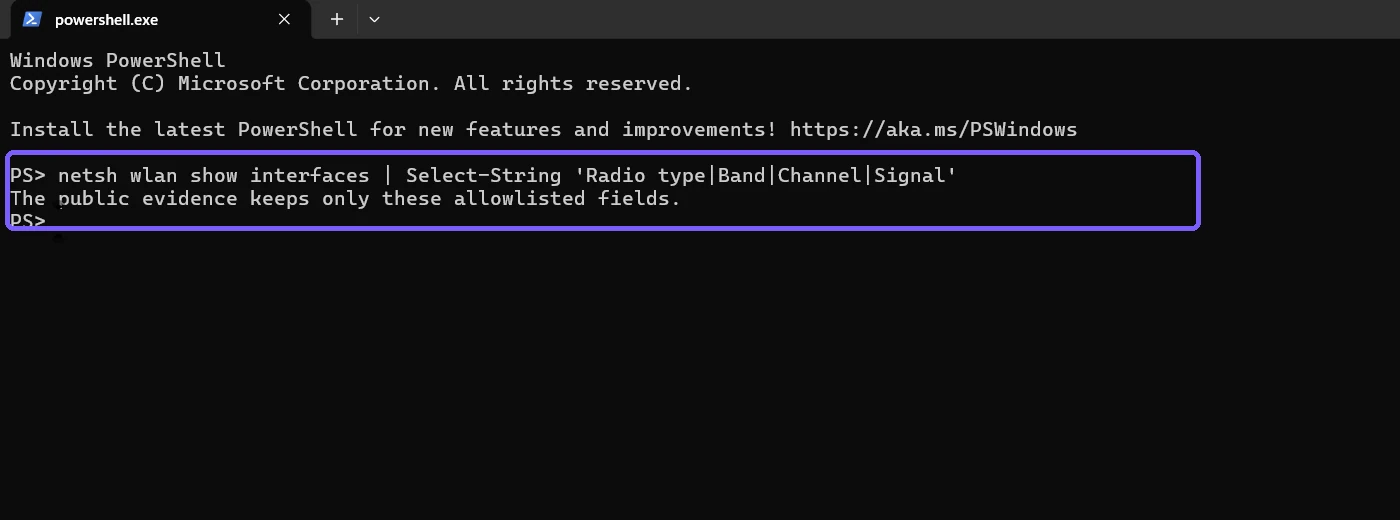
This command reads the existing connection. It does not scan for visible network names, disconnect the adapter, alter a profile, or change a preference. If no wireless interface is connected, there may be no active band to report.
Interpret the radio type and channel
The tested PC reported radio type 802.11n and channel 11. Channel 11 in that reproduced 802.11n connection is in the 2.4 GHz band. The evidence view intentionally discards all identifying fields before printing the result.
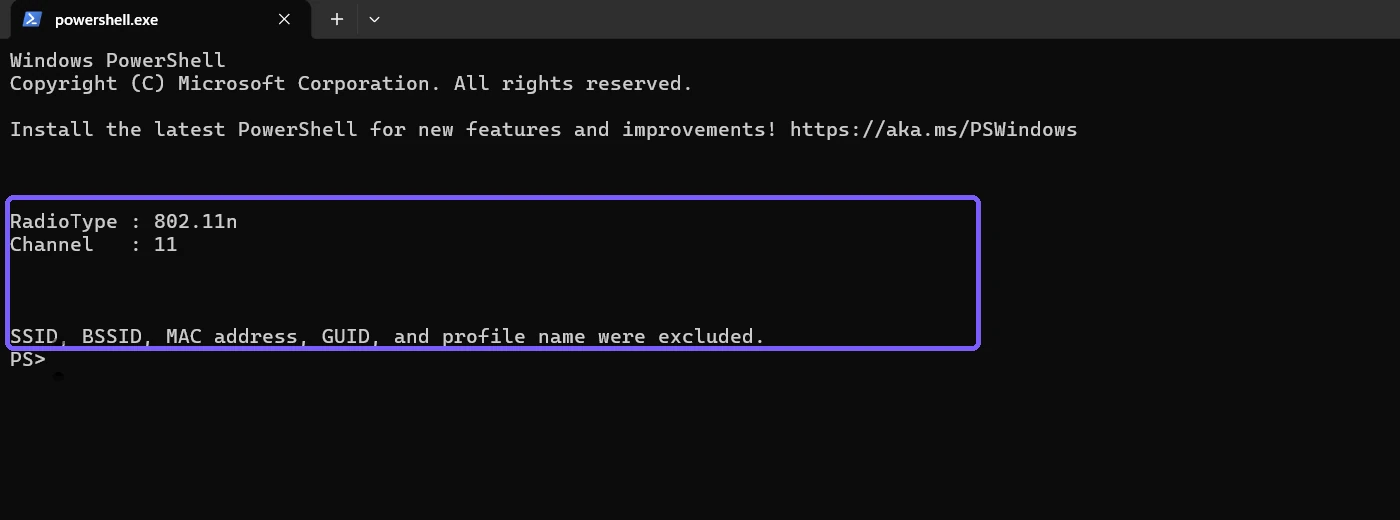
Do not use a radio-type label alone to infer every capability of the adapter. For example, an adapter capable of several standards can negotiate an older standard with a particular access point. Similarly, channel numbering can overlap across modern bands, so the explicit Band or Network band (channel) value is preferable when Windows provides it.
Confirm the observed band
For the reproduced connection, the combination of 802.11n and channel 11 was reported as 2.4 GHz. The signal percentage is included only as a momentary observation; it is not part of the band decision and can change from second to second.
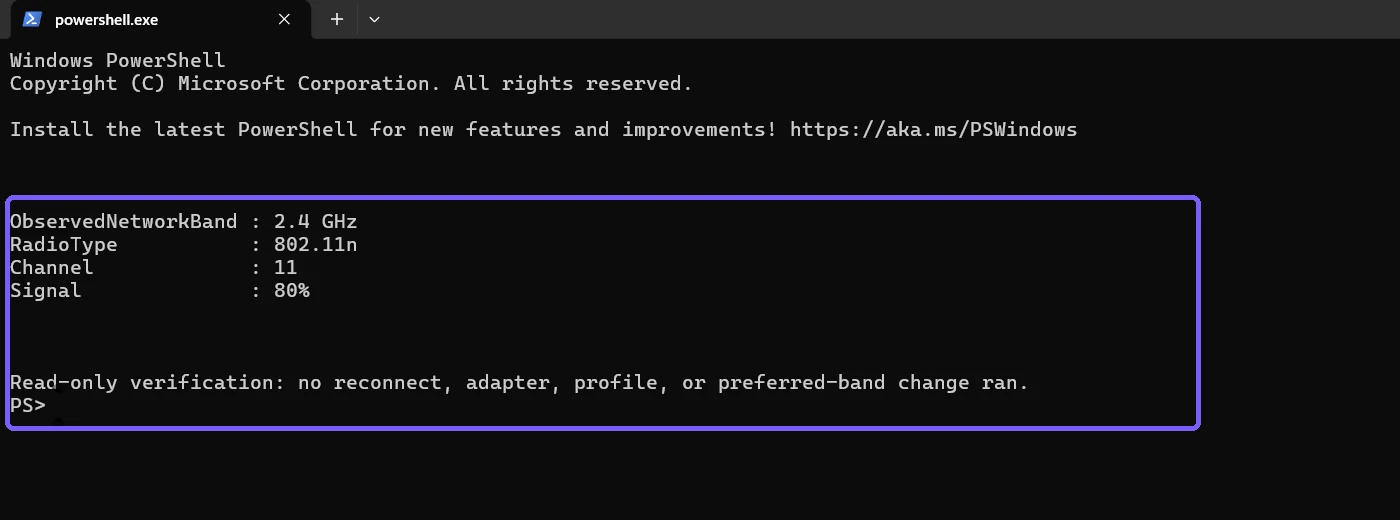
When Settings explicitly shows a band, use that label. On a Wi-Fi 7 connection with Multi-Link Operation, Microsoft says the value can contain more than one band, such as 5 GHz and 6 GHz. Preserve that multi-band result instead of reducing it to a single value.
Band and signal strength are different
The band answers “which frequency range is this link using?” Signal strength answers “how strong is the current radio signal?” A 5 GHz connection can have weak or strong signal, and the same is true on 2.4 GHz. Band choice also does not prove actual internet speed, because congestion, router backhaul, channel width, interference, and the broadband connection all matter.
If the troubleshooting question is reception rather than frequency, follow the separate guide to check Wi-Fi signal strength. Keeping the two measurements separate makes a support record easier to interpret.
Troubleshoot a missing or unexpected band
No active band is shown
Confirm that the PC is connected through Wi-Fi rather than Ethernet. The command describes active wireless interfaces, so a disconnected adapter does not have a negotiated connection band. Do not connect to an unfamiliar network just to obtain a result.
The command omits Band
Some Windows and driver combinations show radio type and channel but do not print a separate Band line. Open the connected network's properties in Settings and use Network band (channel). If you retain a command result for support, include radio type and channel without publishing the raw identifiers.
The PC connects on 2.4 GHz even though the router supports 5 GHz
That observation does not by itself indicate a fault. The router can use separate names or band steering, range and interference can affect negotiation, and the adapter or driver may have its own capabilities. Check the router and adapter documentation before changing anything. Preferred-band configuration is a separate task and is outside this read-only guide.
The connection is unstable on every band
Try ordinary non-destructive checks first: move closer to the access point, verify the router is online, and test another known device. A full network reset removes and reinstalls adapters and restores settings, so use it only when proportionate and after understanding the recovery steps. If that becomes necessary, follow the dedicated guide to reset Windows network settings.
Privacy and accuracy checklist
- Prefer the connected-network properties page for the explicit band label.
- Filter command output before capturing it; do not publish SSID, BSSID, MAC address, GUID, or profile name.
- Describe the result as the active connection at capture time, not the adapter's complete capability list.
- Allow for a multi-band value on supported Wi-Fi 7 Multi-Link connections.
- Do not reconnect, change the preferred band, reset networking, or reveal nearby networks merely to create evidence.
Frequently Asked Questions
Where is the Wi-Fi band shown in Windows 11?
Open Settings > Network & internet > Wi-Fi, open the connected network's properties, and read Network band (channel).
Does 802.11n always mean 2.4 GHz?
No. A radio-type label alone is not a reliable complete band determination. Use the explicit band field or consider the channel and reproduced connection context.
Can Windows 11 show more than one active Wi-Fi band?
Yes. Microsoft says a compatible Wi-Fi 7 Multi-Link Operation connection can show more than one band in Network band (channel).
Does checking the band change my Wi-Fi connection?
No. Reading connection properties or running the filtered show command is read-only. Changing a preferred band or reconnecting is a separate action.
Conclusion
Read Network band (channel) in the active Wi-Fi connection's properties for the clearest answer. A filtered netsh wlan show interfaces result can provide a second read-only check while keeping identifiers private. Treat the value as a snapshot of the current link and preserve multi-band results when Windows reports them.
For more interesting articles, stay tuned to WinSides.com!






Community
Comments (0)