

Windows 11 keeps an Update history page that shows which updates were installed, when Windows recorded them, and whether the installation succeeded. Open Settings > Windows Update > Update history for the clearest view. This is a read-only history check; merely opening the page does not scan for new updates or change servicing settings.
This guide also shows a local Windows Update Agent history query. That cross-check is useful when you want recent event dates and outcomes in a compact list. It does not replace the Settings categories, and it deliberately omits update titles and device-specific identifiers from the screenshots.
What Windows Update history contains
Microsoft’s Windows Update FAQ directs Windows 11 users to Settings > Windows Update > Update history to see installed updates and their dates. Depending on what the PC has received, the page can group entries under headings such as feature updates, quality updates, driver updates, definition updates, and other updates.
A history row records a servicing event. It is not a promise that every later app, driver, or restart behaved perfectly. It also is not the same as the “Installed updates” control-panel inventory or the component store’s complete internal transaction log. Use the page to identify the update name, KB number when available, date, category, and result before deciding on a troubleshooting step.
Table of contents
Open Update history from Settings
Open Start and select Settings.
Select Windows Update in the left pane.
Select Update history.
Expand the relevant category and read the update name, date, and status.
You can also open the same page with the documented Settings URI. Type the following into a normal PowerShell or Run window:
Start-Process 'ms-settings:windowsupdate-history'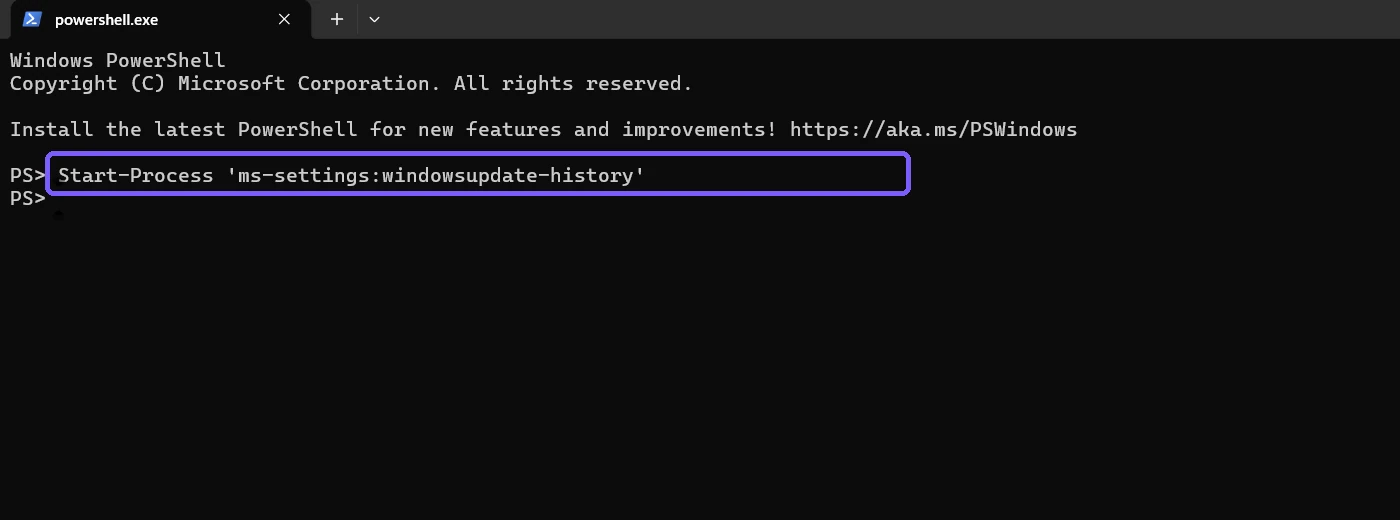
Do not confuse Update history with the separate Check for updates button. The latter can contact an update service and begin a servicing workflow. This article never invokes it.
Read the most useful details
- Update title or KB number: Use it to locate Microsoft release notes or a known-issue notice.
- Installation date: Compare it with when a problem began, but do not assume timing alone proves causation.
- Category: A driver update, definition update, and quality update affect different layers.
- Status: “Successfully installed” confirms the event result that Windows recorded. A failure needs its error and context.
Expand only the category you need. This keeps the page manageable on PCs with a long servicing history. Record the exact title before searching for guidance; two updates installed on the same date can have very different purposes.
Create a local history reader in PowerShell
Windows exposes update events through the Windows Update Agent API. Microsoft documents QueryHistory as a synchronous query that returns matching update-event records in descending chronological order. It is different from the Search method that looks for updates.
Open a standard-user PowerShell session and create a local session and searcher:
$session = New-Object -ComObject Microsoft.Update.Session
$searcher = $session.CreateUpdateSearcher()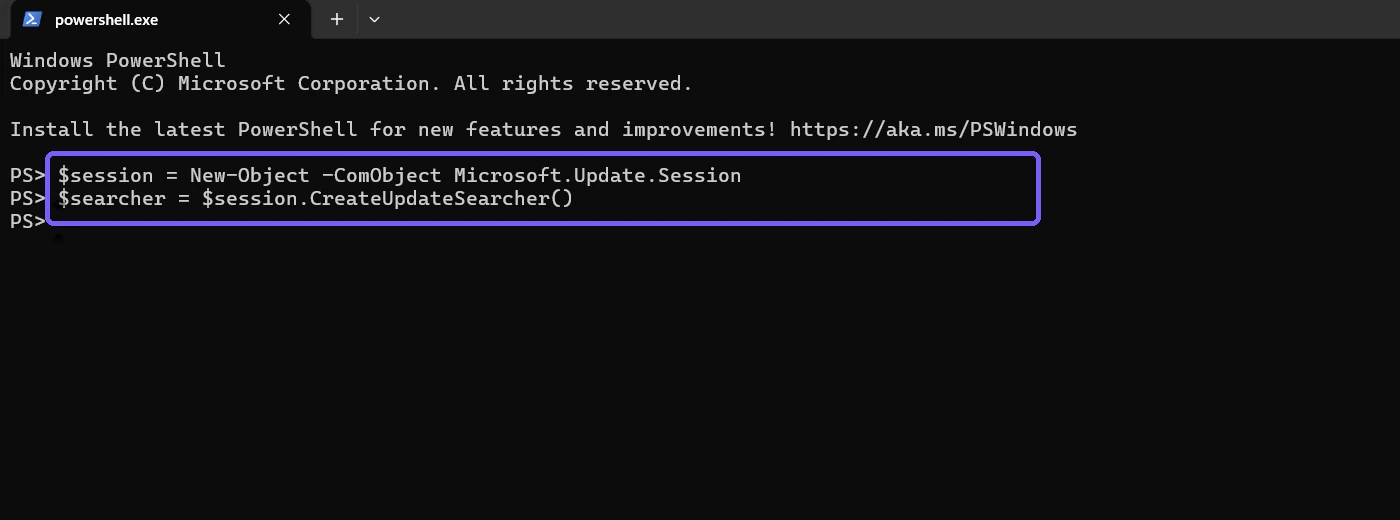
The object name can sound active, but creating an UpdateSearcher does not itself perform an online search. The reproduced method calls only its history-count and history-query members.
Count recorded update events
Ask the local searcher how many history events are available, then choose a bounded sample:
$count = $searcher.GetTotalHistoryCount()
$take = [Math]::Min($count, 5)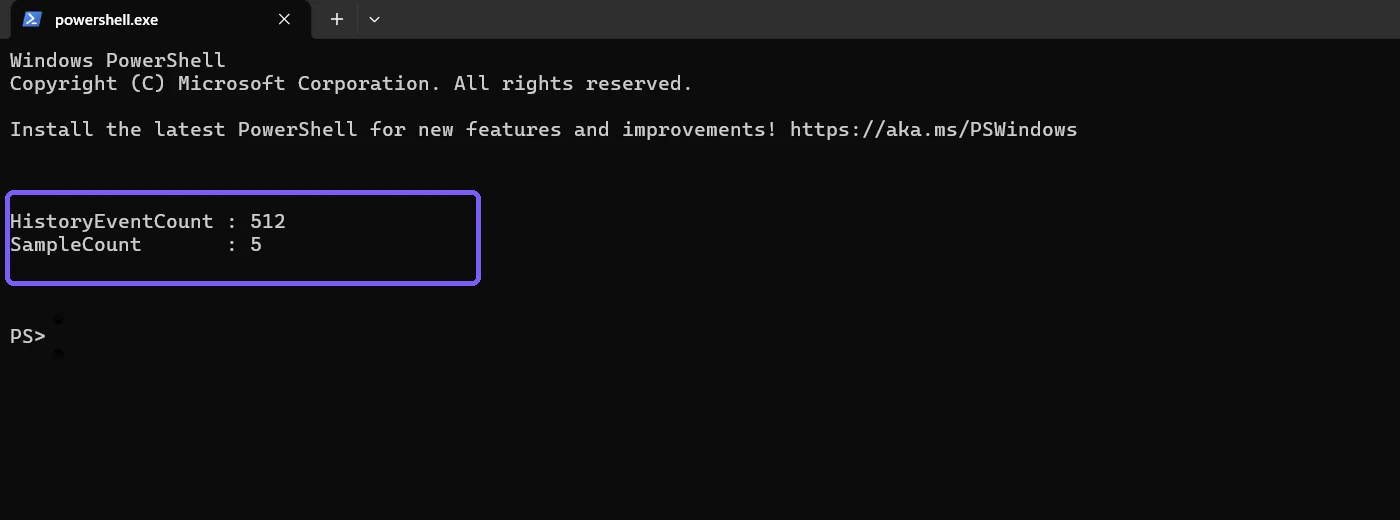
The count is the number of event records exposed by that history interface, not the number of currently installed packages. One update can contribute more than one servicing event, and older history can differ between PCs.
Query recent dates and outcomes without exposing titles
Query from index 0 for the chosen count. Microsoft says index 0 starts with the newest event. For a privacy-safe evidence view, select the date, operation, and mapped result only:
$history = $searcher.QueryHistory(0, $take)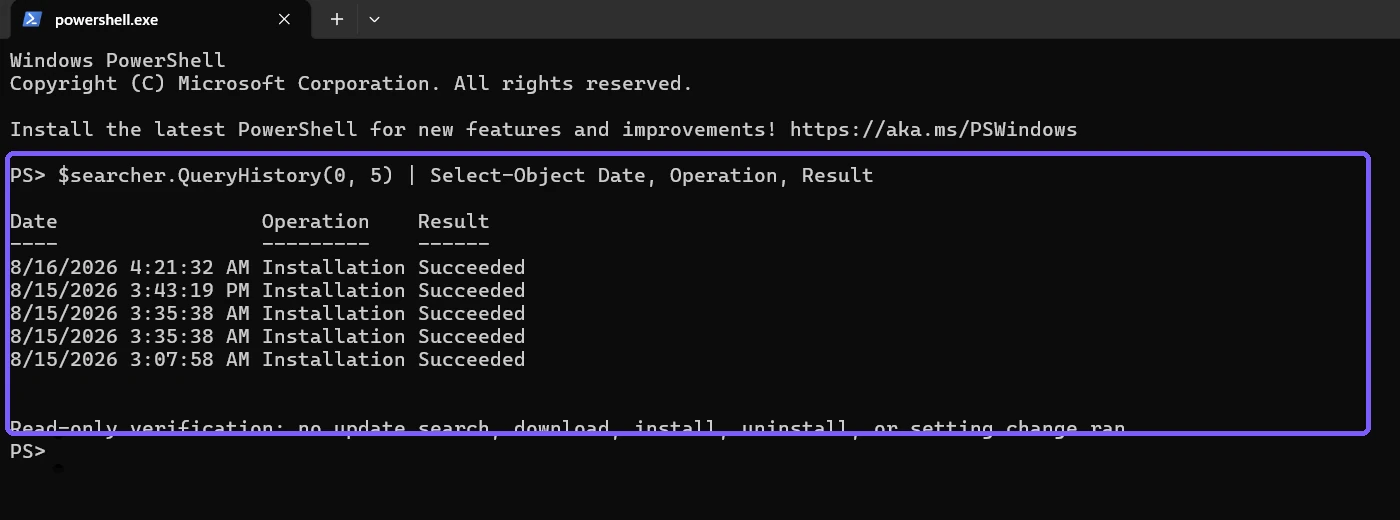
In the Windows Update Agent result-code enumeration, 2 means succeeded, 3 means succeeded with errors, 4 means failed, and 5 means aborted. Preserve the original numeric value if you are scripting a support collection. A friendly label helps reading but should not erase the underlying code.
Viewing history is not the same as uninstalling
Update history includes a link to uninstall eligible updates, but selecting it starts a separate and potentially disruptive workflow. Microsoft notes that not all updates can be removed. Do not uninstall an update solely because it appears near the time of a problem. First identify the exact KB, review release notes and known issues, preserve work, and understand how to recover.
If removal is genuinely justified, follow the dedicated guidance to uninstall a Windows update. That procedure is outside this article’s read-only boundary.
Troubleshoot an unexpected history result
An update says Failed
Open the row if Windows provides more detail and record the KB number and error. Restart only if Windows explicitly requires it and your work is saved. For a standard diagnostic path, you can run the Windows Update troubleshooter before attempting resets or manual package changes.
The PowerShell count is zero
Do not call QueryHistory with a count of zero; Microsoft documents that as invalid. A new, reset, or specially managed environment can have little or no local history. Use the Settings page and organizational update records instead of manufacturing sample data.
Settings and the API list do not look identical
The Settings page groups and labels information for people, while the API returns update-event records. They can differ in presentation and granularity. Use Settings for the user-facing installed-history view and the API for a bounded event audit.
The date is earlier or later than expected
Check the PC’s clock and time zone, then distinguish download time, installation event time, and restart completion. Update history is evidence, but it does not alone establish the full timeline of a symptom.
Frequently Asked Questions
Where is Update history in Windows 11?
Open Settings, select Windows Update, and then select Update history.
Does opening Update history check for new updates?
No. Viewing the page reads recorded history. The separate Check for updates control initiates a different action.
Why are there more history events than installed updates?
The API counts servicing event records, not only currently installed packages. One update can produce multiple events, and removed or superseded items can affect the comparison.
Can every Windows update be uninstalled?
No. Microsoft states that not all updates can be removed. Uninstallation is a separate risk-bearing procedure.
Conclusion
Use Settings > Windows Update > Update history for the readable category, update-name, date, and status view. Use QueryHistory only when a compact local event audit helps. Keep both reads separate from checking, downloading, installing, clearing, or uninstalling updates.
For more interesting articles, stay tuned to WinSides.com!






Community
Comments (0)