

Active hours tell Windows 11 when you normally use your PC. Windows Update uses that window to avoid an automatic restart at an inconvenient time. You can let Windows estimate the hours from your activity or choose a manual start and end time.
I reproduced both choices on Windows 11 Home Single Language version 25H2, build 26220.7872. The PC originally used a manual range of 10:00 AM to 10:00 PM. I switched Adjust active hours to Automatically, confirmed the manual time controls disappeared, and then restored Manually with the original 10:00 AM to 10:00 PM range. No update, restart, or Registry change was triggered.
What do Active hours do in Windows 11?
Windows can download and install updates while the PC is in use, but it tries to schedule a required automatic restart outside Active hours. Microsoft describes the setting as a way to prevent inconvenient restarts and lets Windows 11 adjust the hours automatically from device activity or use a range you choose.
Active hours are not a permanent restart block. A deadline, an organization policy, or the separate Get me up to date option can change restart behavior. Windows also offers restart notifications and, when an update is ready, may let you schedule a specific restart time. Save open work whenever Windows says a restart is pending.
Table of contents
What should you check before changing Active hours?
- Choose a range that covers the hours when the PC is normally being used, not the hours when it is usually asleep or shut down.
- Windows 11 currently labels the manual end-time control with a maximum span of 18 hours.
- On a work or school PC, an administrator may manage update and restart settings. If a control is unavailable, check with the organization instead of forcing a local workaround.
- Active hours do not pause updates. They mainly influence when Windows can perform an automatic restart.
How do you set Active hours automatically?
- Press Windows + I to open Settings.
- Select Windows Update in the left sidebar.
- Select Advanced options.
- Expand Active hours.
- Open Adjust active hours and choose Automatically.
- Close Settings. Windows will estimate the active period from how you use the device.
This option is useful when your schedule changes from day to day. Windows decides the range, so choose the manual option if you need predictable start and end times.
How do you set a manual Active hours range?
- Open Settings > Windows Update > Advanced options.
- Expand Active hours.
- Set Adjust active hours to Manually.
- Choose the Start time when you normally begin using the PC.
- Choose the End time when the PC is normally free to restart.
- Read the summary shown on the Active hours card and confirm it matches the range you intended.
- Close Settings. Changes are saved immediately.
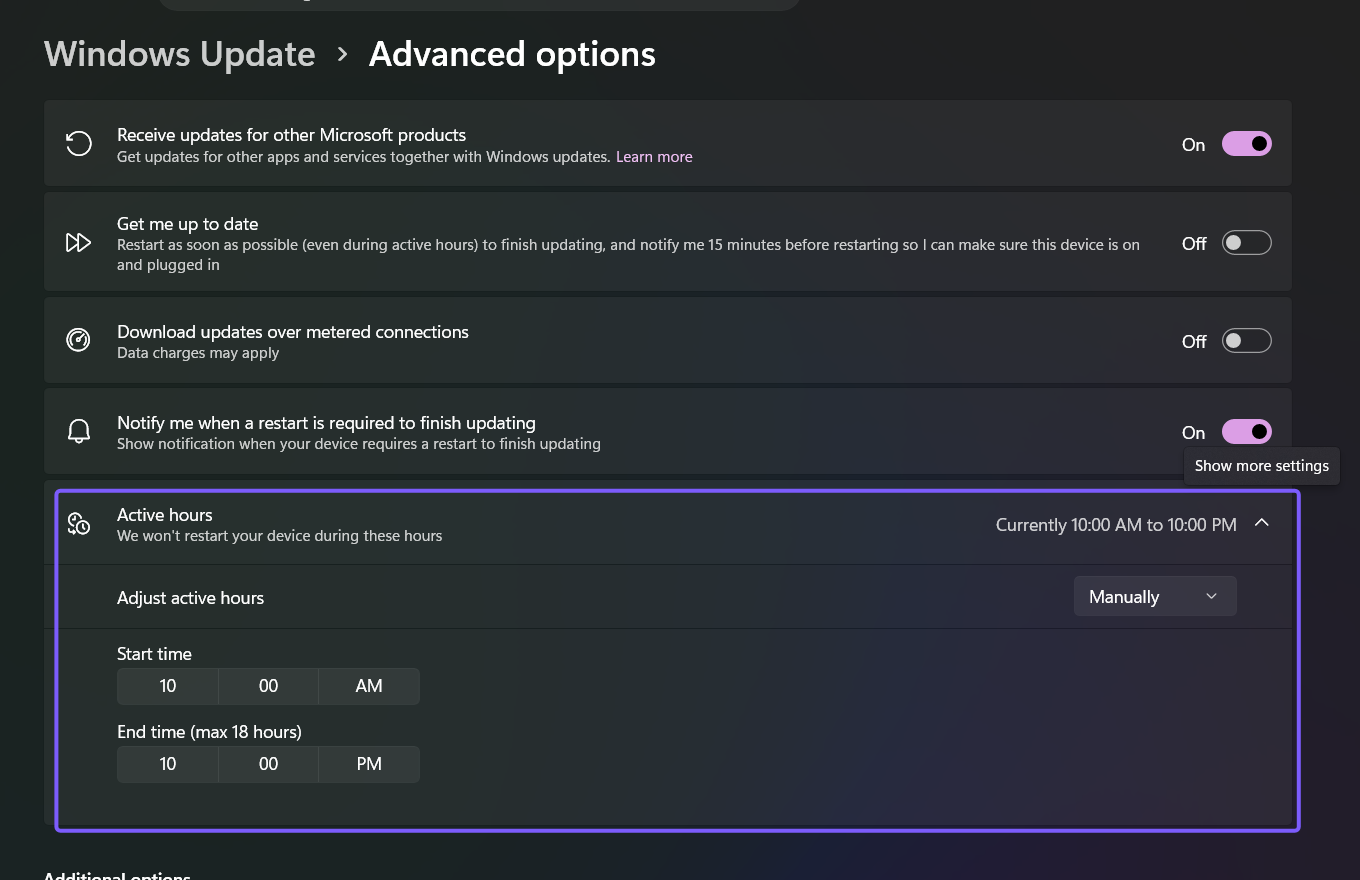
The screenshot shows the exact state restored after testing. The outlined card contains the automatic/manual selector and the manual time controls; no other Windows Update option was changed.
How can you open the Active hours page directly?
Press Windows + R, enter ms-settings:windowsupdate-activehours, and select OK. Microsoft Learn lists this URI for the Windows Update Active hours setting. On the reproduced build, it opened the relevant Windows Update advanced-options page, where the Active hours card could be expanded.
The URI is only a shortcut into Settings. It does not change the range by itself, and there is nothing to undo after opening it. I did not include a Registry method because the supported Settings controls are clearer, reversible, and sufficient for a personal Windows 11 PC.
How do you restore your previous Active hours?
Return to Settings > Windows Update > Advanced options > Active hours. If you previously used automatic adjustment, choose Automatically. If you previously used a manual range, choose Manually and re-enter the original start and end times.
Restoring the range does not uninstall an update or cancel a restart that is already in progress. If Windows already shows a scheduled restart, review that notice separately and save your work. Microsoft’s current Active hours guidance uses the same automatic and manual choices described above.
Frequently Asked Questions
Do Active hours stop Windows 11 updates?
No. Windows can still download and install updates. Active hours mainly help Windows avoid an automatic restart during the period when you normally use the PC.
Can Active hours be longer than 18 hours?
The reproduced Windows 11 manual control labels the end time with a maximum of 18 hours. If your daily use is less predictable, automatic adjustment may fit better than trying to cover the entire day.
Why are the Active hours controls unavailable?
A work or school policy can manage restart settings, and a pending update state can affect the options you see. Check for an organization notice and contact the administrator before attempting policy or Registry changes.
Does changing Active hours restart the PC immediately?
No. Changing the automatic/manual choice or time range does not itself restart the PC. It changes the window Windows Update uses when planning a future automatic restart.
Set the restart window that fits your day
Use automatic Active hours for a changing routine, or select Manually when you want a predictable start and end time. Confirm the summary on the card, close Settings, and keep restart notifications enabled if you want advance warning. Active hours reduce inconvenient restarts, but they do not replace saving your work or responding to an update deadline.
For more reproduced Windows 11 settings guides, stay tuned to WinSides.com.








Community
Comments (0)