

Windows 11 includes a read-only Activity monitor for Delivery Optimization. It shows where update and app downloads came from during the current month, their average speeds, and how much update content the PC uploaded to other devices.
I reproduced the complete Settings route on Windows 11 Home Single Language version 25H2, build 26220.7872. I opened Delivery Optimization, expanded Activity monitor, inspected the download and upload statistics, and then closed Settings. I did not change peer sharing, bandwidth limits, update settings, services, the Registry, or the Delivery Optimization cache.
What does Delivery Optimization Activity monitor show?
Delivery Optimization helps Windows obtain updates, Microsoft Store apps, and other Microsoft content. Microsoft says it can select from the original Microsoft content-delivery source, a Microsoft Connected Cache server, and eligible PCs. Activity monitor summarizes which of those sources contributed data to this PC during the displayed month.
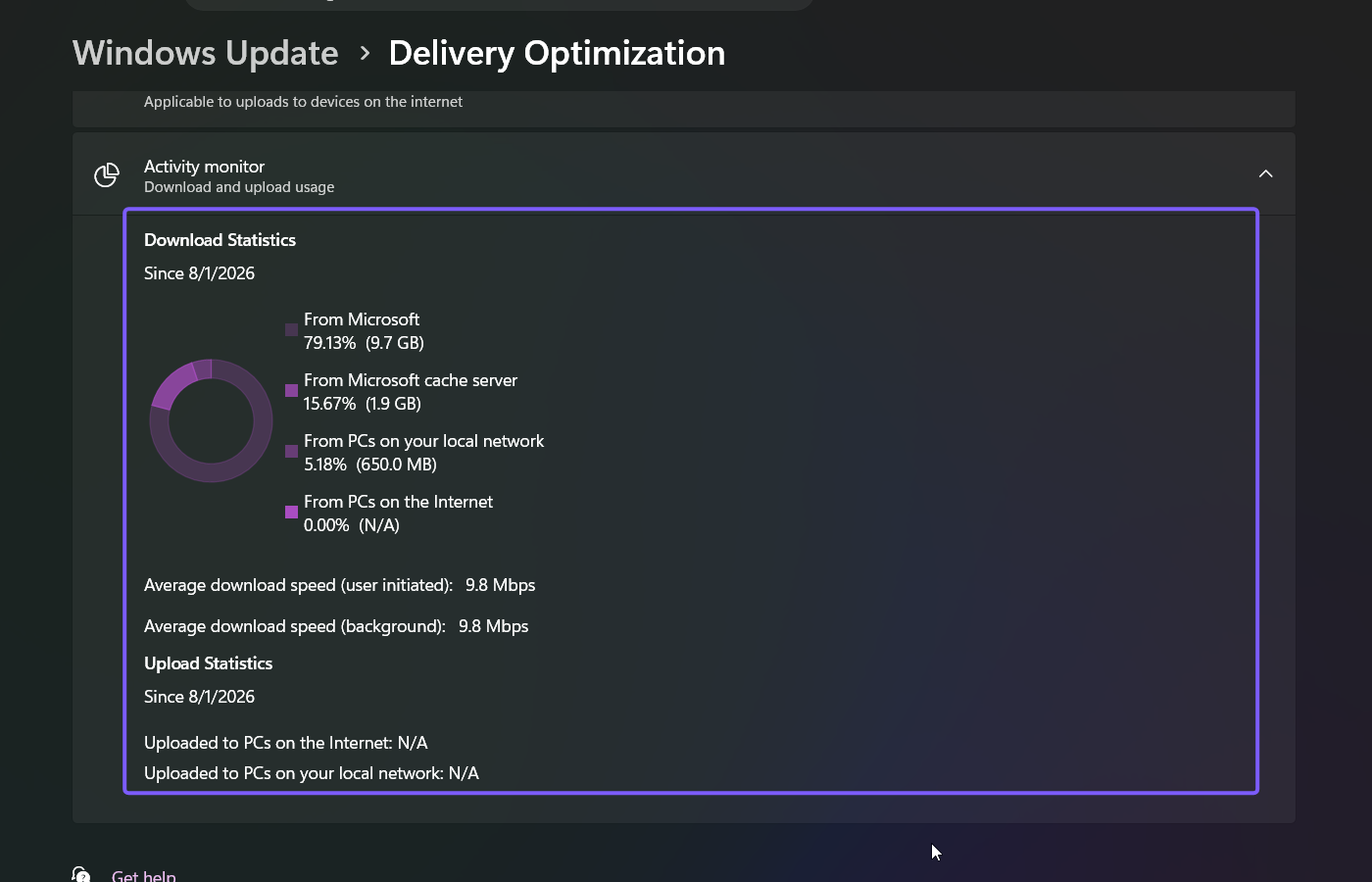
The panel separates Download Statistics from Upload Statistics. Download Statistics can show percentages and amounts from Microsoft, a Microsoft cache server, PCs on the local network, and PCs on the Internet. It also lists average speeds for user-initiated and background downloads. Upload Statistics reports content sent to internet PCs and local-network PCs.
These figures describe Delivery Optimization traffic, not every byte used by Windows. The panel is a monthly summary rather than a per-update history, and it does not identify another PC by name.
Table of contents
What should you know before reading the statistics?
- The date below each statistics heading tells you when the current reporting period began. On the reproduced PC, it read Since 8/1/2026.
- Transfer totals depend on updates, Store activity, available peers, cache availability, and the sharing choices configured on that PC.
- A managed work or school device can have Delivery Optimization settings enforced by an administrator.
- Opening Activity monitor is read-only. You do not need to turn peer sharing on, change bandwidth limits, clear a cache, or run an elevated command just to view it.
Do not treat the example values in a screenshot as a target. A healthy PC can show a different source mix, much smaller totals, or no upload activity at all.
How do you open Delivery Optimization Activity monitor?
- Press Windows + I to open Settings.
- Select Windows Update in the left sidebar.
- Select Advanced options.
- Select Delivery Optimization.
- Scroll to Activity monitor, which appears below the download and upload options.
- Select the Activity monitor card to expand it.
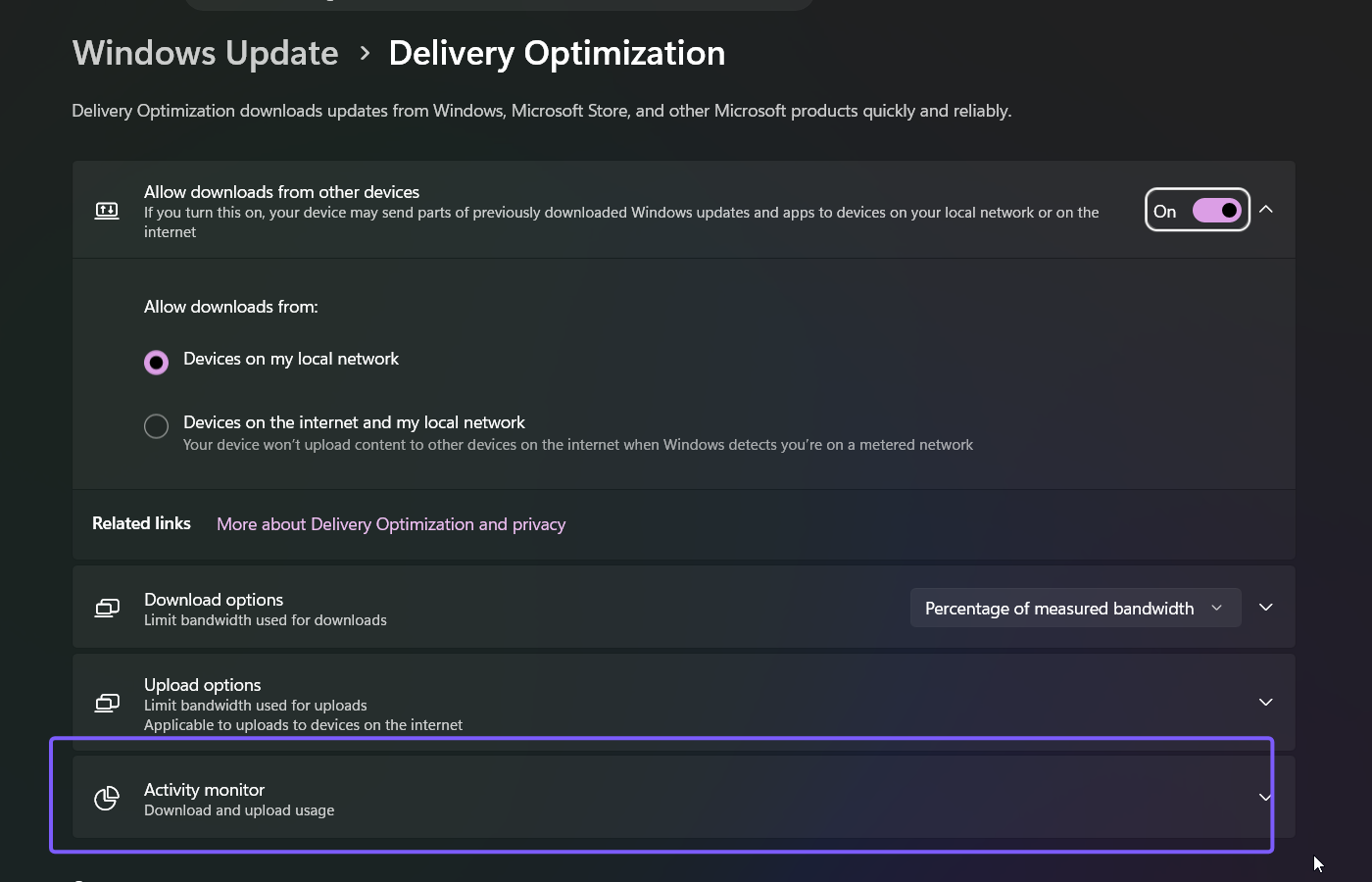
Microsoft's current Delivery Optimization guidance documents this same Windows 11 route.
How do you read the download statistics?
After expanding Activity monitor, scroll until the complete Download Statistics panel is visible. Read each source as a percentage of Delivery Optimization downloads and, when available, the corresponding amount of data.
- From Microsoft is content obtained from Microsoft's original delivery infrastructure.
- From Microsoft cache server is content provided by Microsoft Connected Cache when that source is available.
- From PCs on your local network is content received from eligible peers on the local network.
- From PCs on the Internet is content received from internet peers when the applicable sharing mode permits it.
- Average download speed (user initiated) summarizes downloads initiated in the foreground by the user.
- Average download speed (background) summarizes Delivery Optimization downloads handled in the background.
Microsoft Learn explains that Delivery Optimization verifies content pieces received from peers before using them and keeps the Microsoft content-delivery network available as a fallback. A peer percentage therefore describes a source contribution; it does not mean Windows blindly trusted another PC's files.
How do you read the upload statistics?
Upload Statistics reports how much Delivery Optimization content the PC shared with eligible devices during the same displayed period. It separates internet PCs from PCs on the local network.
An N/A upload value on the reproduced PC meant there was no reported amount for that destination during the period. It did not indicate that Windows Update was disabled or broken. Upload activity depends on the peer-sharing mode, network conditions, eligible cached content, and whether another device requested that content.
If you only want to read the report, leave the controls above Activity monitor unchanged. The upload and download options configure Delivery Optimization behavior; they are not required to open the statistics.
What does zero or N/A mean in Activity monitor?
A zero percentage means that source supplied none of the reported download volume for the displayed period. N/A means Windows does not have an applicable amount to show for that line. Either result can be normal.
For example, a PC configured for local-network peers can show data from nearby PCs and zero from internet peers. A quiet month can show no uploads because no eligible peer requested cached content. A Microsoft cache server line can remain zero when no Connected Cache source is available to that device.
Use Activity monitor as context, not a standalone health test. If Windows Update actually fails, record its exact error and use the matching troubleshooting path. If the concern is an inconvenient restart rather than download traffic, review the separate guide to set Windows 11 Active hours.
How do you leave the original settings unchanged?
When you finish reading the figures, close Settings. Expanding Activity monitor does not alter the sharing mode or bandwidth limits, so there is no Registry or service rollback.
If you accidentally changed a control while navigating, do not guess at its previous value. Restore the value you recorded before testing. On a managed device, an unavailable control can be intentional policy; contact the administrator instead of attempting to bypass it.
The reproduced PC finished with its original choice intact: Allow downloads from other devices remained on for devices on the local network. The Settings window was closed after the evidence capture.
Frequently Asked Questions
Does Activity monitor change Delivery Optimization settings?
No. Opening or expanding Activity monitor only displays statistics. Peer sharing and bandwidth controls are separate settings above it.
Why does Activity monitor show zero from internet PCs?
The current sharing mode may limit peers to the local network, or no internet peer may have contributed eligible content during the displayed month. Zero by itself is not a Windows Update error.
Does N/A under Upload Statistics mean Delivery Optimization is broken?
No. N/A can simply mean there is no applicable upload amount for that destination in the current reporting period. Check for an actual Windows Update error before troubleshooting.
Can Activity monitor identify the PCs that shared an update?
No. The Settings panel summarizes source categories and amounts. It does not provide a named list of peer devices or their personal files.
View the monthly delivery summary without changing it
Open Settings > Windows Update > Advanced options > Delivery Optimization, expand Activity monitor, and read the current-month source, speed, and upload figures. Treat zero and N/A as neutral measurements unless Windows shows a real update error. Close Settings when finished; no command, Registry edit, cache deletion, or configuration change is needed.
For more Windows 11 tutorials grounded in reproduced steps, stay tuned to WinSides.com.







Community
Comments (0)