

The quickest way to check Windows 11 activation is to open Settings > System > Activation and read the value beside Activation state. An Active result means Windows accepted a license for the current edition and hardware. Expanding the card can show whether that license is digital and whether it is linked to a Microsoft account.
I reproduced this read-only check on Windows 11 Home Single Language version 25H2, build 26220.7872. The tested PC showed Active. I also ran Microsoft's documented /xpr licensing query without elevation; it exited successfully and reported permanent activation. Neither method changed the license, account, edition, product key, or activation state.
What Windows activation status tells you
Activation pairs a valid product key or digital entitlement with the PC's hardware configuration. It lets Windows confirm that the installed edition is licensed for that device. Home, Pro, Enterprise, and other editions are licensed separately, so a key intended for one edition may not activate another.
Activation and validation are related but different. Microsoft explains that activation checks whether the key or digital entitlement is valid for the hardware, while validation checks important licensing files. An activated message therefore answers the licensing-state question; it is not a promise that every Windows file is intact or that every future hardware change will reactivate automatically.
A digital license can also be linked to a Microsoft account. That link is useful after a significant hardware change because the Activation troubleshooter can use the account association during reactivation. The link is not required merely to read the current status.
Table of contents
Check activation status in Settings
- Press Windows + I to open Settings.
- Select System in the left sidebar.
- Select Activation. You can also press Windows + R, enter
ms-settings:activation, and select OK. - Read the installed Windows edition and the value beside Activation state.
- If you need more detail, expand the Activation state card. Do not select Change product key or start troubleshooting when you only need to view the status.
- Close Settings when you finish.
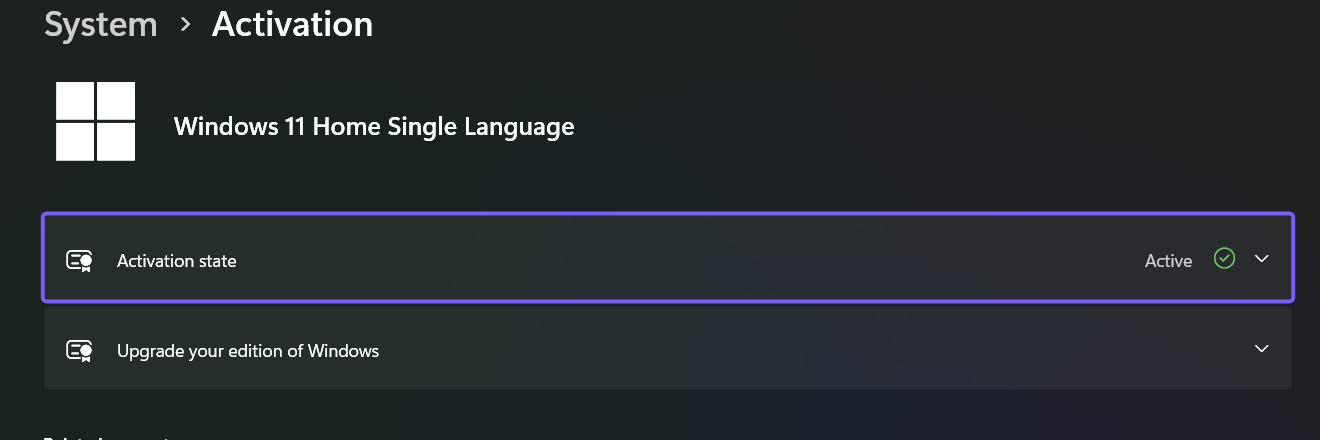
Microsoft's current Windows activation guidance uses this same Settings route. Microsoft Learn also documents ms-settings:activation as the current URI for the Activation page.
Interpret the activation messages
- Windows is activated: the device is activated, but the message does not indicate a Microsoft-account link.
- Windows is activated with a digital license: activation uses a digital license that is not currently linked to the displayed Microsoft account.
- Windows is activated with a digital license linked to your Microsoft account: the digital license is activated and the account association is already present.
- Windows is not activated: Settings normally shows an error or next step. Record the exact error code before changing a key or buying another license.
The account-link wording does not change whether the page says activated. It describes how the digital license is associated for recovery and reactivation. A work-managed KMS device can also use organization activation rather than a personal digital-license message.
If Settings reports no valid digital license and shows 0x803F7001, use the matching 0x803F7001 licensing-error guide. If an organization-managed PC cannot contact its KMS host and shows 0xC004F074, the 0xC004F074 KMS troubleshooting guide explains the checks that fit that specific error. Do not apply an error-specific fix when the code is different.
Confirm expiration with slmgr /xpr
Settings is the best general check. For a second read-only result, open a normal, non-elevated Windows PowerShell window and run:
cscript.exe //nologo "$env:WINDIR\System32\slmgr.vbs" /xprThe command asks Windows Script Host to display activation-expiration information for the installed edition. On the reproduced retail-style installation, it returned The machine is permanently activated and exit code 0. Close Windows PowerShell afterward; there is nothing to undo.
Microsoft documents slmgr.vbs /xpr as a non-elevated information query. Microsoft also notes that it is primarily useful for KMS clients because retail and MAK activation is normally perpetual. The command does not replace Settings when you need the digital-license or Microsoft-account-link wording.
Keep the command exact. Options such as /ipk, /upk, /ato, or /rearm perform different licensing operations and are unnecessary for a status check.
Protect product-key and account details
An activation screenshot should show the edition and status, not a product key, partial product key, email address, device identifier, or account profile. The public evidence in this guide crops away the entire Settings sidebar, including the signed-in identity. It also leaves the expandable edition and product-key controls closed.
Do not post output from more detailed licensing commands without inspecting it first. Options such as /dlv can display identifiers and a partial product key that are not needed to prove the simple Active result. If support asks for diagnostic information, share only the minimum fields through a trusted private channel.
If the PC belongs to work or school, contact the administrator before changing activation settings. KMS and subscription activation can depend on organization servers, sign-in state, edition, and network access.
Frequently Asked Questions
Does Active mean Windows 11 is permanently activated?
Not always. Settings confirms the current activation state. The /xpr query can clarify expiration, which matters most for KMS clients. Retail and MAK activation is normally perpetual, but major hardware or licensing changes can still require reactivation.
Do you need administrator rights to check activation status?
No. Opening Settings > System > Activation is read-only, and Microsoft documents /xpr as not requiring elevation. The reproduced checks both worked without an administrator prompt.
Is a digital license the same as a product key?
No. A digital license is an activation method associated with the device and edition; it can be linked to a Microsoft account. A product key is a 25-character code. Settings can report a digital license without displaying a product key.
Should you click Change product key to verify activation?
No. Read Activation state first. Change product key starts a licensing change and is unnecessary when you only need the current status. Use it only when you already have a valid key for the installed edition and intend to change the license.
Check the status without changing the license
Use Settings > System > Activation for the clearest answer. Read the installed edition, Activation state, and optional digital-license wording, then close Settings. If you need a second expiration-focused check, run the reproduced non-elevated /xpr command and close the terminal. Neither step requires a key, Registry edit, activation attempt, or account change.
For more Windows 11 tutorials grounded in reproduced steps, stay tuned to WinSides.com.







Community
Comments (0)