

Introduction to 0xC004F074
0xC004F074 is a Windows activation error that commonly appears when Windows cannot complete activation through the expected activation service. On Windows 11, it is most often seen on devices using volume activation, especially KMS-based activation, but the same code can also appear when a device has the wrong activation context, a mismatched edition, a stale KMS host configuration, network or DNS problems, time synchronization trouble, or a product key that does not match the installed Windows edition.
The important point is that this is not a generic performance issue or a browser-style connectivity issue. It belongs to the Windows licensing and activation layer. A normal home PC with a retail or OEM digital license should usually activate through Microsoft activation services. A work or school PC running a volume edition may need to reach the organizations Key Management Service host or use a valid Multiple Activation Key. If the device is trying to use the wrong path, activation can fail even when the internet itself works perfectly.
Microsofts Windows activation error guidance is the right starting point for general activation failures. For volume activation environments, Microsoft documents KMS client activation keys, KMS activation through VAMT, KMS activation planning, and slmgr.vbs options for checking and managing activation state.
This guide explains how to troubleshoot 0xC004F074 safely and legally. It does not recommend public KMS servers, unofficial activation scripts, patched licensing files, or bypass tools. Those approaches can violate licensing terms, expose the PC to malware, and leave Windows in an unstable state. The correct repair is to identify the activation channel, confirm the installed edition, fix network or KMS discovery when the device is legitimately volume-licensed, or use Microsoft activation support when the device should activate through a retail, OEM, or digital license path.
Table of contents
Key Takeaways
- 0xC004F074 usually points to Windows activation trouble. It is commonly associated with KMS communication or licensing-context problems, not ordinary app errors.
- Know your activation channel first. Retail, OEM, digital license, MAK, and KMS activation require different repair paths.
- Edition mismatch matters. A Windows Pro key will not correctly activate Windows Enterprise, and KMS client keys are edition-specific.
- KMS clients need the right network path. Organization devices may need DNS discovery, VPN, corporate network access, correct time, and access to the authorized KMS host.
- slmgr /dlv gives useful evidence. It shows licensing details such as channel, partial key, KMS host information, and activation state.
- Do not use public KMS servers. Use Microsoft activation, your organizations authorized KMS host, or a legitimate MAK path.
- If the device is personal, focus on digital license, product key, edition, Microsoft account, and activation troubleshooter. KMS fixes do not apply to most home retail/OEM PCs.
What 0xC004F074 Means
In practical troubleshooting, 0xC004F074 means Windows tried to activate but the expected activation path did not complete. On volume-licensed devices, this often means the client could not contact or validate against a KMS host. On personal devices, the same error can be a sign that Windows has a volume key installed by mistake, the wrong edition is installed, or the activation state was changed by an image, repair, upgrade, or third-party tool.
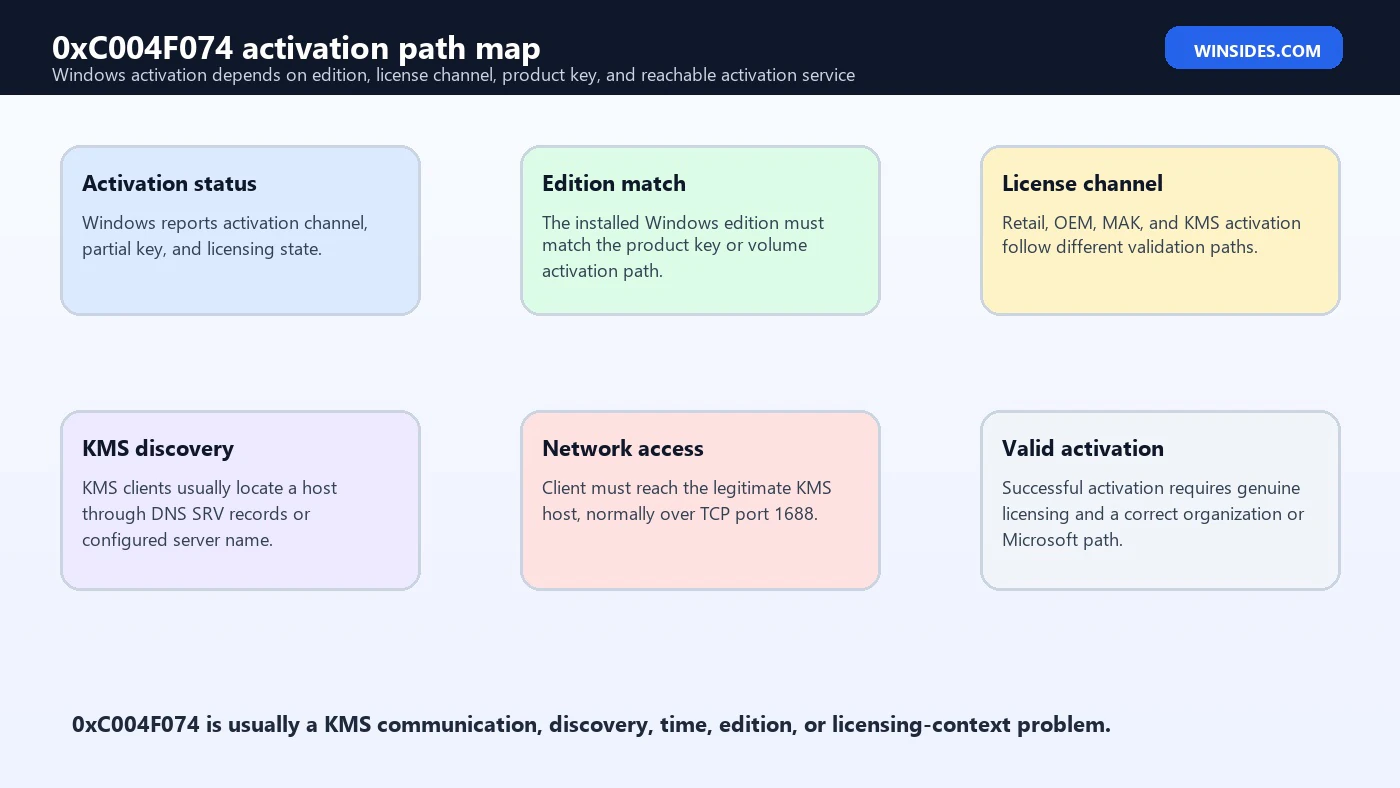
Windows activation is not only a product key check. The installed edition, key type, activation channel, licensing service, hardware identity, time, DNS, network path, and organization activation infrastructure can all matter. If a PC has a KMS client key installed, Windows expects to activate against KMS. If that PC is not on the organization network and cannot reach the KMS host, activation can fail. If the PC should instead have a digital license, the KMS path itself may be the wrong path.
This is why the first repair step is information gathering. Before replacing a key or changing DNS, check what Windows believes about its activation state. A laptop bought from a store, a company-imaged workstation, a virtual machine, and a server in a lab can all display the same error code for different reasons. The fix follows the licensing context, not the error code alone.
Common Causes of 0xC004F074
| Cause | What it means | Best first check |
|---|---|---|
| KMS host unreachable | The volume-licensed client cannot reach the organizations KMS service. | Check VPN, DNS, firewall, route, and TCP 1688 access. |
| KMS DNS discovery failure | The client cannot locate the KMS host through DNS SRV records. | Check KMS host publishing and DNS records. |
| Wrong activation channel | A personal PC may have a volume key installed, or a work PC may have the wrong key type. | Run slmgr /dlv and verify channel. |
| Edition mismatch | The installed Windows edition does not match the key or activation method. | Check Settings > System > Activation and Windows edition. |
| Time or date drift | Secure activation communication can fail when system time is badly wrong. | Sync date, time, time zone, and domain time. |
| KMS activation threshold not met | A newly deployed KMS host may not yet have enough client requests. | Review KMS planning and host count requirements. |
| Firewall or network policy | Port, proxy, VPN, or DNS filtering blocks the KMS path. | Test from the expected network and check policy logs. |
| Invalid or non-genuine key path | Unauthorized activation tools or public KMS settings created a bad state. | Remove unauthorized configuration and use a valid license path. |
The table is deliberately split by context. If your personal Windows 11 Home or Pro device came with a digital license, a KMS host problem is unlikely unless something changed the activation channel. If your organization owns the device, a KMS host, DNS, VPN, or firewall issue is much more plausible. If the PC was bought second-hand and already had a volume key installed, the real fix may be installing the correct edition and using a genuine license, not trying more KMS commands.
Check Activation Status in Settings
Start with the Windows interface. Open Settings, go to System, then Activation. Check the Windows edition, activation state, and any message shown under activation. If Windows says it cannot activate, note the exact error code and message. Also check whether the installed edition is what you expect. Windows 11 Pro, Enterprise, Education, and Home have different licensing expectations.
A common real-world issue is edition drift. A device may have been reinstalled with Windows Enterprise even though the user owns only a Windows Pro digital license. Another device may have been imaged with a KMS client key even though it is no longer connected to the organization that owns the volume license. In those cases, repeatedly clicking Activate will not fix the underlying mismatch. The activation path must match the license and edition.
For home users, try the built-in activation troubleshooter from Settings if it is available. Microsofts activation guidance covers common scenarios such as hardware changes, reinstalling Windows, and activation after setup. If your license is linked to a Microsoft account, sign in with the correct account and verify the device activation status. If the license came with the device, confirm that the installed edition matches the OEM license.
Use slmgr to Read Licensing Details
Microsoft documents slmgr.vbs options for activation management. For troubleshooting, slmgr /dlv is especially useful because it displays detailed license information. It can show the activation channel, partial product key, license status, activation ID, KMS machine name if configured, and remaining activation intervals. This is evidence, not a magic fix. Read it before changing keys.
slmgr /dlv\nslmgr /xprslmgr /xpr shows whether the current activation is permanently activated or has an expiration state. That matters because KMS activation is designed as renewable activation, while retail/OEM digital activation behaves differently. If slmgr /dlv shows a volume KMS channel on a personal PC that should use retail/OEM activation, the device may be on the wrong licensing path. If it shows a volume channel on a company PC, check KMS connectivity and organization policy.
Do not paste your full product key into random websites or forums. The partial key shown by licensing tools is enough for identifying installed-key context without exposing the full secret. For organization devices, share slmgr /dlv output with your IT administrator if asked, but remove any sensitive device identifiers according to company policy.
Retail, OEM, MAK, and KMS: Know the Difference
Activation paths matter because Windows can fail with 0xC004F074 when the wrong path is configured. Retail keys are purchased by consumers or businesses for individual activation. OEM licenses are tied to hardware from the device manufacturer. Digital licenses activate through Microsoft based on entitlement and hardware identity. MAK keys are volume activation keys with a finite activation count through Microsoft. KMS clients activate by contacting an organizations KMS host on the network.
KMS client activation is not meant for random public use. Microsoft provides generic KMS client setup keys for supported editions so volume-licensed clients know which edition/channel to use, but those keys do not activate Windows by themselves. The client still needs to contact an authorized KMS host that belongs to the organization and meets Microsoft volume activation requirements. A public KMS server found online is not a legitimate replacement for a valid license.
MAK and KMS can both exist in enterprise environments, but they solve different problems. MAK is often useful for devices that rarely connect to the corporate network. KMS is useful for fleets that regularly contact the organization activation service. If a remote employee laptop cannot reach KMS for a long time, the right fix may be VPN, corporate network access, or a MAK path approved by IT, not manually pointing it at an unknown activation server.
KMS Requirements Behind the Error
In a KMS environment, the client must find and contact a KMS host. Microsoft KMS planning documentation covers requirements such as KMS host setup, client activation, network communication, and activation thresholds. KMS commonly uses TCP port 1688. The client may discover the KMS host through DNS SRV records, or an administrator may configure a specific KMS host. If discovery fails or the port is blocked, activation can fail even though browsing and email still work.
KMS also depends on the licensing ecosystem being properly deployed. The KMS host must be activated with a valid host key, it must support the client operating system, and the environment must meet the required activation threshold. If a lab KMS host was newly built and has not received enough activation requests, clients may not activate immediately. If a newer Windows version is deployed but the KMS host does not support it, host updates or newer activation configuration may be required.
The user-side takeaway is simple: if this is a work or school device, connect to the required network or VPN and try activation again. If it still fails, collect details for IT rather than attempting unauthorized KMS settings. The administrator-side takeaway is to check DNS publishing, KMS host activation, firewall rules, port 1688, host support for the client version, and client event logs.
Diagnose KMS Discovery and Connectivity
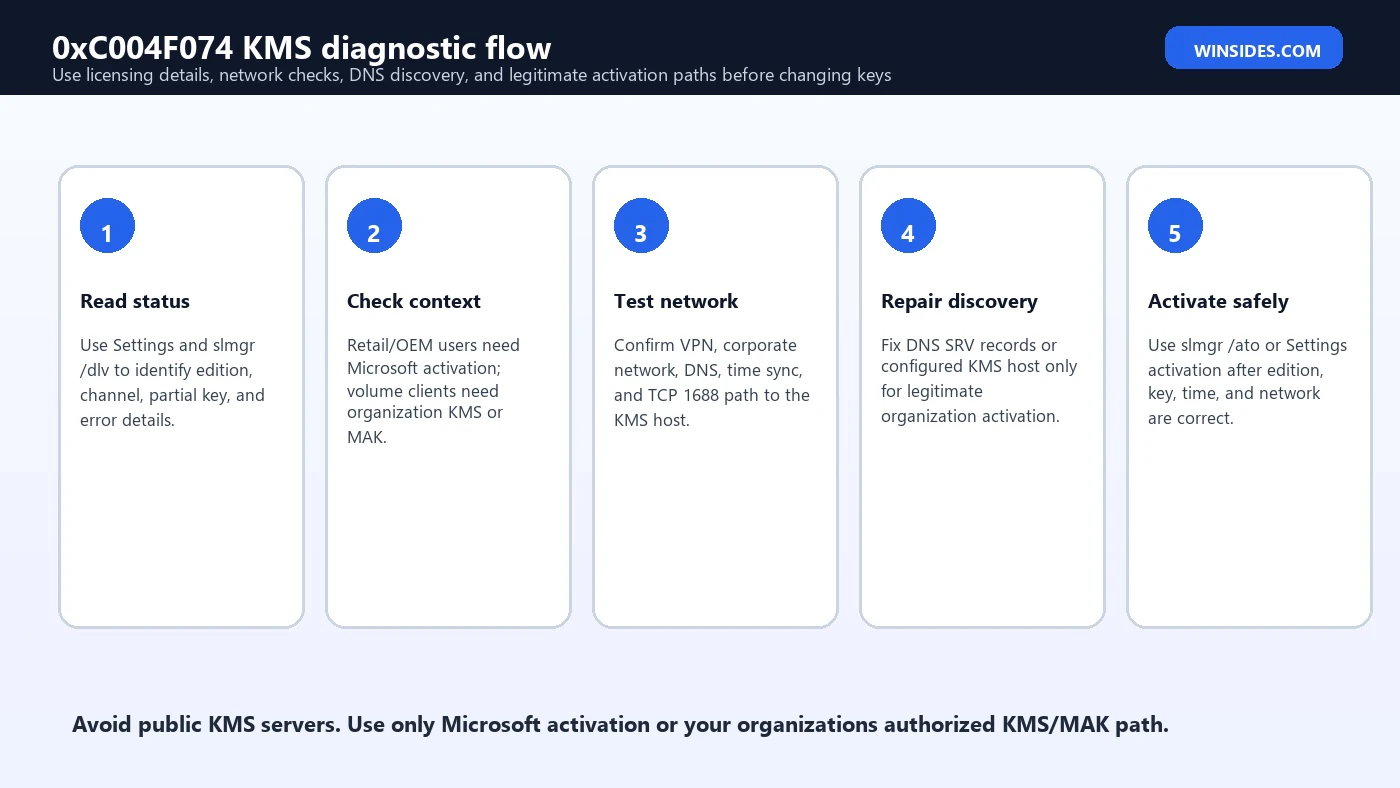
For legitimate KMS clients, the practical diagnostic flow starts with discovery. Does the client know which KMS host to use? If DNS discovery is used, are the correct SRV records published in the right DNS zone? If a KMS host was manually configured, is that host still correct? If the device is remote, is the VPN connected before activation is attempted? If a firewall changed, is TCP port 1688 still reachable from the client network?
The exact commands an administrator uses can vary by environment, but the evidence is consistent. Check slmgr /dlv for KMS host information. Check DNS SRV records for KMS discovery. Check whether the client can resolve the KMS host name. Check whether network policy allows the KMS port. Check the KMS host event logs and client licensing events. If the host was renamed, decommissioned, moved, or blocked by firewall, clients may keep failing with activation errors until discovery is repaired.
slmgr /dlv\nslmgr /atoslmgr /ato attempts activation using the current configuration. Use it after fixing network, time, key, edition, or KMS host discovery. Do not repeat it blindly every few seconds. If activation still fails, read the error details and logs. Repeated attempts without fixing the underlying path do not help, and in a managed environment they can create noise for administrators.
Check Date, Time, and Time Zone
Activation relies on secure communication, and secure communication depends on reasonable time. If the date, time, or time zone is badly wrong, activation can fail in confusing ways. This is especially common on virtual machines, lab machines, dual-boot systems, devices with a drained CMOS battery, and systems that have been offline for a long time. Before changing keys, confirm that Windows has the correct date, time, time zone, and internet or domain time synchronization.
Open Settings, go to Time and language, then Date and time. Enable automatic time where appropriate, sync now, and confirm the time zone. On domain-joined systems, time is usually controlled by domain hierarchy. If a domain device has large time drift, Kerberos and other domain services may also fail, so activation may be only one symptom. Fix time at the right source rather than manually setting random values on each client.
After correcting time, retry activation from Settings or with slmgr /ato. If the activation path was otherwise correct, fixing time may be enough. If the same error returns, continue with edition, key, KMS discovery, and network checks.
Fix Edition and Product Key Mismatch
Edition mismatch is one of the most common activation traps. Windows 11 Home, Pro, Enterprise, Education, and other editions are not interchangeable for activation. A Pro digital license does not activate Enterprise. A KMS client key for Enterprise does not activate a Home installation. A retail key does not turn a volume KMS environment into a retail entitlement unless the edition and licensing terms match. Always confirm the installed edition before changing a key.
Microsofts KMS client activation key page lists KMS client setup keys by product and edition. Those keys are for configuring KMS clients in volume activation scenarios. They are not consumer product keys and do not activate Windows by themselves. If an unauthorized tool installed a generic volume key on a personal PC, the device may now be trying to activate through KMS and failing with 0xC004F074. The correct path is to install the correct edition and use a genuine retail/OEM/digital license.
For a company PC, do not switch editions casually. Enterprise, Education, and Pro may be controlled by organizational licensing, subscription activation, Intune, Group Policy, or provisioning packages. If the edition is wrong after imaging, the deployment process should be corrected. If the key is wrong, IT should install the proper KMS client key or MAK according to the organizations licensing plan.
Remove a Stale Manual KMS Host
Some clients are manually pointed at a KMS host. That can be valid inside an organization, but it becomes a problem when the host name is old, the device moved to a different environment, or an unofficial activator changed the setting. If slmgr /dlv shows a configured KMS host that you do not recognize, that is important evidence. On a personal device, an unknown KMS host is a red flag that the activation configuration may have been tampered with.
Microsofts slmgr documentation includes options for setting or clearing KMS host information. In a legitimate organization, administrators may use those options to point clients to the correct host or return clients to DNS-based discovery. On unmanaged personal PCs, do not replace an unknown KMS host with a public server. Clear unauthorized KMS configuration and activate through Microsoft using a valid license instead.
slmgr /ckms\nslmgr /atoslmgr /ckms clears the configured KMS server name and port, returning the client to normal KMS discovery behavior. Use it only when it matches the environment. If your organization intentionally configured a specific host, clearing it may break activation until DNS discovery is correct. If the PC should not use KMS at all, clearing KMS host settings is only one part of returning to the correct retail, OEM, digital, or MAK path.
Troubleshooting for Personal PCs
If this is your personal Windows 11 PC, start with genuine license basics. Confirm the edition. Sign in with the Microsoft account associated with your digital license if applicable. Run the activation troubleshooter in Settings if available. If you recently changed hardware, follow Microsoft activation guidance for hardware changes. If you bought a product key, confirm it is for the exact edition installed and came from a legitimate source.
A personal PC should not normally need KMS. If slmgr /dlv shows a volume KMS channel on a home machine, ask how that happened. It may have been installed from a workplace image, a second-hand seller may have used volume activation improperly, or an activation script may have changed the product key. In those cases, the ethical and reliable fix is to use a genuine license and the right Windows edition. Trying public KMS servers may appear to work temporarily, but it is not a valid repair and can create security risk.
If the device came from a manufacturer with Windows preinstalled, reinstalling the matching edition usually lets Windows reactivate automatically once online. If the digital license is for Pro and Enterprise is installed, install Pro. If the device has no valid license for the installed edition, purchase the correct license or contact Microsoft or the seller. Activation problems caused by invalid licensing cannot be solved permanently by network troubleshooting.
Troubleshooting for Work or School PCs
For work or school devices, 0xC004F074 often means the device cannot reach the organizations activation infrastructure. Connect to the corporate network or VPN and retry activation. If the device has been offline for a long time, give it time to receive policies, DNS settings, and network routes. If the error continues, collect the Windows edition, activation error, slmgr /dlv output, network location, VPN status, and time of the attempt.
The IT team should verify that the KMS host is reachable, supports the client OS, is activated, and has met activation threshold requirements. They should also check DNS SRV publication, firewall rules, TCP 1688 reachability, time synchronization, and client event logs. If many devices fail at once, the issue may be KMS host, DNS, firewall, or network policy. If only one device fails, inspect its key, edition, manual KMS host setting, VPN, and local licensing service state.
Some organizations use MAK instead of KMS for remote or isolated devices. That decision belongs to the license administrator because MAK activations have count and management implications. Users should not install random keys from the internet. The right path is an approved organizational activation method.
Troubleshooting for Virtual Machines and Labs
Virtual machines can trigger 0xC004F074 when cloned, moved, restored from snapshots, or isolated from the network where KMS exists. Check whether the VM is using the intended edition and product key. Confirm that it can resolve and reach the KMS host. Check time synchronization between host and guest. If the VM is on an isolated lab network, make sure that lab has a valid activation method rather than assuming production KMS discovery will work across disconnected networks.
Snapshots can also confuse troubleshooting because you may return to an earlier activation state, earlier key, earlier DNS setting, or earlier time. If you revert a lab VM repeatedly, check the activation grace and renewal behavior. In enterprise labs, administrators may provide a lab KMS host, MAK, or evaluation media depending on licensing. Follow that plan rather than mixing keys across editions and channels.
For cloud VMs, use the cloud providers supported Windows images and activation model. Cloud platform images often rely on platform-specific activation services and network paths. Replacing keys or blocking metadata and activation endpoints can break activation. If the error appears after hardening a cloud VM, inspect outbound firewall, DNS, proxy, and platform activation requirements.
Safe Repair Checklist
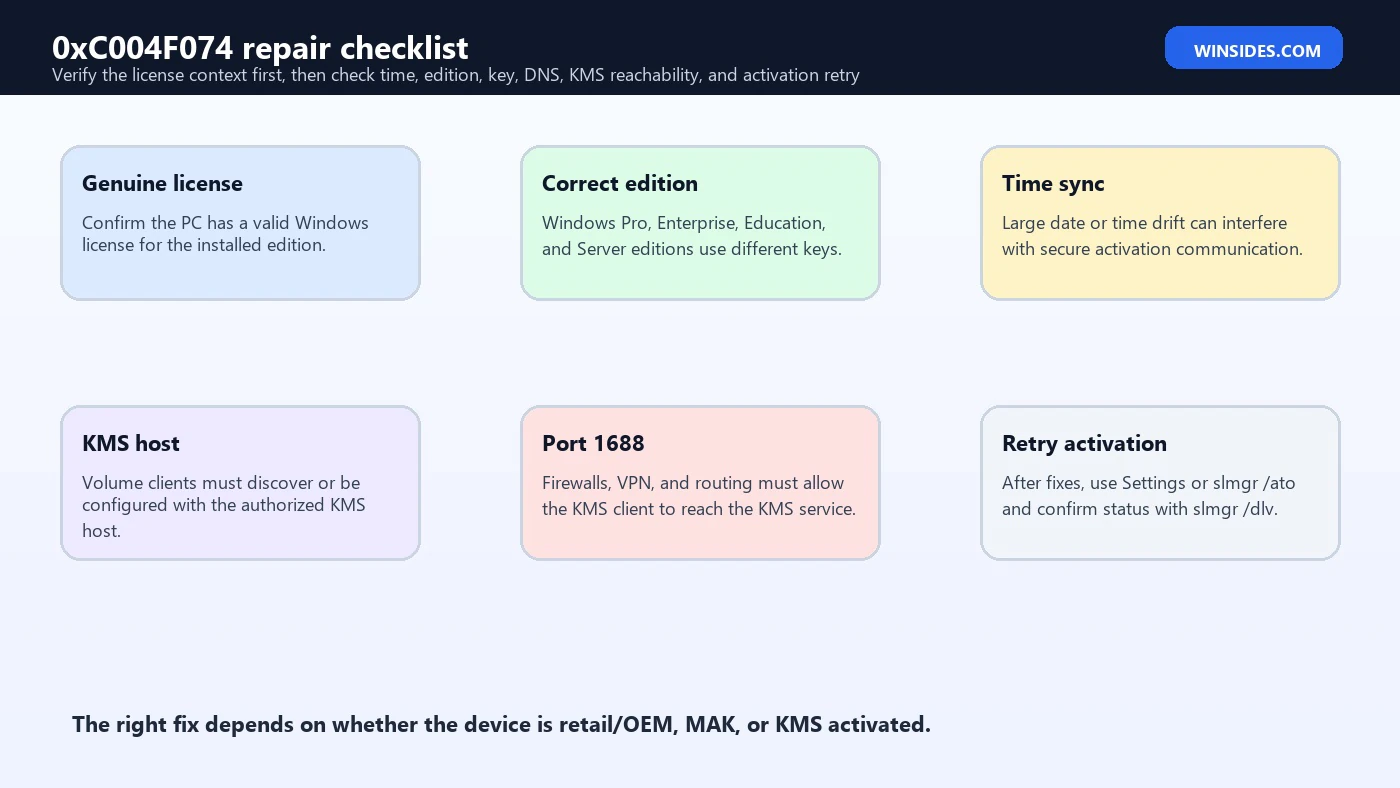
- Confirm the edition. Make sure the installed Windows edition matches the license you actually have.
- Read activation details. Run
slmgr /dlvand note channel, partial key, KMS host, and license state. - Check licensing context. Decide whether the PC should use retail/OEM digital license, MAK, or KMS.
- Correct time. Fix date, time, time zone, and domain time synchronization before retrying.
- Test network path. For KMS, verify VPN, DNS discovery, KMS host name, and TCP port 1688 access.
- Remove stale KMS configuration carefully. Use
slmgr /ckmsonly when a configured KMS host is wrong for the environment. - Retry activation. Use Settings or
slmgr /atoafter fixing the identified issue. - Escalate with evidence. Give IT or Microsoft support the edition, error code, channel, and relevant licensing details.
What Not to Do
Do not use public KMS servers, activation cracks, patched licensing files, or command bundles from random websites. They are not legitimate activation paths. They can install malware, weaken security, corrupt licensing state, and create recurring activation failures. If Windows is not licensed for the installed edition, the fix is a valid license and correct edition, not an unofficial server.
Do not publish or share full product keys in screenshots. Activation troubleshooting rarely requires exposing a full key. A partial key, edition, channel, and error code are usually enough for diagnosis. Do not install keys from forums. Microsofts KMS client setup keys are documented for volume activation setup, but they do not grant a license and should not be confused with purchased retail keys.
Do not reset Windows just because 0xC004F074 appears once. A reinstall can help when the installed edition is wrong or the licensing state is badly damaged, but many activation problems are fixed by correcting time, network, VPN, KMS host discovery, DNS, or product key context. Diagnose before rebuilding.
Event Logs and Evidence to Collect
Activation troubleshooting improves when you collect consistent evidence. From the user side, capture a screenshot of Settings activation state, the exact error code, Windows edition, and whether the device is personal or organization-managed. From the admin side, collect slmgr /dlv, client event logs, KMS host logs, DNS SRV records, firewall changes, and VPN status. If many clients fail together, correlate the first failure time with network, DNS, firewall, and KMS host changes.
| Evidence | Why it matters | Who usually uses it |
|---|---|---|
| Windows edition | Activation keys and channels are edition-specific. | User and administrator |
| Activation channel | Separates retail/OEM/digital license, MAK, and KMS paths. | Administrator |
| Partial product key | Helps identify the installed key without exposing the full key. | Administrator |
| KMS host info | Shows whether a host is discovered or manually configured. | Administrator |
| VPN/network state | Remote devices may need corporate network access. | User and administrator |
| Time and time zone | Bad time can break secure activation communication. | User and administrator |
| DNS SRV records | KMS discovery depends on correct DNS publication when DNS discovery is used. | Administrator |
| Firewall path | KMS commonly uses TCP port 1688. | Network administrator |
This evidence also prevents the wrong fix. If the activation channel is retail, KMS DNS records are irrelevant. If the device is KMS but off the corporate network, the Microsoft Store is irrelevant. If the edition is wrong, firewall changes will not solve activation. The evidence points the fix at the right layer.
Frequently Asked Questions
What is 0xC004F074?
It is a Windows activation error. In many real cases it appears when a KMS client cannot complete activation with the expected KMS host, but the exact fix depends on edition, key type, activation channel, and network context.
Is 0xC004F074 always a KMS problem?
No. It is often KMS-related, especially on volume-licensed devices, but it can also reflect wrong edition, wrong key type, stale KMS host configuration, time drift, or a personal PC that was incorrectly configured with a volume key.
How do I check whether Windows is using KMS?
Run slmgr /dlv from an elevated Command Prompt or Windows Terminal and review the activation channel and KMS host details. Settings > System > Activation also shows useful activation state information.
Can I fix 0xC004F074 by using a public KMS server?
No. Use only Microsoft activation services, a valid retail/OEM/digital license, a legitimate MAK, or your organizations authorized KMS host. Public KMS servers and activation scripts are not safe or legitimate fixes.
Why does my work laptop activate only on VPN?
If the laptop uses organization KMS activation, it may need to reach the corporate KMS host through VPN or the office network. DNS, routing, firewall, and TCP port 1688 access can all matter.
What does slmgr /ato do?
Microsoft documents slmgr /ato as an activation attempt using the installed product key and current activation configuration. Use it after correcting edition, key, time, KMS host, or network problems.
What does slmgr /ckms do?
It clears the configured KMS server name and port, returning the client to KMS discovery behavior. Use it only when a manually configured KMS host is wrong or unauthorized for the environment.
Can reinstalling Windows fix 0xC004F074?
It can help when the wrong edition or badly modified activation state is installed, but it is not always necessary. Check edition, key type, activation channel, time, and network evidence first.
Conclusion: Match the Activation Path to the License
0xC004F074 is easiest to fix when you stop treating it as a random Windows error and start treating it as an activation-path mismatch or communication failure. Windows needs the installed edition, product key, activation channel, and activation service to agree. If the PC is personal, the path is usually Microsoft digital, OEM, or retail activation. If the PC is organization-managed, the path may be KMS or MAK. If the device is configured for the wrong path, activation fails no matter how many times you click Activate.
The safest workflow is clear: check Settings, run slmgr /dlv, confirm the edition, identify the activation channel, correct time, verify network access, and repair KMS discovery only for legitimate volume activation environments. If the device should not use KMS, clear unauthorized KMS configuration and activate with a valid license. If it is a work or school device, collect evidence and let the license administrator fix KMS, MAK, DNS, firewall, or policy.
Use Microsofts activation error guidance, KMS client activation key documentation, KMS activation guidance, KMS planning documentation, and slmgr.vbs options as the official reference set. They keep the troubleshooting grounded in valid Windows licensing rather than risky shortcuts.
For more interesting articles, stay tuned to Winsides.com!









Community
Comments (0)