

Introduction to ERR_NAME_NOT_RESOLVED
ERR_NAME_NOT_RESOLVED is a Chrome page loading error that appears when the browser cannot turn a website name into an IP address. In plain terms, Chrome knows the hostname you typed, but the name resolution path did not return a usable address. Google describes this Chrome error as meaning that the hostname or web address does not exist or now has a different IP address. That definition is helpful because it points to DNS, not immediately to Wi-Fi, HTTPS, certificates, or the website application itself.
The confusing part is that the failure can happen in several places before Chrome ever connects to the website. The address might be mistyped. The domain might be expired or misconfigured. Your Windows DNS cache might contain a stale negative response. Your router or ISP resolver might be failing. A VPN might be forcing split DNS. A proxy or security product might intercept name lookups. Chrome secure DNS settings might use a resolver that cannot see an internal workplace domain. The error looks like one message, but the root cause is usually one broken link in the name-resolution chain.
Official documentation gives a solid troubleshooting foundation. Google Chrome Help lists ERR_NAME_NOT_RESOLVED under page loading errors and explains the hostname meaning. Microsofts ipconfig documentation explains DNS cache display and flushing options, while Microsofts nslookup documentation explains using the command to diagnose DNS infrastructure. Google Public DNS also documents DNS server configuration, including the need to record old DNS settings before switching resolvers.
This guide is written for Windows 11 users who see ERR_NAME_NOT_RESOLVED in Chrome, Edge, or another Chromium-based browser. It explains what the error means, how DNS resolution works on Windows, how to test whether the problem is the domain or your PC, and how to repair the issue without randomly resetting every network setting. The safest method is to test scope first, clear local cache second, compare DNS resolvers third, and only then change adapter, router, VPN, proxy, or domain-side DNS configuration.
Table of contents
Key Takeaways
- ERR_NAME_NOT_RESOLVED is a DNS or hostname resolution error. Chrome could not map the web address to an IP address that it can connect to.
- Scope tells you where to look. One failing domain points to typo, domain DNS, hosts file, or resolver cache; many failing domains point to network, DNS server, VPN, proxy, or adapter issues.
- Do not change DNS settings first. Test with
nslookup, compare resolvers, flush local cache, and check Chrome or Windows settings before replacing working network configuration. - Windows DNS cache can hold stale answers. Microsoft documents
ipconfig /displaydnsandipconfig /flushdnsfor viewing and clearing DNS resolver cache during troubleshooting. - nslookup separates browser problems from DNS problems. If
nslookupfails on multiple resolvers, the domain itself may be missing or misconfigured. - VPNs and proxies can cause split-DNS problems. Internal domains may resolve only while connected to the right network or using the right resolver.
- Public DNS is a test and a possible fix, not a magic cure. Write down existing DNS settings before switching to any public resolver so you can revert if needed.
What ERR_NAME_NOT_RESOLVED Means
A browser cannot connect to a website using only the friendly name that people type. Before Chrome can load https://example.com, something must resolve example.com into one or more IP addresses. DNS is the usual system that performs that translation. If the name lookup fails, Chrome does not yet know where to send the connection. That is when ERR_NAME_NOT_RESOLVED can appear.
This is different from a server refusing a connection, an HTTPS certificate problem, a slow site, or a broken web application. Those problems usually happen after the name has resolved and Chrome is trying to connect or validate the connection. ERR_NAME_NOT_RESOLVED happens earlier. The hostname itself could not be resolved, so the troubleshooting path should start with names, DNS cache, resolvers, network path, and domain records.
The error can also be temporary. DNS responses are cached. Routers cache. Browsers keep state. Domains change addresses. A registrar can suspend a domain. A website owner can accidentally delete an A record or CNAME. A VPN can switch your resolver to an internal DNS server. Your ISP resolver can have a short outage. The practical question is not just what the code means; it is which layer failed this time.
How Name Resolution Works on Windows 11
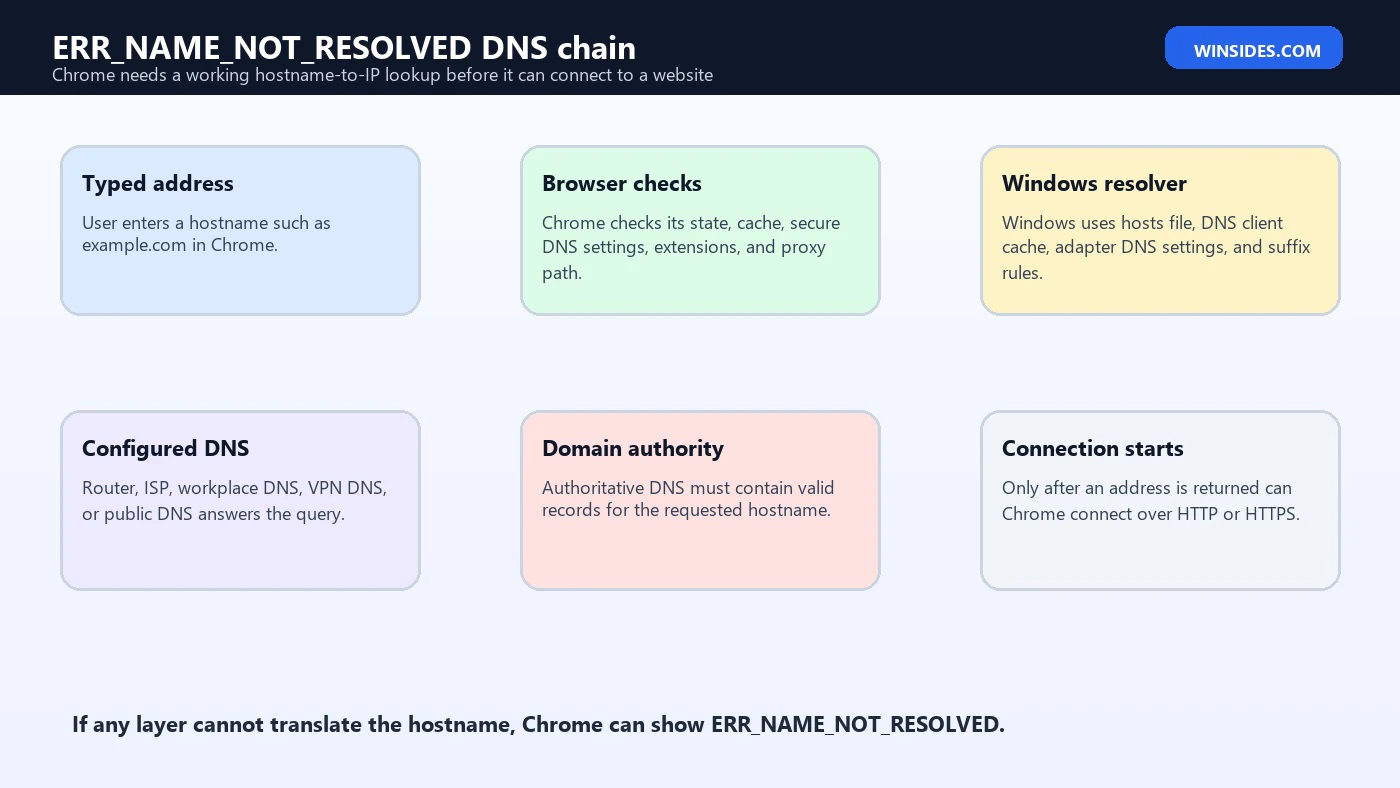
On a Windows 11 PC, Chrome is only one part of the name-resolution path. When you type a website, Chrome checks its own state and browser-level settings. Windows can then use local mechanisms such as the hosts file, DNS Client cache, configured DNS servers, network adapter settings, VPN adapters, search suffixes, and the router or resolver supplied by DHCP. The DNS server may be your router, your ISP, your workplace, a VPN service, or a public resolver such as Google Public DNS.
Each layer can fail differently. A hosts file entry can force a wrong address or block a domain. A stale DNS Client cache entry can keep an old negative answer. A router can hand out a bad DNS server. A VPN can send only corporate names to the company resolver but public names somewhere else. A proxy auto-config file can point Chrome down a broken path. A domain owner can publish a bad CNAME or forget an A record. If you treat all of these as one issue, troubleshooting becomes slow and messy.
That is why comparing results matters. If Chrome fails but nslookup works, the browser path or proxy path may be the issue. If nslookup fails with your default DNS server but works with another resolver, your configured resolver is suspicious. If it fails everywhere, the hostname may not exist publicly, the domain may be misconfigured, or the name may be private and only resolvable on a specific network.
Common Causes of ERR_NAME_NOT_RESOLVED
| Cause | What it means | Best first check |
|---|---|---|
| Mistyped hostname | The entered web address is wrong or contains an extra character. | Retype the domain and search for the official site. |
| Domain DNS issue | The site owner removed, changed, or broke DNS records. | Test from another network and compare public DNS resolvers. |
| Stale DNS cache | Windows or browser cache remembers an old or negative answer. | Run ipconfig /flushdns and restart the browser. |
| Router or ISP resolver failure | The DNS server handed out by the network cannot answer correctly. | Compare nslookup domain 8.8.8.8 with the default resolver. |
| Hosts file override | A local hosts file entry bypasses normal DNS. | Inspect the hosts file for the failing domain. |
| VPN or proxy conflict | Traffic is routed through a resolver that cannot see the requested name. | Disconnect or change one path at a time for testing. |
| Secure DNS mismatch | Chrome uses a DNS provider that differs from Windows or the workplace network. | Temporarily use OS DNS settings in Chrome. |
| Security software | Filtering, parental controls, EDR, or antivirus blocks or rewrites DNS. | Check protection logs and policy messages. |
The cause is often obvious once you identify scope. One misspelled internal domain failing only when off VPN is not an internet outage. Every website failing on one laptop but not on your phone points toward local adapter, cache, proxy, or security settings. One public domain failing on every network points toward the website owner or registrar, not your PC.
First Check: Is It One Site or Every Site?
Start with scope because it prevents wasted changes. Open two or three unrelated sites such as a search engine, a news site, and your router or company portal. Try the same failing site in another browser. Try the same site on a phone using mobile data, not the same Wi-Fi. If only one hostname fails while the rest of the internet works, focus on that hostname, local overrides, DNS cache, and domain-side DNS. If many hostnames fail, focus on your network, DNS server, adapter, router, VPN, proxy, or security stack.
This scope test is also important for internal domains. A workplace site such as intranet.company.local may never resolve on public DNS. It may only work while connected to the company VPN or office network. If Chrome shows ERR_NAME_NOT_RESOLVED for an internal domain at home, the issue may simply be that your PC is using public DNS instead of the corporate resolver. Public DNS is excellent for public names; it cannot resolve private names that only exist inside your organization.
If the domain is public and only your PC fails, continue with browser and Windows checks. If all devices on the same Wi-Fi fail, restart the router and check DNS settings handed out by the router. If mobile data works but home Wi-Fi fails, your home router or ISP resolver is a strong suspect. If no network can resolve the domain, the site owner may need to repair domain DNS records.
Check the Address and Domain State
Before changing settings, inspect the address itself. Remove unnecessary paths and query strings, leaving only the main domain. For example, if https://sub.example.com/some/page fails, test https://example.com and https://sub.example.com separately. A subdomain can fail while the root domain works because DNS records are separate. A website can also redirect between names, and one of those names may be broken.
Look for typos, wrong top-level domains, spaces, copied punctuation, and invisible characters. Browser address bars hide some details, so paste the hostname into a plain text editor if needed. If the website recently changed its domain, the old name may no longer resolve. If you own the website, check the registrar, authoritative DNS provider, A and AAAA records, CNAME chain, and nameserver delegation. ERR_NAME_NOT_RESOLVED can be a website owner problem, not a visitor problem.
For site owners, the most important distinction is between local DNS failure and authoritative DNS failure. If public resolvers such as Google Public DNS and your ISP both return nonexistent domain for your hostname, flushing your PC will not fix the site. You need to repair the DNS zone, nameserver delegation, expired domain, missing record, or CNAME target.
Clear Chrome and Windows DNS Cache
If the hostname is correct and the issue is local, clear cached name-resolution state. Microsoft documents that ipconfig /displaydns displays the DNS Client resolver cache and that ipconfig /flushdns flushes and resets that cache. During troubleshooting, flushing can remove negative cache entries and other dynamically cached entries. This is a low-risk step because Windows can query DNS again after the cache is cleared.
ipconfig /displaydns\nipconfig /flushdnsAfter flushing, close and reopen Chrome. If you use Chrome profiles, extensions, or secure DNS settings, also test in an Incognito window. Incognito does not bypass Windows DNS, but it helps separate extension or profile state from basic network resolution. If the site works in Incognito but not in the normal profile, disable extensions temporarily and clear site data for the affected domain.
Restarting the DNS Client service is usually unnecessary for normal users, and on some Windows versions it may be protected. Start with ipconfig /flushdns, a browser restart, and a Windows restart before touching services. If the error disappears after flushing, the likely cause was stale local resolver state or a temporary negative answer.
Use nslookup to Test DNS Directly
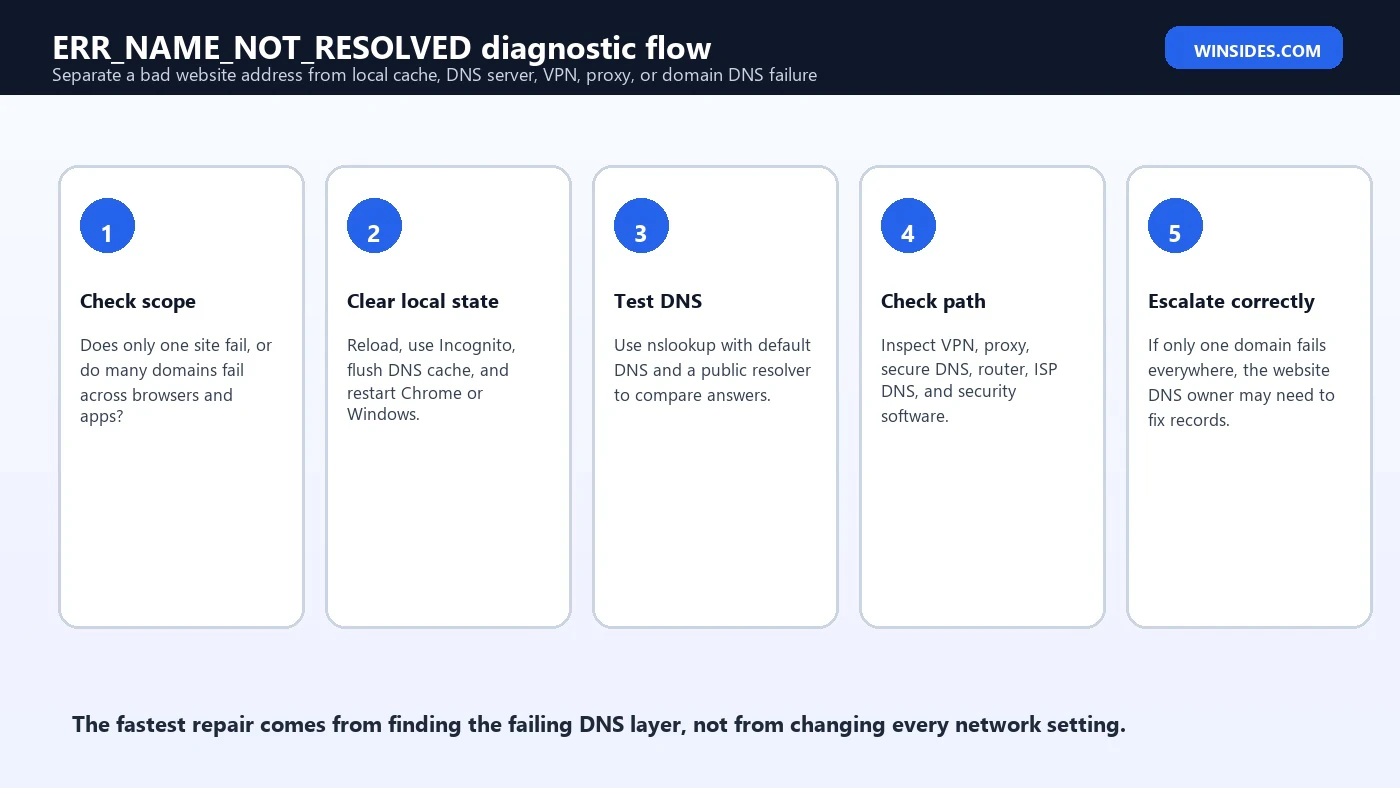
Microsoft describes nslookup as a command-line tool for diagnosing DNS infrastructure. It is extremely useful because it tests DNS resolution outside the browser. Use it to compare your default DNS server with a public resolver. If the browser fails but nslookup returns a valid address, the problem may be browser settings, proxy behavior, secure DNS, security software, or a cached browser state. If nslookup fails too, DNS itself is more likely involved.
nslookup example.com\nnslookup example.com 8.8.8.8\nnslookup -type=A example.com\nnslookup -type=AAAA example.comThe first command asks your default DNS server. The second asks Google Public DNS directly at 8.8.8.8. The A query checks IPv4 records, while the AAAA query checks IPv6 records. If the default resolver fails but Google Public DNS returns a valid answer, your router, ISP resolver, VPN resolver, or workplace DNS path may be the issue. If both return nonexistent domain, the hostname may not exist publicly or may be private.
Do not treat every nslookup warning as a failure. Some DNS servers do not have reverse lookup names, which can produce a server-name warning while the actual domain lookup still works. Focus on whether the requested hostname returns addresses, nonexistent domain, timeout, refused, or server failure. Microsofts nslookup documentation lists common failure messages such as timed out, no response from server, nonexistent domain, refused, and server failure; those messages help separate resolver outage from missing records.
Check Windows DNS Server Settings
If nslookup shows that your default DNS server fails but another resolver works, inspect adapter DNS settings. On a typical home network, Windows receives DNS servers from the router through DHCP. That DNS server may be the router itself, which then forwards queries to your ISP or another resolver. On a work device, DNS may come from VPN, Intune, Group Policy, or a management agent. On a manually configured PC, old DNS addresses may remain long after a network change.
Open Settings, go to Network and Internet, select your active Wi-Fi or Ethernet connection, and review DNS server assignment. If it is automatic, the router or DHCP server is deciding. If it is manual, write down the existing addresses before changing anything. Google Public DNS documentation specifically recommends recording current DNS server addresses before switching so you can revert. That is good practice for any DNS provider, not only Google.
If you test public DNS, configure at least two resolver addresses rather than the same address twice. Google Public DNS documents IPv4 addresses 8.8.8.8 and 8.8.4.4, and IPv6 addresses 2001:4860:4860::8888 and 2001:4860:4860::8844. Use public DNS only when it fits the environment. On a corporate network, switching to public DNS can break internal names, split tunneling, device management, or compliance requirements.
Check VPN, Proxy, and Secure DNS
VPN and proxy settings are common causes of ERR_NAME_NOT_RESOLVED because they can change where name lookups go. A full-tunnel VPN may send all DNS queries to the company resolver. A split-tunnel VPN may send only certain suffixes to internal DNS. A browser proxy or PAC file may route web traffic differently from other apps. Chrome secure DNS may use a resolver that differs from the Windows adapter resolver. Each of these can be correct in one network and wrong in another.
Test one variable at a time. Disconnect the VPN and try a public website. Reconnect the VPN and try the internal site. Disable the proxy temporarily only if you are allowed to do so. In Chrome, review secure DNS settings and test using the operating system resolver. If an internal domain works only with VPN connected, that is expected. If a public domain fails only while VPN is connected, the VPN DNS or filtering path may be broken.
On managed devices, do not permanently disable VPN, proxy, or secure DNS controls without policy approval. Collect evidence: failing hostname, VPN status, resolver output, network used, and time. That is enough for an administrator to check split-DNS rules, proxy PAC logic, DNS filtering, or secure web gateway policy. For personal devices, remove old VPN clients or proxy settings that are no longer used, then retest.
Inspect the Hosts File Carefully
The Windows hosts file can override normal DNS resolution for specific names. If a domain appears in hosts with an old IP address, loopback address, or blocking address, Chrome may show ERR_NAME_NOT_RESOLVED or a related loading error depending on the entry and target. The hosts file is useful for testing, development, and blocking, but stale entries create confusing browser failures.
The hosts file is normally located at C:\\Windows\\System32\\drivers\\etc\\hosts. Open it with Notepad as administrator if you need to review or edit it. Look for the exact failing domain and its common subdomain, such as www. Comment out suspicious custom entries with a leading # rather than deleting them immediately, then save, flush DNS, and retest. Do not remove default comments or unrelated entries unless you know why they exist.
notepad C:\\Windows\\System32\\drivers\\etc\\hosts\nipconfig /flushdnsHosts-file mistakes often affect only one site on one PC, which is a strong clue. If the same website works on your phone and another computer but not on one Windows 11 device, and nslookup returns a valid answer while Chrome still fails, the hosts file deserves a look. Security products and development tools can also add hosts entries, so document what you change.
Router and ISP DNS Troubleshooting
If every device on the same Wi-Fi shows ERR_NAME_NOT_RESOLVED for many domains, move from the PC to the network. Restart the router and modem. Check whether the router received DNS server addresses from the ISP. If your router has a DNS override, write down old settings before changing them. Some routers cache DNS or act as a forwarding resolver, so a router restart can clear a bad state without touching Windows.
Compare networks. If the same laptop resolves domains on mobile hotspot but fails on home Wi-Fi, home DNS is the likely layer. If home Wi-Fi fails but mobile data works on the phone, the website is probably fine and your router, ISP resolver, or DNS filtering is suspicious. If your ISP resolver repeatedly fails, using a reliable public DNS resolver at the router can help, but only after you understand whether the router, ISP, or a filtering service is the source.
Be cautious with parental-control DNS and security-filtering DNS. Those services intentionally return different DNS answers for blocked categories, malware domains, or policy violations. In a family or small business network, a blocked result may be expected. Check the filtering dashboard before assuming DNS is broken. On a workplace network, DNS filtering policy should be handled by the IT team.
IPv6, AAAA Records, and Mixed Connectivity
Modern networks often use both IPv4 and IPv6. A domain can publish A records for IPv4, AAAA records for IPv6, or both. ERR_NAME_NOT_RESOLVED usually means name resolution itself failed, but mixed IPv4/IPv6 environments can still confuse testing. A resolver might return only IPv6 addresses on a network where IPv6 connectivity is broken, or a site might publish an incorrect AAAA record. In those cases, the browser may show a different connection error after resolution, but DNS testing still helps.
Use nslookup -type=A and nslookup -type=AAAA to see whether the domain has IPv4 and IPv6 records. If A records work but AAAA records are broken, the site owner may need to repair IPv6 DNS. If your network has partial IPv6, test on another network and avoid disabling IPv6 permanently as a first move. IPv6 is part of modern Windows networking, and disabling it broadly can create other issues.
If you choose a public DNS service, configure both IPv4 and IPv6 only if your network uses them correctly. Google Public DNS documents both address families, but a device with broken IPv6 routing can still have problems unrelated to the DNS server itself. Resolver selection and network connectivity are separate layers.
Chrome-Specific Checks
Because the error appears in Chrome, test Chrome-specific state after DNS basics. Open the failing site in Incognito. Disable extensions temporarily. Clear site data for the affected domain. Check Chrome secure DNS settings. Try another Chromium browser or Microsoft Edge. If every browser fails, the issue is probably below Chrome. If only one Chrome profile fails, the issue may be extension, profile cache, secure DNS, or proxy settings tied to that profile.
Chrome can also show different errors for adjacent problems. If the error changes from ERR_NAME_NOT_RESOLVED to ERR_CONNECTION_TIMED_OUT after DNS changes, name resolution may now work but the site connection is blocked or unreachable. If it changes to a certificate error, DNS may be resolving but HTTPS inspection or wrong-site routing is now visible. Pay attention when the error changes; it tells you the failing layer moved.
Use chrome://network-errors/ if you want the internal Chrome list of network error names, as Google Chrome Help notes that Chrome can show a complete list from that page. For normal users, the practical fix still comes from testing scope, DNS cache, resolver behavior, and network path.
Site Owner Checklist
If you own the website that visitors say is showing ERR_NAME_NOT_RESOLVED, troubleshoot from the authoritative DNS side. Confirm that the domain registration is active, nameservers are correct at the registrar, the DNS zone exists at the provider, and the hostname has the expected A, AAAA, or CNAME records. If you recently changed DNS providers, confirm delegation. If you changed a CNAME target, confirm the target itself resolves. If you use Cloudflare, Route 53, Azure DNS, Google Cloud DNS, or another DNS host, inspect the live zone, not an old exported file.
Check both apex and www names. example.com and www.example.com are separate hostnames. One can work while the other fails. If your site relies on a CDN, verify the CDN hostname still exists and the DNS record points to the correct target. If your domain expired or nameservers were changed accidentally, visitors cannot fix this locally. The domain owner must repair registration, delegation, or records.
Remember that DNS changes take time to propagate because resolvers cache previous answers until time-to-live values expire. However, propagation is not a cure for a missing or wrong record. If public resolvers consistently return nonexistent domain after the zone is supposed to be live, inspect delegation and records immediately rather than waiting indefinitely.
Practical Repair Flow
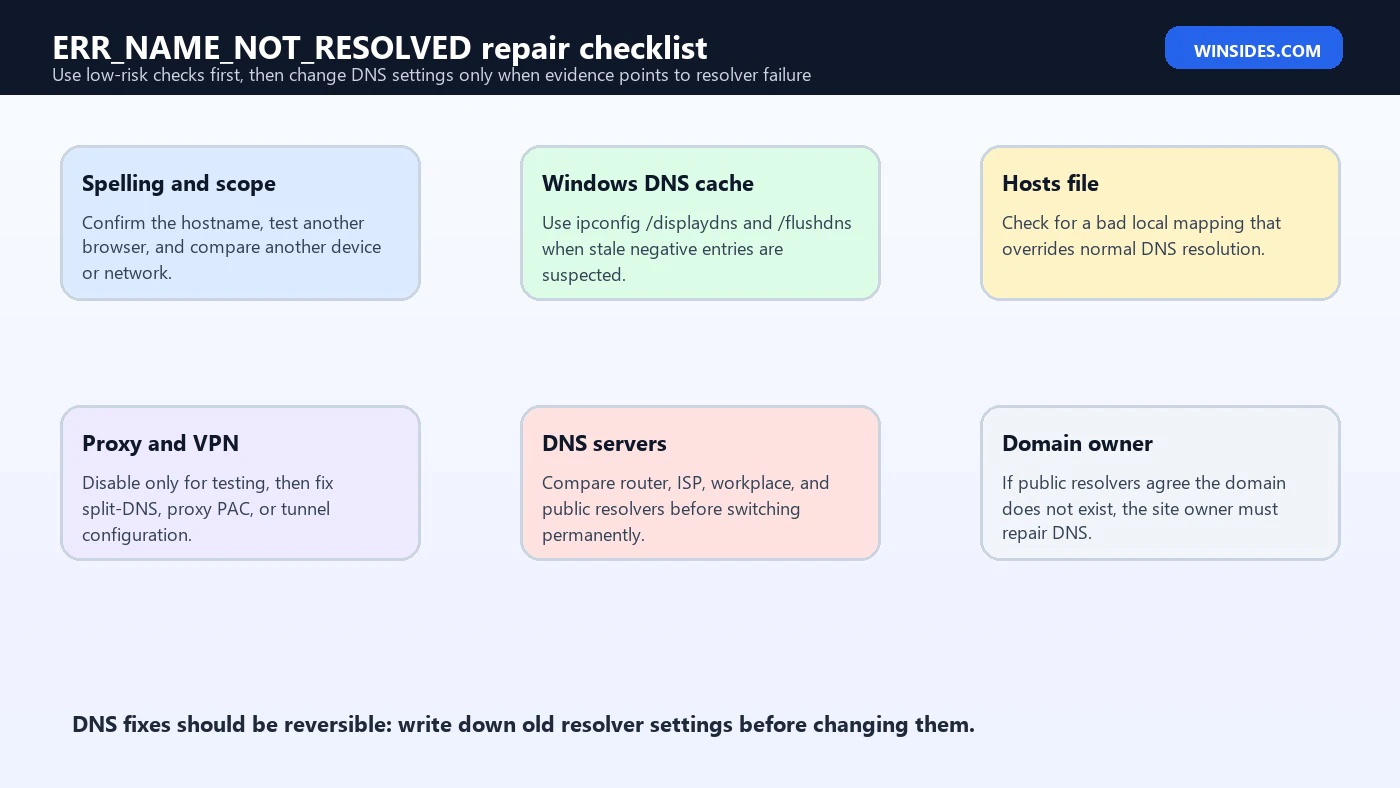
- Retype the domain. Test the root domain and subdomain separately.
- Check scope. Try another browser, another device, and another network.
- Flush local DNS. Run
ipconfig /flushdns, restart Chrome, and retest. - Compare DNS resolvers. Run
nslookup domainandnslookup domain 8.8.8.8. - Inspect local overrides. Check hosts file, Chrome secure DNS, proxy, VPN, and security filtering.
- Review adapter DNS. Write down old DNS settings before testing a public resolver or router DNS change.
- Escalate correctly. If all public resolvers fail for one domain, contact the site owner or DNS administrator.
What Not to Do
Do not reset the entire network stack as the first fix. Commands such as Winsock reset, adapter reset, static IP changes, router factory reset, and driver reinstall can create new issues if the real problem is a mistyped hostname or broken website DNS. Start with low-risk evidence: scope, cache, nslookup, hosts file, VPN, proxy, and DNS comparison.
Do not permanently disable security software just because DNS works during a quick test. If a security product blocks or filters DNS, review the policy and allowlist model. Malware filtering, family protection, secure web gateways, and enterprise DNS filters exist for a reason. The correct fix may be an exception, a repaired policy, or a DNS path change, not removing the control.
Do not switch a work laptop to public DNS without understanding internal name resolution. Public DNS cannot resolve private corporate zones, and changing DNS may break device management, internal portals, printers, file shares, and VPN behavior. For managed devices, gather nslookup output and ask the administrator to check resolver policy.
Frequently Asked Questions
What does ERR_NAME_NOT_RESOLVED mean?
It means Chrome could not resolve the hostname into an IP address. Google Chrome Help describes it as a case where the hostname or web address does not exist or now has a different IP address.
Is ERR_NAME_NOT_RESOLVED a Chrome problem?
Sometimes, but often it is DNS, router, VPN, proxy, hosts file, or domain-side DNS. Test with another browser and nslookup to separate Chrome state from DNS resolution.
How do I flush DNS on Windows 11?
Open Command Prompt or Windows Terminal and run ipconfig /flushdns. Microsoft documents this option as flushing and resetting the DNS Client resolver cache.
What command tests DNS directly?
Use nslookup domain.com to query your default DNS server, and use nslookup domain.com 8.8.8.8 to compare with Google Public DNS.
Should I change DNS to 8.8.8.8?
It can be a useful test and sometimes a fix, but write down existing DNS settings first. On work networks, public DNS can break internal names that require corporate DNS.
Why does only one website show ERR_NAME_NOT_RESOLVED?
The hostname may be mistyped, blocked by a hosts file entry, cached negatively, or misconfigured by the website owner. Test the same domain from another network and compare public resolvers.
Can a VPN cause this error?
Yes. VPNs can change DNS servers, split internal and public DNS, or force traffic through resolvers that cannot answer the requested name. Test with VPN on and off and note which names fail.
Can the website owner fix ERR_NAME_NOT_RESOLVED?
Yes, if the cause is expired registration, wrong nameservers, missing A or AAAA records, broken CNAME targets, or DNS provider misconfiguration. Visitors cannot fix authoritative DNS problems locally.
Conclusion: Find the Broken DNS Layer
ERR_NAME_NOT_RESOLVED is best understood as a hostname resolution failure. Chrome is not yet complaining about the web server, TLS certificate, or page content. It is saying that the name lookup did not return a usable destination. Once you see it that way, troubleshooting becomes much cleaner: confirm the hostname, determine scope, flush local cache, compare DNS resolvers, inspect local overrides, and then adjust DNS, VPN, proxy, router, or domain records based on evidence.
For Windows 11 users, the most useful tools are simple. ipconfig /flushdns clears stale resolver cache. nslookup compares default and public DNS answers. Chrome Incognito and secure DNS settings help isolate browser state. Router and VPN checks explain network-wide or split-DNS failures. Site-owner DNS checks explain why one domain fails everywhere. The fix should match the layer that failed.
Use the official Google Chrome Help page, Microsoft ipconfig and nslookup documentation, and Google Public DNS guidance as your reference points while troubleshooting. They keep the process grounded: understand the browser error, inspect Windows DNS cache, query resolvers directly, and change DNS settings only after writing down the old configuration.
For more interesting articles, stay tuned to Winsides.com!









Community
Comments (0)