

Introduction to 7zip for Windows 11
7zip for Windows 11 is one of the simplest ways to open, create, encrypt, and manage compressed files on a modern Windows PC. Windows 11 already has built-in ZIP support, but 7-Zip goes further. It can open many archive formats, create high-compression 7z archives, make ordinary ZIP files for sharing, split large archives into parts, test archives for errors, and protect sensitive files with encryption.
The download source matters. A file archiver touches files you open, folders you extract, installers you unpack, and sometimes passwords you type into encrypted archives. That makes fake download pages risky. The current official 7-Zip download page lists 7-Zip 26.02 dated 2026-06-25 for Windows, including x64, x86, and ARM64 installers, and it recommends the EXE installer over the MSI installer. official 7-Zip download page
The official 7-Zip website is the safe starting point for downloads, format information, FAQ entries, license details, and support links. official 7-Zip website The license file confirms the project is distributed as free software under its stated licensing terms, so you do not need a cracked, patched, activated, or repacked copy. official 7-Zip license file
This guide explains how to download 7-Zip safely on Windows 11, which installer to choose, how to use the Windows 11 context menu, how to create 7z and ZIP archives, how password protection actually works, when to use the command line, and what to do when archives fail to open or extract.
Table of contents
Key Takeaways
- Use the official 7-Zip download page. Avoid download portals, bundle installers, fake ads, cracked builds, and pages that wrap 7-Zip inside another installer.
- Most Windows 11 users should choose the 64-bit Windows x64 EXE installer. Use ARM64 only on ARM-based Windows devices and x86 only for older 32-bit systems.
- 7-Zip is free software. You do not need a paid unlocker, serial key, crack, or premium download site.
- 7z is best for high compression and encryption. ZIP is better for broad compatibility with people who may not have 7-Zip installed.
- Windows 11 has built-in ZIP handling. Microsoft documents built-in ZIP and unzip behavior, but 7-Zip offers more formats and more control. Microsoft support ZIP and unzip guidance
- Encrypted archives are only as safe as the password and workflow. Use strong passwords, do not email the password beside the archive, and remember that forgotten archive passwords are not realistically recoverable.
- Be careful with archives from unknown sources. Extract suspicious files into a temporary folder, scan them, and avoid running unknown executables.
What Is 7-Zip?
7-Zip is a file archiver. A file archiver takes one or more files and folders and stores them inside an archive file. That archive may be smaller than the original data, easier to send, easier to store, or easier to protect with a password.
The best-known 7-Zip format is 7z. The 7z format is designed for strong compression and supports features such as solid compression, large file sizes, Unicode file names, and AES-256 encryption according to the official 7-Zip format page. official 7-Zip format information In plain terms, 7z is usually the format you choose when compression ratio, long-term storage, or encrypted packaging matters more than universal compatibility.
7-Zip can also create ZIP archives. ZIP is less specialized but more widely recognized. If you need to send files to a user who may only use Windows Explorer, macOS Finder, a webmail preview, or a business upload form, ZIP is usually the safer sharing format.
7-Zip can open many other formats too. Depending on the archive, it can extract files from RAR, ISO, TAR, GZ, WIM, XZ, BZIP2, CAB, and other package types. That makes it useful for support work, driver packages, logs, old downloads, Linux tarballs, and software bundles.
The tool is also small. It does not try to be a cloud storage suite or a document manager. Its job is archive work: compress, extract, test, encrypt, split, and inspect files.
Is 7-Zip Compatible with Windows 11?
Yes. 7-Zip works on Windows 11, and the official download page provides current Windows packages. For a normal modern Windows 11 desktop or laptop, the 64-bit Windows x64 installer is usually the right choice.
Some newer portable devices run Windows 11 on ARM processors. If your device is ARM-based, use the ARM64 installer from the official page when available. Do not assume x64 is always best if you are on a Surface Pro with an ARM chip, a Snapdragon-based Windows PC, or another ARM64 Windows device.
Most users should not need the 32-bit x86 installer. It exists for older or special environments, but Windows 11 mainstream installations are overwhelmingly 64-bit.
The main compatibility issue is not whether 7-Zip can run on Windows 11. It is whether you downloaded the right installer, whether the Windows context menu integration is visible where you expect it, whether your security software trusts the file, and whether the archive you are opening is healthy and in a supported format.
On managed work or school devices, IT policy may block third-party archivers or provide a specific packaged version. Use the approved software portal if your organization has one.
Official 7-Zip Download Path
The safe download path starts at the official 7-Zip website, not a search ad. Use the official download page for the current Windows installer and architecture choices. official 7-Zip download page If you prefer to start from the project home page, use the official 7-Zip home page and then open Download from there. official 7-Zip website
Be careful with software download search results. A page can rank highly or look polished while still pushing a repack, outdated copy, bundled installer, or ad-driven download button. A fake 7-Zip page can install unwanted software or deliver an old build that misses fixes.
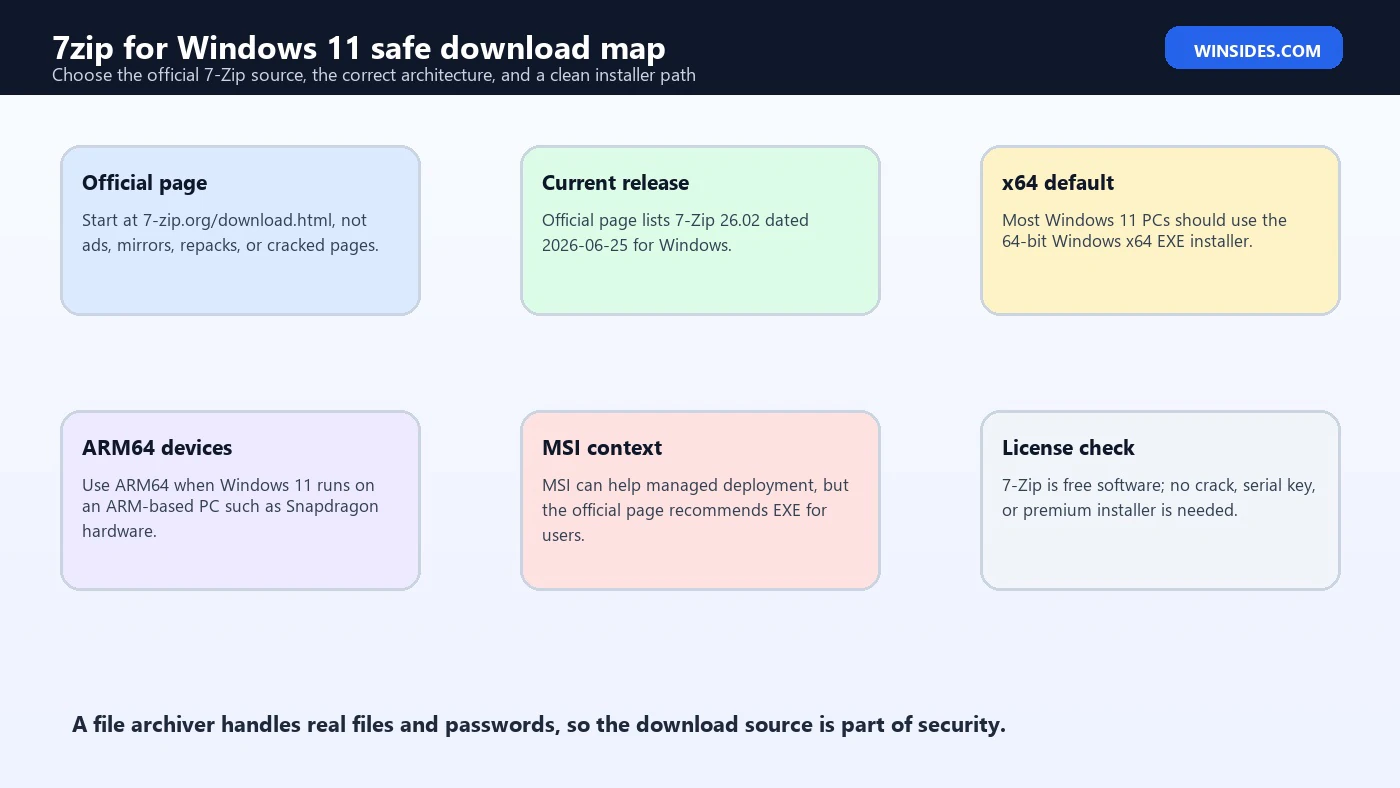
The official download page currently lists 7-Zip 26.02 dated 2026-06-25 for Windows. It provides EXE installers for 64-bit Windows x64, 32-bit Windows x86, and 64-bit Windows ARM64, plus alternative MSI packages and extra packages for advanced use. official 7-Zip download page
For everyday Windows 11 users, choose the 64-bit Windows x64 EXE installer. The official page itself says the EXE installer is recommended instead of the MSI installer version. official 7-Zip download page The MSI can be useful for deployment workflows, but it is not the default recommendation for most home users.
Do not download a file that says 7-Zip Pro, 7-Zip Premium, 7-Zip Full Activated, 7-Zip crack, or 7-Zip with license key. Those names do not describe the standard official Windows installer.
Which 7-Zip Installer Should You Download?
Choose based on your Windows architecture and your management needs.
For most Windows 11 PCs, download the 64-bit Windows x64 EXE installer. This is the default choice for modern Intel and AMD Windows 11 systems. It installs the graphical 7-Zip File Manager, shell integration, and command-line tools in the normal Program Files path.
For ARM-based Windows 11 PCs, use the ARM64 EXE installer. ARM64 Windows devices can sometimes run x64 apps through emulation, but a native ARM64 build is cleaner when the official project provides one.
For old 32-bit systems, use the x86 installer. This is uncommon for Windows 11, but the package exists for compatibility.
For enterprise deployment, the MSI package may be useful. Administrators often prefer MSI packages for software distribution, inventory, repair behavior, and scripted deployment. That does not mean MSI is better for every individual user; it means it fits some managed environments.
The Extra package is not for beginners. It includes standalone console components, DLLs, and plugin-related files. If you do not already know why you need it, you probably do not need it.
Avoid keeping several copies in Downloads, Desktop, old tools folders, and USB drives. Multiple old copies create confusion. Install one current official build and remove stale duplicates.
How to Install 7-Zip on Windows 11
After downloading the installer from the official page, open your Downloads folder and run the installer. If Windows shows a User Account Control prompt, confirm only after verifying that the file came from the official 7-Zip download path or your trusted organization portal.
The installer usually takes only a moment. After setup finishes, open Start and search for 7-Zip File Manager. You can also open File Explorer, right-click an archive, and look for 7-Zip options. On Windows 11, those options may appear under the modern context menu or under Show more options depending on the shell integration behavior and app version.
After installation, test with a harmless archive. Create a temporary folder, put a few non-sensitive files inside it, and create a sample ZIP or 7z archive. Then extract it to a second temporary folder. This small test confirms that the app, context menu, and file associations are working before you use it with important data.
If 7-Zip is installed but not visible in the right-click menu, open 7-Zip File Manager as administrator and check the Options area for file associations and context menu integration. You can also use Open with or launch 7-Zip File Manager directly, then browse to the archive.
Do not install from an unknown executable just because Windows asks whether you want to run it. Download source comes first.
How to Open 7z, ZIP, RAR, ISO, TAR, and GZ Files
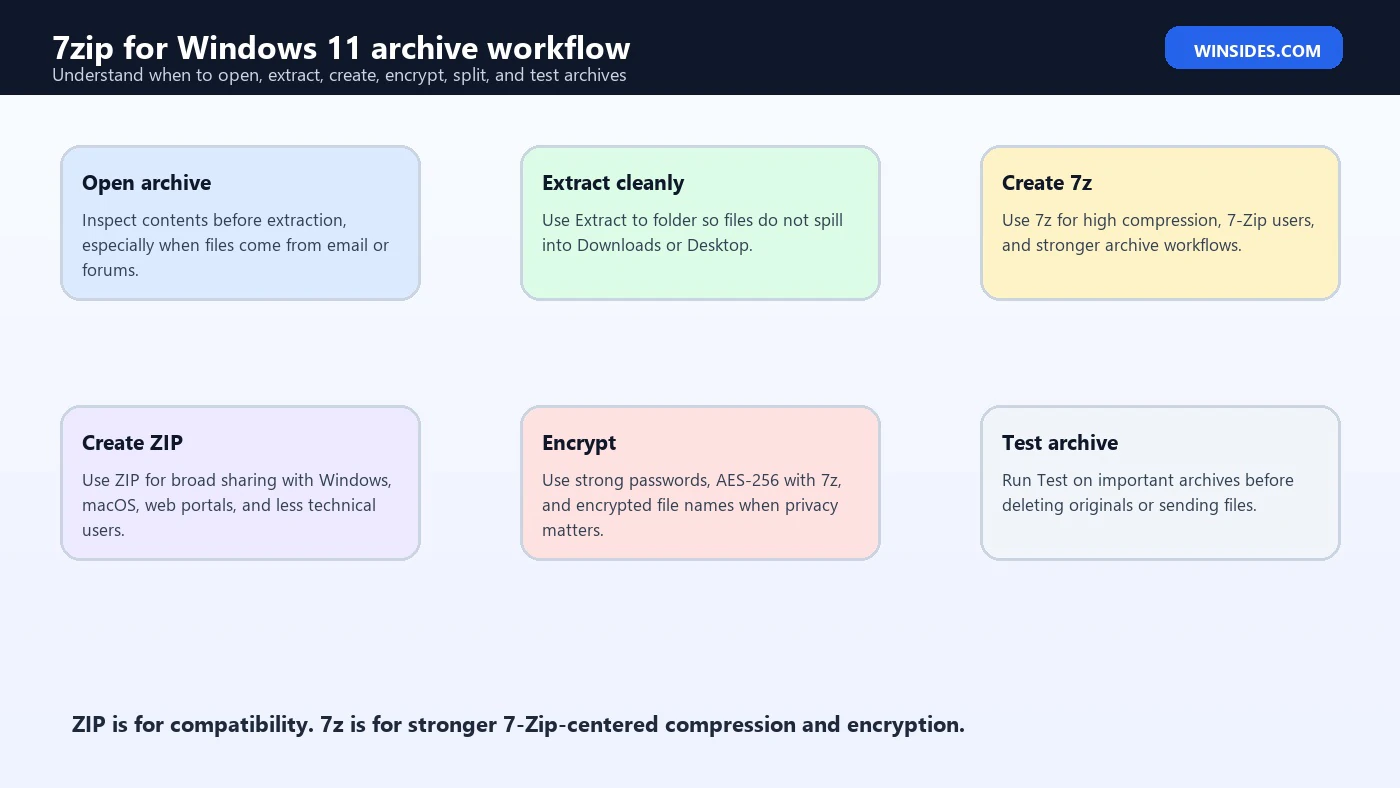
To open an archive, right-click the file and choose a 7-Zip option, or open 7-Zip File Manager and browse to the file. The safest beginner option is often Extract to a new folder. That keeps the extracted files organized and prevents them from mixing into a crowded Downloads folder.
For a ZIP file from a trusted source, you can use Windows Explorer or 7-Zip. Microsoft provides built-in ZIP and unzip support in Windows, so you do not need 7-Zip for every ordinary ZIP file. Microsoft support ZIP and unzip guidance 7-Zip becomes useful when you want better format support, better compression options, archive testing, split archives, or deeper inspection.
For RAR files, 7-Zip can usually extract but not create RAR archives. If you need to create RAR files, you need a RAR-capable tool. For most modern sharing workflows, ZIP or 7z is enough.
For ISO files, 7-Zip can inspect and extract contents. Windows can also mount many ISO files directly. Use extraction when you need files, and mounting when you need the ISO to behave like a virtual disc.
For TAR, GZ, XZ, and related formats, 7-Zip is useful when handling Linux packages, source bundles, logs, and backups. Some tarballs use a two-layer pattern such as .tar.gz, where one layer is compression and the other is the file collection.
Always extract archives from unknown sources into a separate folder. That makes it easier to inspect the result and delete the entire extraction if it contains suspicious files.
How to Create a 7z Archive
To create a 7z archive, select the files or folders, right-click, choose 7-Zip, and use Add to archive. In the archive format field, choose 7z. Give the archive a clear name and choose a destination folder you can find later.
Use 7z when you want stronger compression, optional AES-256 encryption, large archive support, or long-term storage. It is also a good format when the person receiving the archive already has 7-Zip or can install it from the official source.
Compression level affects speed and size. Ultra compression may produce a smaller file, but it can take longer and use more memory. Normal or Maximum is often a better practical choice. For photos, videos, already-compressed installers, and many modern document formats, compression gains may be small.
Solid compression can improve compression ratios when many related files are packed together, but it can make extracting a single file slower. For backup-style archives, solid compression may make sense. For archives where you often extract individual files, think carefully.
Archive testing is worth doing after creating important archives. Use the Test option to confirm the archive can be read. This does not prove every file is semantically correct, but it helps catch archive corruption.
If the archive is important, store it somewhere safer than Downloads. A compressed archive is not a backup by itself if it lives on the same failing disk as the original.
How to Create a ZIP File with 7-Zip
Choose ZIP when compatibility matters more than compression ratio. ZIP is the format most likely to work on another Windows PC without extra software. It is also accepted by many websites, helpdesk portals, tax forms, and email systems that reject uncommon formats.
To create a ZIP file, select the files, right-click, choose 7-Zip, choose Add to archive, and set Archive format to zip. Use a clear file name. If the recipient is not technical, avoid overly long names or nested folders.
ZIP is a good choice for documents, logs, screenshots, small software bundles, and handoff files. It is not always the best choice for maximum compression, but it is predictable.
If you need password protection, be careful. ZIP encryption options can vary by tool and compatibility mode. 7-Zip can create encrypted ZIP files, but you should test the archive on the recipient side before relying on it for a critical workflow.
For sensitive data, 7z with AES-256 and encrypted file names is often a better controlled choice. But the recipient must be able to open it.
The practical rule is simple: ZIP for compatibility, 7z for stronger 7-Zip-centered workflows.
Password Protection and AES-256 Encryption
7-Zip can encrypt archives. The 7z format supports AES-256 encryption according to the official 7-Zip format information. official 7-Zip format information In the Add to archive dialog, you can enter a password and choose encryption options.
Use a strong password. A short password, reused password, dictionary word, or simple pattern weakens the archive. A good archive password should be long, unique, and stored in a password manager if it matters.
Do not send the password in the same email thread as the archive. If the archive and password travel together, the password provides little protection. Share the password through a separate secure channel.
Use the option to encrypt file names when creating a 7z archive if you do not want people to see the list of files inside the archive without the password. Without encrypted file names, someone may be able to see names even if they cannot open contents.
Forgotten archive passwords are a serious problem. There is no magic recovery button. If the password is strong and unknown, recovery may be impractical. Store critical passwords safely before deleting original files.
Encryption does not make unsafe files safe. A malicious executable inside an encrypted archive is still malicious after extraction. Scan and inspect files from unknown sources.
Windows 11 Context Menu Behavior
Windows 11 changed the right-click menu. Some classic app actions are hidden behind Show more options, especially for older shell extensions. That can make users think 7-Zip did not install correctly even when it did.
Right-click an archive and first check the modern menu. If you do not see 7-Zip there, click Show more options. You may then see classic 7-Zip actions such as Open archive, Extract files, Extract here, Extract to folder, Add to archive, or Compress to ZIP.
Use Extract to folder when you want cleanliness. Use Extract here only when you are already inside a dedicated folder and you are sure the archive will not dump many files into the current location.
Use Open archive when you want to inspect contents before extracting. This is especially useful when a download contains installers, scripts, or nested archives.
If context menu entries are missing completely, open 7-Zip File Manager and check Tools > Options. File associations and integration can depend on permissions. On managed PCs, shell extensions may be restricted by policy.
The context menu is a convenience, not the only way to use 7-Zip. The File Manager and command line remain available.
7-Zip vs Windows Built-In ZIP
Windows 11 can zip and unzip files without installing 7-Zip. For very basic ZIP work, built-in Windows support is enough. You can compress files, open ZIP folders, and extract them through File Explorer. Microsoft support ZIP and unzip guidance
7-Zip is useful when you need more than basic ZIP. It supports the 7z format, more extraction formats, stronger archive inspection, testing, split archives, compression tuning, command-line automation, and password workflows.
Built-in ZIP is best for quick tasks. If you want to send a few documents to someone, right-clicking in File Explorer and creating a compressed ZIP folder may be enough.
7-Zip is better for support tasks. If someone sends a .7z, .rar, .tar.gz, .xz, .cab, or .iso file, 7-Zip can often inspect or extract it when File Explorer cannot.
7-Zip is also better when you want control. You can choose archive format, compression method, dictionary size, word size, solid mode, volumes, update mode, path mode, and encryption settings.
You do not need to choose only one. Keep Windows built-in ZIP for quick everyday use and use 7-Zip for heavier archive work.
7-Zip vs WinRAR, WinZip, and NanaZip
7-Zip is free, lightweight, and strong at 7z compression. It is a good default archiver for users who want function over polish.
WinRAR is well known for RAR workflows. 7-Zip can usually extract RAR files, but it does not create RAR archives. If your workflow depends on creating RAR files, use a RAR-capable tool.
WinZip is a commercial archiving product with broader consumer and business features. Some users like its interface and integrations. Others prefer 7-Zip because it is smaller and free.
NanaZip is a modern Windows Store-style archiver built around 7-Zip technology and a more Windows 11-friendly shell experience. It can be a good choice for users who specifically want modern context menu integration, but it is a separate project. If the goal is official 7-Zip, use official 7-Zip.
The safest comparison is by task. For maximum compatibility, create ZIP. For high compression and 7-Zip users, create 7z. For RAR creation, use a RAR tool. For modern shell design, test a Windows 11-native alternative. For broad, free archive handling, 7-Zip remains a strong choice.
Command Line Basics with 7z.exe
7-Zip includes command-line tools. This is useful for admins, developers, support engineers, and users who want repeatable archive tasks. The exact path depends on installation, but a common location is inside Program Files under 7-Zip.
Basic examples look like this:
7z x archive.7z -oC:\Temp\Extracted
7z a backup.7z C:\Projects\Report
7z t backup.7z
The x command extracts with full paths. The a command adds files to an archive. The t command tests an archive. These examples are intentionally simple. Always test commands in a temporary folder before running them on important data.
Quote paths that contain spaces. For example, use quotes around folder names such as “C:\Users\Vignesh\Desktop\Project Files”. Missing quotes are a common cause of broken command-line archive work.
Be careful with overwrite behavior. A command that extracts into the wrong folder can replace files or create confusion. Use a clean output folder and check results before deleting originals.
Command-line 7-Zip is powerful, but it is also unforgiving. Use it when repeatability matters, and use the graphical app when you want to inspect choices visually.
Installing 7-Zip with winget
Windows Package Manager, also known as winget, can install software from command line sources. Microsoft documents winget as the Windows Package Manager command-line tool. Microsoft Learn Windows Package Manager winget documentation
Some users prefer winget because it can install, update, and script common apps. A typical command may look similar to:
winget search 7zip
winget install 7zip.7zip
Before installing, read the package source and exact package ID shown by winget. Do not blindly install the first similarly named result. Package repositories can contain multiple entries, older names, or community-maintained manifests.
For beginners, the official 7-Zip download page is clearer. It shows the current version, Windows architecture options, and installer type. For admins and repeatable setup scripts, winget can be convenient if your organization trusts that package path.
If winget install fails, update App Installer from Microsoft Store, check network policy, run Windows Update, and verify that your device is allowed to use winget. On managed devices, package manager behavior may be blocked or redirected.
Safe Extraction Checklist
Use a safe extraction workflow for unknown archives, especially archives downloaded from email, forums, file-sharing sites, support tickets, or message apps.
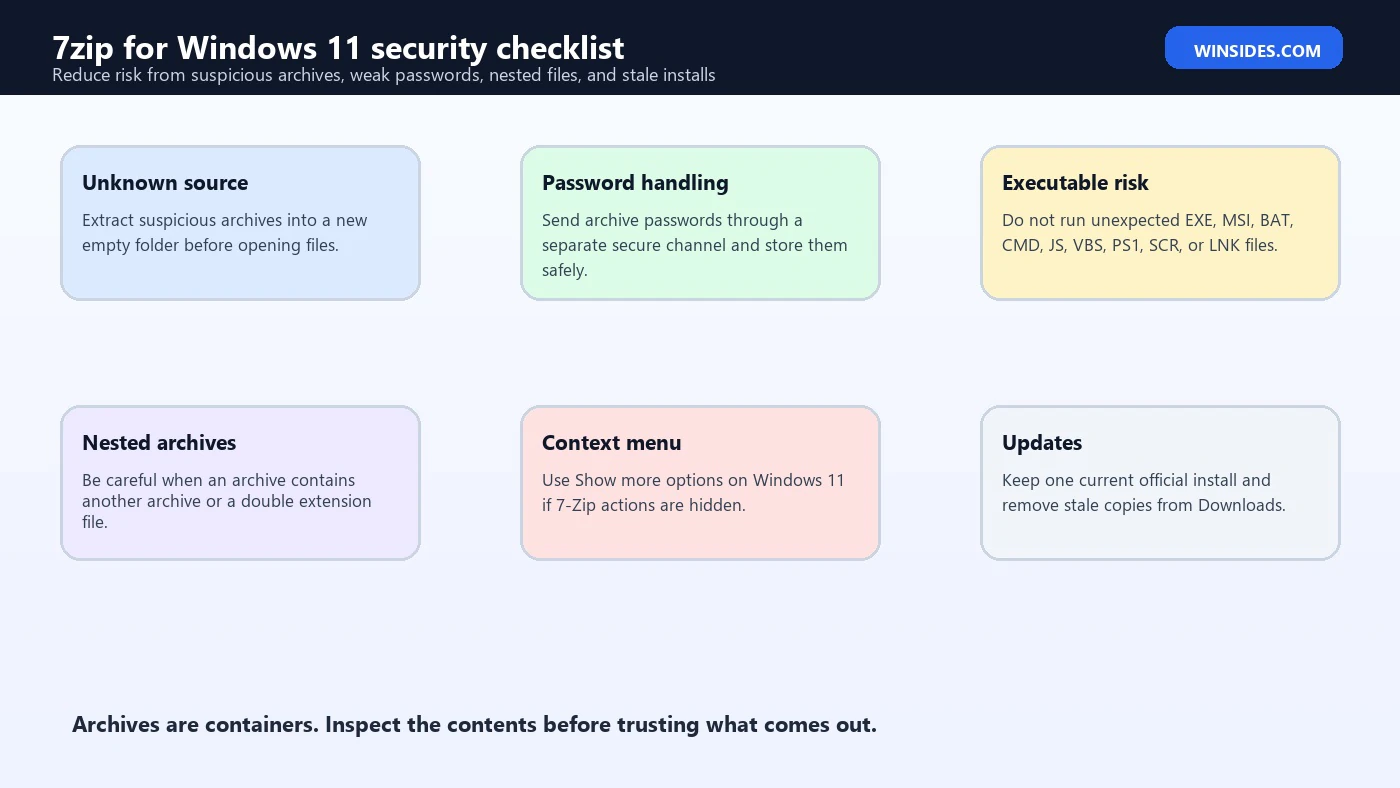
- Extract into a new empty folder.
- Scan the archive or extracted folder with Microsoft Defender or your approved security tool.
- Do not run unknown EXE, MSI, BAT, CMD, JS, VBS, PS1, SCR, or LNK files.
- Look for double extensions such as invoice.pdf.exe.
- Be suspicious of password-protected archives sent by strangers.
- Avoid enabling macros or scripts from extracted documents unless you trust the source.
- Check file sizes and names before opening.
- Delete the entire extraction folder if the contents look wrong.
This checklist sounds basic, but it prevents many mistakes. Archives are often used to hide malware from casual inspection. A clean extraction folder gives you a moment to examine the contents before opening anything.
Troubleshooting 7-Zip Download Problems
If the download button does not work, check whether a browser extension, DNS filter, corporate proxy, or security product is blocking GitHub-hosted release files. The official 7-Zip download page currently links release files through GitHub for the latest version. official 7-Zip download page
If you see many download buttons, you may be on a third-party site. Close it and go back to the official 7-Zip download page.
If Windows SmartScreen warns about the installer, verify the exact source and file name. A warning is a reason to pause, not a reason to ignore the source. If the file came from a random download portal, delete it.
If the installer fails, download a fresh copy, restart Windows, and try again. If you are on a managed PC, check with IT because software installation may be restricted.
If 7-Zip installs but file associations do not appear, open 7-Zip File Manager and review its options. You can also right-click an archive, choose Open with, and select 7-Zip File Manager.
If you installed an old version earlier, uninstall it or install the current version cleanly. Multiple versions can create confusing context menu behavior.
Troubleshooting Archive Errors
If 7-Zip says an archive cannot be opened as an archive, the file may be incomplete, corrupted, mislabeled, or not actually an archive. Re-download it from the original source if possible.
If extraction stops with a data error or CRC error, the archive may be damaged. If it was downloaded, compare file size, download again, and avoid unstable networks. If it is on a failing USB drive or hard disk, copy it to a reliable disk before retrying.
If a split archive fails, make sure all parts are in the same folder and that none are renamed. Split archives often require every part to be present.
If a password does not work, check keyboard layout, capitalization, copied spaces, and whether you are using the correct archive. If the password is truly lost, recovery is usually not realistic for a strong encrypted archive.
If files extract but will not open, the original files may be damaged or require another app. Extraction success only means the archive could be unpacked.
If you get permission errors, extract to a folder inside your user profile instead of Program Files, Windows, or another protected location. Then move files if needed.
Best Practices After Installing 7-Zip
Keep 7-Zip current. Archive tools parse complex file formats, and old versions can miss fixes. Check the official site periodically or use your trusted package manager if that is how you installed it.
Keep Downloads clean. Delete old installers after installation if you no longer need them. A Downloads folder full of old 7z installers, old archive copies, and duplicate extractions makes troubleshooting harder.
Use clear archive names. A name such as tax-documents-2026-encrypted.7z is more useful than archive-final-new2.7z. Clear names reduce mistakes.
Do not use archives as your only backup. A compressed file on the same disk is not enough protection against disk failure, theft, ransomware, or accidental deletion. Store important archives in a real backup location.
Be deliberate with encryption. Encrypt sensitive archives, use strong passwords, and store passwords safely. Do not encrypt casual files with passwords you will forget.
Use ZIP when sending to nontechnical users. Use 7z when the recipient can open it and you want better compression or encryption.
Frequently Asked Questions
Is 7zip for Windows 11 free?
Yes. 7-Zip is free software, and the official license page explains its licensing terms. official 7-Zip license file You do not need a paid serial key, crack, patched installer, or premium download page.
Where should I download 7-Zip for Windows 11?
Use the official 7-Zip download page at https://www.7-zip.org/download.html. official 7-Zip download page Avoid fake download buttons, third-party bundle installers, and pages that advertise cracked or modified copies.
Which 7-Zip version should I install on Windows 11?
Most Windows 11 users should install the latest 64-bit Windows x64 EXE installer from the official page. Use ARM64 only on ARM-based Windows 11 devices and x86 only for older 32-bit environments.
Is 7z better than ZIP?
7z is often better for compression and encryption workflows. ZIP is better for broad compatibility. Use 7z when you control the workflow and ZIP when the recipient may rely on built-in operating system support.
Can 7-Zip open RAR files?
7-Zip can usually extract RAR archives, but it does not create RAR archives. If you must create RAR files, use a RAR-capable app.
Why is 7-Zip missing from the Windows 11 right-click menu?
Windows 11 may hide classic shell options under Show more options. If 7-Zip is still missing, open 7-Zip File Manager and check integration options, or use Open with to select 7-Zip manually.
Is it safe to open password-protected archives?
Password protection does not prove an archive is safe. Attackers often use password-protected archives to hide malicious files from scanners. Only open encrypted archives from trusted sources and inspect extracted files carefully.
Can I recover a forgotten 7-Zip password?
Not reliably if the password is strong. Archive encryption is designed to prevent access without the password. Store important archive passwords in a trusted password manager.
Should I install 7-Zip with winget?
Winget can be useful for scripted installs and repeatable setup, but beginners should use the official download page unless they are comfortable verifying package IDs and sources. Microsoft documents winget for Windows package management. Microsoft Learn Windows Package Manager winget documentation
Conclusion: Download 7-Zip from the Official Source and Keep Archives Safe
7-Zip is one of the most useful tools you can add to Windows 11. It fills the gap between basic built-in ZIP support and heavier archive workflows. It opens many formats, creates compact 7z archives, makes compatible ZIP files, supports AES-256 encryption in the 7z format, tests archives, splits large files, and gives power users command-line control through 7z.exe.
The most important habit is downloading from the official source. A file archiver is not a harmless cosmetic utility; it handles files, installers, logs, and sometimes passwords. Fake download sites and bundled installers create unnecessary risk. Start from the official 7-Zip page, choose the installer that matches your Windows 11 device, and keep old duplicate copies under control.
Use ZIP when compatibility matters. Use 7z when compression, encryption, or controlled 7-Zip workflows matter. Extract suspicious archives into clean folders, scan before opening, and do not run unknown executables just because they arrived inside a compressed file.
For more interesting articles, stay tuned to Winsides.com!









Community
Comments (0)