

You can create a new folder in Windows 11 from the New menu in File Explorer, from the right-click menu in a blank part of the current location, or with Ctrl+Shift+N. All three methods create the same kind of empty folder; the useful difference is how you reach the command.
This guide reproduces each method from start to finish in a disposable folder under Public Documents. The test created three specifically named empty folders, confirmed each result in File Explorer, removed only those three folders, verified that the practice location was empty, and then removed the empty practice location. No personal folder, cloud location, administrator prompt, or permanent Explorer preference was involved.
What happens when you create a new folder?
A folder is a container that helps you group files and other folders in one location. Creating it does not move existing files automatically, reserve a fixed amount of disk space, or make the contents private. Windows first creates an empty folder and immediately gives you a chance to replace the temporary name with a useful one.
The location currently shown in File Explorer determines where the folder is created. Check the address bar before using any method, especially when two windows show similar project names. In the reproduced session, the address bar ended at WinSides Folder Practice, so every result stayed inside that disposable location.
Microsoft's current File Explorer guidance describes the Windows 11 entry point and its streamlined command and context menus. The exact menu positions can shift with window size, but the supported commands used here remain New > Folder and Ctrl+Shift+N.
Table of contents
What should you check before creating the folder?
Open the parent location where the new folder should live and read the address bar from left to right. If you intended to work in Documents but the path ends at Downloads, OneDrive, a USB drive, or a network share, navigate to the correct parent first. A new folder is created immediately in the active location; there is no separate confirmation page.
Choose a short, specific name that describes the contents. Windows does not allow certain characters in file and folder names, including \ / : * ? " < > |. Avoid a trailing period or space, and do not rely only on names such as New folder (2), because they become difficult to distinguish later.
You normally need no administrator rights when you can already write to the parent location. A protected system directory, organization-controlled share, or read-only device can block creation. If Windows asks for elevation or reports that access is denied, stop and confirm that the parent location is appropriate instead of weakening its permissions.
How do you create a folder from the File Explorer command bar?
Press Windows logo key + E to open File Explorer, then browse to the parent location. You should see that location at the end of the address bar.
Select New on the command bar, then select Folder. Windows creates an empty folder in the current location and highlights its temporary name for editing.
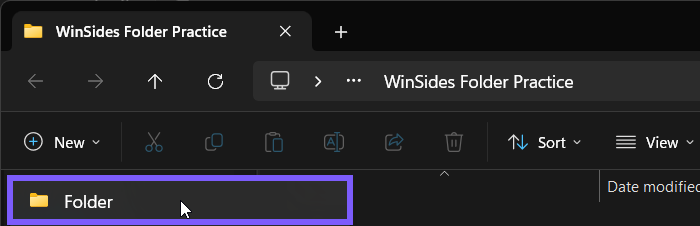
Type the name you want. The controlled test used Command bar folder.
Press Enter. Confirm that the row remains in the current location and that its Type column says File folder. That read-back proves both the location and the completed name.
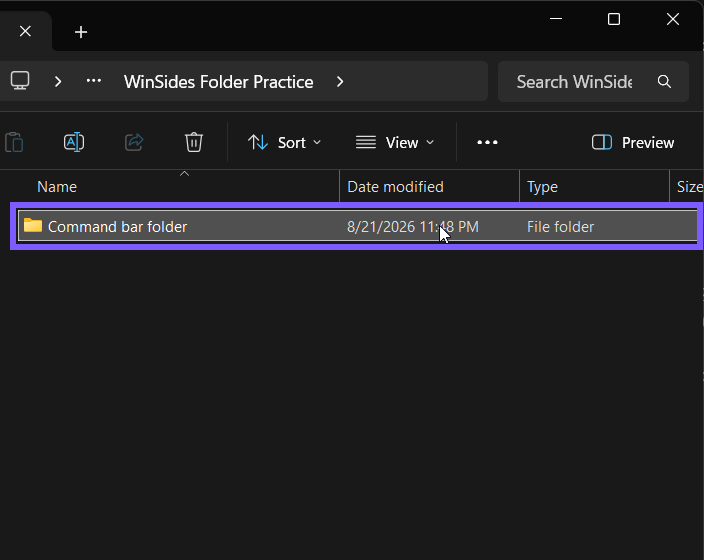
If you press Enter too early or keep the default name, you can select the folder, press F2, type the intended name, and press Enter again. Renaming changes the label; it does not recreate the folder or alter files inside it.
How do you create a folder from the right-click menu?
Stay in the intended parent location. Right-click a genuinely blank part of the file list, not an existing file or folder. The menu should include commands for the current location rather than commands for a selected item.
Point to or select New, then select Folder in the submenu.

Type a name and press Enter. The reproduced result used Right-click folder.
Read the finished row back. If a different item's menu appeared, press Escape and try again in an empty area.
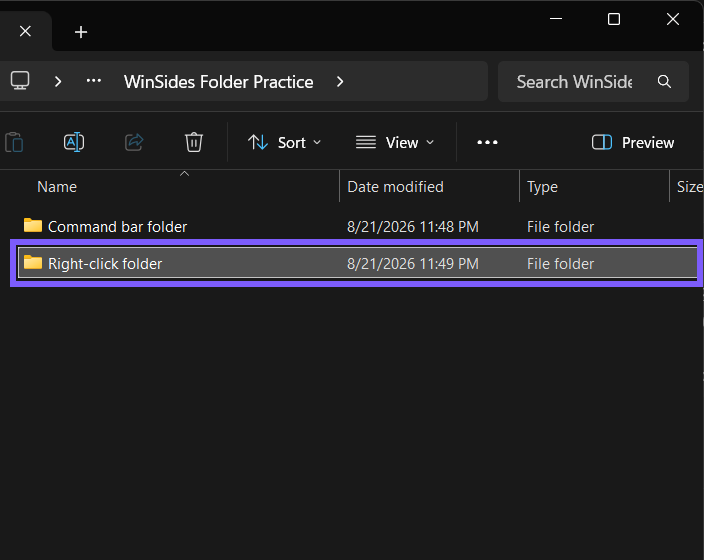
This method is useful when the pointer is already over the file list. It does not create a different folder type. The context menu and command bar both call the standard Folder command in the active File Explorer location.
How do you create a folder with Ctrl+Shift+N?
Click once inside the intended File Explorer window so it is active. Verify the address bar before using the shortcut.
Press Ctrl+Shift+N. A new empty folder should appear immediately with its temporary name selected.
Type the final name and press Enter. The local test used Keyboard folder.
Confirm the final label and the File folder type. If nothing appears, check whether focus is in the search box, a rename field, or another application.
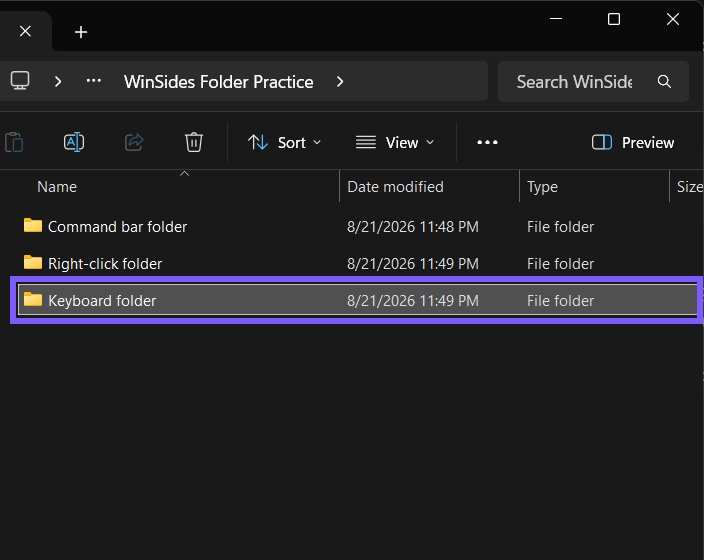
The shortcut is the fastest repeatable method when your hands are already on the keyboard. It still depends on the active File Explorer location, so speed should not replace the address-bar check.
How do you verify the folder before using it?
First, confirm the name and parent path. Then open the folder and read the address bar again; the new name should appear as the final path segment. An unused folder should show that it is empty. You can return to the parent with Alt+Left Arrow or the address bar.
If you are organizing existing material, move or save a single noncritical file first and confirm that it appears in the intended folder. Do not drag a large selection until the destination is unambiguous. A folder with the right name in the wrong parent can otherwise look correct at a glance.
How do you remove a test folder safely?
Delete only a folder that you deliberately created for testing and have confirmed is empty. In the reproduced session, the allowlist contained exactly Command bar folder, Right-click folder, and Keyboard folder. Each directory was checked for contents before removal; no wildcard, broad parent deletion, or unrelated path was used.
Open each test folder and confirm that it contains nothing you need.
Return to the parent, select the exact test folder, and press Delete. Repeat only for the names you created.
Refresh the parent with F5 if needed. Confirm that the test rows are gone and that the parent is empty before removing a disposable parent folder.
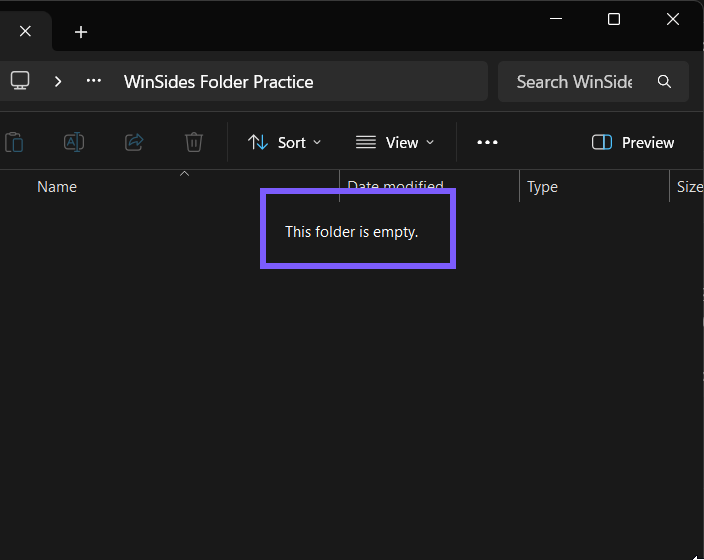
The final retained screenshot is a fresh verification frame. After it was captured, File Explorer and ShareX were closed and the empty WinSides Folder Practice directory was removed. Normal Explorer configuration was restored without changing the Navigation pane or exposing personal locations.
Why might New Folder be unavailable or fail?
You are not in a writable location
Some system directories, read-only media, managed shares, and application views do not allow standard folder creation. Navigate to a location you own or ask the responsible administrator for the correct destination. Do not take ownership of a protected directory merely to create a folder.
An item is selected instead of the blank area
The right-click menu changes with its target. Press Escape, click a blank part of the current folder, and right-click again. The submenu should now describe actions for the location.
File Explorer is not responding
Close an unresponsive window and reopen the location. If several Explorer surfaces remain stuck, use the live guide to restart File Explorer if its menus stop responding before considering a sign-out or restart.
The name is rejected
Remove reserved punctuation, shorten an overly long path, and choose a name that is not already used in the same parent. Windows can keep an automatic suffix such as (2), but a deliberate distinct name is clearer.
What should you do after creating the folder?
Put only related material inside it and use subfolders when a single list becomes hard to scan. As the contents grow, you can check how much space a folder uses after you add files to understand what is consuming storage. A clear name and a verified parent path are more useful than creating many empty levels in advance.
Frequently Asked Questions
What is the keyboard shortcut for a new folder in Windows 11?
Press Ctrl+Shift+N while the intended File Explorer window is active. Type the name and press Enter, then verify the parent path.
Why does Windows name it New folder?
New folder is the temporary default label. Type a useful replacement while it is selected, or press F2 later to rename it.
Does creating a folder require administrator rights?
Not in an ordinary location where your account can write. A protected or managed parent may require different access; use an appropriate location instead of bypassing its permissions.
Can two folders have the same name in one location?
No. Each item in the same parent needs a distinct name. Windows may suggest a numbered variation, but a descriptive name is usually easier to recognize.
Conclusion
Open the correct parent in File Explorer, use New > Folder, the blank-area right-click menu, or Ctrl+Shift+N, then type a clear name and verify the final row. For a temporary test, remove only the exact empty folders you created and confirm the parent is clean.
For more interesting articles, stay tuned to WinSides.com!





Community
Comments (0)