

The Details pane in Windows 11 File Explorer shows information about the item you select without opening that item. For a picture, it can show a larger thumbnail, file type, size, location, modified date, and dimensions. It is useful when you need quick context, but it also takes a noticeable strip of space from the right side of the window.
You can show or hide this pane with the Details button on File Explorer's command bar. The documented keyboard shortcut is Alt + Shift + P. Both methods change only the pane's visibility; they do not edit the selected file. I reproduced the procedure with a public Windows wallpaper and restored File Explorer to its original hidden-pane state.
Before you change the Details pane
Open a folder that contains a non-sensitive item you can safely select. The screenshots use C:\Windows\Web\Wallpaper\Windows and the built-in img0.jpg file so no personal name, document, cloud folder, or removable drive appears. If you plan to take your own screenshot, make the same privacy check first: the Details pane can reveal a file name, path, dates, dimensions, and other metadata.
The pane setting affects File Explorer's layout, not the file itself. You do not need to copy, rename, open, or save the selected item. Record whether the pane is initially shown or hidden if you want to restore the same workspace when you finish.
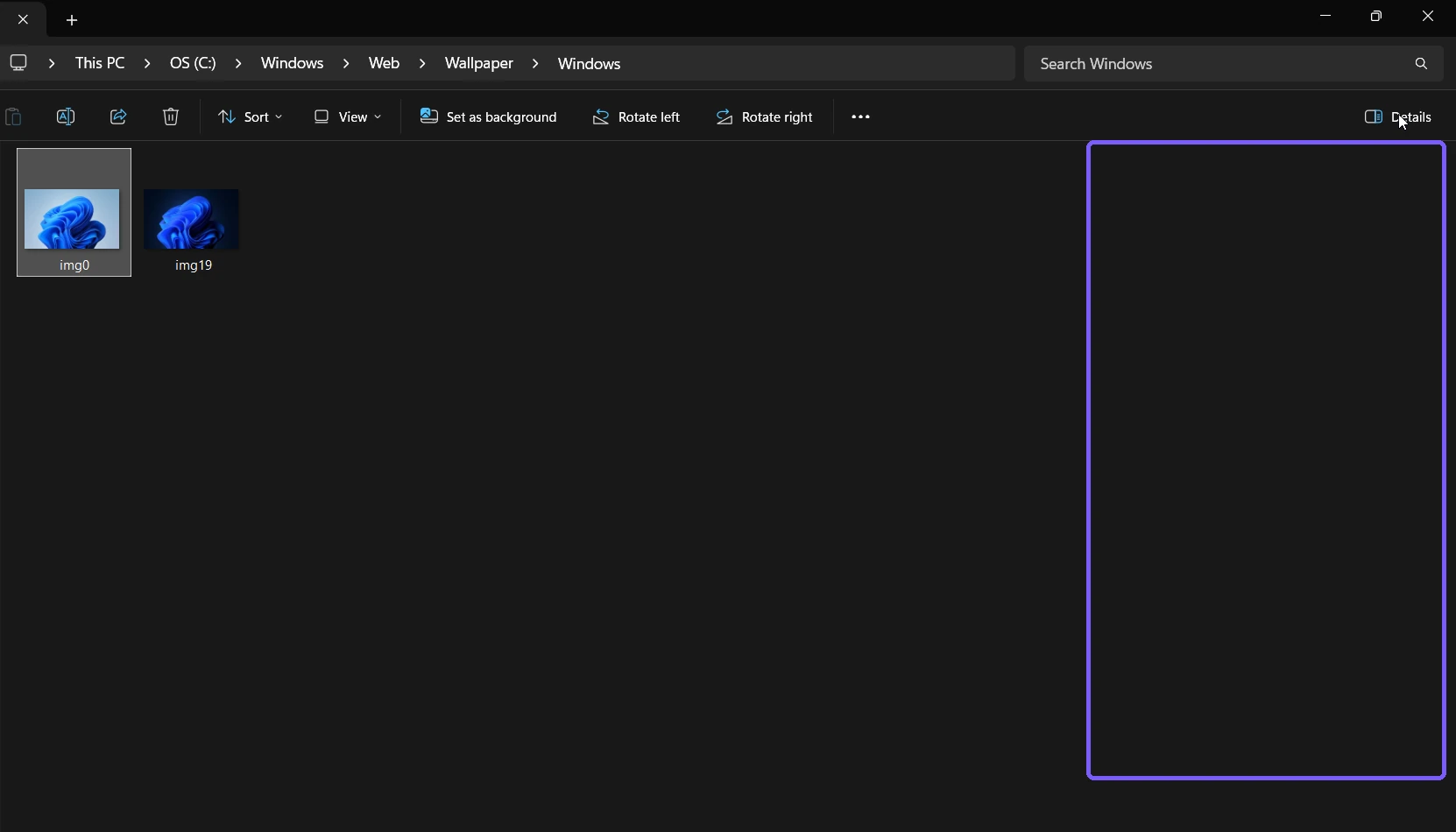
Table of contents
How do you show the Details pane from the File Explorer toolbar?
Open File Explorer. You can press Windows + E if it is not already open.
Browse to the folder you want to inspect.
Select one file or folder. Selection is enough; do not open or edit it.
Select Details near the right side of the command bar.

The right-hand pane should appear immediately. On the reproduced Windows 11 build, selecting the same button again hid it. This is a toggle: there is no Apply or Save button, and no administrator prompt is expected.
What appears in the Details pane?
The exact fields depend on what you select. A picture can show a preview, type, size, file location, date modified, and pixel dimensions. A folder, shortcut, document, video, or drive can expose a different set of properties. Some values may be absent when Windows does not have that metadata or when the location cannot provide it.
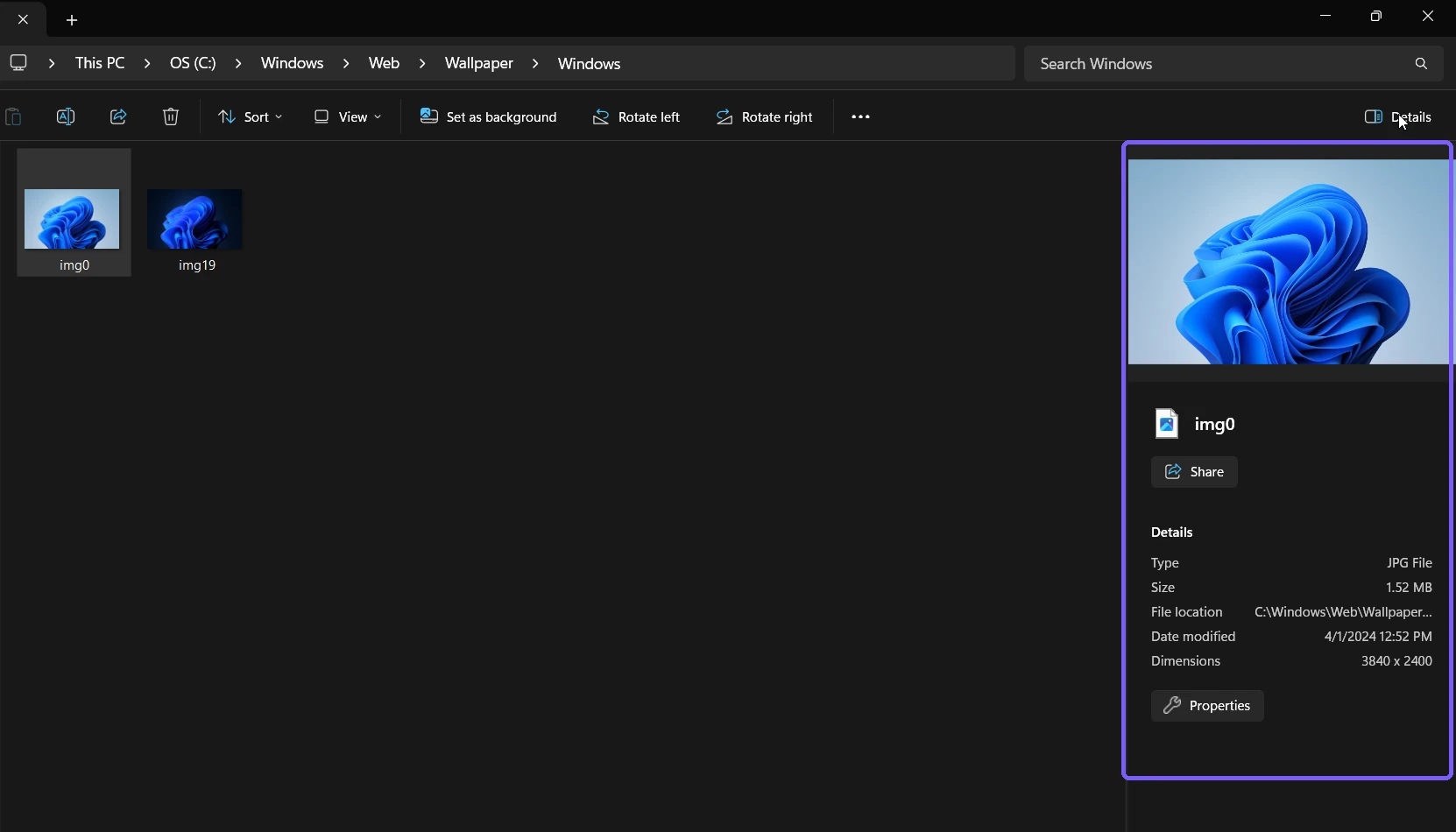
Treat those values as information, not instructions. The Share and Properties buttons are separate actions. You do not need to select either one merely to verify that the pane works. The selected file remains unchanged while you inspect the displayed fields.
How do you use the keyboard shortcut?
Press Alt + Shift + P while File Explorer is the active window. According to Microsoft's Windows keyboard-shortcut reference, that combination shows or hides the Details pane. Press it once to change the current state and again to return to the previous state.
The shortcut is especially useful when the window is narrow or when you prefer not to move the pointer across the command bar. If nothing happens, click an empty part of File Explorer or select an item, then try again. A different app, a rename box, or another text field may currently have keyboard focus.
How do you hide the Details pane again?
Select Details on the command bar again, or press Alt + Shift + P. The pane disappears and the item view regains the space on the right. Hiding it does not clear metadata, delete a thumbnail, or remove any property from the file; it only removes the pane from view.
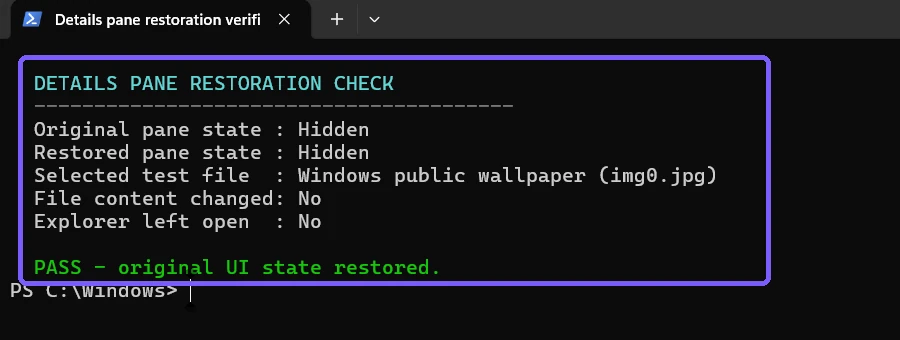
The reproduction ended by returning to the original hidden state, closing the disposable Explorer window, and comparing the public wallpaper's SHA-256 hash before and after. The file bytes did not change.
Is the Details pane the same as the Preview pane?
No. The Preview pane is intended to display the contents of a supported file, while the Details pane emphasizes properties and a summary of the selection. File Explorer can expose these controls separately, and their keyboard shortcuts are different. If your goal is to inspect content before opening a file, use the Preview pane rather than assuming the Details pane will render the document.
Neither pane controls whether an item is visible in the folder. That is a different File Explorer setting. Use the focused guide to show hidden files in Windows 11 when hidden-item visibility is the actual problem.
Does showing the Details pane require administrator rights?
No. The toggle worked under a standard user account and displayed no elevation prompt. You also do not need to run File Explorer as administrator just to show or hide this pane.
Permissions still affect which properties Windows can read from a protected item or location. Do not change ownership, permissions, or elevation settings to make a particular field appear. Choose an item you are already allowed to view, or ask the device owner or administrator for guidance.
Why is the Details pane blank or different?
Select exactly one item
The pane is most useful when one file or folder is selected. With no selection, it may show little information. With multiple items selected, Windows can show only properties that make sense for the group.
Try a local supported file
Placeholders, unavailable network items, and some virtual locations may not provide the same details as a normal local file. Do not download private cloud content only for a test. A built-in Windows image is a safer diagnostic target.
Give File Explorer a moment
A thumbnail or metadata field can take a moment to appear, especially for large media or remote locations. Wait briefly before treating the pane as broken. Avoid installing an unknown shell extension or metadata tool as a first troubleshooting step.
Reset only the pane state
Hide the pane, close the disposable window, open File Explorer again, and show the pane. This is safer than deleting Explorer history, resetting folder views, editing the Registry, or changing file associations for a simple visibility issue.
What should screen-reader users expect?
Microsoft's File Explorer accessibility guidance describes the Details pane as an optional area that provides information about the selected item. The reading order and announced controls can vary with the active view and screen reader. Move focus deliberately and confirm the selected item before relying on an announced property.
Frequently Asked Questions
What is the shortcut for the Details pane in Windows 11?
Press Alt + Shift + P while File Explorer is active to show or hide the Details pane.
Does the Details pane change a selected file?
No. Showing the pane reads and displays available information; the visibility toggle does not edit the file.
Why does the pane show different fields for another file?
Available properties depend on the item type, location, metadata, permissions, and Windows support for that format.
Can I close the Details pane without closing File Explorer?
Yes. Select the Details button again or press Alt + Shift + P; the Explorer window stays open.
Conclusion
Select a safe item and use the command-bar Details button or Alt + Shift + P to toggle the pane. Remember that it reports item properties, varies by file type, and can expose identifying metadata in screenshots. Hide it with the same control when you want the folder view to use the full width.
For more interesting articles, stay tuned to WinSides.com!





Community
Comments (0)